Summary
Gmail not loading in a browser is a frustrating issue caused by a wide range of factors, including corrupted cache and cookies, conflicting browser extensions, JavaScript errors, outdated browsers, DNS misconfigurations, firewall interference, or even temporary Google server outages. This comprehensive guide walks you through every possible fix — from basic refreshes and cache clearing to advanced DNS flushing, browser resets, and account-level diagnostics — ensuring that no matter what is causing Gmail to freeze, display a blank white screen, get stuck loading, or show error messages, you will find a working solution step by step to Fix Gmail Not Loading in Browser.
Table of Content
- Why Gmail Fails to Load in a Browser
- Check Gmail Server Status First
- Basic Fixes to Try Immediately
- Clear Browser Cache, Cookies, and Data
- Disable Browser Extensions and Add-ons
- Fix Gmail Not Loading Due to JavaScript Issues
- Resolve DNS and Network-Related Issues
- Fix Gmail Loading Issues Caused by Antivirus or Firewall
- Update or Reinstall Your Browser
- Check Gmail Account and Google Account Settings
- Advanced Fixes: Reset Browser Settings and Profiles
- Fix Gmail Not Loading on Mobile Browser
- When to Contact Google Support
Why Gmail Fails to Load in a Browser
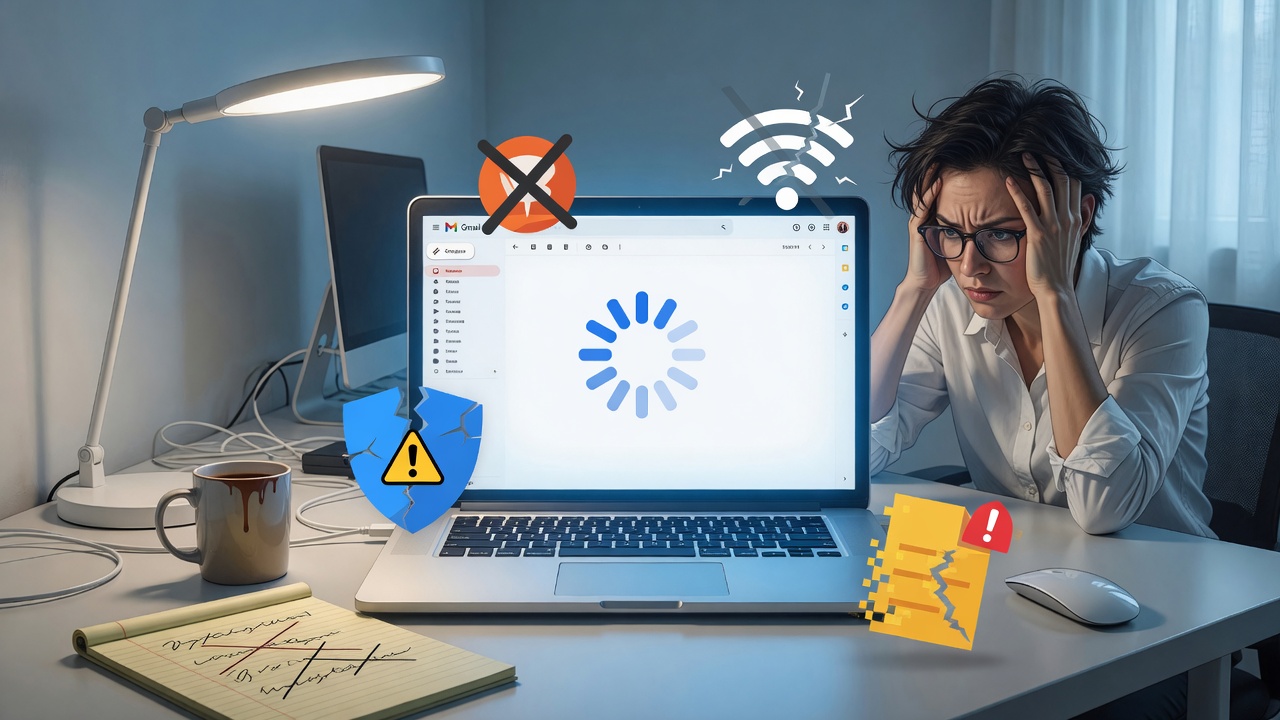
Gmail is one of the most widely used web-based email platforms in the world, with over 1.8 billion active users. Because it runs entirely inside your browser, it depends on a precise combination of browser settings, network configurations, system resources, and server availability. When any one of these components misbehaves, Gmail may stop loading entirely, get stuck on a spinning animation, show a blank white screen, or display error messages like “Oops… a server error occurred,” “Gmail is temporarily unavailable,” or “Error 500.”
Understanding the root cause is the first and most important step toward a permanent fix.
Common Triggers Behind Gmail Loading Issues
The most frequently observed causes of Gmail not loading in a browser include:
- Corrupted or outdated browser cache and cookies — Stored temporary files become stale or corrupted over time, causing Gmail’s interface to break or fail to initialize.
- Conflicting browser extensions — Ad blockers, VPN extensions, script blockers, and privacy tools often interfere with Gmail’s JavaScript-heavy interface.
- JavaScript disabled or blocked — Gmail relies heavily on JavaScript to render its dynamic interface. If JavaScript is disabled or blocked by a security policy, Gmail cannot load.
- Outdated browser version — Gmail requires modern browser features. An old browser version may lack support for the APIs Gmail uses.
- DNS resolution failures — If your DNS server cannot resolve Google’s servers, Gmail will fail to connect. This is related to the broader DNS Server Not Responding Error problem that many users encounter.
- Firewall or antivirus blocking — Overly aggressive security software can intercept and block Gmail’s HTTPS connections.
- Google server-side outages — Rare but real; Google’s infrastructure occasionally experiences regional or global disruptions.
- Full Google account storage — When your Google account hits its 15 GB storage limit, Gmail may partially load but refuse to display emails or the full interface.
- Poor or unstable internet connection — Packet loss, high latency, or throttled bandwidth prevents Gmail’s large JavaScript bundles from fully downloading.
How Browser Environment Affects Gmail Performance
Gmail’s web app is not a simple webpage — it is a Progressive Web Application (PWA) that downloads and executes megabytes of JavaScript, relies on Service Workers for offline capabilities, uses IndexedDB for local data storage, and communicates with Google servers via WebSockets and XHR requests. This means your browser’s health, version, memory availability, and security settings all play a direct role in whether Gmail loads successfully.
Check Gmail Server Status First
Before diving into browser-level fixes, rule out a Google-side outage. If Gmail’s servers are down, no amount of local troubleshooting will resolve the problem.
Using Google Workspace Status Dashboard
Visit the official Google Workspace Status Dashboard at workspace.google.com/dashboard. This page shows the real-time operational status of all Google services, including Gmail. If you see an orange or red indicator next to Gmail, the issue is on Google’s end, and all you can do is wait for Google’s engineering team to resolve it. Service disruptions are typically resolved within minutes to a few hours.
Third-Party Downtime Checkers
If the official dashboard shows all-clear but Gmail is still not working for you, use third-party tools like Downdetector (downdetector.com) or IsItDownRightNow to see whether other users are reporting similar issues. These platforms aggregate user-submitted reports and provide outage maps, which can confirm whether the problem is localized to your region, ISP, or network.
Basic Fixes to Try Immediately
Sometimes the solution to Gmail not loading is remarkably simple. Before exploring advanced troubleshooting, exhaust the quick fixes.
Refresh the Page and Check Your Internet Connection
Press Ctrl + Shift + R (Windows/Linux) or Cmd + Shift + R (Mac) to perform a hard refresh, which forces the browser to bypass its cache and reload Gmail’s assets directly from Google’s servers. Simultaneously, confirm your internet connection is active by opening another website. If other sites also fail to load, your internet connection — not Gmail — is the problem. Restart your modem and router by unplugging them, waiting 30 seconds, and plugging them back in.
Try Gmail in Basic HTML Mode
Gmail offers a lightweight fallback interface called Basic HTML mode that does not require JavaScript or modern browser features to function. Access it by navigating to:
https://mail.google.com/mail/?ui=html
If Gmail loads in Basic HTML mode but not in the standard view, the issue is definitely related to your browser’s ability to render Gmail’s full JavaScript application — narrowing down your troubleshooting significantly.
Use a Different Browser or Device
Open Gmail in a completely different browser. If you primarily use Chrome, try Firefox, Microsoft Edge, or Brave. If Gmail loads without issue in the alternate browser, your original browser’s configuration, extensions, or cached data is the culprit. Similarly, try accessing Gmail on a different device (another laptop, a phone, or a tablet) to determine whether the problem is device-specific.
Clear Browser Cache, Cookies, and Data
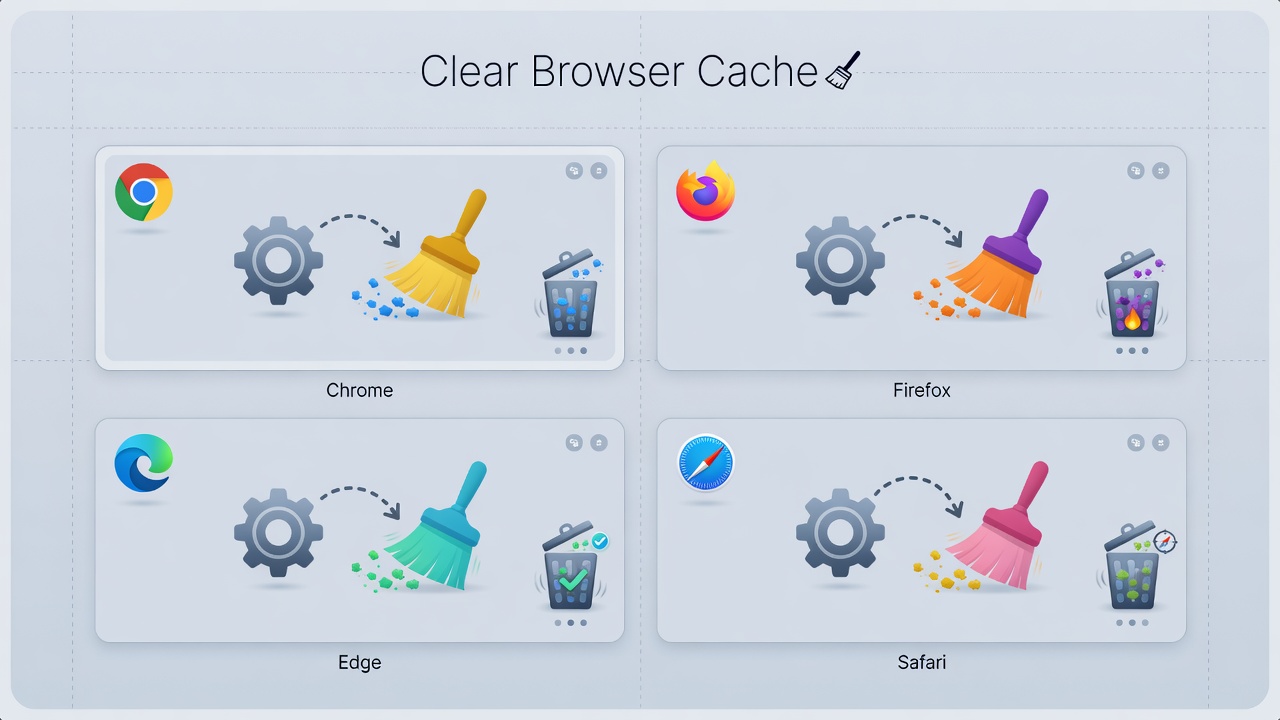
This is the single most effective fix for Gmail not loading and resolves the majority of Gmail browser loading issues.
How Cached Data Breaks Gmail
Your browser stores Gmail’s HTML, CSS, JavaScript files, and cookies locally to speed up future visits. However, when Google pushes an update to Gmail — which happens frequently — your locally cached files can conflict with the new server-side code. The result is a broken or non-loading Gmail interface. Clearing this data forces the browser to download a fresh copy of everything Gmail needs to function.
Step-by-Step: Clearing Cache in Chrome, Firefox, Edge, and Safari
Google Chrome:
- Press Ctrl + Shift + Delete (Windows) or Cmd + Shift + Delete (Mac).
- Set the time range to All time.
- Check Cookies and other site data, and Cached images and files.
- Click Clear data.
- Restart Chrome and navigate to Gmail.
Mozilla Firefox:
- Press Ctrl + Shift + Delete.
- Select Everything from the time range dropdown.
- Check Cookies and Cache.
- Click OK.
- Reopen Firefox and test Gmail.
Microsoft Edge:
- Press Ctrl + Shift + Delete.
- Choose All time for the time range.
- Check Cookies and other site data, and Cached images and files.
- Click Clear now.
Safari (Mac):
- Open Safari > Settings > Privacy.
- Click Manage Website Data.
- Search for “Google” and remove all related entries.
- Alternatively, go to Develop > Empty Caches (enable Develop menu via Safari > Settings > Advanced).
Disable Browser Extensions and Add-ons
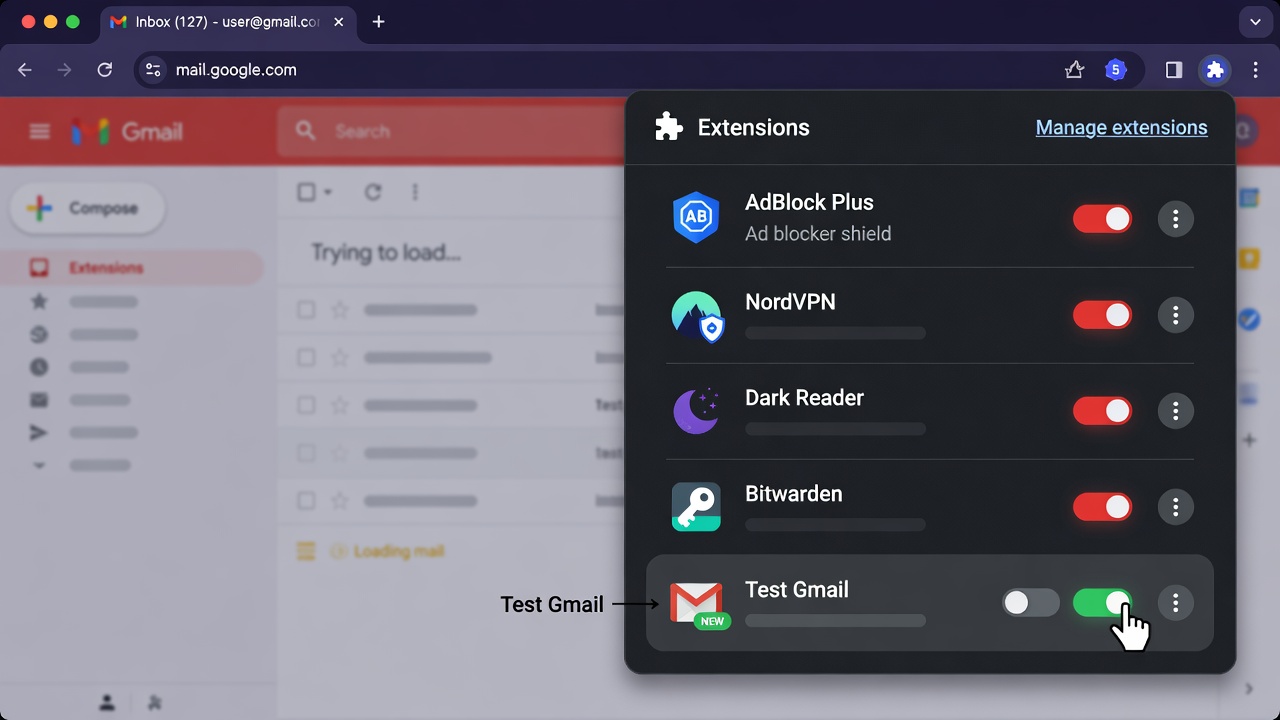
Browser extensions run inside your browser environment and have significant access to web page content and network requests. Several types of extensions are known to break Gmail.
Which Extensions Commonly Interfere with Gmail
- Ad blockers (uBlock Origin, AdBlock Plus) — These tools sometimes block Gmail’s internal scripts or tracking pixels, breaking functionality.
- VPN extensions — Can reroute Gmail traffic through servers that Google’s systems flag as suspicious, causing login failures or blocked connections.
- Privacy Badger / Ghostery — Script and tracker blocking tools that may stop legitimate Gmail scripts.
- Dark mode extensions — CSS-injecting extensions can conflict with Gmail’s own theming system.
- Password managers — Some password manager extensions inject content into Gmail’s login fields, causing page errors.
How to Test Gmail in Incognito/Private Mode
Incognito mode (Chrome), Private Window (Firefox), or InPrivate mode (Edge) launches a browser session with all extensions disabled by default and no cached data or cookies from your main profile. Press Ctrl + Shift + N (Chrome/Edge) or Ctrl + Shift + P (Firefox) to open a private window, then navigate to Gmail.
If Gmail loads perfectly in incognito mode, an extension in your normal browser profile is the confirmed culprit. Return to normal mode, go to your browser’s extensions page, and disable all extensions. Re-enable them one by one, testing Gmail after each, until you identify the problematic extension.
Fix Gmail Not Loading Due to JavaScript Issues
Gmail is one of the most JavaScript-intensive web applications in existence. Without JavaScript, Gmail simply cannot function.
Enable JavaScript in Your Browser
Chrome: Go to Settings > Privacy and security > Site settings > JavaScript and ensure it is set to Sites can use JavaScript.
Firefox: Type about: config in the address bar, search for javascript. enabled, and confirm it is set to true.
Edge: Go to Settings > Cookies and site permissions > JavaScript and toggle it to Allowed.
Whitelist Gmail in Script Blockers
If you use a script-blocking extension like NoScript or uMatrix, you must explicitly whitelist *.google.com and *.googleapis.com domains. Gmail loads scripts from multiple Google subdomains, and blocking even one of them can prevent the interface from initializing.
Resolve DNS and Network-Related Issues
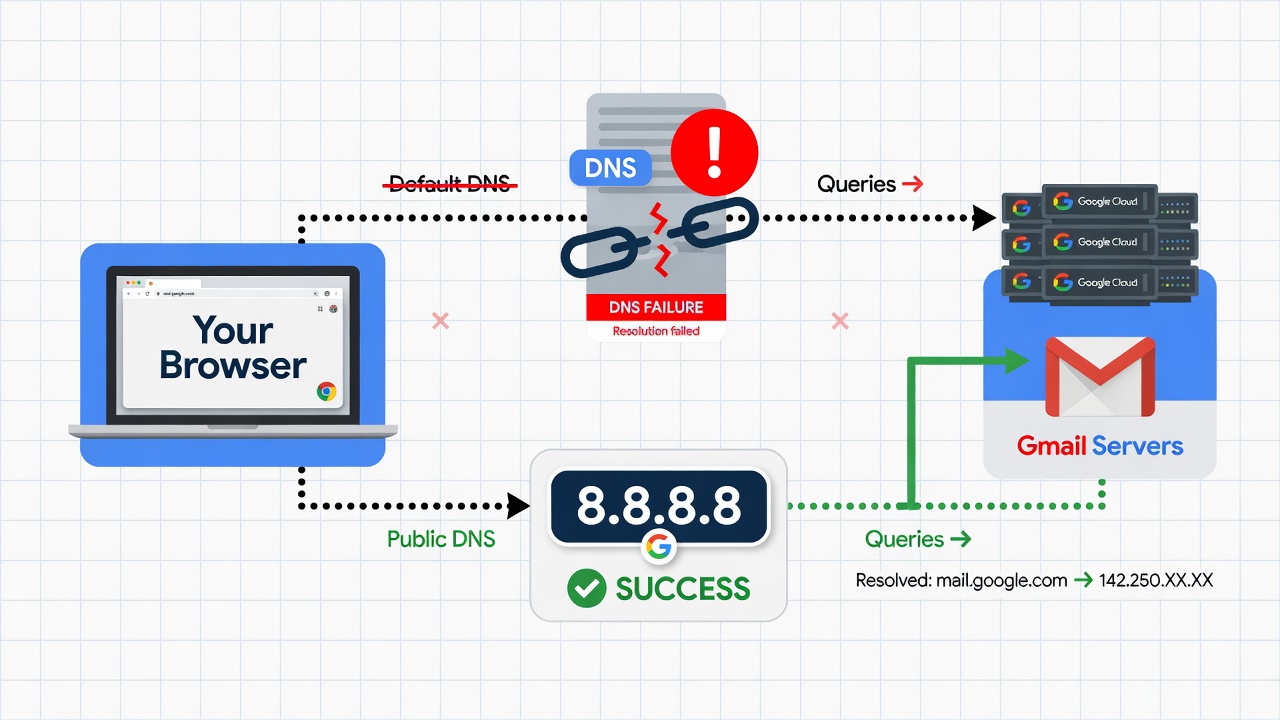
DNS (Domain Name System) is the mechanism that translates mail.google.com into the actual IP addresses of Google’s servers. If DNS resolution fails or returns incorrect results, Gmail cannot connect.
Flush DNS Cache
Your operating system stores DNS lookup results in a local cache. If these records become corrupted or outdated, connections to Gmail may fail silently.
Windows: Open Command Prompt as Administrator and type:
ipconfig /flushdns
Mac: Open Terminal and type:
sudo dscacheutil -flushcache; sudo killall -HUP mDNSResponder
Linux: Type:
sudo systemctl restart systemd-resolved
After flushing, try reloading Gmail. This also resolves many instances of Gmail pages hanging at the loading screen with no error message.
Switch to a Public DNS Server
If your ISP’s DNS servers are slow or unreliable, switching to a faster public DNS server like Google’s own DNS (8.8.8.8 and 8.8.4.4) or Cloudflare DNS (1.1.1.1) can dramatically improve Gmail’s loading time. To learn more about diagnosing and fixing DNS issues at a deeper level, see this guide on DNS Server Not Responding Error.
Fix Gmail Loading Issues Caused by Antivirus or Firewall
Security software operates at the network and application level and can sometimes mistake Gmail’s encrypted traffic or JavaScript execution as suspicious activity.
Temporarily Disable Security Software
As a diagnostic step, temporarily disable your antivirus or firewall software and attempt to load Gmail. If Gmail loads immediately after disabling the security software, you have found the cause. Note: Only disable security software temporarily for testing purposes and re-enable it immediately after.
Add Gmail as a Trusted Site
Rather than leaving your security software disabled, the correct fix is to whitelist Gmail within your antivirus or firewall settings. Add the following domains to your trusted sites or exceptions list:
- mail.google.com
- *.google.com
- *.googleapis.com
- *.gstatic.com
This allows Gmail to function normally while keeping the rest of your system protected.
Update or Reinstall Your Browser
Why Outdated Browsers Cause Gmail Problems
Google actively tests Gmail against the latest versions of major browsers and designs its interface to take advantage of modern web APIs. Browsers that are more than a few versions behind may lack support for features Gmail depends on, such as modern Service Worker implementations, ES2020+ JavaScript syntax, or updated TLS security protocols. Google periodically drops support for older browser versions — when this happens, Gmail may simply refuse to load or display a warning message.
How to Update Chrome, Firefox, Edge, and Safari
Chrome: Click the three-dot menu > Help > About Google Chrome. Chrome will automatically check for and install updates.
Firefox: Click the hamburger menu > Help > About Firefox. Firefox will check for updates automatically.
Edge: Click the three-dot menu > Help and feedback > About Microsoft Edge to trigger an update check.
Safari: Safari updates are delivered through macOS system updates. Go to System Settings > General > Software Update to check for pending updates.
If updating does not resolve the issue, consider uninstalling and reinstalling your browser. This creates a completely clean installation with default settings and removes any corrupted browser data or configuration files that may be causing Gmail to fail.
Check Gmail Account and Google Account Settings
Sometimes the problem is not the browser at all — it’s your Google account itself.
Account Storage Full Error
Google provides 15 GB of free storage shared across Gmail, Google Drive, and Google Photos. When this storage limit is reached, Gmail continues to load partially, but you cannot send or receive emails, and the interface may display errors or behave erratically. Check your storage usage at one.google.com/storage. If you’re at or near the limit, delete old large emails (especially those with attachments), empty the Trash and Spam folders, and clean up Google Drive and Google Photos. Interestingly, managing your Google data is a bit like calculating your available capacity — just as you might Calculate Age from Date of Birth to plan ahead, regularly auditing your storage helps you stay ahead of limits.
Verify Login and Session Issues
An expired or corrupted Google session can cause Gmail to freeze on a loading screen. Sign out of your Google account completely by navigating to myaccount.google.com and clicking Sign out of all devices. Then sign back in to Gmail with fresh credentials. If you have two-factor authentication enabled, ensure your authentication app or backup codes are accessible before signing out.
Advanced Fixes: Reset Browser Settings and Profiles
If all previous steps have failed, the issue may be deeply embedded in your browser’s configuration.
Reset Chrome to Default Settings
In Chrome, go to Settings > Reset settings > Restore settings to their original defaults > Reset settings. This resets your startup page, new tab page, search engine, and pinned tabs, and disables extensions. It does not delete bookmarks, history, or saved passwords. After the reset, launch Gmail to see if the issue is resolved.
Create a New Browser Profile
A corrupted browser profile can cause persistent loading failures. In Chrome, click your profile avatar > Add > Continue without an account to create a new guest profile. Navigate to Gmail in this new profile. If Gmail loads correctly, your original profile’s data is corrupted, and you should migrate to a new profile permanently.
Fix Gmail Not Loading on Mobile Browser
While Gmail has dedicated apps for iOS and Android, many users prefer accessing it through mobile browsers like Chrome Mobile or Safari on iPhone.
Mobile-Specific Troubleshooting Steps
- Clear mobile browser cache: In Chrome for Android, go to Settings > Privacy > Clear browsing data. On Safari for iPhone, go to Settings > Safari > Clear History and Website Data.
- Disable data saver mode: Chrome’s Data Saver or Lite Mode compresses web traffic, which can interfere with Gmail’s real-time features. Go to Chrome Settings > Lite mode and toggle it off.
- Disable VPN on mobile: Mobile VPNs are a very common cause of Gmail loading issues on phones. Temporarily disable your VPN and test Gmail.
- Enable desktop site mode: If Gmail’s mobile version is broken, try requesting the desktop site by tapping the three-dot menu > Desktop site. This sometimes bypasses mobile-specific rendering bugs.
- Update your mobile browser: Go to the App Store or Google Play Store and check whether your mobile browser has a pending update.
When to Contact Google Support
If you have exhausted every troubleshooting step in this guide and Gmail still refuses to load, it’s time to escalate to Google directly. Visit the Gmail Help Center at support.google.com/mail and use the community forums or official support channels. When contacting support, provide the following information for faster resolution:
- Your browser name and version
- Your operating system
- Any error messages displayed in Gmail
- Screenshot of the browser’s developer console (press F12 > Console tab)
- Whether the issue occurs in multiple browsers or only one
- Whether the issue occurs on multiple devices or only one
According to Google’s official support documentation, most Gmail loading issues in browsers are resolved through cache clearing, extension management, and JavaScript settings — confirming that browser-level fixes address the vast majority of cases.