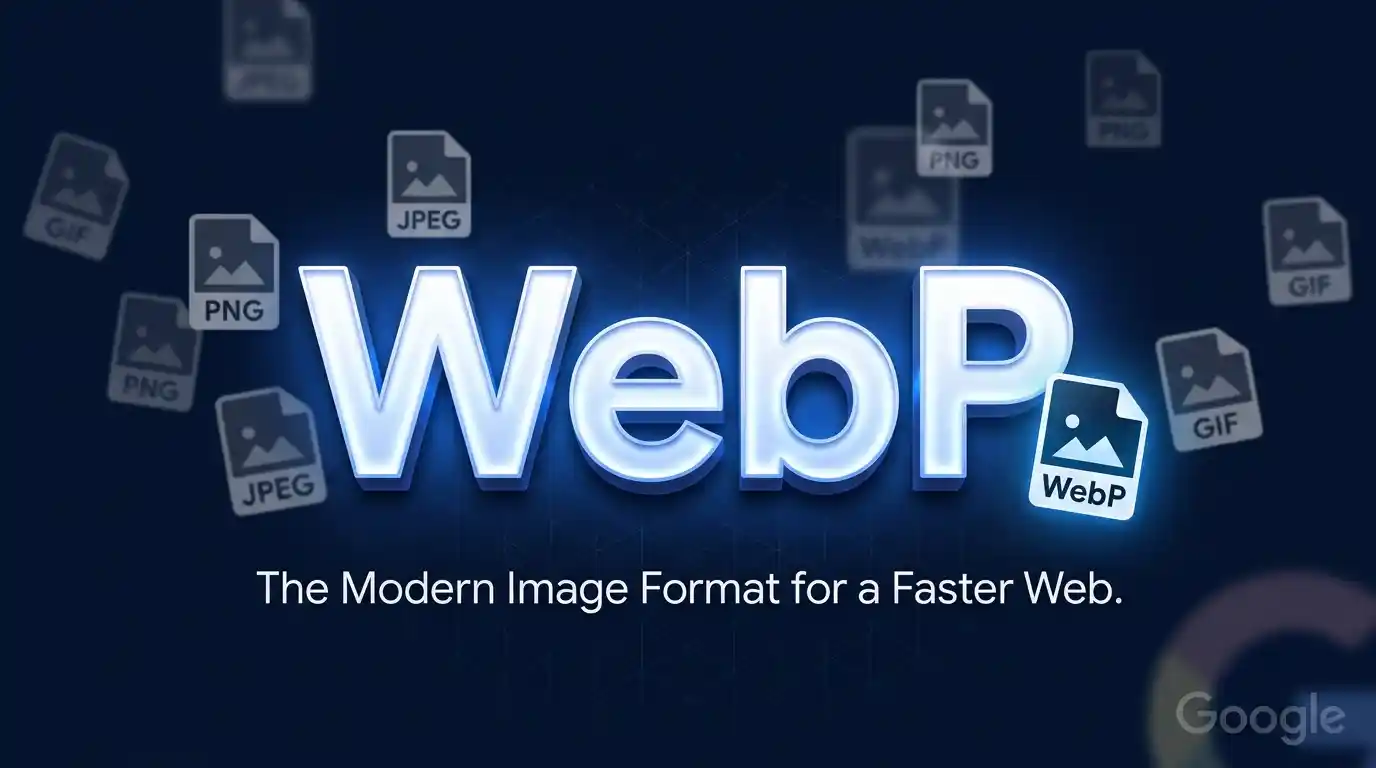
Summary: WebP is a modern image format developed by Google that delivers superior lossless and lossy compression for images on the web. It produces smaller file sizes than JPEG and PNG while maintaining comparable or better visual quality, making it an essential tool for web performance optimization, faster page load speeds, and improved Core Web Vitals scores. This guide What Is WebP Format covers everything — from what WebP is and how it works, to browser support, conversion methods, use cases, and when to use it over other formats.
Table of Contents
- Understanding WebP — Definition and Origin
- Who Created WebP and Why?
- The Technology Behind WebP Compression
- WebP vs. Other Image Formats
- WebP vs. JPEG
- WebP vs. PNG
- WebP vs. GIF
- WebP vs. AVIF and HEIC
- Key Features of the WebP Format
- Lossy and Lossless Compression
- Transparency (Alpha Channel) Support
- Animated WebP
- Metadata Support
- WebP File Size and Quality Benefits
- How Much Smaller Are WebP Files?
- WebP Quality Settings Explained
- Browser and Platform Support for WebP
- Desktop Browser Compatibility
- Mobile Browser Compatibility
- Operating System and App Support
- How to Create and Convert Images to WebP
- Convert Images Using Online Tools
- Convert Using Command-Line Tools
- Convert Using Design Software
- How to Use WebP on Your Website
- HTML Implementation with the <picture> Element
- WebP in CSS Backgrounds
- WebP in WordPress and CMS Platforms
- WebP and SEO — Impact on Page Speed and Core Web Vitals
- WebP and Google PageSpeed Insights
- Largest Contentful Paint (LCP) and WebP
- Limitations and Disadvantages of WebP
- Software Compatibility Issues
- Encoding Time Compared to JPEG
- When Should You Use WebP?
- Frequently Asked Questions About WebP
Understanding WebP — Definition and Origin
Who Created WebP and Why?
WebP is a raster image file format introduced by Google in 2010. It was developed as part of Google’s push to make the web faster and more efficient. The format was derived from the VP8 video codec — the same technology used in Google’s WebM video container — and was designed specifically to address the limitations of aging formats like JPEG, PNG, and GIF.
The core motivation was simple: images account for a massive portion of a typical webpage’s total data. According to the HTTP Archive, images represent over 60% of average page weight. Google needed a format that could significantly reduce that payload without sacrificing visual quality — and WebP was the answer.
The format specification is maintained by Google and is part of an open-source ecosystem, meaning anyone can use it without licensing fees.
The Technology Behind WebP Compression
WebP uses predictive coding to encode images. The encoder analyzes adjacent pixel blocks and predicts the values of the next block, then only stores the difference (the “residual”) rather than the entire pixel data. This makes it far more efficient than traditional DCT-based compression used in JPEG.
For lossless WebP, Google uses a technique involving color cache, backward referencing, and entropy coding (specifically an arithmetic-style variant). For lossy compression, the VP8 key-frame encoding technique is used, which divides images into 4×4 pixel macroblocks and applies quantization and filtering to reduce data.
WebP vs. Other Image Formats
WebP vs. JPEG
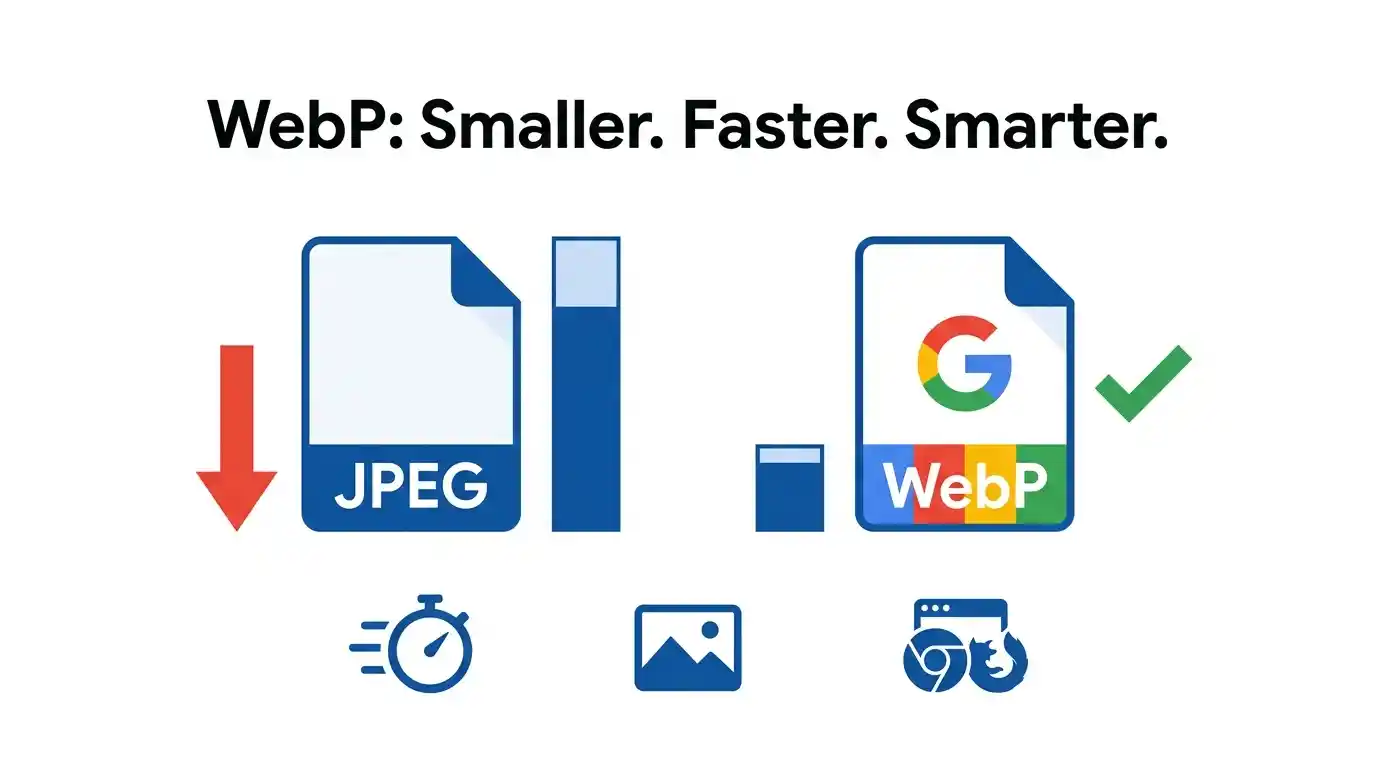
JPEG has been the dominant format for photographic images since the early 1990s. WebP’s lossy compression typically achieves 25–35% smaller file sizes than JPEG at equivalent perceptual quality. Where a high-quality JPEG photo might be 200KB, the same image in WebP could be 130–150KB with visually identical output.
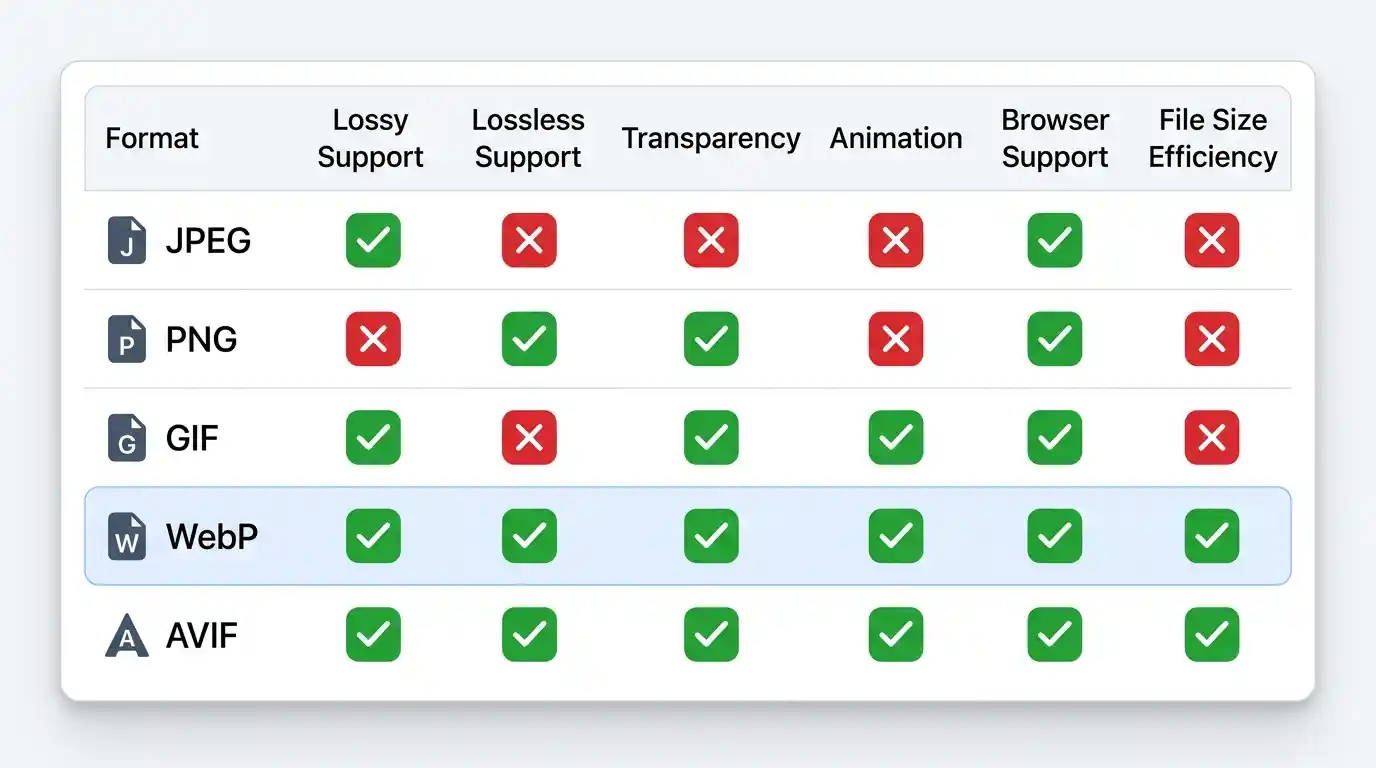
JPEG does not support transparency. WebP does. JPEG does not support animation. WebP does. For photographic content on the web, WebP is almost universally the better choice today.
WebP vs. PNG
PNG is a lossless format that supports full transparency (alpha channels) and is commonly used for graphics, logos, icons, and screenshots. WebP lossless images are typically 26% smaller than equivalent PNG files. When transparency is needed, WebP is a more efficient alternative without sacrificing quality.
PNG remains useful in scenarios where maximum compatibility is required (e.g., older software, print production), but for web use, WebP lossless offers a compelling upgrade path.
WebP vs. GIF
GIF is technically outdated — limited to 256 colors and inefficient for complex animations. Animated WebP files are dramatically smaller and support millions of colors compared to GIF’s 8-bit palette. However, GIF still has edge-case support in certain email clients and legacy systems.
For modern web animations and short loops, animated WebP (or even video formats like MP4) is the superior technical choice.
WebP vs. AVIF and HEIC
AVIF (AV1 Image File Format) and HEIC (High Efficiency Image Container, from Apple) are both newer formats that can achieve even smaller file sizes than WebP at high quality levels. AVIF in particular often outperforms WebP in compression efficiency.
However, WebP has a significant advantage: broader compatibility. WebP is supported across virtually all modern browsers and platforms, whereas AVIF and HEIC still have gaps — particularly in Safari and older Android browsers. For most web projects in 2024–2025, WebP remains the practical default modern image format.
Key Features of the WebP Format
Lossy and Lossless Compression
One of WebP’s biggest advantages is supporting both lossy and lossless compression in the same format. This means:
- Lossy WebP is ideal for photographs and complex imagery where some imperceptible quality loss is acceptable in exchange for dramatic file size reduction.
- Lossless WebP preserves every pixel perfectly, making it suitable for logos, illustrations, UI elements, and screenshots.
No other widely-used legacy format offers both modes with this level of efficiency. JPEG is lossy-only; PNG is lossless-only.
Transparency (Alpha Channel) Support
WebP supports 8-bit alpha channel transparency, allowing for partially transparent or fully transparent backgrounds — similar to PNG. This is something JPEG cannot do at all.
Critically, WebP can combine lossy compression for the RGB color data with a lossless alpha channel. This means a transparent PNG that’s 80KB might become a WebP file of only 30–40KB, with identical visible quality and transparency behavior.
Animated WebP
WebP supports frame-based animation, making it a direct competitor to GIF and even APNG (Animated PNG). Each frame can use either lossy or lossless compression independently, and the format supports a variable frame rate — something GIF does not.
If you use animated GIFs on your website, converting them to animated WebP is one of the quickest performance wins available. File size reductions of 60–80% over GIF are common.
Metadata Support
WebP supports Exif, XMP, and IPTC metadata — the same types of metadata used in JPEG and PNG. This means information like camera model, GPS coordinates, copyright notices, and color profiles can be embedded within WebP files.
WebP File Size and Quality Benefits
How Much Smaller Are WebP Files?
Google’s own research benchmarks show:
- Lossy WebP is 25–35% smaller than comparable JPEG files
- Lossless WebP is 26% smaller than comparable PNG files
- Animated WebP is 64% smaller than animated GIF
These numbers translate directly into real-world performance gains. A website that previously loaded 2MB of JPEG images might achieve the same visual result with just 1.3MB of WebP images — a significant improvement for mobile users and those on slower connections.
For a practical example: if you manage a photography portfolio or an e-commerce store with hundreds of product images, switching to WebP can shave hundreds of kilobytes per page — measurably improving load times and reducing bounce rates.
WebP Quality Settings Explained
When converting to lossy WebP, you choose a quality setting from 0 to 100, similar to JPEG. For most web photography, a quality setting of 75–85 produces visually indistinguishable results from a JPEG at 90–95 quality, at a fraction of the file size.
For lossless WebP, there is a compression level from 0 to 9 (0 = fastest encoding, largest file; 9 = slowest encoding, smallest file). The actual pixel output is identical regardless of the compression level — only encoding time and file size vary.
Browser and Platform Support for WebP
Desktop Browser Compatibility
WebP enjoys excellent desktop browser support as of 2024–2025:
- Chrome — Full support since version 23 (2012)
- Firefox — Full support since version 65 (2019)
- Edge — Full support since version 18
- Safari — Full support since version 14 (macOS Big Sur, 2020)
- Opera — Full support since version 12.1
The notable late adopter was Safari, which held out for years. Since Safari 14 added full support, WebP can now be considered universally supported on the modern desktop web.
Mobile Browser Compatibility
- Chrome for Android — Supported since 2012
- Samsung Internet — Full support
- Safari on iOS — Full support since iOS 14 (2020)
- Firefox for Android — Fully supported
Essentially, every smartphone browser in active use today supports WebP. For YouTube Thumbnail Size Guide and similar web publishing use cases, using WebP for thumbnails is a straightforward best practice.
Operating System and App Support
Outside of browsers, WebP support is growing but still uneven:
- Windows 11 natively supports WebP in the Photos app and File Explorer previews (via the WebP Image Extensions in the Microsoft Store)
- macOS Big Sur and later — native support via Preview and Quick Look
- Linux — supported via libwebp and most image viewers
- Adobe Photoshop — supports WebP natively since version 23.2 (2022)
- GIMP — native WebP support
- Figma — can export WebP
Legacy software, print workflows, and some email clients still do not support WebP, which is why maintaining fallback formats (JPEG/PNG) is still recommended in some contexts.
How to Create and Convert Images to WebP
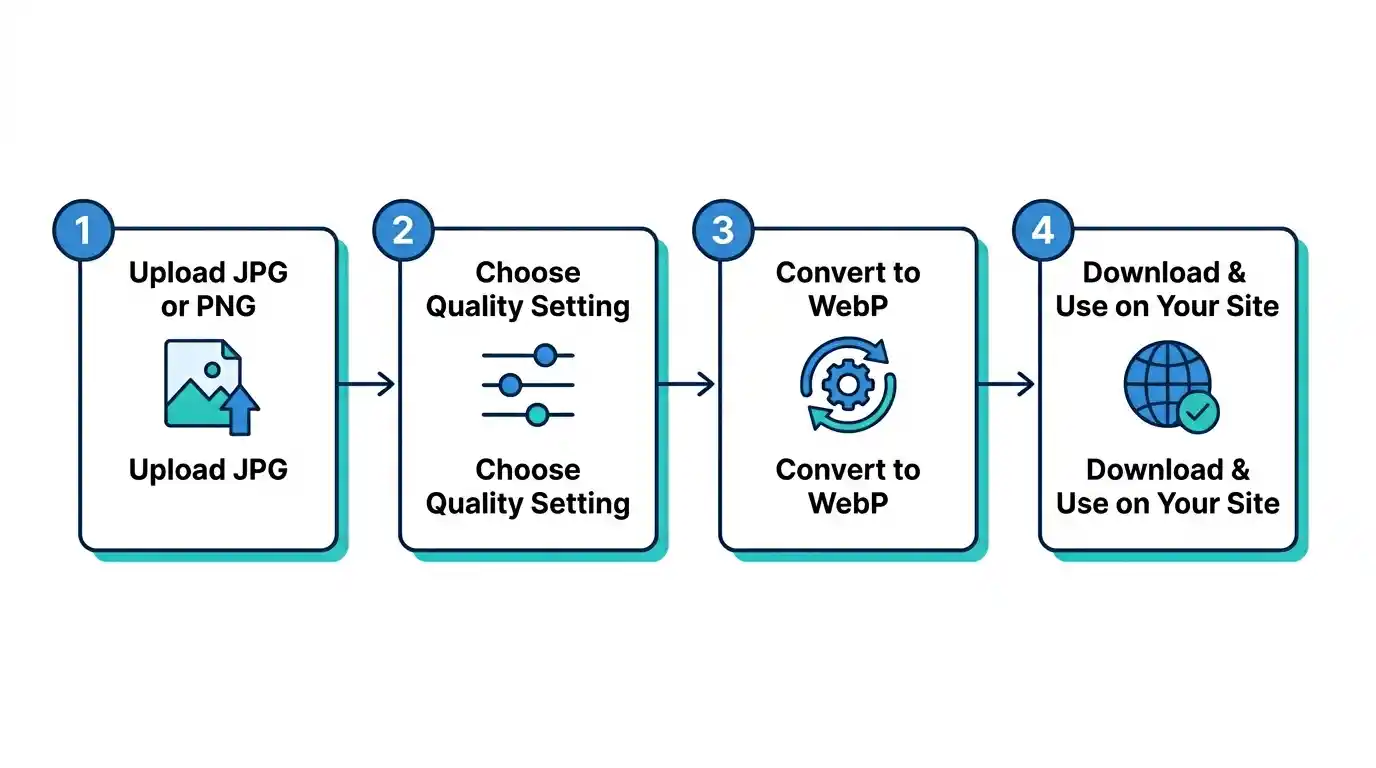
Convert Images Using Online Tools
The easiest method for most users is a browser-based converter. You can convert JPG to WebP online free without installing any software — simply upload your JPEG, set your quality level, and download the resulting WebP file instantly.
This approach is ideal for one-off conversions, content creators, bloggers, and anyone who needs occasional WebP output without a technical workflow.
Convert Using Command-Line Tools
Google’s cwebp tool is the official open-source encoder for WebP. Basic usage:
cwebp -q 80 input.jpg -o output.webp
The -q flag sets quality (0–100). For lossless conversion:
cwebp -lossless input.png -o output.webp
For batch processing an entire folder of images, combining cwebp with shell scripting or Python automation is a common developer workflow. Tools like ImageMagick and FFmpeg also support WebP conversion natively.
Convert Using Design Software
- Adobe Photoshop: File → Export As → choose WebP
- GIMP: File → Export As → type .webp extension
- Sketch / Figma: Export panel → choose WebP format
- Squoosh (browser app by Google): A powerful visual compressor at squoosh.app that lets you compare WebP against other formats side by side
How to Use WebP on Your Website
HTML Implementation with the <picture> Element
The HTML <picture> element allows you to serve WebP to browsers that support it while falling back to JPEG or PNG for those that don’t:
html
<picture>

  <source srcset="image.webp" type="image/webp">

  <img src="image.jpg" alt="Description of image">

</picture>
Browsers that understand WebP will load image.webp; all others fall back to image.jpg. This is the recommended approach for maximum compatibility.
WebP in CSS Backgrounds
For CSS background images, feature detection via JavaScript or the .webp class (added by tools like Modernizr) was historically required. Today, most developers use:
css
.hero {

  background-image: url('hero.webp');

}
Since virtually all modern browsers support WebP, a fallback is only needed if you have significant legacy traffic (e.g., old iOS users). You can use @supports for this:
css
@supports not (background-image: url("test.webp")) {

  .hero { background-image: url('hero.jpg'); }

}
WebP in WordPress and CMS Platforms
WordPress has supported native WebP uploads since version 5.8. Many popular page builders and image optimization plugins — including Smush, ShortPixel, Imagify, and WP Rocket — can automatically convert and serve WebP versions of your media library.
For Shopify, WebP is served automatically via the CDN for product images when the browser supports it. For custom CMS implementations, libraries like Cloudinary or imgix handle format negotiation server-side.
WebP and SEO — Impact on Page Speed and Core Web Vitals
WebP and Google PageSpeed Insights
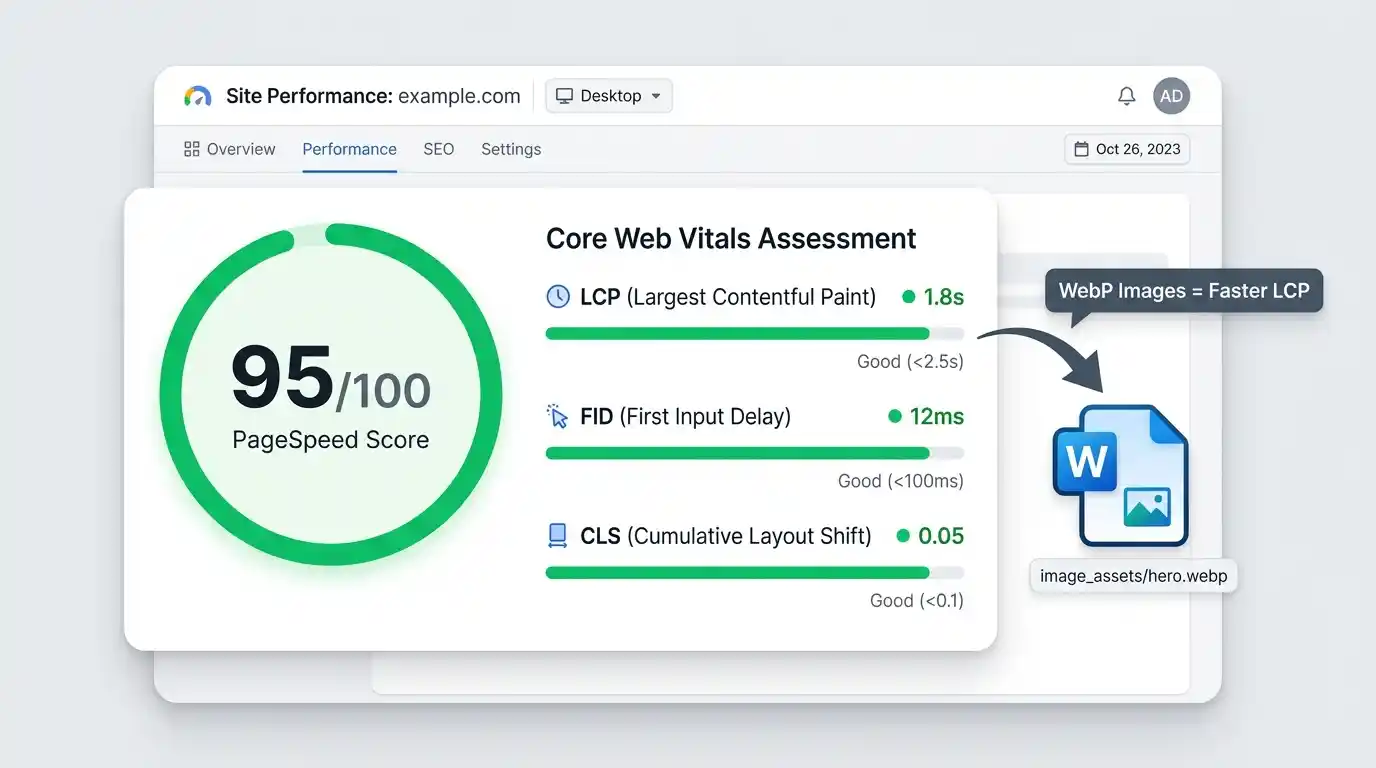
Google PageSpeed Insights explicitly audits for “Serve images in next-gen formats” — and WebP is the primary format it recommends. Failing this audit can lower your performance score and indirectly affect your page’s ability to rank well, particularly in mobile search results.
Switching to WebP is one of the easiest ways to address this audit without changing page layout or content. According to Google’s web.dev documentation, using WebP can reduce image payload by an average of 30% per page.
Largest Contentful Paint (LCP) and WebP
Largest Contentful Paint is a Core Web Vitals metric that measures how long it takes for the largest visible element in the viewport to load. Hero images and above-the-fold visuals are frequently the LCP element.
Converting your hero images to WebP directly reduces their transfer size, which shortens download time, which improves LCP scores. An LCP under 2.5 seconds is Google’s “Good” threshold — and optimized WebP images are a key lever for achieving it.
Limitations and Disadvantages of WebP
Software Compatibility Issues
Despite excellent browser support, WebP is not universally supported in:
- Legacy desktop photo editors (older Lightroom versions, older Photoshop)
- Some email clients (particularly Outlook on Windows)
- Print workflows where TIFF or high-quality JPEG is standard
- Some social media platforms that re-encode uploaded images
For these use cases, keeping a JPEG or PNG master copy is essential. WebP should be considered a web delivery format, not a primary archival format.
Encoding Time Compared to JPEG
WebP encoding is computationally more expensive than JPEG, particularly lossless WebP and high-compression settings. For large-scale image pipelines processing thousands of images, this can add meaningful time. However, for most individual users and small sites, the difference is negligible.
When Should You Use WebP?
You should use WebP in virtually any web context where images are displayed in a browser:
- Blog posts and articles — Replace JPEG photos with WebP for faster loading
- E-commerce product images — Smaller files mean faster product pages and better conversion rates
- Landing pages — Compress hero images and banners with WebP for Core Web Vitals improvements
- Thumbnails and previews — Including video thumbnails, article cards, and gallery previews
- Logos and UI elements (where transparency is needed) — Use lossless WebP instead of PNG
- Animated banners and loops — Replace animated GIFs with animated WebP
Stick to JPEG or PNG when delivering images for print, archival purposes, or distribution to software that doesn’t support WebP.
Frequently Asked Questions About WebP
Is WebP better than JPEG? For web use, yes — WebP produces smaller files at equivalent or better quality. For print or legacy software compatibility, JPEG may still be preferable.
Can I open WebP files on my computer? Yes. Modern macOS (Big Sur+) and Windows 11 support WebP natively. On Windows 10, install the WebP Image Extensions from the Microsoft Store.
Does WebP support transparency? Yes, WebP supports full 8-bit alpha channel transparency — something JPEG cannot do.
Is WebP lossless or lossy? Both. WebP supports lossy compression (like JPEG), lossless compression (like PNG), and even mixed-mode files with lossless alpha and lossy color data.
Will Google index WebP images for Google Images? Yes. Google’s image crawler fully supports WebP and will index and display WebP images in Google Images just like JPEG or PNG.
What is the WebP MIME type? The correct MIME type for WebP is image/webp.