SUMMARY
The ERR_CONNECTION_REFUSED error in Chrome occurs when your browser sends a connection request to a web server, but the server actively rejects it — leaving you with a blank screen and a frustrating error message. This comprehensive guide covers every possible cause of this error, including DNS issues, misconfigured proxy settings, firewall conflicts, corrupted TCP/IP stacks, and browser-level problems, along with clear, step-by-step fixes for Windows, Mac, Android, and localhost environments. Whether you’re a regular user or a developer troubleshooting a local server, this guide walks you through every proven solution to permanently resolve the ERR_CONNECTION_REFUSED error in Google Chrome.
Table of Contents:
- What Is the ERR_CONNECTION_REFUSED Error?
- Common Causes of ERR_CONNECTION_REFUSED in Chrome
- How to Fix ERR_CONNECTION_REFUSED Error — Step-by-Step
- ERR_CONNECTION_REFUSED on Localhost — Special Fix
- ERR_CONNECTION_REFUSED on Android and Mobile Chrome
- Advanced Fixes Using Command Prompt / Terminal
- How to Prevent ERR_CONNECTION_REFUSED in the Future
- Frequently Asked Questions (FAQs)
How to Fix “ERR_CONNECTION_REFUSED” Error in Chrome (Complete Guide)
Few things are more annoying than opening Google Chrome, typing in a URL, and being met with the cold, blunt message: “This site can’t be reached — ERR_CONNECTION_REFUSED.” It doesn’t matter whether you’re trying to open a popular website, access your work portal, or test a local development environment — this error blocks you completely.
The good news? In the vast majority of cases, this error is fixable from your side. You don’t need to be a networking expert. You just need to follow the right steps in the right order — and that’s exactly what this guide delivers.
What Is the ERR_CONNECTION_REFUSED Error?
Understanding the Error Message
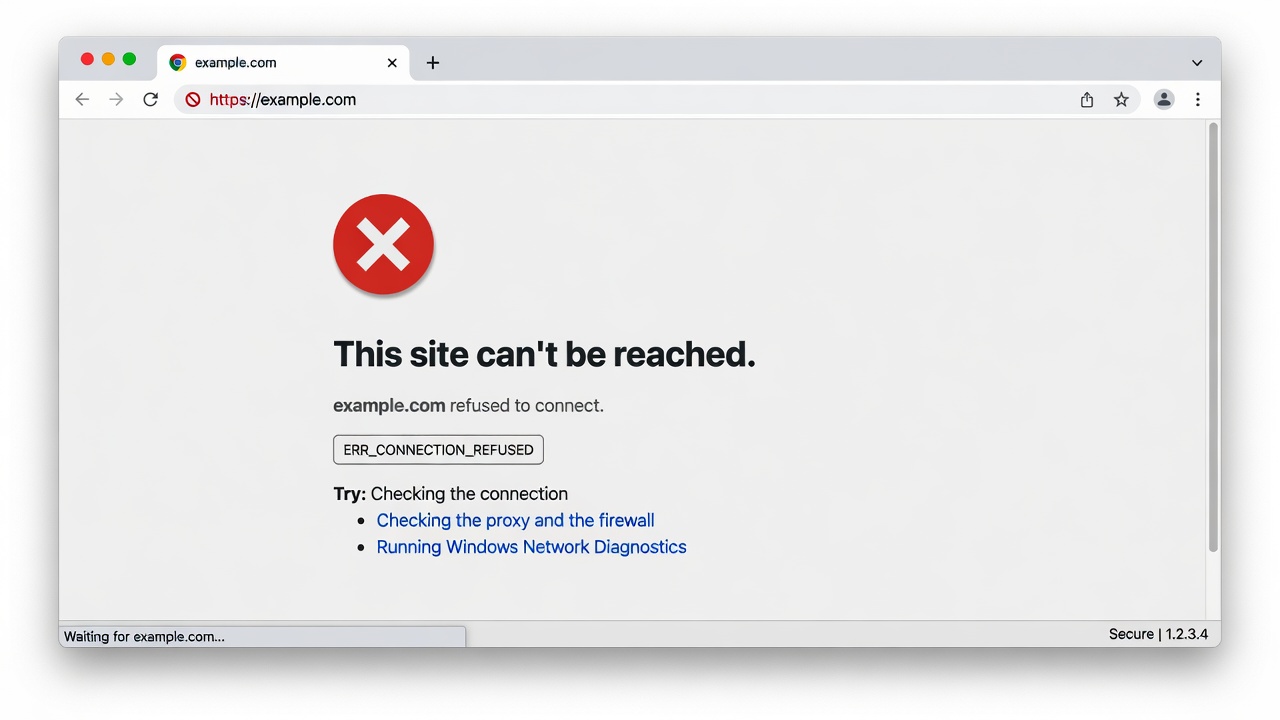
The ERR_CONNECTION_REFUSED error is a client-side network error displayed by Google Chrome. It means that Chrome attempted to connect to a web server using a specific IP address and port, but the server refused the connection attempt instead of accepting or timing out.
In plain English: Chrome knocked on the server’s door, and the server slammed it shut.
This is different from a timeout error, where Chrome simply waits too long with no response. With ERR_CONNECTION_REFUSED, the refusal is immediate and deliberate — at least from the network layer’s perspective.
You’ll typically see it displayed as:
“This site can’t be reached. [website.com] refused to connect. ERR_CONNECTION_REFUSED”
How Chrome Handles Connection Requests
When you type a URL into Chrome, here’s what happens behind the scenes:
- Chrome performs a DNS lookup to translate the domain name into an IP address.
- Chrome sends a TCP connection request (a SYN packet) to the server’s IP on port 80 (HTTP) or 443 (HTTPS).
- The server either accepts (SYN-ACK), ignores (timeout), or refuses (RST packet).
- If the server sends back a RST (reset) packet, Chrome displays ERR_CONNECTION_REFUSED.
ERR_CONNECTION_REFUSED vs Other Connection Errors
It’s worth distinguishing this error from similar-sounding issues:
| Error | Meaning |
| ERR_CONNECTION_REFUSED | The server actively rejected the request |
| ERR_CONNECTION_TIMED_OUT | The server didn’t respond at all |
| ERR_NAME_NOT_RESOLVED | DNS couldn’t resolve the domain |
| ERR_NETWORK_CHANGED | Network switched mid-request |
| ERR_CONNECTION_RESET | Connection was interrupted mid-stream |
Understanding which error you’re seeing is the first step toward the correct fix. If you’re also dealing with DNS-related problems, check out this guide on how to Fix DNS Server Not Responding Error for related solutions.
Common Causes of ERR_CONNECTION_REFUSED in Chrome
Server-Side Issues
Sometimes the problem isn’t on your end at all. The target website’s server may be:
- Temporarily offline or under maintenance
- Running on a different port than expected
- Having its firewall configured to block incoming connections
- Overloaded and refusing new connections to protect itself
This is why the very first diagnostic step is always to check whether the site is down for everyone or just you.
Firewall and Antivirus Blocking
Your Windows Firewall, third-party security software (like Norton, McAfee, or Avast), or even your router’s built-in firewall can sometimes block outgoing connections to specific IP addresses or ports. If a security rule is too aggressive, it can flag legitimate websites and refuse to let Chrome connect.
Incorrect Proxy Settings
If Chrome or your Windows system is configured to route traffic through a proxy server, and that proxy is unavailable, misconfigured, or rejected by the target server, you’ll see ERR_CONNECTION_REFUSED. This is especially common in corporate or school networks where proxy settings are managed centrally.
DNS Cache Corruption
Your computer maintains a local DNS cache — a record of recently resolved domain names and their IP addresses. If this cache becomes stale or corrupted (for example, if a website changes its IP), Chrome may try to connect to an outdated address that no longer serves the site, resulting in a refused connection.
Outdated Network Drivers
Network Interface Card (NIC) drivers that are outdated or corrupted can cause erratic network behavior, including connection refusals. This is more common on Windows machines that haven’t been updated in a long time or after a major OS update.
How to Fix ERR_CONNECTION_REFUSED Error — Step-by-Step
Fix 1 — Check If the Website Is Down
Before changing anything on your system, verify whether the problem is with the website itself.
Steps:
- Visit Down For Everyone Or Just Me — a free tool that checks website availability globally.
- Type in the URL you’re trying to access.
- If it says “It’s not just you!” — the problem is the server. Wait and try again later.
- If it says “It’s just you,” proceed with the fixes below.
This single check saves enormous troubleshooting time.
Fix 2 — Restart Your Router and Modem
A classic fix that works surprisingly often. Power cycling your network hardware clears temporary IP conflicts and refreshes your connection to your ISP.
Steps:
- Unplug your modem and router from the power outlet.
- Wait 30 full seconds.
- Plug the modem back in first, and wait for it to fully connect.
- Then plug the router back in.
- Reconnect your device and try Chrome again.
Fix 3 — Clear Browser Cache and Cookies
Cached data in Chrome can sometimes store a faulty connection state, especially if a site recently changed its configuration.
Steps:
- Open Chrome and press Ctrl + Shift + Delete (Windows) or Cmd + Shift + Delete (Mac).
- Set the time range to All time.
- Check: Cached images and files, cookies, and other site data.
- Click Clear data.
- Restart Chrome and try again.
If you’re having issues with specific Google services, you may also want to Fix Gmail Not Loading in Browser using targeted cache-clearing steps.
Fix 4 — Flush DNS Cache
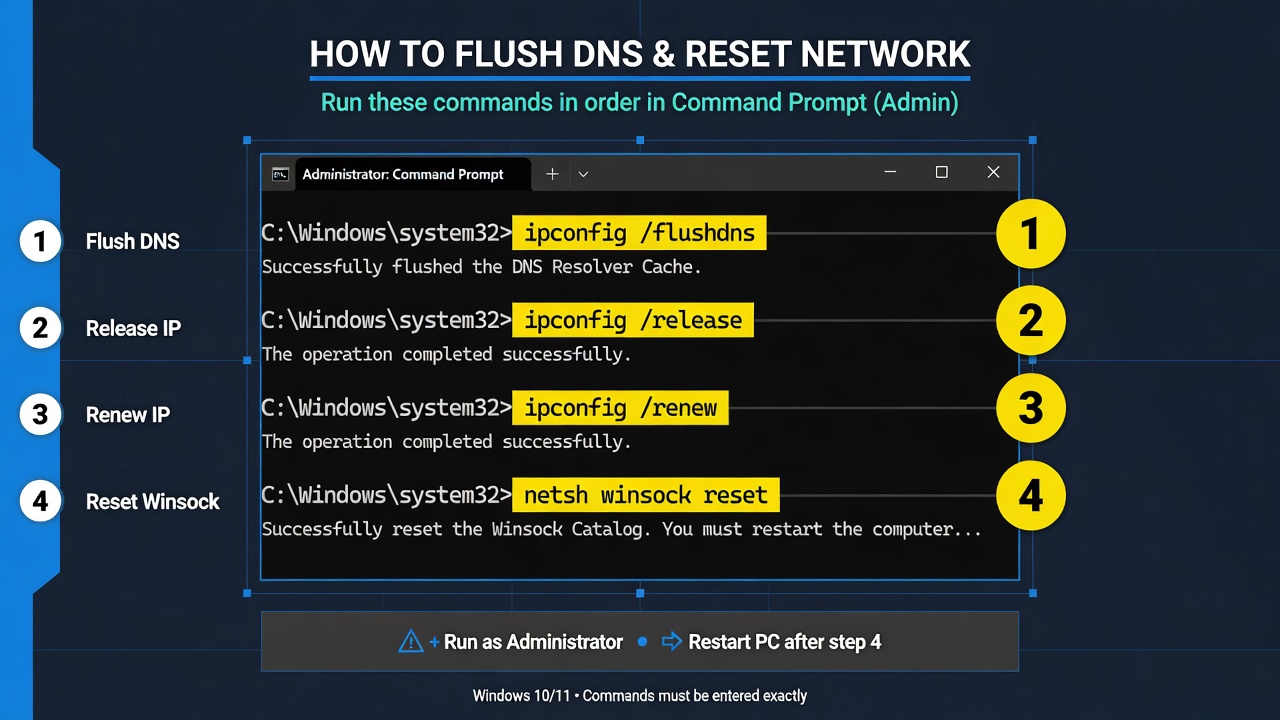
Flushing the DNS cache forces your system to perform fresh DNS lookups, eliminating stale or corrupted records.
On Windows:
- Press Windows + R, type cmd, and press Ctrl + Shift + Enter (run as admin).
- Type the following commands one by one, pressing Enter after each:
ipconfig /flushdns
ipconfig /release
ipconfig /renew
- You should see: “Successfully flushed the DNS Resolver Cache.”
- Restart Chrome.
On Mac:
-
- Open Terminal.
- Type: sudo dscacheutil -flushcache; sudo killall -HUP mDNSResponder
- Enter your password and press Enter.
Fix 5 — Change DNS Server Settings
Your ISP’s default DNS servers can be slow, unreliable, or blocked in certain regions. Switching to Google’s Public DNS (8.8.8.8) or Cloudflare’s DNS (1.1.1.1) often resolves connection issues.
On Windows:
- Press Windows + R, type ncpa.cpl, and press Enter.
-
- Right-click your active network adapter → Properties.
- Select Internet Protocol Version 4 (TCP/IPv4) → Properties.
- Select Use the following DNS server addresses.
- Enter:
- Preferred DNS: 8.8.8.8
- Alternate DNS: 8.8.4.4
- Click OK and restart your browser.
On Mac:
-
- Go to System Preferences → Network.
- Select your active connection → Advanced → DNS.
- Click + and add 8.8.8.8 and 1.1.1.1.
- Click OK → Apply.
Fix 6 — Disable Proxy Server Settings
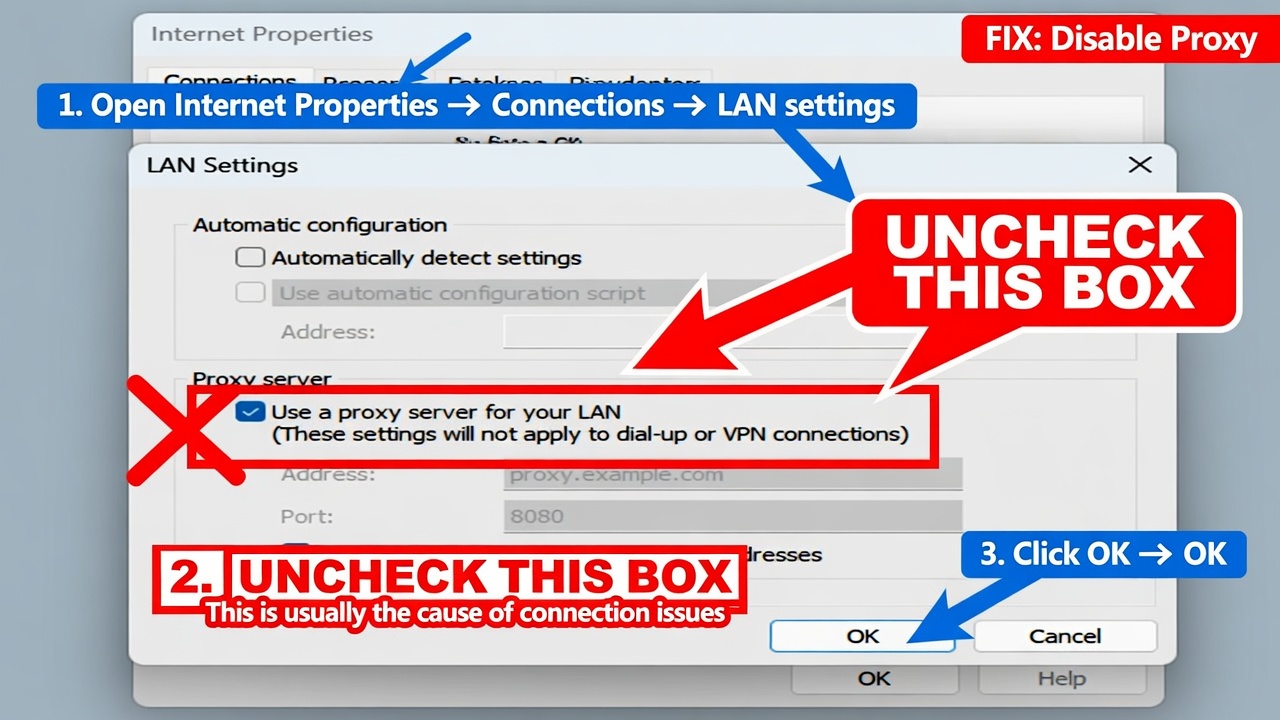
A misconfigured proxy is one of the top causes of ERR_CONNECTION_REFUSED errors, especially on office computers.
On Windows (via Chrome):
- Open Chrome → Click the three-dot menu → Settings.
- Search for “proxy” → Click Open your computer’s proxy settings.
- Under Manual proxy setup, toggle it off.
- Under Automatic proxy setup, make sure Use setup script is also Off.
- Save and restart Chrome.
Via Internet Options:
- Press Windows + R → type inetcpl.cpl → Enter.
- Go to Connections tab → LAN settings.
- Uncheck Use a proxy server for your LAN.
- Click OK.
Fix 7 — Reset TCP/IP Stack
If your Windows network stack has become corrupted — due to malware, failed updates, or software conflicts — resetting it can be a definitive fix.
Steps (Windows — Run CMD as Administrator):
netsh int ip reset
netsh winsock reset
netsh advfirewall reset
ipconfig /flushdns
After running all four commands, restart your computer completely. This resets all networking components to their defaults.
Fix 8 — Disable Firewall and Antivirus Temporarily
To test whether your security software is causing the block:
- Temporarily disable Windows Defender Firewall:
- Go to Control Panel → System and Security → Windows Defender Firewall → Turn Windows Defender Firewall on or off.
- Select Turn off for both private and public networks.
- Disable your third-party antivirus from the system tray.
- Try loading the website in Chrome.
- If it works, the firewall/antivirus was the culprit. Add Chrome or the site to the whitelist/exceptions list, then re-enable protection.
⚠️ Never leave your firewall disabled permanently. This is diagnostic only.
Fix 9 — Update or Reinstall Network Drivers
Steps:
- Press Windows + X → Device Manager.
- Expand Network adapters.
- Right-click your adapter → Update driver → Search automatically for drivers.
- If no update is found, visit the manufacturer’s website (Intel, Realtek, Broadcom) and download the latest driver manually.
- Restart after installation.
Fix 10 — Reset Chrome Browser Settings
Corrupted Chrome settings or profile data can cause persistent network errors.
Steps:
- Open Chrome → Settings → scroll to bottom → Advanced.
- Under Reset and clean up, click Restore settings to their original defaults.
- Click Reset settings to confirm.
Note: This disables extensions, resets your homepage, and clears pinned tabs — but doesn’t delete bookmarks or saved passwords.
Fix 11 — Check Chrome Extensions
Some Chrome extensions — particularly VPNs, ad blockers, and privacy tools — can interfere with connections.
Steps:
- Open Chrome in Incognito mode (Ctrl + Shift + N).
- If the website loads, an extension is the cause.
- Go to chrome://extensions and disable extensions one by one to identify the culprit.
- Remove or update the problematic extension.
Fix 12 — Reinstall Google Chrome
As a last resort, a full reinstall of Chrome can clear any deep-seated configuration corruption.
Steps:
-
- Uninstall Chrome via Control Panel → Programs → Uninstall a Program.
- Delete the Chrome user data folder: C:\Users\[YourName]\AppData\Local\Google\Chrome\
- Download a fresh copy from google.com/chrome.
- Install and test.
ERR_CONNECTION_REFUSED on Localhost — Special Fix
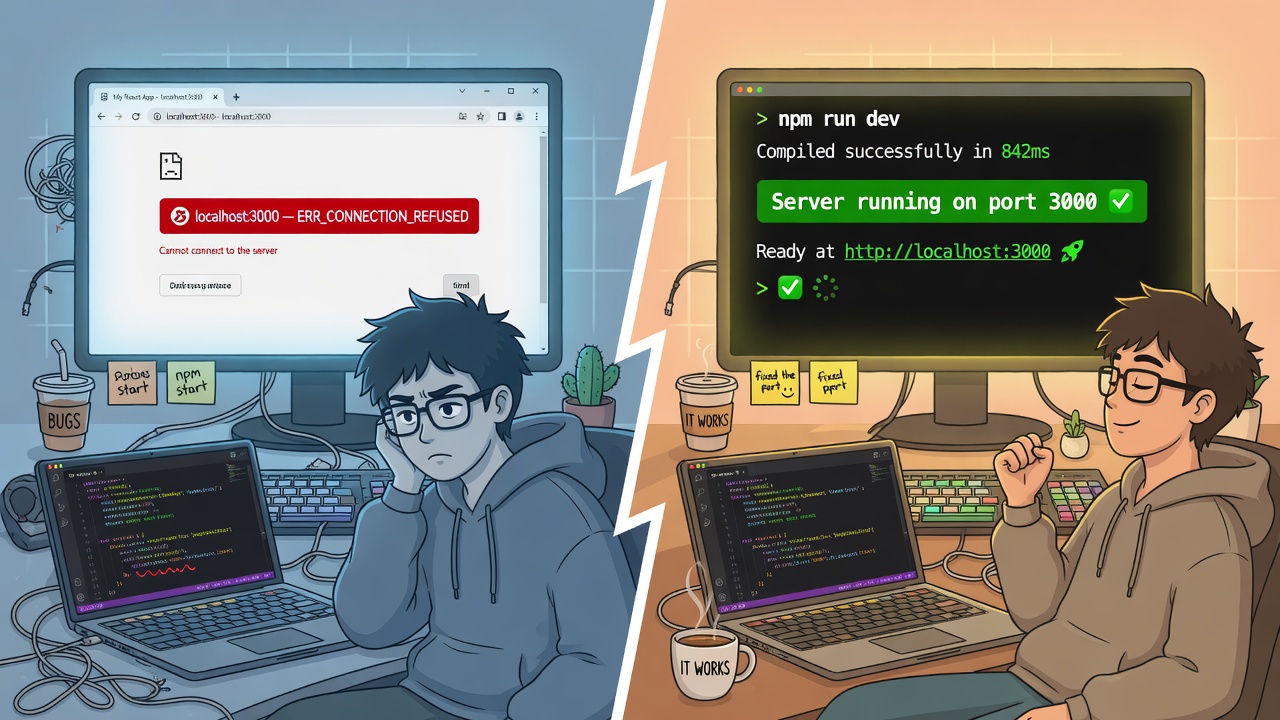
Why Localhost Shows This Error
Developers frequently encounter ERR_CONNECTION_REFUSED when trying to access localhost:3000, localhost:8080, or similar local addresses. This happens because:
- The local server isn’t running (you forgot to start it)
- The server is running on a different port than you’re accessing
- A firewall rule is blocking loopback connections
- The application crashed after starting
How to Fix It for Developers
-
- Verify the server is running: Check your terminal/command prompt for active server processes.
- Confirm the correct port: Match the port in your URL with the one your server is listening on.
- Check firewall rules: Allow loopback traffic (127.0.0.1) through your firewall.
- Use netstat to verify: Run netstat -ano | findstr :3000 (Windows) to confirm what’s listening on that port.
- Restart your development server and check for crash logs.
ERR_CONNECTION_REFUSED on Android and Mobile Chrome
On mobile Chrome, this error typically stems from:
- Mobile data restrictions set by your carrier
- VPN app conflicts
- Chrome app cache corruption
Fixes for Android:
- Toggle Airplane Mode on and off to refresh the connection.
- Go to Settings → Apps → Chrome → Storage → Clear Cache.
- Disable any active VPN app and retry.
- Try the same URL on a different browser (Firefox, Samsung Internet) to isolate whether it’s Chrome-specific.
- Update Chrome via the Google Play Store.
Advanced Fixes Using Command Prompt / Terminal
For power users and IT professionals, here are deeper-level fixes:
Check if a port is open (Windows):
telnet [website.com] 80
If the connection fails immediately, the port is closed or blocked.
Trace the route to a server:
tracert [website.com]
This reveals where in the network chain the connection is being dropped.
Check the hosts file for overrides: Navigate to C:\Windows\System32\drivers\etc\hosts (Windows) or /etc/hosts (Mac/Linux) and ensure the domain isn’t manually mapped to an incorrect IP address. Malware sometimes modifies this file to redirect traffic.
Release and renew the DHCP lease:
ipconfig /release
ipconfig /renew
How to Prevent ERR_CONNECTION_REFUSED in the Future
Prevention is always better than troubleshooting. Here are the best practices to minimize the chances of encountering this error again:
- Keep Chrome updated — outdated browsers have known bugs with certain SSL configurations and connection protocols.
- Keep your OS and network drivers updated — especially after major Windows updates.
- Use a reliable DNS provider — Google (8.8.8.8) or Cloudflare (1.1.1.1) is significantly more stable than many ISP DNS servers.
- Be cautious with VPNs and proxy software — always verify that these tools are properly configured and compatible with your browser.
- Run regular malware scans — some malware specifically targets network settings to redirect or block traffic.
- Avoid too many Chrome extensions — especially those that modify network behavior.
If you work remotely and track your billable hours or productivity time, you might find a Work Hours Calculator useful for staying organized while you troubleshoot and work through technical issues.
Frequently Asked Questions (FAQs)
Q: Is ERR_CONNECTION_REFUSED always my fault? No. Sometimes the server is down, or the website has a configuration problem. Always check if the site is down for everyone first.
Q: Does ERR_CONNECTION_REFUSED mean I’m banned from a site? Not necessarily, but it’s possible. If a website has blocked your IP address, you’ll receive a connection refused response. Using a different network or VPN may reveal whether this is the case.
Q: Can a VPN fix ERR_CONNECTION_REFUSED? Sometimes. If the issue is geo-blocking or ISP-level interference, a VPN can help. But a VPN can also cause this error if it’s misconfigured.
Q: Why does ERR_CONNECTION_REFUSED happen only on Chrome and not Firefox? This usually indicates a Chrome-specific setting conflict — such as a proxy configuration or extension — rather than a system-wide network issue.
Q: Does resetting TCP/IP delete my files? No. The TCP/IP reset only affects your network configuration. Your files, applications, and browser data are untouched.
Q: What is the fastest fix for ERR_CONNECTION_REFUSED? The fastest and most commonly effective fixes are: (1) flush DNS cache, (2) disable proxy settings, and (3) restart your router.