SUMMARY
A DNS Server Not Responding error occurs when your device cannot communicate with the Domain Name System server that translates website names into IP addresses, leaving you unable to browse the internet. This comprehensive guide covers every aspect of diagnosing and resolving this error — from simple fixes like restarting your router and flushing the DNS cache, to advanced solutions like changing your DNS server to Google or Cloudflare, resetting TCP/IP, updating network drivers, and adjusting router-level settings — applicable across Windows, Mac, Android, and iOS platforms, so you can restore your internet connection quickly and prevent future DNS failures.
Table of Content
- What Is a DNS Server and Why Does It Stop Responding?
- How to Diagnose the DNS Server Not Responding Error
- Basic Fixes for DNS Server Not Responding
- Advanced DNS Fixes on Windows
- How to Fix DNS Server Not Responding on Mac
- Fix DNS Issues on Android and iPhone
- Router-Level DNS Fixes
- Best Free Public DNS Servers to Use
- Preventing DNS Server Errors in the Future
- Frequently Asked Questions (FAQs)
How to Fix DNS Server Not Responding Error (Complete Guide)
You open your browser, type in a website address, and instead of the page loading, you’re hit with a frustrating message: “DNS Server Not Responding.” Your Wi-Fi appears connected, the signal is strong, but nothing loads. This is one of the most common internet connectivity problems faced by users worldwide, and the good news is — it’s almost always fixable.
This guide walks you through every proven method to resolve the DNS server not responding error, covering Windows, macOS, Android, and iOS. Whether you’re a beginner or a tech-savvy user, there’s a solution here for you.
What Is a DNS Server and Why Does It Stop Responding?
Before diving into fixes, it’s important to understand what DNS actually is and why it fails.
How DNS Resolution Works
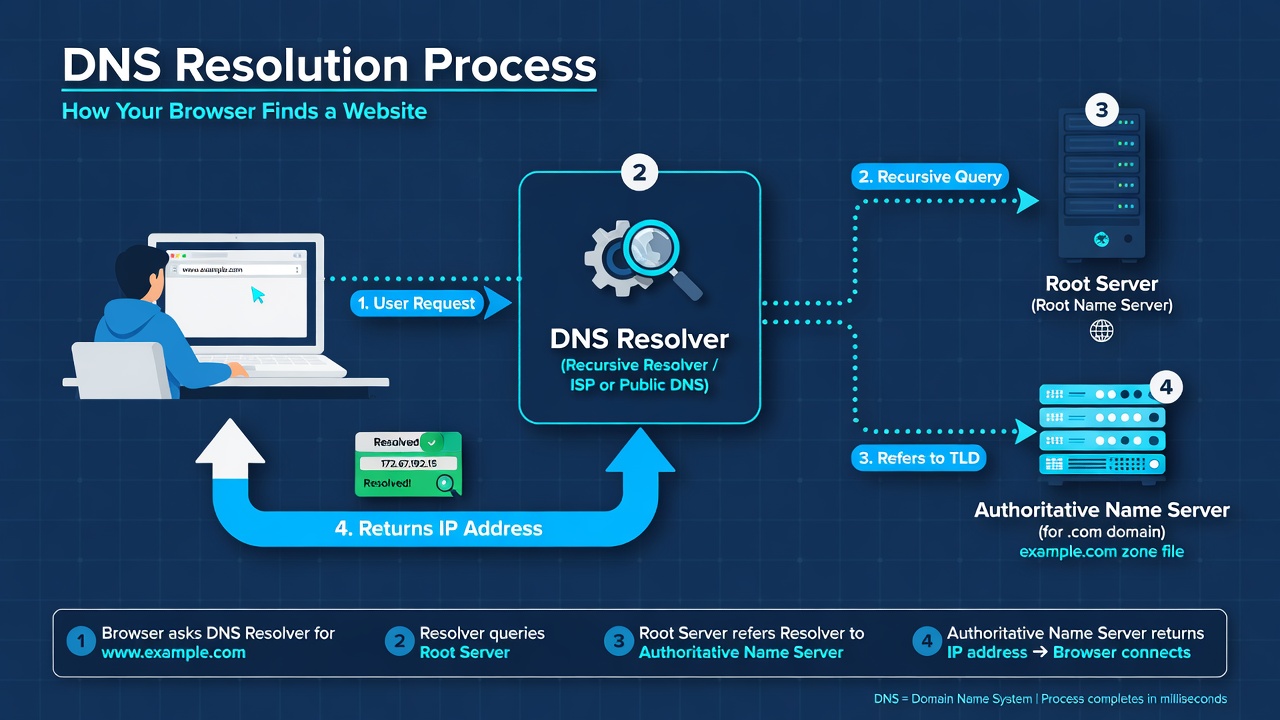
DNS stands for Domain Name System — essentially the internet’s phonebook. When you type google.com into your browser, your device doesn’t inherently know the IP address behind that domain. It sends a query to a DNS resolver (usually provided by your ISP or a third-party like Google), which looks up the IP address and returns it to your browser so the connection can be established.
This entire process — called DNS resolution or DNS lookup — typically takes milliseconds. When it breaks down at any point along the chain, your browser cannot load any website, even though your physical internet connection may be perfectly intact.
The layers involved include:
- Your device’s local DNS cache
- Your router’s DNS settings
- Your ISP’s DNS servers
- Root DNS servers and authoritative name servers
A failure at any of these points can produce the “DNS Server Not Responding” error.
Common Causes of DNS Server Not Responding
Understanding root causes helps apply the right fix faster. The most frequent culprits include:
- ISP’s DNS server is down or overloaded — Your internet provider’s DNS infrastructure may experience outages.
- Corrupted local DNS cache — Outdated or corrupted DNS entries stored on your device cause resolution failures.
- Incorrect DNS settings — Manually misconfigured DNS addresses on your device or router.
- Faulty or outdated network adapter drivers — Drivers that are buggy or outdated interfere with DNS queries.
- Antivirus or firewall blocking DNS traffic — Security software may aggressively block DNS-related packets.
- Router firmware issues — An outdated router may fail to properly forward DNS requests.
- Network misconfiguration — TCP/IP stack corruption or Winsock issues on Windows systems.
- Physical connectivity problems — Loose cables, failing modems, or ISP-side outages.
How to Diagnose the DNS Server Not Responding Error
Before jumping to fixes, confirm you’re actually dealing with a DNS issue and not a broader network problem.
Identifying Error Messages
Different browsers display this error differently:
- Google Chrome: ERR_NAME_NOT_RESOLVED
- Mozilla Firefox: Server Not Found
- Microsoft Edge: Hmmm… can’t reach this page
- Safari: Safari Can’t Find the Server
All of these typically point to DNS failure. A key test: try accessing a website using its direct IP address instead of its domain name. If that works, DNS is definitely the problem.
Using Command Prompt to Diagnose DNS Issues
On Windows, open Command Prompt (search cmd, run as administrator) and use these diagnostic commands:
Ping a known IP address:
ping 8.8.8.8
If this succeeds but ping google.com fails, DNS is the confirmed issue.
Run nslookup:
nslookup google.com
This shows which DNS server your device is querying and whether it returns a valid IP address. Error messages here confirm DNS server failure.
Check current DNS settings:
ipconfig /all
Look for the DNS Servers line under your active network adapter.
Basic Fixes for DNS Server Not Responding
Always start with the simplest solutions before moving to advanced methods.
Restart Your Router and Modem
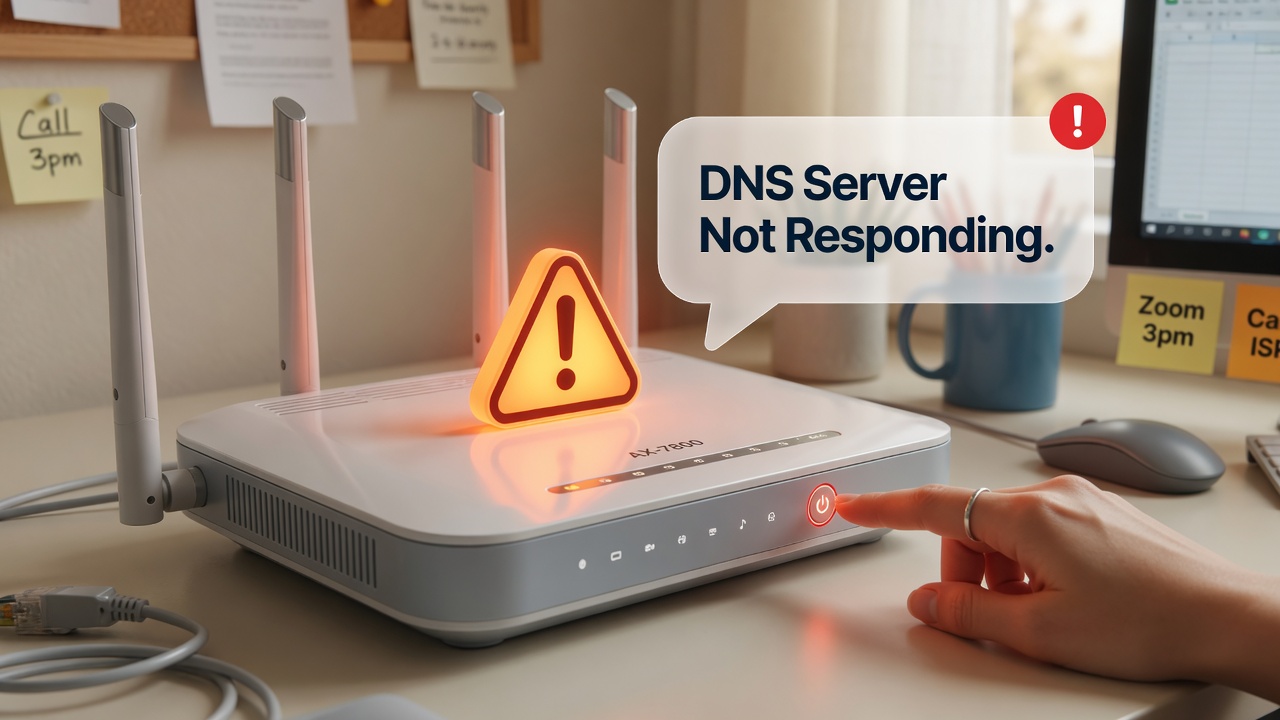
This resolves the majority of DNS errors. Power off your modem and router completely, wait 30 seconds, then turn them back on. This clears the router’s internal DNS cache and re-establishes a fresh connection with your ISP’s DNS infrastructure.
Steps:
- Unplug the power cable from both devices.
- Wait 30 seconds.
- Plug in the modem first, wait for it to fully connect.
- Then plug in the router.
- Wait for all lights to stabilize before testing.
Switch to a Different Browser or Device
Try loading the same website on a different browser. If it works, your original browser has a caching or configuration issue — not your DNS. Similarly, test from a second device on the same network. If the second device also fails, the problem is at the network or router level.
Temporarily Disable Antivirus and Firewall
Security software like antivirus programs or Windows Defender Firewall can aggressively block DNS traffic, especially after an update. Temporarily disable them and attempt to browse. If the error disappears, add exceptions for your DNS ports (UDP/TCP port 53) in your security software settings.
Note: Re-enable your antivirus and firewall immediately after testing.
Advanced DNS Fixes on Windows
If basic fixes didn’t work, Windows users have several powerful tools to restore DNS functionality.
Flush and Reset DNS Cache
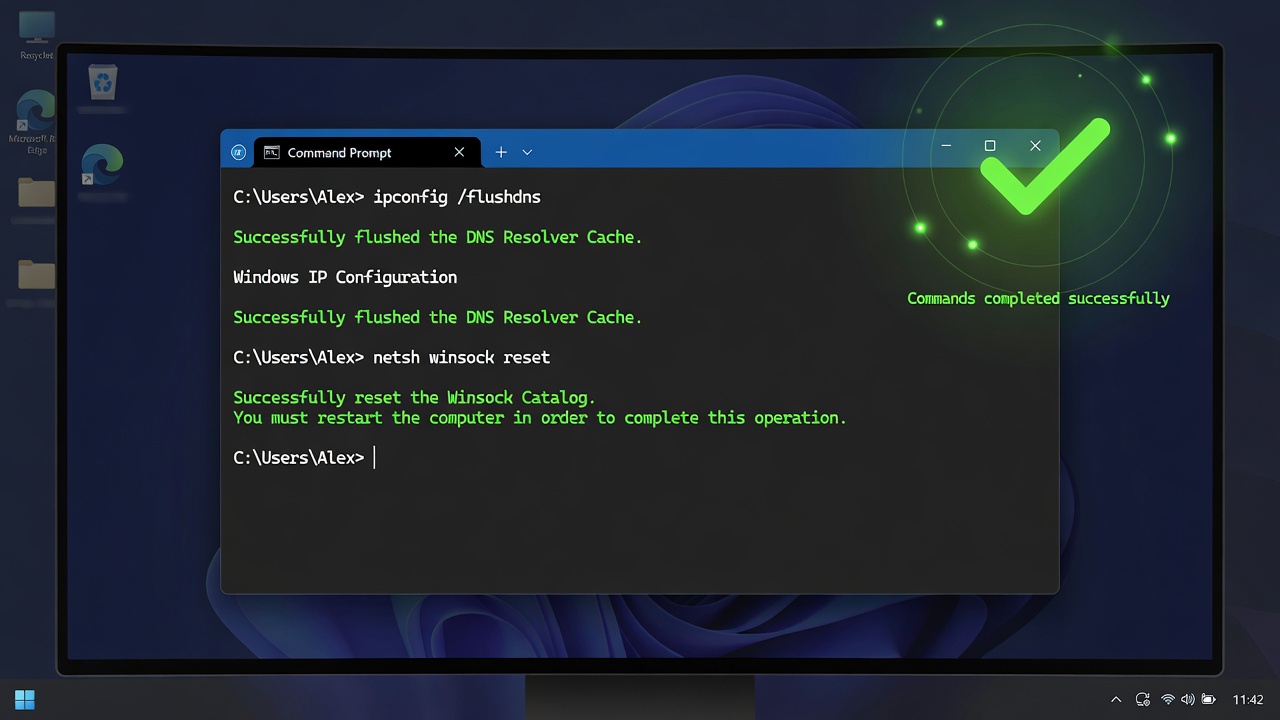
Corrupted DNS cache entries are a leading cause of DNS errors. Flushing the cache forces your device to fetch fresh DNS records.
Steps:
- Press Windows + R, type cmd, and press Ctrl + Shift + Enter to open as administrator.
- Type the following and press Enter after each:
ipconfig /flushdns
ipconfig /registerdns
ipconfig /release
ipconfig /renew
You should see the confirmation: “Successfully flushed the DNS Resolver Cache.”
Change DNS Server Address Manually
Your ISP’s DNS servers may be temporarily unavailable. Switching to a reliable third-party DNS provider like Google (8.8.8.8) or Cloudflare (1.1.1.1) often immediately resolves the issue.
Steps on Windows 10/11:
- Open Settings → Network & Internet → Change Adapter Options.
- Right-click your active connection → Properties.
- Select Internet Protocol Version 4 (TCP/IPv4) → Properties.
- Select Use the following DNS server addresses.
- Enter:
- Preferred DNS: 8.8.8.8
- Alternate DNS: 8.8.4.4
- Click OK and restart your browser.
If you prefer IPv6, use Google’s IPv6 DNS: 2001:4860:4860::8888.
Update or Reinstall Network Adapter Drivers
Outdated or corrupted network adapter drivers can disrupt DNS communication entirely.
Steps:
- Press Windows + X → Device Manager.
- Expand Network Adapters.
- Right-click your adapter → Update Driver → Search automatically for drivers.
- If an update doesn’t help, choose Uninstall Device, restart your PC — Windows will reinstall the driver automatically.
You can also visit your device manufacturer’s website (Dell, HP, Lenovo, etc.) to download the latest driver manually.
Reset TCP/IP and Winsock
A corrupted TCP/IP stack or Winsock catalog is a deeper Windows-level issue. Resetting these restores the network configuration to its default state.
Run these commands in an elevated Command Prompt:
netsh winsock reset
netsh int ip reset
netsh int tcp reset
Restart your computer after running all three commands. This is one of the most effective solutions for persistent DNS errors on Windows.
How to Fix DNS Server Not Responding on Mac
Mac users face DNS errors too, though the resolution process differs slightly from Windows.
Clear DNS Cache on macOS
Open Terminal (Applications → Utilities → Terminal) and enter the appropriate command for your macOS version:
- macOS Ventura / Monterey / Big Sur:
sudo dscacheutil -flushcache; sudo killall -HUP mDNSResponder
- macOS Mojave / High Sierra / Sierra:
sudo killall -HUP mDNSResponder
Enter your admin password when prompted. Your DNS cache will be cleared immediately.
Change DNS Settings on Mac
- Open System Settings (or System Preferences) → Network.
- Select your active connection (Wi-Fi or Ethernet) → Details (or Advanced).
- Click the DNS tab.
- Click the + button to add a DNS server.
- Add 8.8.8.8 and 1.1.1.1.
- Click OK → Apply.
Fix DNS Issues on Android and iPhone
Mobile devices also encounter DNS errors, especially when connected to specific Wi-Fi networks.
Change DNS on Android
- Go to Settings → Network & Internet → Wi-Fi.
- Long-press your connected Wi-Fi network → Modify Network.
- Tap Advanced Options → Change IP Settings to Static.
- Scroll down to DNS 1 and enter 8.8.8.8; set DNS 2 to 8.8.4.4.
- Save the settings.
Alternatively, Android users on Android 9+ can use Private DNS:
- Go to Settings → Network & Internet → Private DNS.
- Choose Private DNS Provider Hostname and enter dns. google.
Change DNS on iPhone/iOS
- Go to Settings → Wi-Fi.
- Tap the ⓘ icon next to your network.
- Scroll to DNS → Tap Configure DNS.
- Switch to Manual → tap Add Server.
- Enter 8.8.8.8 and 1.1.1.1, then remove your old ISP DNS entries.
- Tap Save.
Router-Level DNS Fixes
If all devices on your network have DNS problems, the issue may be at the router level.
Change DNS in Router Settings
- Open a browser and type your router’s IP address (192.168.1.1 or 192.168.0.1).
- Log in with your admin credentials (often admin/admin or printed on your router).
- Navigate to WAN Settings or Internet Settings.
- Find the DNS Server fields.
- Replace existing entries with 8.8.8.8 (primary) and 1.1.1.1 (secondary).
- Save and reboot the router.
This applies the new DNS settings to every device connected to your network.
Update Router Firmware
An outdated router firmware can cause DNS forwarding failures.
- Log in to your router admin panel.
- Navigate to Administration → Firmware Update.
- Check for available updates and install them.
- Allow the router to reboot completely.
If you’re experiencing broader connectivity issues alongside DNS errors, you might also want to Fix WiFi Connected but No Internet Access — a related problem that often accompanies DNS failures.
Best Free Public DNS Servers to Use
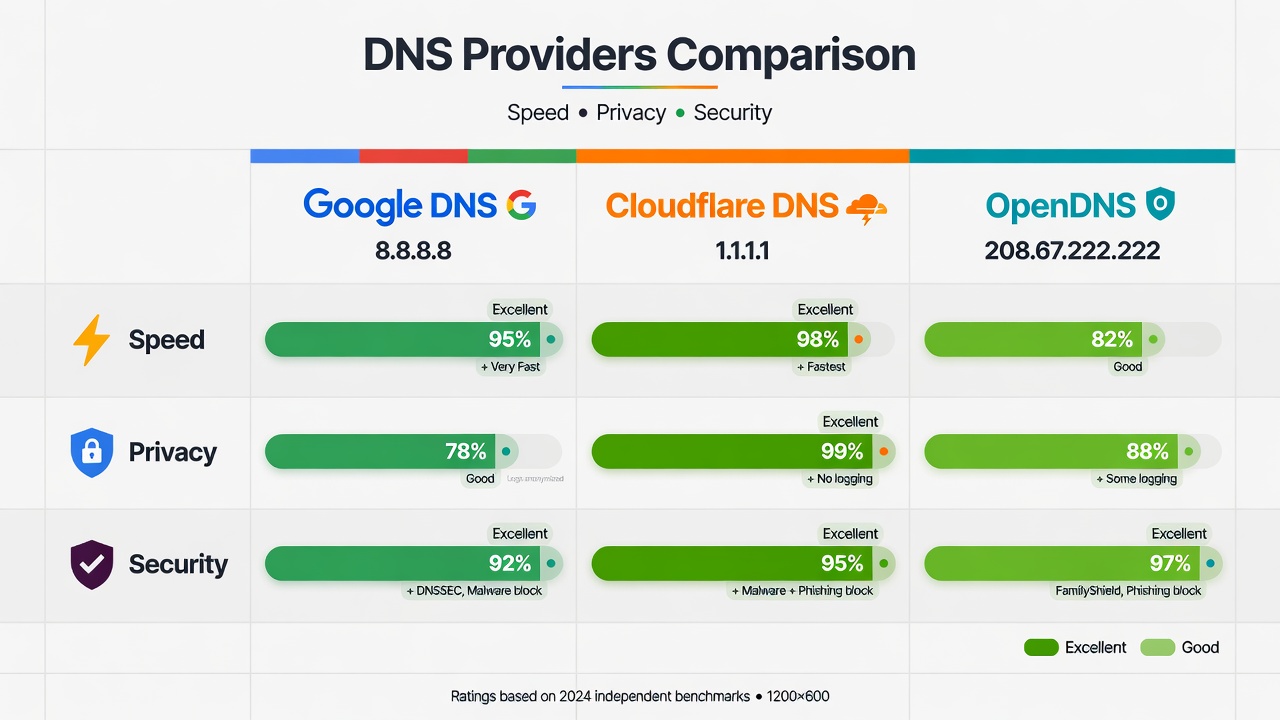
Switching to a reliable public DNS server is one of the fastest and most effective solutions. Here are the top options:
Google Public DNS
- Primary: 8.8.8.8
- Secondary: 8.8.4.4
- IPv6 Primary: 2001:4860:4860::8888
Google’s DNS is one of the fastest and most reliable globally, with built-in security against DNS spoofing and DDoS attacks. It’s the most widely recommended alternative DNS server.
Cloudflare DNS
- Primary: 1.1.1.1
- Secondary: 1.0.0.1
Cloudflare’s DNS is widely recognized as the fastest DNS resolver in the world, with a strong emphasis on privacy — it does not log your DNS queries for advertising purposes. For users who prioritize speed and anonymity, this is often the best choice.
OpenDNS (Cisco)
- Primary: 208.67.222.222
- Secondary: 208.67.220.220
OpenDNS offers excellent filtering features, making it a great choice for families or businesses. It blocks known malicious domains and phishing sites at the DNS level. You can learn more about DNS security and configuration through resources like the ICANN DNS overview.
Pro Tip: You can use a Percentage Calculator to measure your DNS performance improvement after switching servers — compare response times before and after, and calculate the percentage speed gain.
Preventing DNS Server Errors in the Future
Once you’ve fixed your DNS issue, take steps to prevent recurrence:
- Use a reliable public DNS server (Google or Cloudflare) instead of relying solely on your ISP’s DNS.
- Keep your router firmware updated — manufacturers regularly release stability patches.
- Regularly flush your DNS cache — especially if you use your device for heavy browsing or development work.
- Keep network adapter drivers updated — set Windows Update to automatically install driver updates.
- Avoid aggressive antivirus settings — configure your security software to allow DNS traffic on port 53.
- Reboot your router weekly — a simple habit that prevents cache buildup and connection drift.
- Monitor your ISP’s status — use tools like downdetector.com to check if your ISP’s DNS servers are experiencing outages before troubleshooting your own device.
- Consider a DNS benchmarking tool like Gibson Research Corporation’s DNS Benchmark — it tests dozens of DNS servers and recommends the fastest one for your specific location.
Frequently Asked Questions (FAQs)
Q: What does “DNS Server Not Responding” actually mean? It means your device sent a DNS query to resolve a domain name (like google.com) but didn’t receive a valid response within the timeout window.
Q: Does DNS Server Not Responding mean my internet is down? Not necessarily. Your physical internet connection can be active, but if the DNS layer fails, no websites will load. You can still ping IP addresses directly.
Q: Which DNS server is fastest? Cloudflare (1.1.1.1) consistently ranks as the fastest public DNS globally, followed closely by Google (8.8.8.8). Speed may vary by your geographic location.
Q: Is it safe to change my DNS server? Yes. Switching to reputable public DNS servers like Google or Cloudflare is safe and often improves your browsing speed and security.
Q: Why does DNS stop responding randomly? Random DNS failures are often caused by ISP-side outages, router overheating, cache corruption, or antivirus software updates that inadvertently block DNS traffic.
Q: How long does flushing DNS take? The flush itself completes in under 2 seconds. However, your device will need to re-query DNS servers for each new website visit, which takes a normal amount of time.
Q: Can a VPN cause DNS server not responding errors? Yes. Some VPNs route DNS traffic through their own servers, and if the VPN connection is unstable or misconfigured, it can cause DNS errors. Try disabling the VPN temporarily to test.