SUMMARY
WiFi showing “Connected” but with no internet access is one of the most frustrating and common networking issues faced by users across all devices and operating systems. This problem typically stems from DNS misconfigurations, IP address conflicts, outdated network drivers, router/modem issues, or ISP-side outages. This comprehensive guide walks you through every possible fix — from quick restarts and DNS flushing to advanced TCP/IP stack resets and router-level configurations — covering Windows, macOS, Android, and iOS platforms so you can restore your internet connection quickly and confidently, no matter what device you’re using.
Table of Content
- Understanding the Problem — What Does “Connected, No Internet” Actually Mean?
- Common Causes of WiFi Connected but No Internet
- Quick Fixes to Try First (Basic Troubleshooting)
- Fix WiFi Connected but No Internet on Windows
- Fix WiFi Connected but No Internet on Mac
- Fix WiFi Connected but No Internet on Android
- Fix WiFi Connected but No Internet on iPhone/iOS
- Router-Level Fixes
- Advanced Fixes for Persistent Issues
- When to Contact Your ISP
- How to Prevent This Issue in the Future
- Frequently Asked Questions (FAQs)
WiFi Connected but No Internet Access? Here’s How to Fix It (Complete Guide)
There’s nothing quite as aggravating as seeing that WiFi icon showing a solid connection, yet your browser stubbornly refuses to load any page. You’re not alone — WiFi connected but no internet access is one of the most searched networking problems globally. Whether it’s a yellow exclamation mark in Windows, a “No Internet Connection” message on Android, or a spinning browser tab on your Mac, the root causes and fixes are well within your reach.
This in-depth troubleshooting guide covers every angle of this issue using systematic diagnostic thinking, so you can pinpoint the exact cause and apply the right solution.
Understanding the Problem — What Does “Connected, No Internet” Actually Mean?
The Difference Between WiFi Signal and Internet Access
Your device can successfully connect to a WiFi router without that router actually having an active path to the internet. Think of it like this: your device shakes hands with the router (local area connection established), but the router fails to reach your Internet Service Provider’s (ISP) gateway.
There are two distinct layers at play:
- Local Network (LAN): Your device ↔ Router
- Wide Area Network (WAN): Router ↔ ISP ↔ Internet
A “connected, no internet” error means Layer 1 (LAN) is fine, but Layer 2 (WAN) has broken down somewhere. Understanding this distinction is the first step toward effective diagnosis using a network topology mindset.
Common Error Messages You Might See
- Windows: “No Internet Access” or “Limited Connectivity”
- macOS: “Wi-Fi: No Internet Connection.”
- Android: “Connected, No Internet” or “WiFi has no internet access.”
- iOS: “Cannot Connect to the Internet.”
- Browser: “ERR_NETWORK_CHANGED” or “DNS_PROBE_FINISHED_NO_INTERNET”
These messages are important NLP signal terms for identifying whether the issue is DNS-based, IP-based, or gateway-related.
Common Causes of WiFi Connected but No Internet
ISP Outages and External Issues
Before touching any settings, the problem might simply not be yours to fix. Your ISP could be experiencing a regional or local outage. Check your ISP’s status page or use a third-party tool like Downdetector to verify whether others in your area are experiencing the same issue.
IP Address Conflicts and DHCP Failures
Every device on a network needs a unique IP address, assigned automatically by the router’s DHCP (Dynamic Host Configuration Protocol) server. If the DHCP server fails, your device might get an APIPA (Automatic Private IP Addressing) fallback address like 169.254.x.x, which cannot route internet traffic.
DNS Server Problems
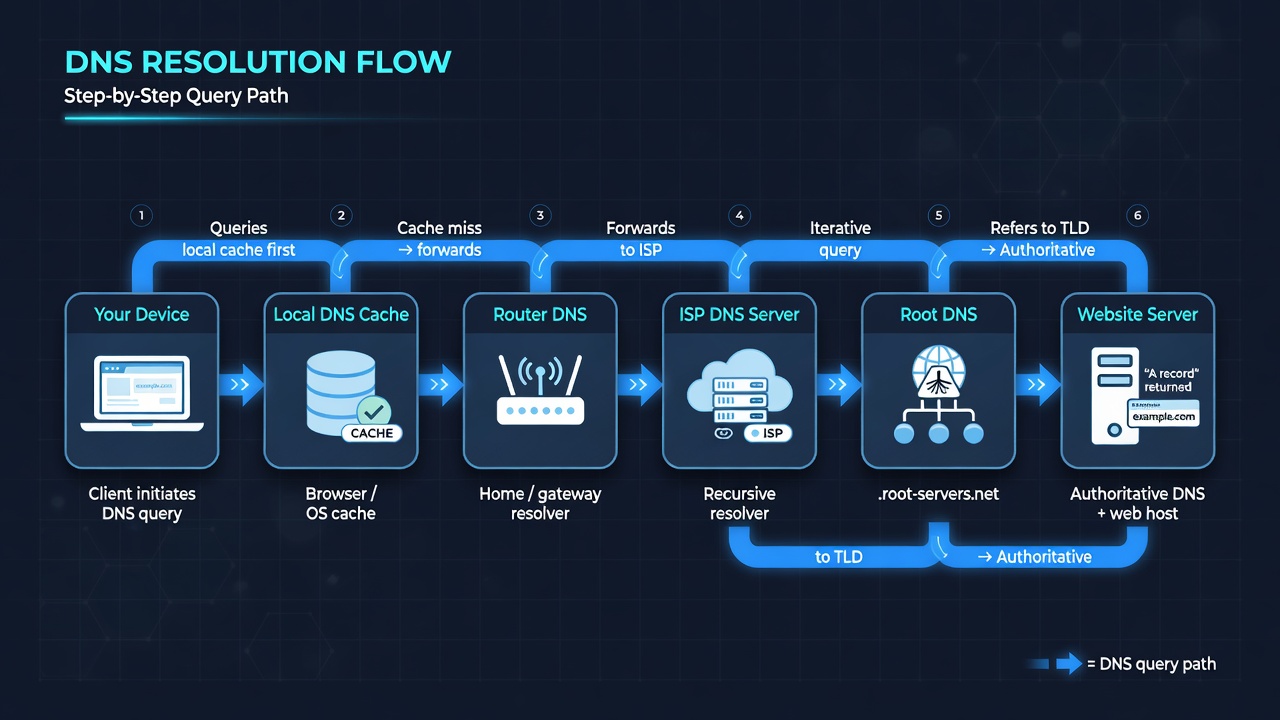
DNS (Domain Name System) translates human-readable URLs like google.com into IP addresses. If your DNS server is down, slow, or misconfigured, your browser cannot resolve domain names — even though the underlying internet connection may be active. This is one of the most common causes of this problem.
Corrupted Network Drivers
Outdated or corrupted NIC (Network Interface Card) drivers on Windows or Linux can cause unstable or non-functional internet access despite showing a connected status.
Router or Modem Misconfiguration
Routers running outdated firmware, misconfigured NAT (Network Address Translation) settings, or incorrect WAN configurations can pass a local handshake but fail to forward packets to the internet.
Quick Fixes to Try First (Basic Troubleshooting)
Restart Your Router and Modem
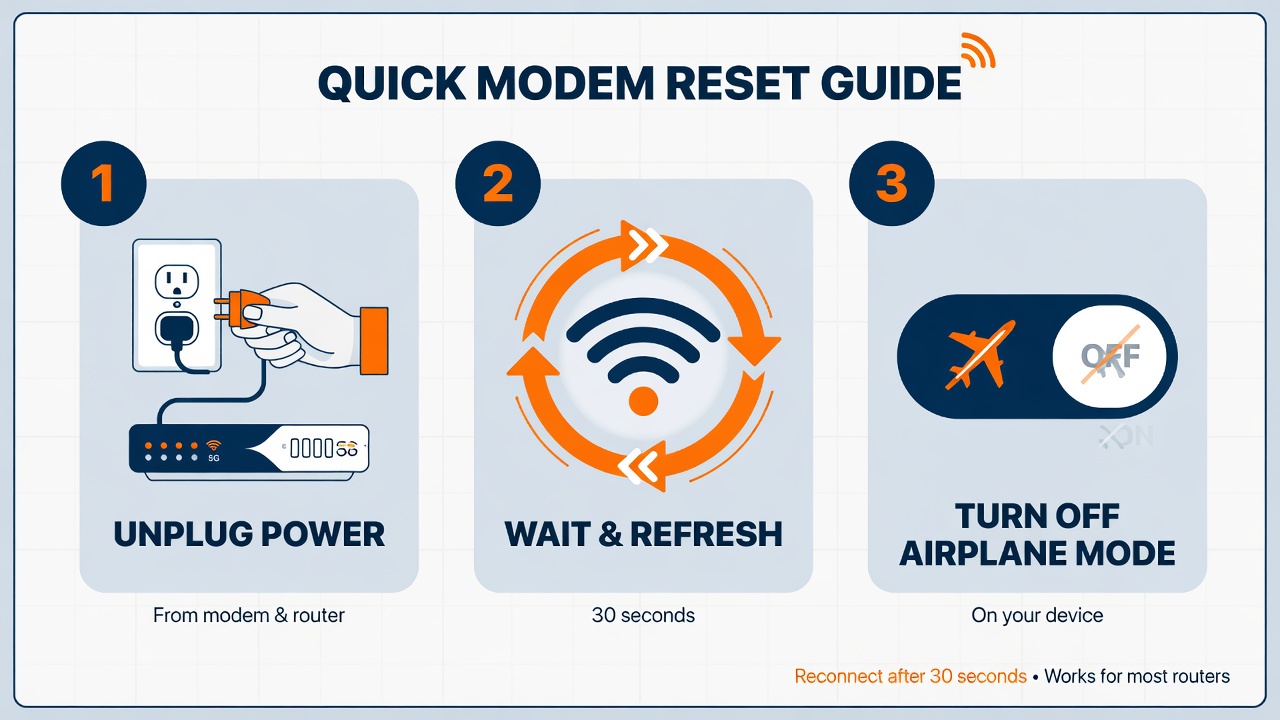
This is the most effective first step and resolves the issue in a large percentage of cases by clearing temporary memory states, refreshing DHCP leases, and re-establishing the WAN connection.
Steps:
- Unplug both your modem and router from power.
- Wait 30–60 seconds (don’t skip this — it clears capacitor memory).
- Plug the modem back in first. Wait until all lights stabilize.
- Then plug in the router. Wait another 30 seconds.
- Reconnect your device and test.
Reconnect to the WiFi Network
On your device, forget the network and reconnect fresh. This forces a new DHCP lease and clears any cached network state.
Check Your Device’s Airplane Mode
Toggle Airplane Mode ON → wait 10 seconds → toggle OFF. This forces a complete wireless stack reset on mobile and laptop devices.
Fix WiFi Connected but No Internet on Windows
Run the Windows Network Troubleshooter
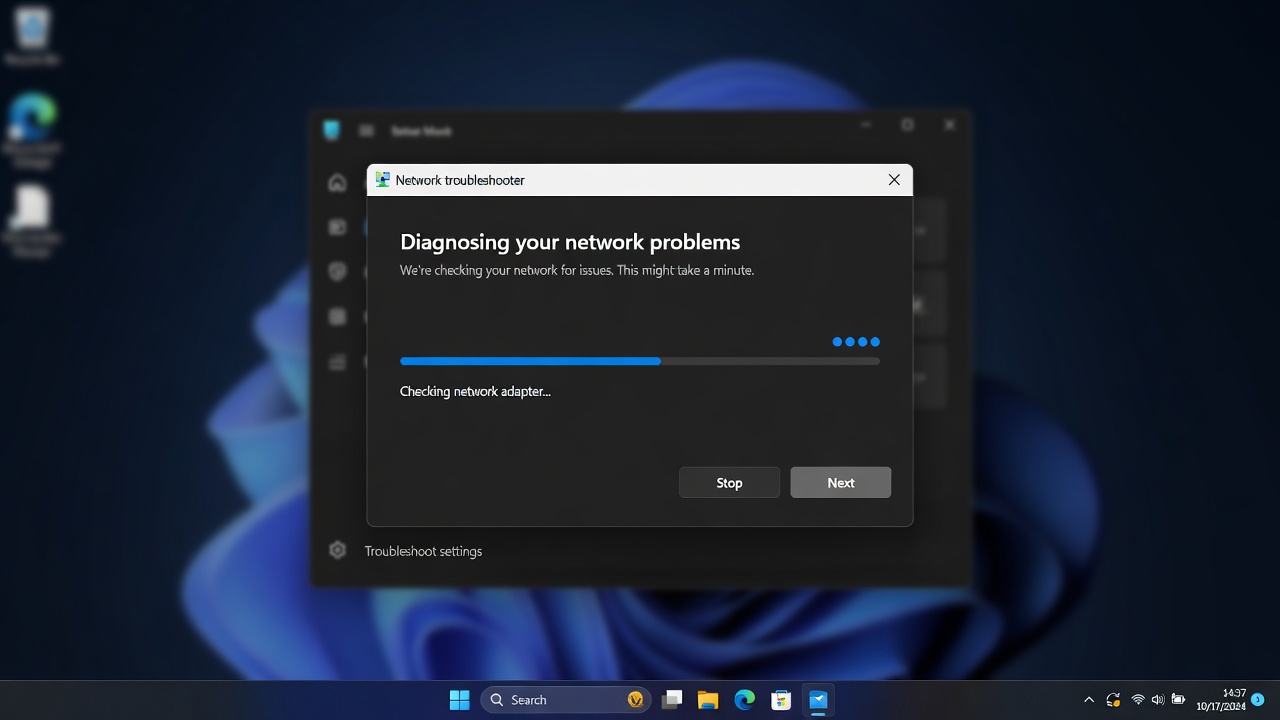
- Right-click the WiFi icon in the taskbar → Troubleshoot problems
- Follow the on-screen prompts
- Apply any suggested fixes
This built-in tool checks for gateway reachability, DHCP lease validity, and DNS resolution failures automatically.
Flush DNS Cache and Renew IP Address
Open Command Prompt as Administrator and run the following commands one by one:
ipconfig /release
ipconfig /flushdns
ipconfig /renew
- ipconfig /release — drops the current IP lease
- ipconfig /flushdns — clears the local DNS resolver cache (removes stale or corrupt DNS records)
- ipconfig /renew — requests a fresh IP from the DHCP server
This is one of the most effective fixes for DNS-related no-internet issues.
Reset TCP/IP Stack and Winsock
Corruption in the TCP/IP stack or Winsock catalog (Windows Socket API) can silently block all internet traffic. Run these in an elevated Command Prompt:
netsh int ip reset
netsh winsock reset
Restart your computer after running these commands. This performs a deep network stack reset and resolves issues caused by malware, failed updates, or VPN conflicts.
Update or Reinstall Network Adapter Drivers
- Press Win + X → Device Manager
- Expand Network Adapters
- Right-click your WiFi adapter → Update Driver
- If updating fails, right-click → Uninstall Device → restart Windows (it auto-reinstalls)
Outdated drivers are a leading cause of intermittent internet drops and connected-but-no-access issues on Windows 10 and Windows 11.
If you’re also struggling with other Windows problems, check out this guide on how to Fix Windows 10 Stuck on Loading Screen for more system-level troubleshooting.
Disable IPv6 Temporarily
Some routers don’t handle IPv6 properly, causing connectivity conflicts:
- Go to Control Panel → Network and Sharing Center → Change Adapter Settings
- Right-click your WiFi adapter → Properties
- Uncheck Internet Protocol Version 6 (TCP/IPv6)
- Click OK and reconnect
Fix WiFi Connected but No Internet on Mac
Renew DHCP Lease on macOS
- Go to System Settings → Wi-Fi → Details (next to your network)
- Click the TCP/IP tab
- Click Renew DHCP Lease
- Reconnect and test
Change DNS Settings on Mac
- Go to System Settings → Wi-Fi → Details → DNS
- Remove existing DNS entries
- Add 8.8.8.8 (Google) or 1.1.1.1 (Cloudflare)
- Click OK
Delete Network Preferences Files
Sometimes corrupted preference files cause persistent issues:
- Open Finder → Go → Go to Folder
- Type: /Library/Preferences/SystemConfiguration/
- Delete: com.apple.airport.preferences.plist, com.apple.network.identification.plist, NetworkInterfaces.plist, and preferences.plist
- Restart your Mac — macOS will regenerate these files fresh
Fix WiFi Connected but No Internet on Android
Forget and Reconnect to the Network
- Go to Settings → WiFi
- Long-press the network name → Forget
- Reconnect with your password
This forces a new DHCP handshake and often resolves the issue instantly.
Change DNS on Android
- Go to Settings → Network & Internet → Private DNS
- Select the Private DNS provider hostname
- Enter DNS. google or one.one.one.one
Reset Network Settings on Android
Settings → General Management → Reset → Reset Network Settings
⚠️ Note: This will forget all saved WiFi passwords, Bluetooth pairings, and VPN settings.
Fix WiFi Connected but No Internet on iPhone/iOS
Toggle Airplane Mode
Swipe into Control Center → tap the Airplane icon → wait 15 seconds → tap again to disable. This resets the wireless radio stack completely.
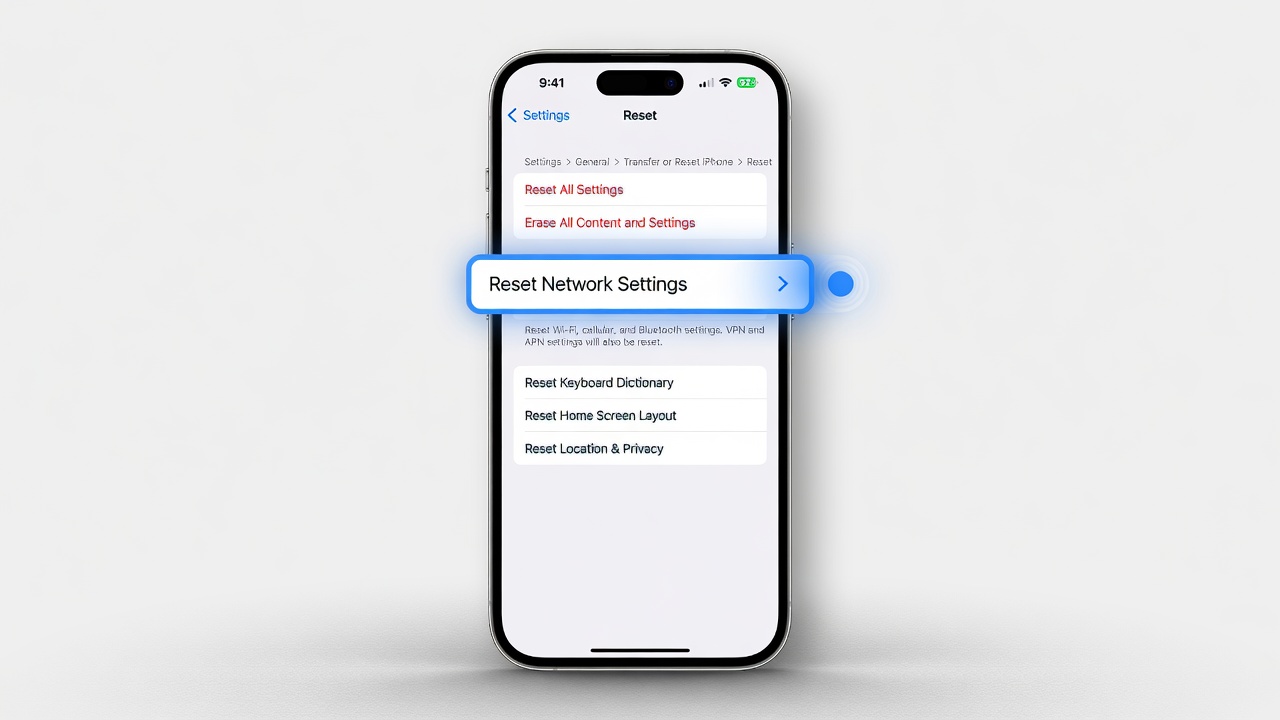
Reset Network Settings on iPhone
Settings → General → Transfer or Reset iPhone → Reset → Reset Network Settings
This is the iOS equivalent of the Windows Winsock reset, which clears all cached network configuration.
Router-Level Fixes
Check Router Admin Panel Settings
Access your router admin panel (typically 192.168.1.1 or 192.168.0.1) and verify:
- WAN/Internet settings are correctly configured (PPPoE, DHCP, or Static IP per your ISP’s requirements)
- DHCP server is enabled
- DNS relay is active
Update Router Firmware
Outdated router firmware is a commonly overlooked cause of connectivity degradation. Log into your router admin panel → Administration → Firmware Update → check for updates.
Factory Reset Your Router
As a last router-side resort:
- Press and hold the Reset button on the back of the router for 10–30 seconds
- Reconfigure with your ISP credentials
- Reconnect your devices
Advanced Fixes for Persistent Issues
Change DNS to Google or Cloudflare
This is one of the most universally effective fixes. Your ISP’s DNS servers may be slow or temporarily down.
Google DNS: 8.8.8.8 and 8.8.4.4 Cloudflare DNS: 1.1.1.1 and 1.0.0.1
On Windows: Control Panel → Network Adapters → IPv4 Properties → Use the following DNS server addresses
Disable Firewall or Antivirus Temporarily
Third-party antivirus software and firewalls can sometimes intercept or block traffic unexpectedly. Temporarily disable them and test connectivity. If this resolves it, add an exception rule rather than leaving it disabled.
Check for MAC Address Filtering
Some routers use MAC address filtering as a security layer. If your device’s MAC address isn’t whitelisted, it gets a local connection but no internet routing. Log into your router admin panel and check the MAC Filter or Access Control section.
If you frequently run into unusual technical errors, you might also find this guide on how to Fix “File Format Not Supported” Error Easily helpful for resolving similar device-side glitches.
When to Contact Your ISP
If you’ve exhausted all device-side and router-side fixes, the problem likely lies upstream. Contact your ISP if:
- The WAN light on your modem is red or blinking abnormally
- The issue affects all devices on your network simultaneously
- You’ve confirmed there’s no local outage via their status page
- Your router shows a valid WAN IP, but still no connectivity
Provide your ISP with:
- Your account number
- Your modem’s make and model
- The exact time the issue started
- A description of what lights are showing on your modem
How to Prevent This Issue in the Future
- Keep drivers and firmware updated regularly
- Use a reliable DNS provider (Google or Cloudflare) as a primary setting
- Restart your router once a week to clear memory leaks
- Invest in a UPS (Uninterruptible Power Supply) to protect your router from power surge resets
- Periodically run network diagnostics rather than waiting for a failure
If you manage a team or track IT work time on these types of tasks, the Free Work Hours Calculator can help you log troubleshooting time efficiently.
Frequently Asked Questions (FAQs)
Q: Why does my phone say “WiFi has no internet access”? A: This typically means your phone is connected to the router successfully, but the router can’t reach the internet. Try changing your DNS or restarting the router.
Q: Can a VPN cause “connected but no internet”? A: Yes. A misconfigured or crashed VPN client can intercept all traffic. Disconnect your VPN and test.
Q: Does factory resetting my router delete my ISP plan? A: No, it only resets the router’s configuration. You’ll need to re-enter your ISP credentials (usually found on your welcome letter or ISP account portal).
Q: Why does my internet work on some devices but not others? A: This points to a device-specific issue — likely a driver, DNS cache, or IP conflict on the affected device rather than a router or ISP problem.
Q: What does 169.254.x.x IP mean? A: It’s an APIPA address, assigned when your device fails to get a proper IP from the DHCP server. Run ipconfig /release and ipconfig /renew to fix it.