Summary: Windows 10 getting stuck on the loading screen is one of the most frustrating PC problems users face, and it can happen due to corrupted system files, faulty drivers, bad Windows updates, hardware failures, or improper shutdowns. This guide covers every proven method to fix Windows 10 stuck on loading screen — from simple force restarts and Safe Mode boots to advanced Command Prompt repairs, driver rollbacks, and clean reinstallation — so you can get your PC running normally again without losing your important data.
Table of Content
- Why Does Windows 10 Get Stuck on the Loading Screen?
- Before You Begin — Quick Checks
- Fix Windows 10 Stuck on Loading Screen Using Safe Mode
- Fix Using Automatic Repair / Startup Repair
- Fix by Disabling Fast Startup
- Fix Using Command Prompt (Advanced)
- Fix by Updating or Rolling Back Drivers
- Fix Windows 10 Stuck on Loading Screen After Update
- Fix by Checking RAM and Hard Drive Health
- Last Resort — Reset or Reinstall Windows 10
- How to Prevent Windows 10 Loading Screen Freeze in the Future
- Frequently Asked Questions (FAQs)
Why Does Windows 10 Get Stuck on the Loading Screen?
When you power on your PC and Windows 10 refuses to pass the spinning dots or the black loading screen, it means something in the boot process has failed or is conflicting. Understanding the root cause helps you apply the right fix the first time.
1.1 Common Causes Behind the Infinite Loading Loop
Several factors can trigger the Windows 10 infinite loading screen:
- Corrupted system files — Critical OS files get damaged due to sudden shutdowns or failed updates
- Faulty or outdated drivers — Especially GPU, storage, or chipset drivers that conflict during startup
- Bad Windows Update — A poorly installed cumulative update that breaks boot sequences
- Malware or virus infection — Malicious programs that alter boot configuration data (BCD)
- Corrupt Master Boot Record (MBR) — A damaged bootloader that fails to hand off control to Windows
- Fast Startup conflicts — Windows hibernation-based fast startup causing stuck loading loops
- Failing hard drive or SSD — Bad sectors or drive failure preventing the OS from loading
- RAM issues — Faulty memory sticks are causing system instability at boot
1.2 Hardware vs. Software Triggers
It’s important to distinguish between the two before you start:
- Software issues — These are more common and fixable using Safe Mode, Command Prompt tools, or system restore. Examples include driver conflicts, update errors, and corrupted registry entries.
- Hardware issues — These include failing HDDs, bad RAM sticks, or overheating components. If software fixes don’t work, hardware testing becomes necessary.
2. Before You Begin — Quick Checks
Before jumping into advanced solutions, always try these basic steps first. They solve the problem more often than you’d expect.
2.1 Force Restart Your PC First
Hold the Power button for 10 seconds to force a complete shutdown. Wait 30 seconds, then power on again. Sometimes a one-time glitch causes the freeze, and a cold restart resolves it instantly.
2.2 Disconnect All External Devices
Unplug every peripheral — USB drives, external hard drives, printers, SD cards, secondary monitors, and docking stations. A malfunctioning external device can interrupt the Windows boot process and cause it to hang indefinitely. Restart with only the keyboard and mouse connected.
2.3 Check Power Supply and Battery
For desktops, ensure the power cable is firmly connected, and your PSU is functioning. For laptops, remove the battery (if removable), hold the power button for 30 seconds to drain residual charge, reinsert the battery, and try booting again.
📷 IMAGE PLACEMENT: Insert Image 1 here — See image prompts at the end
3. Fix Windows 10 Stuck on Loading Screen Using Safe Mode
Safe Mode starts Windows with only the minimum required drivers and services. It is your most powerful diagnostic starting point.
3.1 How to Boot into Safe Mode When Windows Won’t Load
Since Windows won’t boot normally, you need to access Safe Mode through the Windows Recovery Environment (WinRE):
- Force shut down your PC 3 times in a row during the loading screen (Windows will trigger Automatic Repair after the 3rd attempt)
- When the “Preparing Automatic Repair” screen appears, wait
- Click “Advanced options.”
- Go to Troubleshoot → Advanced Options → Startup Settings → Restart
- After the restart, press F4 for Safe Mode or F5 for Safe Mode with Networking
Alternatively, if you have a Windows 10 installation USB, boot from it, choose “Repair your computer”, and navigate to the same Advanced Options menu.
3.2 What to Do Once Inside Safe Mode
Once in Safe Mode:
- Check Event Viewer (search in Start Menu) → Look under Windows Logs → System for critical errors that appeared during last boot
- Uninstall recently installed programs that may have triggered the conflict
- Run a full antivirus/malware scan
- Uninstall or update problematic drivers (covered in Section 7)
4. Fix Using Automatic Repair / Startup Repair
Windows 10 has a built-in Startup Repair tool designed specifically to fix boot problems.
4.1 How to Access Windows Recovery Environment (WinRE)
Trigger WinRE using the 3x forced shutdown method described above, or boot from a Windows 10 USB installation media:
- Plug in the bootable USB → Restart → Press F2, F10, F12, or DEL (depending on your motherboard) to open BIOS
- Set USB as the first boot device
- On the Windows Setup screen, click “Repair your computer” instead of Install
4.2 Running Startup Repair Step by Step
- In WinRE, go to Troubleshoot → Advanced Options → Startup Repair
- Select your Windows account and enter the password if prompted
- Windows will automatically scan and attempt to fix boot issues
- Let it run completely — this can take 15–30 minutes
- Restart and check if Windows loads normally
If Startup Repair says “Startup Repair couldn’t repair your PC”, move to the Command Prompt methods below.
5. Fix by Disabling Fast Startup
5.1 What Is Fast Startup and Why Does It Cause Loading Issues
Fast Startup is a Windows 10 feature that partially hibernates the system kernel on shutdown to speed up the next boot. While useful, it can cause the system to reload a corrupted hibernation file, resulting in a stuck loading screen — especially after a Windows Update or sudden power loss.
5.2 How to Disable Fast Startup from BIOS or Recovery

Since you can’t access Windows normally, disable it via Command Prompt in WinRE:
- Open WinRE → Troubleshoot → Advanced Options → Command Prompt
- Type the following command and press Enter:
reg add “HKLM\SYSTEM\CurrentControlSet\Control\Session Manager\Power” /v HiberbootEnabled /t REG_DWORD /d 0 /f
- Restart your PC
This disables Fast Startup at the registry level without needing to open Windows settings.
📷 IMAGE PLACEMENT: Insert Image 2 here — See image prompts at the end
6. Fix Using Command Prompt (Advanced)
The Command Prompt inside WinRE gives you access to powerful built-in repair tools.
6.1 Running CHKDSK to Repair Disk Errors
CHKDSK scans your drive for bad sectors and file system errors that may be causing the boot freeze:
- Open Command Prompt from WinRE
- Type:
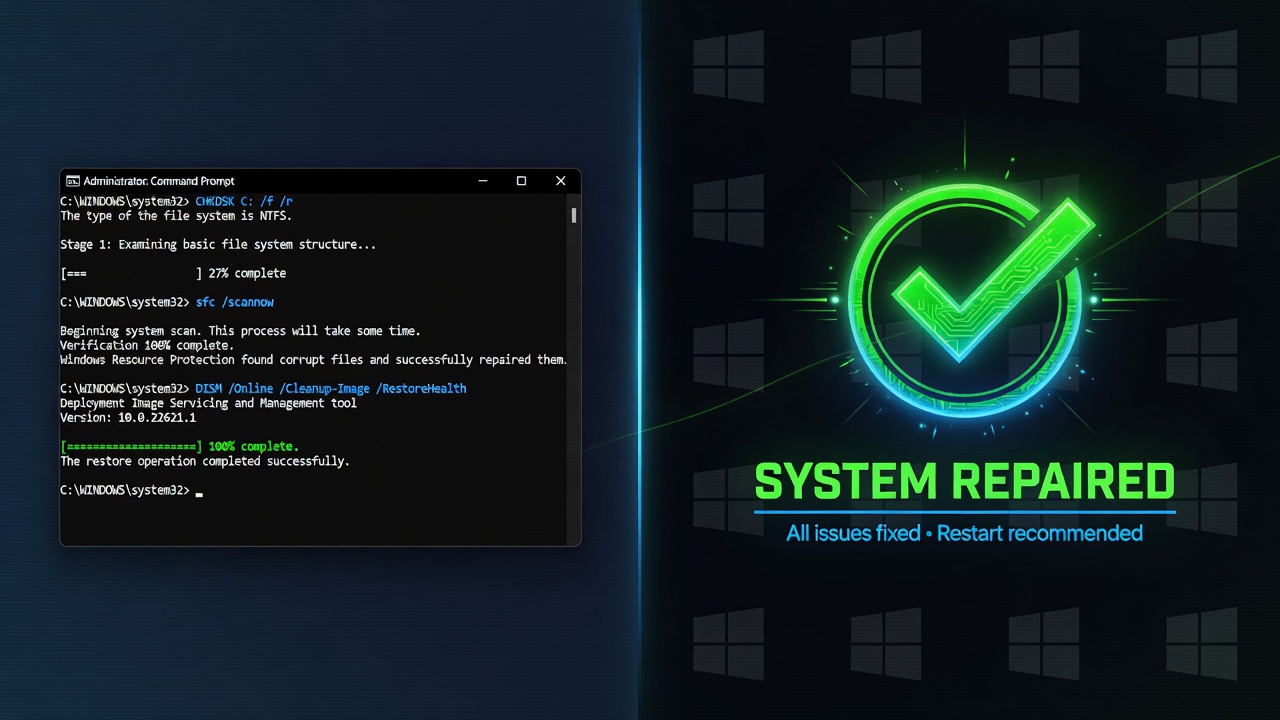
chkdsk C: /f /r /x
- Press Enter and let it complete (may take 30–60 minutes on large drives)
- Restart after completion
6.2 Running SFC /scannow to Fix Corrupted System Files
The System File Checker (SFC) replaces corrupted or missing Windows system files with cached good copies:
sfc /scannow /offbootdir=C:\ /offwindir=C:\Windows
Use the /offbootdir and /offwindir flags because you’re running this outside of the live Windows environment.
6.3 Using DISM to Restore Windows Health
If SFC finds errors it can’t fix, use DISM (Deployment Image Servicing and Management) to repair the Windows component store:
DISM /Online /Cleanup-Image /RestoreHealth
If Windows isn’t booting, use the offline version pointing to your Windows installation:
DISM /Image:C:\Windows /Cleanup-Image /RestoreHealth
Run DISM first, then SFC again for best results. According to Microsoft’s official support documentation, running these tools in sequence gives the highest chance of repairing system integrity issues.
7. Fix by Updating or Rolling Back Drivers
Driver conflicts — especially with display adapters, storage controllers, and network cards — are a leading cause of Windows 10 loading screen freezes.
7.1 Identify Problematic Drivers
In Safe Mode, open Device Manager (right-click Start → Device Manager). Look for devices marked with a yellow exclamation mark (⚠). These indicate driver issues. Common culprits include:
- Display Adapter (GPU drivers)
- IDE ATA/ATAPI Controllers (storage drivers)
- Network Adapters
7.2 How to Update or Uninstall Drivers in Safe Mode
To update: Right-click the problematic device → “Update driver” → Search automatically
To roll back: Right-click device → Properties → Driver tab → “Roll Back Driver”
To uninstall: Right-click → “Uninstall device” → Check “Delete the driver software for this device” → Restart (Windows will reinstall a clean version automatically)
For GPU issues specifically, boot into Safe Mode and uninstall your current display driver completely using DDU (Display Driver Uninstaller), then install a fresh driver from the manufacturer’s website.
8. Fix Windows 10 Stuck on Loading Screen After Update
If the freeze started right after a Windows Update, that update is almost certainly the cause.
8.1 Uninstalling Recent Windows Updates
- Access WinRE → Troubleshoot → Advanced Options → Uninstall Updates
- Choose “Uninstall latest quality update” or “Uninstall latest feature update.”
- Confirm and restart
8.2 Using System Restore to Go Back to a Stable State
If you had System Restore enabled before the issue began:
- Go to WinRE → Troubleshoot → Advanced Options → System Restore
- Click Next and choose a restore point from before the freeze started
- Confirm affected drives and click Finish
- Your PC will restore to that point without affecting personal files
9. Fix by Checking RAM and Hard Drive Health
If all software fixes fail, your hardware may be to blame.
9.1 Run Windows Memory Diagnostic
Faulty RAM causes all kinds of boot-time failures:
- In WinRE Command Prompt, type:
mdsched.exe
- Or create a bootable memory diagnostic USB from another PC using the Windows Memory Diagnostic tool
- Run the Extended test for thorough results
- If errors are found, reseat your RAM sticks or replace the faulty module
9.2 Check Hard Drive for Failure Signs
A failing HDD or SSD can prevent Windows from reading the files it needs to boot. Use CrystalDiskInfo (from another working PC) to check your drive’s SMART data. Warning signs include reallocated sectors, pending sectors, and uncorrectable errors. If your drive shows “Caution” or “Bad” status, back up your data immediately and replace the drive.
You may also find our guide on Fix “File Format Not Supported” Error helpful if you encounter file-related errors after recovering your system.
10. Last Resort — Reset or Reinstall Windows 10
10.1 Reset This PC Without Losing Files
If nothing else works, Windows 10’s built-in reset feature can reinstall the OS while keeping your personal files:
- WinRE → Troubleshoot → Reset this PC
- Choose “Keep my files.”
- Select Cloud download (downloads a fresh Windows copy) or Local reinstall
- Follow the prompts and wait for completion
10.2 Clean Install Windows 10 Using a Bootable USB
If Reset fails or you want a completely fresh start:
- Download the Windows 10 Media Creation Tool from Microsoft’s official website on another PC
- Create a bootable USB (8GB minimum)
- Boot your PC from the USB → Choose Custom Install
- Format the C: drive during setup for a completely clean environment
A clean install resolves virtually every software-based cause of the loading screen freeze. Just ensure you’ve backed up your data beforehand.
11. How to Prevent Windows 10 Loading Screen Freeze in the Future
- Keep Windows Updated — but monitor update reviews before installing major updates
- Install drivers from official manufacturer websites only
- Enable System Restore on your C: drive at all times
- Keep at least 15–20% of your drive free to avoid file system fragmentation issues
- Use a UPS (Uninterruptible Power Supply) for desktops to prevent sudden shutdowns
- Run SFC and CHKDSK monthly as preventive maintenance
- Avoid force-shutting down unless absolutely necessary
- Backup regularly using Windows Backup or a tool like Macrium Reflect
If you ever need to work with financial tools or calculations alongside your PC productivity setup, you might also find the Pip Value Calculator Forex useful for quick reference.
12. Frequently Asked Questions (FAQs)
Q: How long should the Windows 10 loading screen take? A: Normally 20–60 seconds, depending on your hardware. If it exceeds 5 minutes with no progress, it is genuinely stuck.
Q: Will fixing the loading screen issue delete my files? A: Most fixes (Safe Mode, CHKDSK, SFC, DISM, driver updates) do not delete files. Only a clean install will erase everything unless you choose “Keep my files” during Reset.
Q: Can a virus cause Windows 10 to freeze on the loading screen? A: Yes. Some malware specifically targets boot files (MBR rootkits). Running a boot-time antivirus scan from a USB (like Kaspersky Rescue Disk) can detect and remove these.
Q: What if my PC doesn’t give the Automatic Repair option after 3 restarts? A: Use a Windows 10 bootable USB to access WinRE manually. You can download the ISO from Microsoft’s official Windows 10 download page for free.
Q: Does resetting Windows 10 fix the loading screen problem? A: In most cases, yes — especially the “Keep my files” reset option, which reinstalls Windows without affecting your documents, photos, and other personal data.