Summary
What Is SVG Format? SVG stands for Scalable Vector Graphics, a modern image format used for logos, icons, illustrations, charts, interface elements, and responsive website graphics. Unlike JPG or PNG files, SVG images are based on vector paths and XML code instead of fixed pixels. This means they can scale up or down without losing quality. SVG files are lightweight, editable, searchable, animation-friendly, and useful for web design, SEO, digital graphics, and user interface development.
Table of Content
- What Is SVG Format?
- Why What Is SVG Format Matters for Web Design
- How SVG Format Works
- SVG vs PNG, JPG, GIF, and WebP
- Main Benefits of Using SVG Files
- Common Uses of SVG Format
- When You Should Not Use SVG
- How to Open, Edit, and Convert SVG Files
- SVG SEO, Accessibility, and Performance Tips
- SVG Security and Optimization Best Practices
- Conclusion
- FAQs
What Is SVG Format?
SVG format stands for Scalable Vector Graphics. It is a vector-based image format designed to display two-dimensional graphics on websites, apps, digital documents, and design projects. SVG files usually use the .svg extension and are written in XML, which is a text-based markup language.
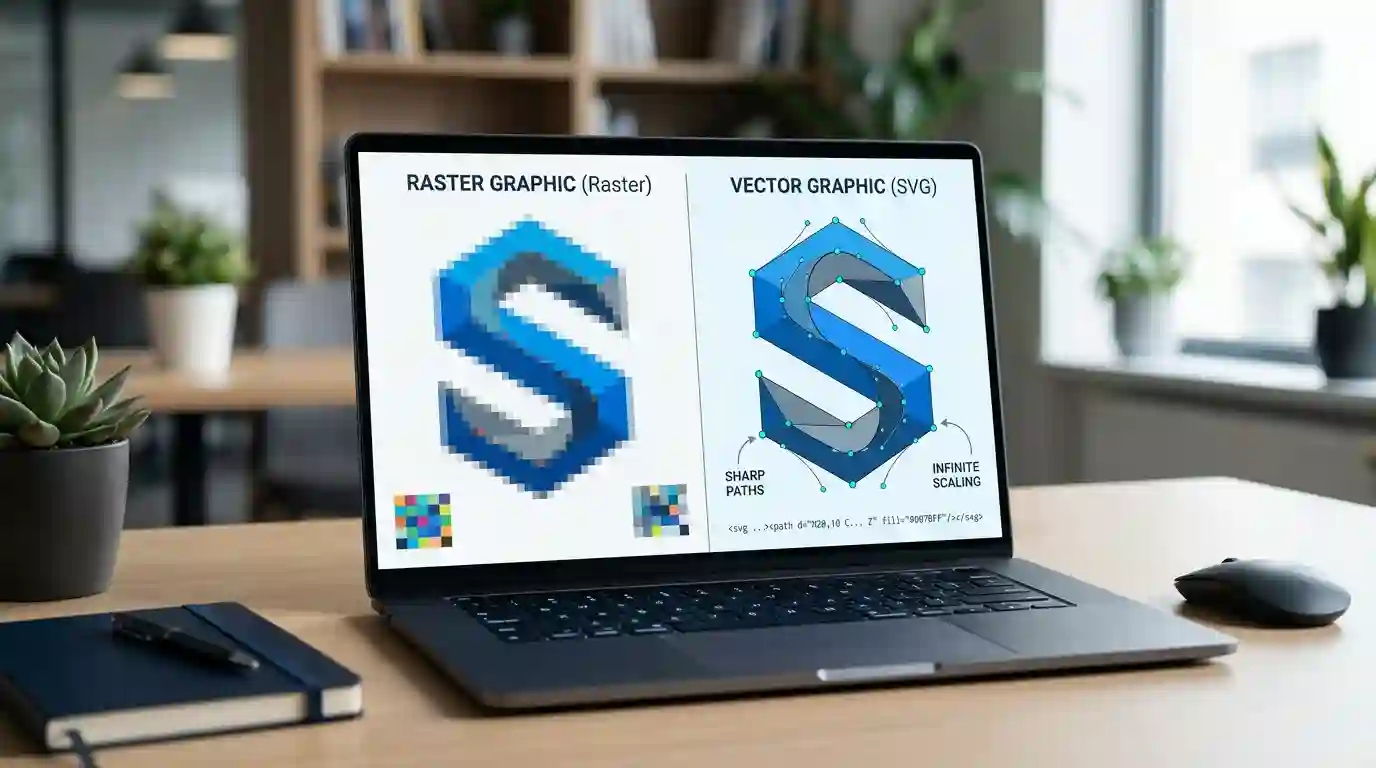
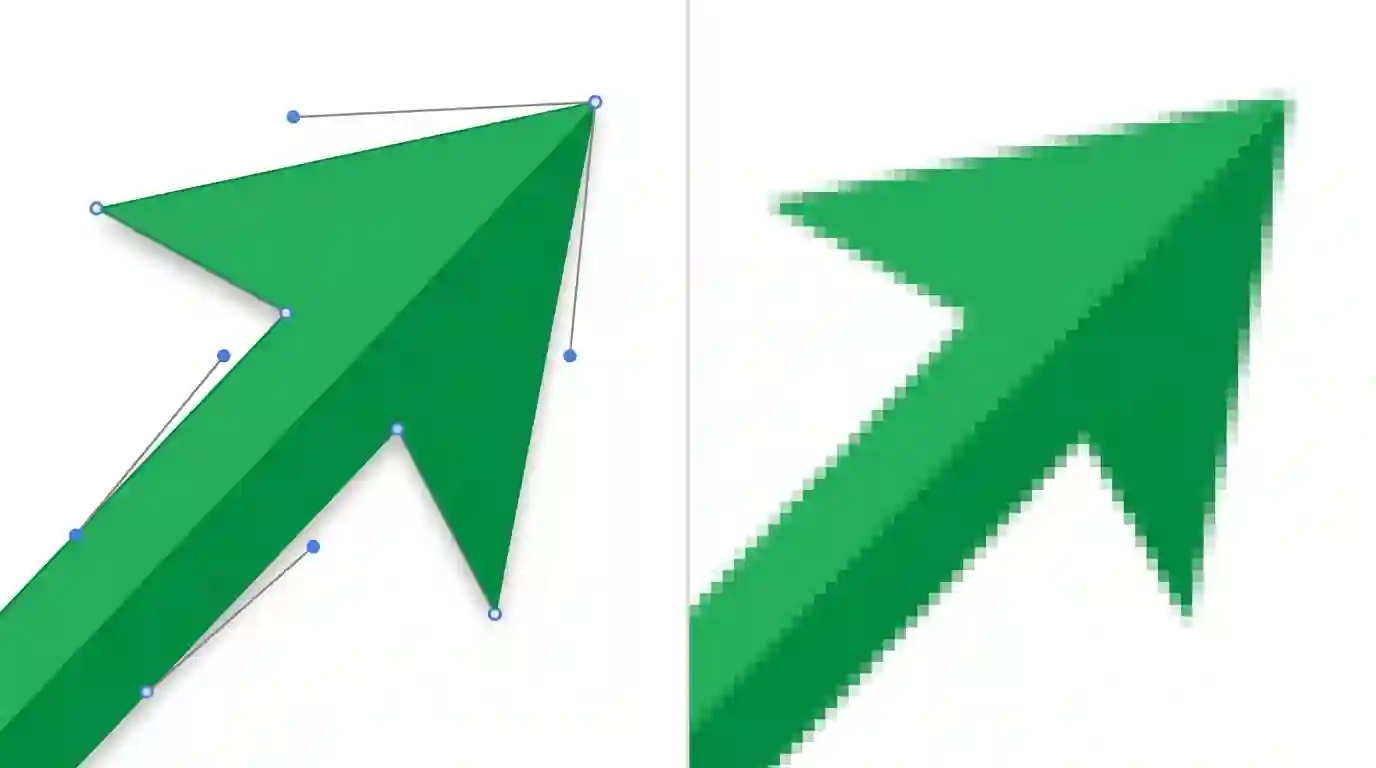
The biggest difference between SVG and traditional image formats is how the image is created. A PNG or JPG image is made of pixels. When you zoom in too much, the image may become blurry or pixelated. An SVG image is made from mathematical paths, shapes, lines, curves, points, and coordinates. Because of this, the same SVG file can look sharp on a small mobile screen, a large desktop monitor, or even a printed banner.
For example, a website logo in PNG format may need different versions for desktop, mobile, retina displays, and social media. But an SVG logo can often handle many screen sizes from one file because it is resolution-independent.
SVG is widely used in modern web design because it works well with HTML, CSS, JavaScript, responsive layouts, and scalable user interfaces. According to the authoritative MDN Web Docs SVG guide, SVG is an XML-based language for describing two-dimensional vector graphics.
Why What Is SVG Format Matters for Web Design
Understanding SVG is important because visual quality, page speed, responsiveness, and user experience all matter in modern websites. A website may look professional on a desktop but weak on mobile if its images are blurry, too heavy, or not optimized.
SVG helps solve many of these problems. Since it is scalable, it keeps logos and icons sharp on high-resolution screens. Since it is often text-based and compact, it can reduce file size for simple graphics. Since it can be styled with CSS, designers and developers can change colors, hover effects, animations, and states without uploading multiple image files.
SVG also supports interactivity. Developers can animate parts of an SVG, make icons react to user actions, or use SVG elements in dashboards and data visualizations. This makes SVG more than just an image format. It can also act like a flexible design component.
For websites that publish visual tools, image utilities, calculators, or technical guides, SVG is especially useful. If you work with online image editing, compression, resizing, or conversion, you can explore more resources through Online Free Image Tools.
How SVG Format Works
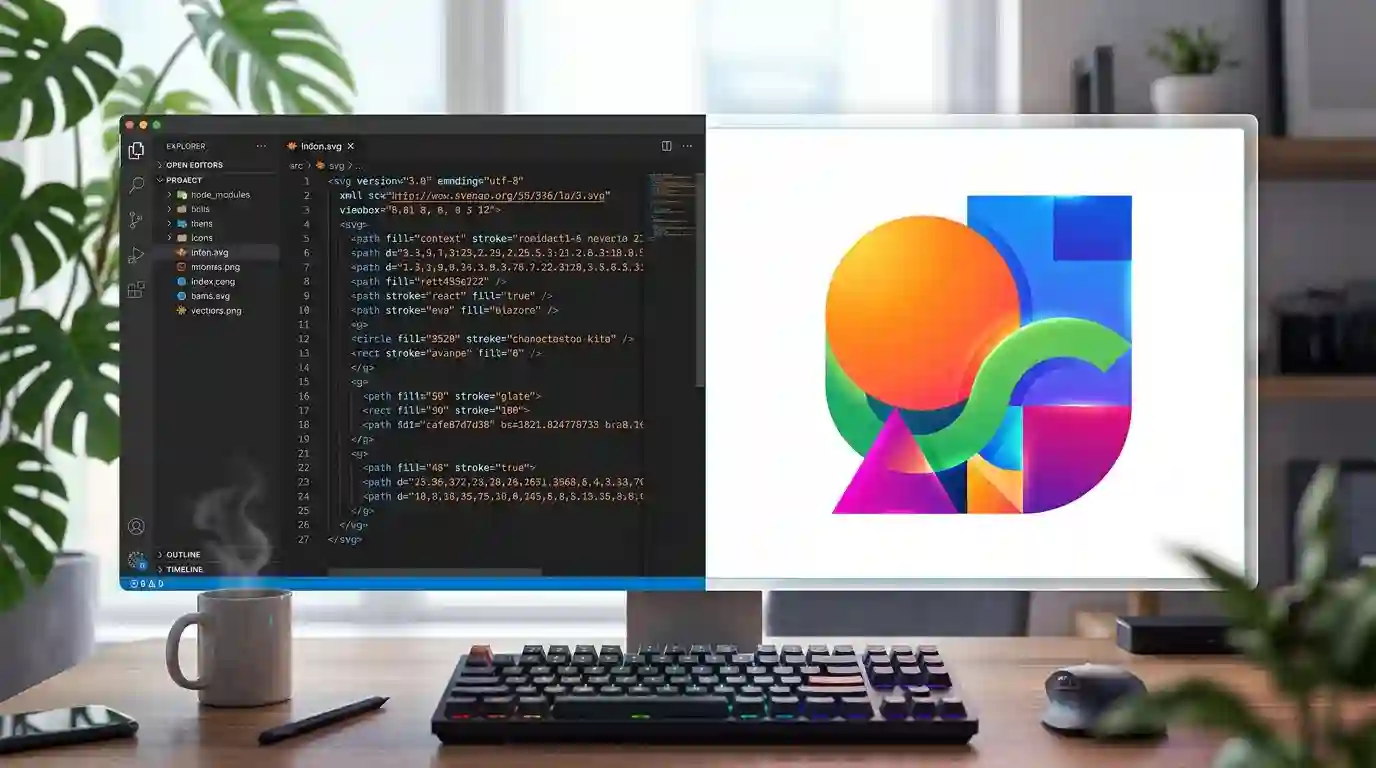
SVG works by describing an image through code. Instead of storing every pixel, an SVG file stores instructions that tell the browser what to draw.
A basic SVG may include:
- Width and height
- ViewBox settings
- Paths
- Circles
- Rectangles
- Lines
- Polygons
- Text
- Fill colors
- Stroke colors
- Gradients
- Filters
- Masks
- Animation rules
SVG Uses XML Code
SVG is written in XML. This means the file can be opened in a code editor and edited manually. A simple SVG circle may contain code that defines the circle’s position, radius, fill color, and stroke.
This text-based structure makes SVG very flexible. Designers can create SVG graphics in tools like Adobe Illustrator, Figma, Sketch, Affinity Designer, or Inkscape. Developers can then edit or optimize the SVG code for websites.
SVG Uses Vector Paths
The heart of many SVG graphics is the path element. A path tells the browser how to draw shapes using points, curves, and lines. This is why SVG is excellent for logos, icons, symbols, interface graphics, badges, line art, and illustrations.
A vector path does not depend on a fixed resolution. That is why SVG can remain crisp whether it is displayed at 24 pixels wide or 2400 pixels wide.
SVG Uses the ViewBox
The viewBox is one of the most important SVG attributes. It defines the internal coordinate system of the SVG. A correct viewBox allows the image to scale properly while keeping its proportions.
For example, if the viewBox is set correctly, the SVG logo will resize smoothly inside a button, navigation bar, hero section, footer, or app screen.
SVG vs PNG, JPG, GIF, and WebP
SVG is powerful, but it is not always the best image format for every situation. To use it correctly, it helps to compare SVG with other common image formats.
SVG vs PNG
PNG is a raster image format. It is commonly used for screenshots, transparent images, and graphics that need lossless quality. PNG supports transparency, but file sizes can become large.
SVG is usually better for simple graphics such as logos, icons, illustrations, and line drawings. It scales better and often has smaller file sizes for basic shapes.
Use SVG for logos and icons. Use PNG for screenshots, complex transparent images, or raster graphics that need exact pixel detail.
SVG vs JPG
JPG is best for photographs and complex images with many colors, shadows, and details. It uses lossy compression, which reduces file size but can also reduce image quality.
SVG is not ideal for detailed photographs because photographs contain thousands or millions of color variations. If you convert a photo to SVG, the file can become too complex and heavy.
Use JPG for photos. Use SVG for clean vector artwork.
SVG vs GIF
GIF is commonly used for simple animations, but it has limited color support and can produce large files. SVG can also support animation, but in a different way. SVG animations can be created using CSS, JavaScript, or SVG animation features.
Use GIF for simple animated clips when needed. Use SVG for animated icons, loading graphics, interface effects, and interactive illustrations.
SVG vs WebP
WebP is a modern raster image format that supports compression, transparency, and animation. It is useful for website photos and image-heavy pages.
SVG is different because it is vector-based. WebP is great for compressed photos and raster graphics, while SVG is better for scalable logos, icons, and illustrations.
For a deeper understanding of image data and metadata, you can also read How EXIF Data Affects Images.
Main Benefits of Using SVG Files
SVG offers several advantages for designers, developers, website owners, and SEO professionals.
1. SVG Images Stay Sharp at Any Size
The main benefit of SVG is scalability. A single SVG can appear sharp on mobile screens, tablets, laptops, 4K monitors, and high-density retina displays.
This makes SVG ideal for responsive websites where the same graphic may appear in different sizes across different devices.
2. SVG Files Can Be Lightweight
For simple graphics, SVG files can be very small. Icons, logos, line illustrations, and simple shapes often require less file size in SVG than PNG.
Smaller files can help improve page loading speed, especially when they are optimized correctly.
3. SVG Can Be Edited Easily
Because SVG is code-based, it can be edited in many ways. A designer can edit it visually in design software, while a developer can edit the SVG code directly.
Colors, strokes, dimensions, gradients, and shapes can be changed without recreating the whole image.
4. SVG Supports CSS Styling
SVG can be styled with CSS. This means you can change icon colors on hover, adjust strokes, animate elements, or create dark-mode versions without uploading separate files.
For example, a website button icon can change color when a user moves the mouse over it. This is very useful for modern UI design.
5. SVG Supports Animation
SVG can be animated using CSS or JavaScript. Designers and developers can animate lines, icons, shapes, charts, progress indicators, and illustrations.
Common SVG animations include:
- Loading spinners
- Animated check marks
- Progress circles
- Interactive maps
- Line drawing effects
- Hover icon animations
- Dashboard chart movements
6. SVG Can Be Searchable and Accessible
Since SVG is text-based, it can include titles, descriptions, and readable text. This can help with accessibility when used correctly.
Screen readers may understand SVG better when proper title and description tags are added. This is important for inclusive web design.
7. SVG Works Well for Branding
Brand assets need to stay consistent across devices. SVG is excellent for brand logos, badges, certification icons, social icons, and website identity elements.
A logo in SVG format can look clean in the header, footer, email signature, mobile menu, and printed material.
Common Uses of SVG Format

SVG is used in many areas of digital design and web development.
Logos
SVG is one of the best formats for website logos because it remains crisp at every size. A logo may appear small in the navigation bar and large on a landing page, but the SVG version can keep the same sharp quality.
Icons
Icons are one of the most common uses of SVG. Navigation icons, social media icons, payment icons, feature icons, app icons, and dashboard icons often work best in SVG format.
Illustrations
Many websites use SVG illustrations in hero sections, onboarding screens, explainer sections, and feature blocks. SVG illustrations can be colorful, scalable, and animation-friendly.
Infographics
Simple infographics, diagrams, process flows, and comparison visuals can be made in SVG. This makes them easier to scale and customize for different layouts.
Charts and Data Visualization
SVG is often used in charts, graphs, dashboards, and maps because individual elements can be styled and interacted with. A bar, line, circle, or label can respond to hover or click actions.
User Interface Elements
Buttons, toggles, arrows, badges, loaders, progress indicators, and decorative elements can all use SVG. This makes the user interface cleaner and more flexible.
Print and Digital Design
SVG is mainly popular on the web, but it can also be used in design workflows where scalable graphics are needed. However, for professional print production, designers may still use formats such as PDF, EPS, or AI, depending on the printer’s requirements.
When You Should Not Use SVG
SVG is useful, but it is not perfect for every image type.
Do Not Use SVG for Detailed Photos
Photos are better saved as JPG, WebP, AVIF, or PNG, depending on the use case. A photo contains complex color and pixel information. SVG is not designed for full photographic detail.
Avoid Overly Complex SVG Files
Some SVG files exported from design tools contain unnecessary code, hidden layers, metadata, comments, or complex paths. These can make the file heavy and slow.
Before uploading SVG to a website, it is a good idea to optimize it.
Be Careful With User-Uploaded SVGs
SVG can contain scripts or external references. This creates security risks if users are allowed to upload SVG files without proper sanitization.
Website owners should never allow unsafe SVG uploads without security checks.
Avoid SVG Where Browser Rendering Becomes Heavy
A simple SVG icon is lightweight. But an SVG with thousands of paths, filters, masks, and animations can become performance-heavy. In such cases, a raster image may perform better.
How to Open, Edit, and Convert SVG Files
SVG files are easy to open and edit because they are supported by many tools.
How to Open SVG Files
You can open SVG files in:
- Web browsers
- Code editors
- Design software
- Vector editing tools
- Online image tools
Most modern browsers can display SVG files directly. You can drag an SVG file into the browser and view it.
How to Edit SVG Files
You can edit SVG files visually using tools like Figma, Adobe Illustrator, Inkscape, Sketch, or Affinity Designer. You can also edit them manually in code editors such as VS Code, Sublime Text, or Notepad++.
Common edits include changing colors, resizing shapes, adjusting strokes, simplifying paths, and removing unwanted metadata.
How to Convert SVG Files
SVG can be converted into PNG, JPG, WebP, PDF, or other formats depending on your needs.
You may convert SVG to PNG when you need a raster version for social media, email templates, or platforms that do not accept SVG uploads.
You may convert PNG or JPG to SVG through vector tracing, but the result is not always perfect. Simple logos and flat graphics convert better than photos.
SVG SEO, Accessibility, and Performance Tips
SVG can support SEO and accessibility when used properly. However, it must be implemented carefully.
Use Descriptive File Names
Instead of uploading a file named icon-final-new-2.svg, use a descriptive name such as free-image-converter-icon.svg or svg-format-logo-example.svg.
Descriptive file names help with organization and may provide better context to search engines.
Add Title and Description Tags
SVG can include title and description elements. These can improve accessibility by giving screen readers useful context.
For example, if the SVG shows a file conversion process, the title can describe it clearly.
Use Alt Text When SVG Is Used as an Image
If you add SVG using an image tag, use alt text like you would for other images. The alt text should describe the image’s purpose, not just repeat the file name.
Optimize SVG Code
Unoptimized SVG files can contain unnecessary data. Before publishing, remove extra comments, hidden layers, unused groups, editor metadata, and unnecessary decimals.
Clean SVG code can reduce file size and improve loading speed.
Choose Inline SVG Carefully
Inline SVG means placing the SVG code directly inside HTML. This gives more styling and animation control. However, it can also increase HTML size if overused.
Use inline SVG for interactive icons or graphics that need CSS control. Use external SVG files for reusable static graphics.
Compress SVG When Needed
SVG files can be compressed using Gzip on the server. There is also an SVGZ format, which is a compressed version of SVG. Compression can reduce file size, especially for larger SVG files.
SVG Security and Optimization Best Practices

SVG can be powerful, but it should be handled safely.
Sanitize SVG Before Uploading
Because SVG is XML-based and can contain scripts, unsafe SVG uploads can create security risks. If your website allows SVG uploads, use a reliable sanitizer or security plugin.
This is especially important for WordPress, custom CMS platforms, SaaS tools, and user-generated content platforms.
Remove Unnecessary Metadata
Design tools often export extra information into SVG files. This can include editor settings, comments, IDs, hidden layers, and unused styles.
Removing unnecessary metadata keeps the file clean and lightweight.
Avoid Embedded External Resources
Some SVG files may reference external fonts, scripts, or images. This can create performance and security issues. For website use, keep SVG self-contained when possible.
Test SVG on Different Devices
Always test SVG graphics on mobile, tablet, desktop, and high-resolution screens. Check if the image scales properly and does not break the layout.
Keep Accessibility in Mind
If an SVG is decorative, it may not need to be announced by screen readers. If it communicates important information, it should have proper labels, a title, a description, or alt text.
Conclusion
SVG format is one of the most useful image formats for modern websites and digital design. It is scalable, lightweight, editable, responsive, and perfect for logos, icons, illustrations, charts, and interface graphics.
However, SVG should be used wisely. It is not the best choice for detailed photos, very complex images, or unsafe user-uploaded files. For the best results, SVG files should be optimized, accessible, secure, and used in the right context.
If your goal is to create sharp, flexible, and professional website graphics, SVG is a smart format to understand and use. It helps improve visual quality, supports responsive design, and gives designers and developers more control over how graphics look and behave.
FAQs
1. What is the SVG format used for?
SVG format is used for scalable web graphics such as logos, icons, illustrations, charts, diagrams, maps, and user interface elements. It is popular because it stays sharp at any size and works well with responsive websites.
2. Is SVG better than PNG?
SVG is better than PNG for logos, icons, and simple vector graphics because it scales without losing quality. PNG is better for screenshots, detailed raster images, and graphics that need exact pixel-based detail.
3. Is SVG good for SEO?
SVG can be good for SEO when used correctly. Descriptive file names, proper alt text, title tags, and accessible descriptions can help search engines and users understand the image better.
4. Can SVG files be edited?
Yes, SVG files can be edited in vector design tools like Adobe Illustrator, Figma, Inkscape, Sketch, and Affinity Designer. They can also be edited manually in a code editor because SVG is based on XML.
5. Does SVG lose quality when resized?
No, SVG does not lose quality when resized because it is vector-based. It uses mathematical paths instead of fixed pixels, so it remains sharp on different screen sizes and resolutions.
6. Is SVG safe to upload to a website?
SVG can be safe if it is properly sanitized and optimized. However, unsafe SVG files may contain scripts or harmful code, so user-uploaded SVGs should always be checked before being allowed on a website.
7. Can SVG be animated?
Yes, SVG can be animated using CSS, JavaScript, and SVG animation techniques. Animated SVGs are often used for icons, loaders, charts, line animations, and interactive web graphics.
8. Should I use SVG for photos?
No, SVG is not the best format for photos. Photos should usually be saved as JPG, WebP, AVIF, or PNG. SVG works best for vector graphics, not complex photographic images.