
Summary
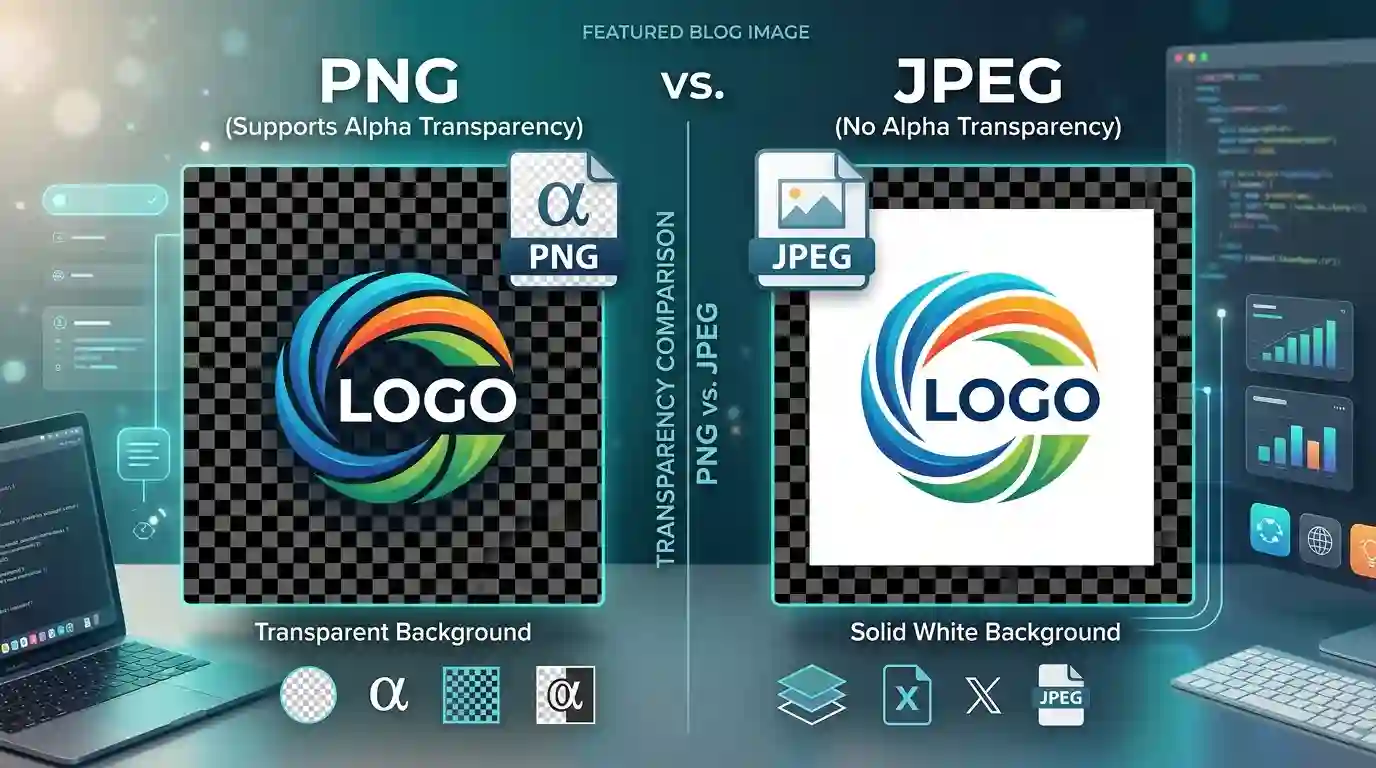
Choosing between PNG vs JPEG for Transparency is one of the most important decisions when preparing website graphics, product images, logos, icons, screenshots, and downloadable design assets. PNG is the better format when you need transparent backgrounds, sharp edges, alpha channel support, and lossless image quality. JPEG, on the other hand, is usually better for photographs, large visual banners, and images where transparency is not required.
The difference matters because a wrong format can lead to poor image quality, visible white backgrounds, blurry edges, larger file sizes, slower page speed, and inconsistent branding. In this detailed guide, you will learn how PNG and JPEG handle transparency, when to use each format, how conversion affects image quality, and how to optimize transparent images for websites, social media, ecommerce, and digital design.
Table of Content
- What Does Image Transparency Mean?
- PNG vs JPEG for Transparency: Key Difference
- How PNG Supports Transparent Backgrounds
- Why JPEG Does Not Support Transparency
- PNG vs JPEG for Transparency: Best Use Cases
- PNG vs JPEG File Size and Quality Comparison
- When to Convert JPG to PNG
- When to Convert PNG to JPG
- Transparency, SEO, and Website Performance
- Common Mistakes to Avoid
- Conclusion
- FAQs
What Does Image Transparency Mean?
Image transparency means that part of an image can be invisible, allowing the background behind it to show through. This is especially useful for logos, icons, stickers, overlays, product cutouts, watermarks, website graphics, and UI elements.
For example, a company logo saved with transparency can be placed on a white, black, blue, gradient, or patterned background without showing an ugly box around it. A product image with a transparent background can look clean on ecommerce pages, marketplace listings, and promotional banners.
Transparency is usually controlled by an alpha channel. An alpha channel stores opacity information for pixels. A pixel can be fully visible, fully transparent, or partially transparent. This is what makes soft shadows, smooth edges, glass effects, and faded overlays possible.
The most important thing to understand is this: not every image format supports transparency. PNG supports transparency very well. Standard JPEG does not.
PNG vs JPEG for Transparency: Key Difference
The main difference between PNG and JPEG for transparency is simple:
PNG supports transparent backgrounds. JPEG does not support transparency.
PNG, short for Portable Network Graphics, can store an alpha channel. This allows an image to have invisible or semi-transparent areas. JPEG, short for Joint Photographic Experts Group, is designed mainly for compressed photographs and does not include native transparency support.
According to MDN’s authoritative image file type and format guide, PNG is preferred when transparency is needed, while JPEG is commonly used for lossy compression of still images.
Quick Comparison Table
| Feature | PNG | JPEG |
| Transparency support | Yes | No |
| Alpha channel | Yes | No |
| Compression type | Lossless | Lossy |
| Best for | Logos, icons, transparent graphics, screenshots | Photos, banners, large images |
| File size | Often larger | Usually smaller |
| Edge quality | Sharp and clean | Can show compression artifacts |
| Background removal use | Excellent | Not suitable |
| Website use | Great for transparent graphics | Great for photos |
If your image needs a transparent background, PNG is usually the correct choice. If your image is a regular photo with no transparency requirement, JPEG is often more practical because it can produce smaller file sizes.
How PNG Supports Transparent Backgrounds
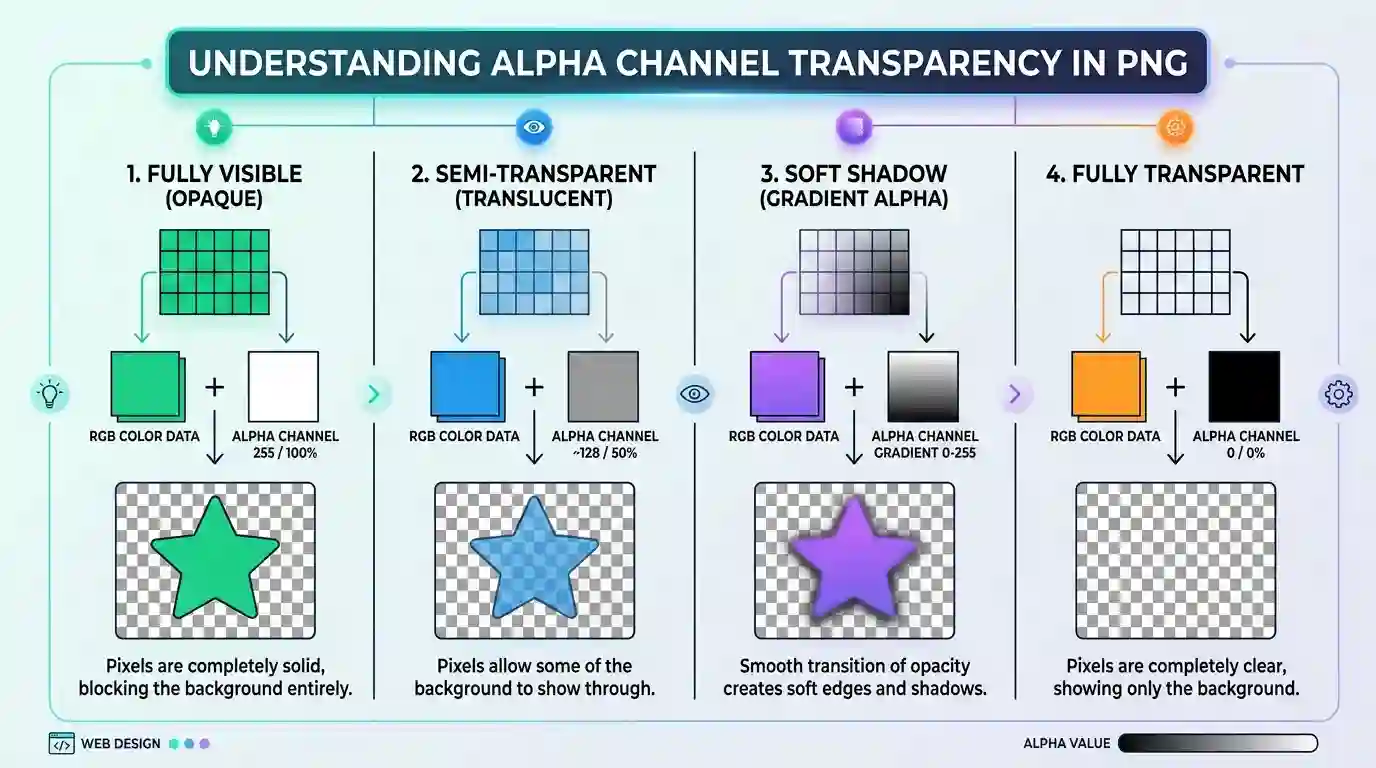
PNG is one of the most popular formats for transparent images because it can preserve both image detail and opacity information. It is commonly used in web design, graphic design, branding, ecommerce, app interfaces, and digital marketing.
Alpha Channel Transparency
The alpha channel is the reason PNG can support transparency. Instead of storing only red, green, and blue color data, PNG can also store opacity data. This makes it possible to create:
- Fully transparent backgrounds
- Semi-transparent shadows
- Smooth edges around logos
- Glass-like overlays
- Watermarks
- Product cutouts
- Icons with no visible background box
For example, if you remove the background from a product photo and save it as PNG, the background can remain transparent. You can then place the product on any website section, banner, or social post without needing to manually match the background color.
Lossless Compression
PNG uses lossless compression, meaning it keeps image quality intact when saved. This is especially useful for images with text, sharp lines, icons, UI screenshots, infographics, and illustrations.
Unlike JPEG, PNG does not create the same kind of compression artifacts around text or edges. This is why PNG is better for graphics that need to look crisp.
Best PNG Transparency Examples
PNG is ideal for:
- Website logos
- Brand marks
- App icons
- Social media stickers
- Product images with removed backgrounds
- Transparent watermarks
- Downloadable design assets
- Transparent overlays
- Screenshots with text
- Buttons and interface graphics
When visual clarity and transparency matter more than file size, PNG is the stronger choice.
Why JPEG Does Not Support Transparency
JPEG was designed for compressing photographic images. It works very well for colorful, detailed photos where a small amount of quality loss is acceptable. However, JPEG does not support transparent pixels.
When you save a transparent image as JPEG, the transparent areas must be filled with a solid color. Usually, this color becomes white, black, or whatever background color the editor uses during export.
What Happens When You Save Transparent PNG as JPEG?
If you convert a transparent PNG logo into JPEG, the transparent background disappears. The logo may appear with:
- A white box
- A black box
- A gray background
- Jagged edges
- Blurry outlines
- Compression artifacts
This can make the image look unprofessional, especially when placed on a colored or dark website section.
Why JPEG Is Still Useful
Even though JPEG does not support transparency, it is still one of the most useful image formats for the web. JPEG is excellent for:
- Blog images
- Hero banners
- Photography
- Travel images
- Food images
- Real estate photos
- Portraits
- Large website visuals
- Background images with no transparency
JPEG files are usually smaller than PNG files for photographs. That makes them useful for improving loading speed when transparency is not needed.
PNG vs JPEG for Transparency: Best Use Cases
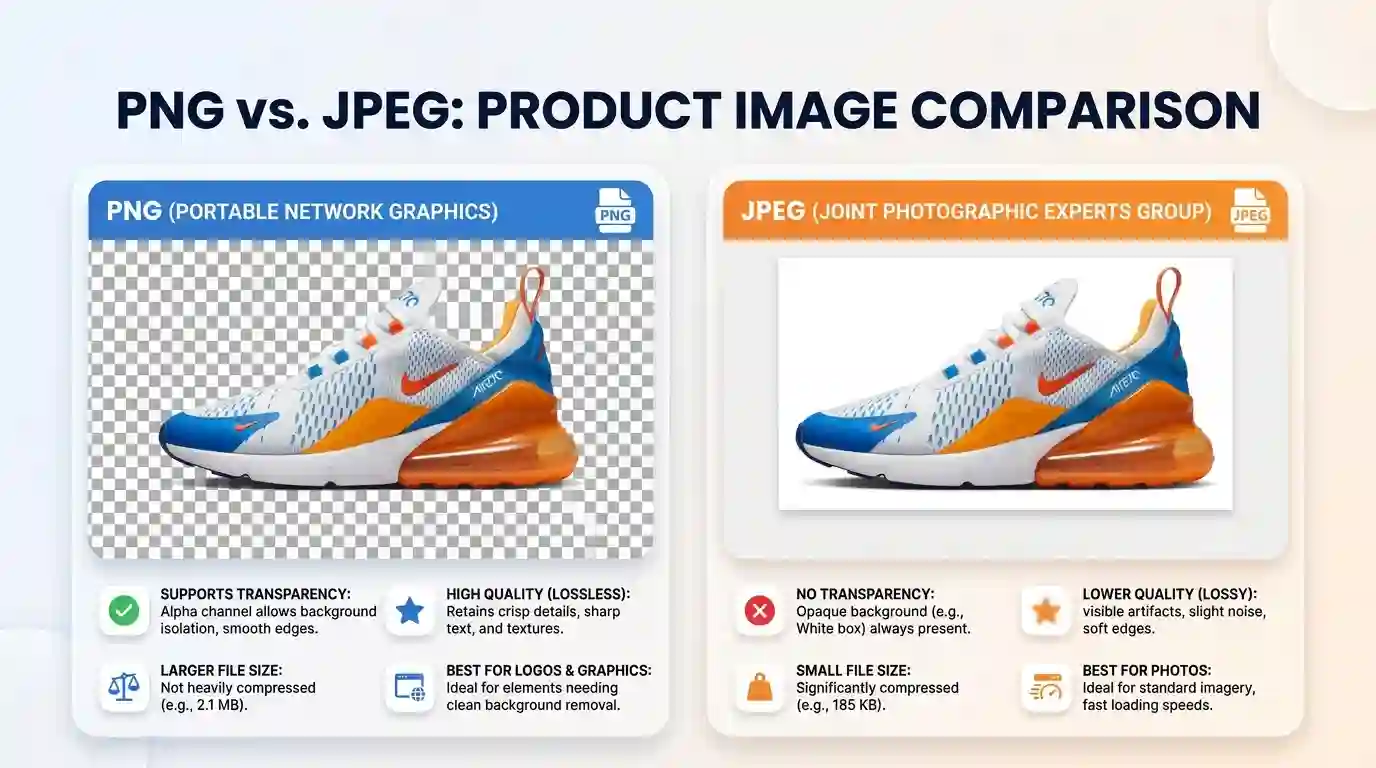
The best format depends on what kind of image you are using and where it will appear.
Use PNG When Transparency Is Required
Choose PNG when your image must blend naturally into different backgrounds. This is especially important for logos, product cutouts, icons, and overlays.
For example, if you are uploading a brand logo to a website header, PNG is usually the better choice because the logo can sit cleanly on any background color.
PNG is also better when the image contains text, flat colors, line art, or sharp design elements. Since PNG uses lossless compression, it preserves clean edges and avoids the fuzzy artifacts that JPEG compression can create.
Use JPEG When Transparency Is Not Needed
Choose JPEG when the image is a regular photo or background image that does not need transparent areas. JPEG is ideal when you want a smaller file size and acceptable visual quality.
For example, a large blog header image, landscape photo, product lifestyle photo, or team photo usually works better as JPEG because it can be compressed more efficiently.
Use PNG for Branding Assets
Branding assets often need to be reused on different layouts. A transparent PNG logo can appear on invoices, landing pages, social media graphics, videos, presentations, and product packaging mockups.
Saving logos as JPEG can limit flexibility because the solid background may clash with future designs.
Use JPEG for Photo-Heavy Blog Posts
If your blog article contains many photos, JPEG can help reduce page weight. However, if an image includes diagrams, transparent objects, or text overlays, PNG may still be the better choice.
For deeper image optimization, read Best Compression Level for Website Images.
PNG vs JPEG File Size and Quality Comparison
Transparency is not the only factor. File size and image quality also matter, especially for website performance and SEO.
PNG File Size
PNG files can be larger because they preserve image quality and transparency. A transparent product image or detailed screenshot may become heavier than a JPEG version.
However, PNG is worth using when you need clean edges, opacity, and background flexibility. The goal is not always to choose the smallest file. The goal is to choose the right format for the image’s purpose.
JPEG File Size
JPEG files are usually smaller for photographs because JPEG compression removes some image data. This is called lossy compression. The more you compress a JPEG, the smaller the file becomes, but the more quality you may lose.
For large photographic images, JPEG often offers a better balance between quality and speed.
Quality Differences
PNG keeps sharp graphics clean. JPEG can introduce visible artifacts, especially around:
- Text
- Logos
- Icons
- Line drawings
- Transparent-looking edges
- Flat color areas
- Screenshots
JPEG works better where small compression artifacts are less noticeable, such as natural photos with gradients, textures, shadows, and complex color transitions.
When to Convert JPG to PNG
You should convert JPG to PNG when you need a file format that supports transparency, better editing flexibility, or cleaner visual edges.
For example, if you have a JPEG product image and want to remove its background, you should save the final result as PNG. If you save it again as JPEG, the transparent background will be replaced by a solid color.
You can use this JPG → PNG Converter to change a JPEG image into PNG format.
Common JPG to PNG Conversion Scenarios
Convert JPG to PNG when:
- You removed an image background
- You need a transparent logo
- You are creating ecommerce product cutouts
- You are designing stickers or overlays
- You need sharper text or graphics
- You want better editing compatibility
- You need an image for a presentation or design layout
Important Note About Conversion
Converting JPG to PNG will not automatically create transparency. If the original JPEG has a white background, converting it to PNG only changes the file format. You still need to remove the background separately if you want actual transparency.
The PNG format can store transparency, but it does not magically detect which pixels should become transparent unless a tool performs background removal or masking.
When to Convert PNG to JPG
You should convert PNG to JPG when transparency is not needed and you want a smaller file size for faster loading.
For example, if you have a large PNG photo with no transparent areas, converting it to JPEG may reduce file size significantly. This can help with website speed, blog performance, and storage efficiency.
You can use this PNG → JPG Converter when you want to turn a PNG image into a lighter JPEG file.
Common PNG to JPG Conversion Scenarios
Convert PNG to JPG when:
- The image has no transparency
- The image is a photograph
- You want a smaller file size
- You are uploading large blog images
- You are preparing website banners
- You want faster loading pages
- You do not need sharp text or transparent edges
What You Lose When Converting PNG to JPG
When you convert PNG to JPG, you lose transparency. Any transparent area will be filled with a solid background color. You may also lose some quality because JPEG uses lossy compression.
Before converting, check whether the image has transparent areas. If it does, make sure you are comfortable replacing those transparent pixels with a background color.
Transparency, SEO, and Website Performance
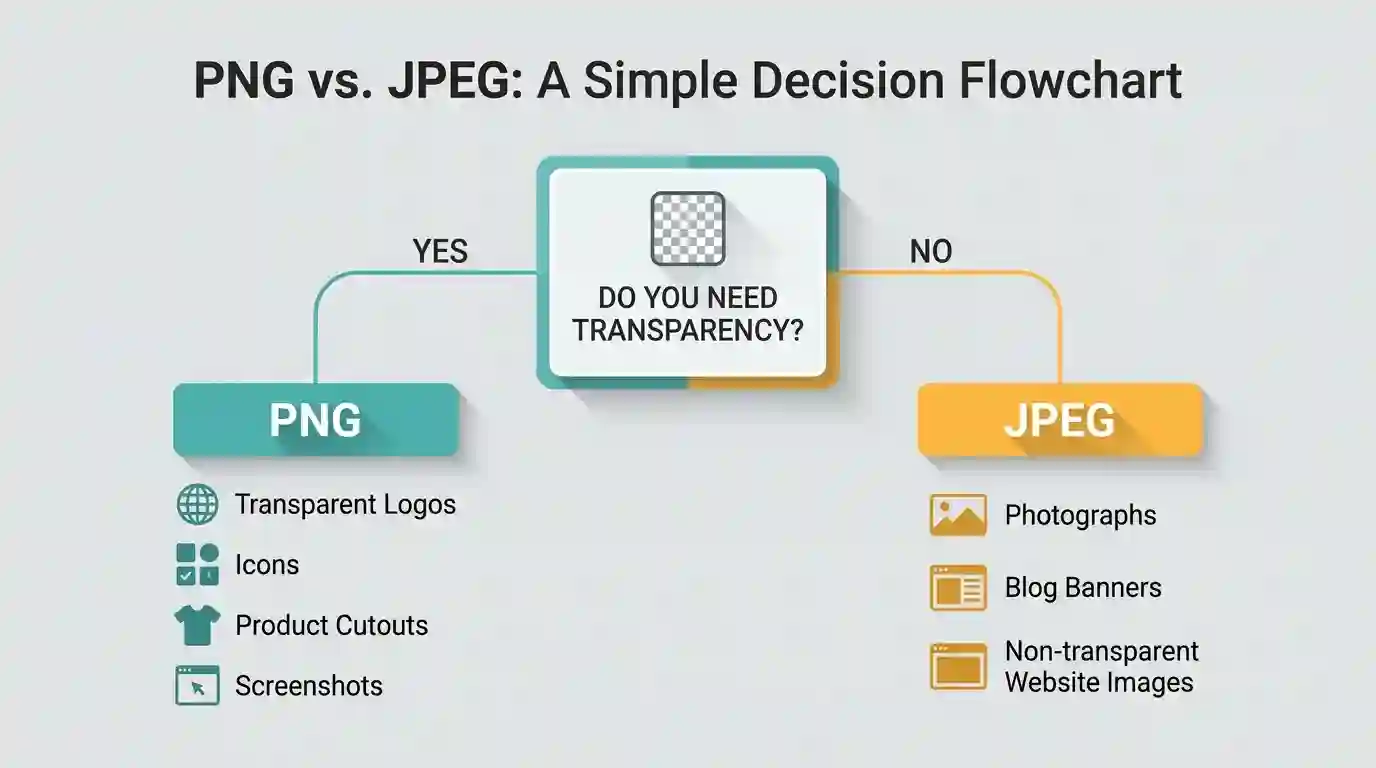
Image format decisions affect more than design. They also affect SEO, page speed, user experience, Core Web Vitals, and conversion rates.
Why Image Format Matters for SEO
Search engines want users to have a fast and helpful browsing experience. Large unoptimized images can slow down pages, increase bounce rates, and reduce engagement. This is especially important for ecommerce websites, blogs, landing pages, SaaS websites, and portfolios.
If you use PNG for every image, your website may become unnecessarily heavy. If you use JPEG for transparent graphics, your design may look broken or unprofessional. The best approach is to use the correct format for each image type.
Recommended SEO-Friendly Format Strategy
Use this practical image format strategy:
- Use PNG for transparent graphics, logos, icons, and screenshots.
- Use JPEG for photos, blog banners, and large non-transparent images.
- Compress images before uploading.
- Resize images to the exact display dimensions.
- Use descriptive file names.
- Add helpful alt text.
- Avoid uploading oversized transparent PNG files.
- Test page speed after publishing.
Example File Names
Instead of using generic names like:
image001.png
Use descriptive names like:
transparent-brand-logo-png.png
Or:
jpg-product-photo-no-transparency.jpg
Descriptive file names help organize your media library and can provide additional context for image search engines.
Alt Text Example
For a transparent logo image, a good alt text could be:
Transparent PNG logo on dark website header
For a JPEG photo, a good alt text could be:
Compressed JPEG hero image for ecommerce homepage
Good alt text should describe the image naturally. Avoid keyword stuffing.
Common Mistakes to Avoid
Many website owners, bloggers, designers, and marketers make simple image format mistakes that affect quality and performance.
Mistake 1: Saving Transparent Images as JPEG
This is the most common mistake. JPEG does not preserve transparency. If your image needs a transparent background, save it as PNG instead.
Mistake 2: Using PNG for Every Website Image
PNG is powerful, but it is not always the best choice. Large PNG photos can slow down a website. Use JPEG for regular photos when transparency is not required.
Mistake 3: Assuming JPG to PNG Creates Transparency
Converting a JPG to PNG does not automatically remove the background. It only changes the format. Background removal is a separate process.
Mistake 4: Ignoring Compression
Even PNG files can be optimized. Compressing images properly can reduce file size while keeping quality acceptable.
Mistake 5: Uploading Oversized Images
Do not upload a 4000-pixel-wide transparent PNG if it only displays at 500 pixels wide. Resize before uploading to improve speed.
Mistake 6: Using Fake Transparent Images
Sometimes an image looks transparent because it has a checkerboard pattern in the background. But if the checkerboard is part of the image, it is not truly transparent. Real transparency means the background disappears when placed on another color.
Practical Examples of PNG vs JPEG for Transparency
Example 1: Website Logo
A website logo should usually be saved as PNG if it needs to sit over different header backgrounds. A JPEG logo may show a white rectangle around it.
Best format: PNG
Example 2: Blog Featured Image
A blog featured image is usually a photograph or designed banner. If it does not need transparency, JPEG is often better for smaller file size.
Best format: JPEG
Example 3: Product Cutout
A product image with the background removed should be saved as PNG. This allows the product to appear cleanly on different ecommerce page sections.
Best format: PNG
Example 4: Screenshot With Text
A screenshot with text, charts, or UI elements often looks better as PNG because it preserves sharp details.
Best format: PNG
Example 5: Travel Photo
A travel photo does not need transparency. JPEG is usually the best option because it balances quality and file size.
Best format: JPEG
Conclusion
When comparing PNG vs JPEG for transparency, the answer is clear: PNG is the correct choice when you need transparent backgrounds, alpha channel support, smooth edges, and high-quality graphics. JPEG is better when transparency is not needed and you want smaller file sizes for photos, banners, and general website images.
Use PNG for logos, icons, product cutouts, overlays, watermarks, screenshots, and graphics with sharp details. Use JPEG for photographs, lifestyle images, blog headers, and large visuals where file size matters more than transparency.
The best image format is not always the smallest or the highest quality. The best format is the one that matches the purpose of the image. If transparency matters, choose PNG. If speed and photo compression matter, choose JPEG.
FAQs
1. Which is better for transparency, PNG or JPEG?
PNG is better for transparency because it supports transparent backgrounds and alpha channels. JPEG does not support transparency.
2. Can a JPEG image have a transparent background?
Standard JPEG images cannot have transparent backgrounds. If you save a transparent image as JPEG, the transparent area will be replaced with a solid color.
3. Why does my transparent image turn white after saving as JPEG?
This happens because JPEG does not support transparency. The transparent pixels are filled with a default background color, often white.
4. Is PNG always better than JPEG?
No. PNG is better for transparent graphics, logos, icons, and screenshots. JPEG is better for photos and large images where smaller file size is important.
5. Does converting JPG to PNG make the background transparent?
No. Converting JPG to PNG only changes the file format. You still need to remove the background if you want actual transparency.
6. What format should I use for a transparent logo?
Use PNG for a transparent logo. It keeps the background invisible and preserves clean edges.
7. What format should I use for website photos?
Use JPEG for most website photos because it provides good quality with smaller file sizes.
8. Can PNG files be compressed?
Yes. PNG files can be compressed and optimized to reduce file size while keeping transparency and image quality.
9. Will PNG slow down my website?
Large PNG files can slow down a website if they are not resized or optimized. Use PNG only when transparency or sharp detail is required.
10. Should I use PNG or JPEG for ecommerce product images?
Use PNG when the product image needs a transparent background. Use JPEG for lifestyle product photos or images with fixed backgrounds.