
Summary: Converting file formats online has become an essential digital skill for students, professionals, freelancers, and everyday users alike. Whether you need to turn a Word document into a PDF, compress an image for the web, or extract audio from a video, online file converters make these tasks fast, free, and accessible — no software installation required. This guide walks you through everything you need to know about online file conversion: what it is, how it works, which tools to use, which formats to know, and how to do it safely and efficiently.
Table of Content
- How to Convert File Formats Online: The Complete Beginner’s Guide
- What Is File Format Conversion and Why Does It Matter?
- Types of File Formats You Should Know
- How Online File Converters Work
- How to Convert a File Online: Step-by-Step
- Best Use Cases for Online File Conversion
- Top Free Online File Converter Tools in 2026
- Safety and Privacy: Is It Safe to Convert Files Online?
- Limitations of Online File Converters
- Pro Tips for Better File Conversion Results
- Frequently Asked Questions About Online File Conversion
What Is File Format Conversion and Why Does It Matter?
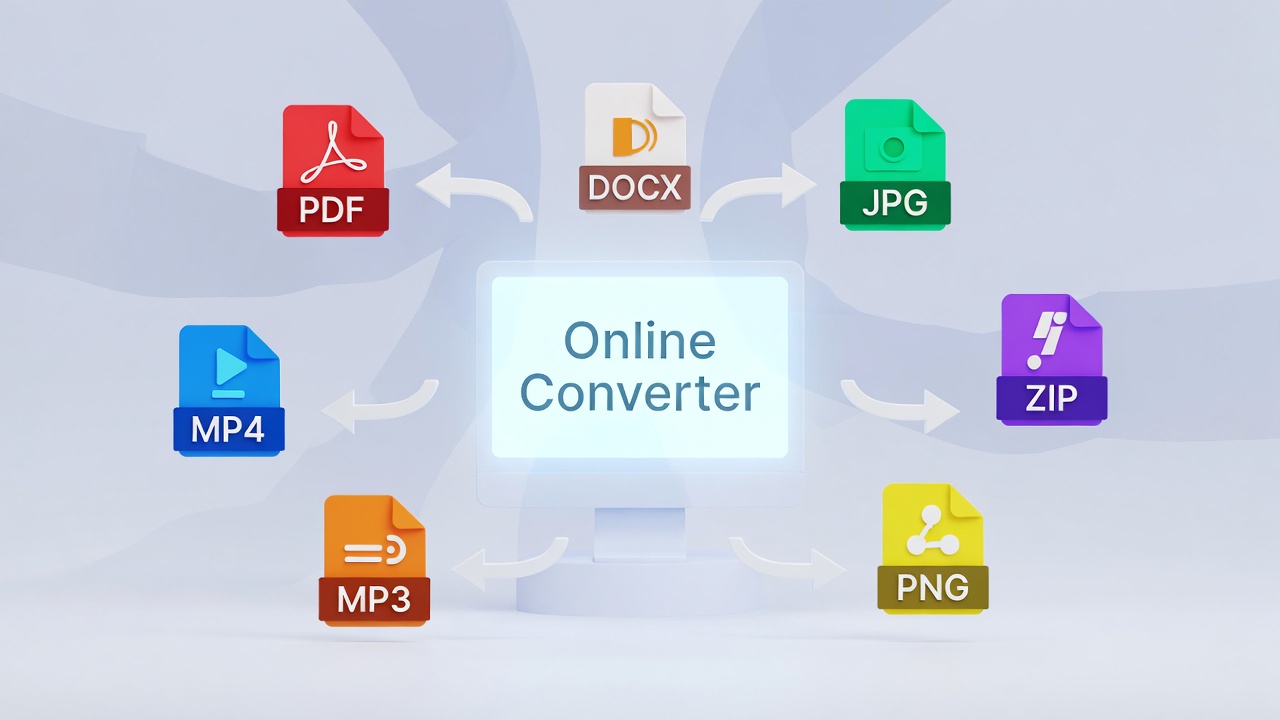
In the digital world, every file you create — whether a document, image, video, or audio clip — is stored in a specific file format. A file format defines how data is encoded, structured, and interpreted by software. When you need to share, edit, or use a file in a different application or platform, you often need to convert it to a compatible format.
Online file format conversion refers to the process of changing a file from one format to another using a web-based tool — without installing any desktop software. It’s one of the most practical digital skills you can have.
Understanding File Formats
A file format is essentially a blueprint that determines how information is stored and displayed. File formats are identified by their file extension — the letters that appear after the dot in a filename. For example:
- .docx → Microsoft Word Document
- .jpg → JPEG Image
- .mp4 → Video File
- .pdf → Portable Document Format
- .mp3 → Audio File
Each format has a specific purpose, compression method, and compatibility range. Understanding these differences helps you make smarter conversion choices.
Common Reasons People Convert Files
People convert files online for a wide range of practical reasons:
- A client or employer requires a specific format (e.g., PDF instead of DOCX)
- An image is too large and needs compression (e.g., PNG to WebP)
- A video needs to be converted to audio (e.g., MP4 to MP3)
- A scanned document needs to become searchable (e.g., JPG to PDF with OCR)
- A file is incompatible with a platform or device
- Reducing file size for email attachments or web uploads
Types of File Formats You Should Know
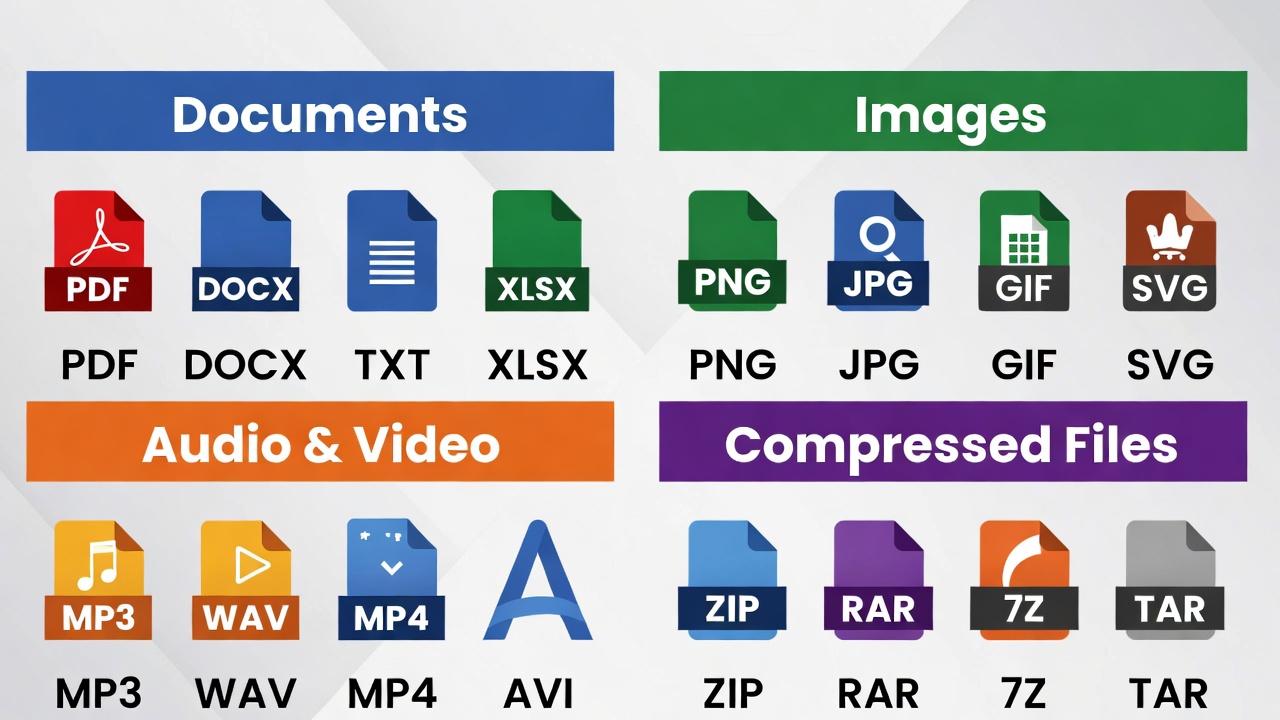
Before you start converting files, it helps to understand the major file format categories and what they’re used for.
Document Formats
Document formats are used to store written content, presentations, and spreadsheets.
| Format | Full Name | Common Use |
| Portable Document Format | Sharing final documents | |
| DOCX | Word Open XML | Microsoft Word editing |
| ODT | Open Document Text | LibreOffice documents |
| TXT | Plain Text | Simple, universal text |
| XLSX | Excel Spreadsheet | Data and calculations |
| PPTX | PowerPoint Presentation | Slideshows |
Image Formats
Image formats store visual data using different compression and quality settings.
| Format | Best For | Notes |
| JPG/JPEG | Photos | Lossy compression |
| PNG | Graphics with transparency | Lossless, larger size |
| WebP | Web images | Modern, smaller size |
| SVG | Icons, logos | Vector, scalable |
| GIF | Animated images | Limited colors |
| HEIC | Apple device photos | High efficiency |
Audio and Video Formats
| Format | Type | Common Use |
| MP3 | Audio | Music, podcasts |
| WAV | Audio | Uncompressed, high-quality |
| AAC | Audio | Apple devices |
| MP4 | Video | Universal video format |
| MOV | Video | Apple QuickTime |
| AVI | Video | Windows legacy |
| MKV | Video | High quality, open format |
| WebM | Video | Web streaming |
Compressed and Archive Formats
These formats bundle multiple files or reduce file size for storage and sharing.
- ZIP – Universal archive format
- RAR – High compression archive
- 7Z – Open-source high compression
- TAR.GZ – Common on Linux/Mac systems
How Online File Converters Work
Understanding the mechanics behind online conversion helps you use these tools more effectively and make informed decisions about privacy.
The Conversion Process Explained
When you upload a file to an online converter, the following happens in sequence:
- Upload: Your file is transmitted to the converter’s server via an encrypted connection (HTTPS).
- Parsing: The server reads and decodes the original file format.
- Re-encoding: The file’s content (text, pixels, audio waveforms, etc.) is re-encoded into the target format using a conversion algorithm or library (e.g., FFmpeg for video, LibreOffice for documents).
- Optimization: Some tools apply compression or quality adjustments.
- Download: The converted file is made available for download.
- Deletion: Reputable tools delete your uploaded and converted files after a set period (usually 1–24 hours).
Browser-Based vs. Server-Side Conversion
Some modern converters process files entirely in your browser using technologies like WebAssembly. This is more privacy-friendly because your file never leaves your device. Server-side conversion, on the other hand, handles heavier workloads like video transcoding and batch processing but requires uploading your file to a remote server.
How to Convert a File Online: Step-by-Step
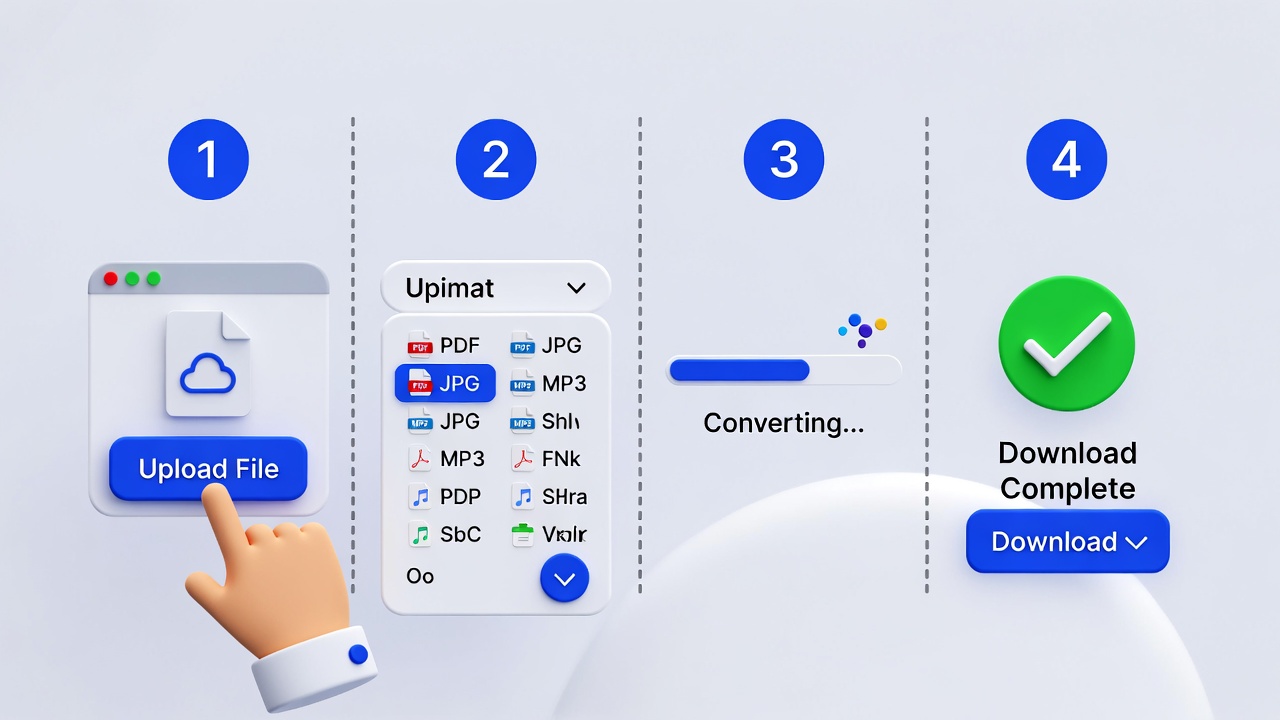
Here’s a straightforward walkthrough of the typical online file conversion process.
Step 1 – Choose the Right Converter Tool
Not all converters handle all file types. Choose a tool that:
- Supports your specific input and output formats
- Has a clean, trustworthy interface
- Uses HTTPS encryption
- Has a clear privacy/data deletion policy
- Is free or fits your budget
Step 2 – Upload Your File
Most converters offer three upload methods:
- Drag and drop the file directly onto the browser window
- Click to browse and select from your device
- Paste a URL if the file is hosted online
- Import from cloud storage (Google Drive, Dropbox)
Tip: Always check the file size limit before uploading. Free tools often cap uploads at 50MB to 200MB.
Step 3 – Select Output Format
Choose the target format from a dropdown menu or format list. Some tools auto-suggest the best format. If available, configure conversion settings such as:
- Image quality or DPI
- Video resolution and bitrate
- Audio sample rate and channels
- Page orientation for documents
Step 4 – Convert and Download
Click “Convert” and wait for processing. Download time depends on file size and server load. Once done:
- Click the Download button to save your file
- Some tools send the file to your email
- Others allow saving directly to Google Drive or Dropbox
Best Use Cases for Online File Conversion
PDF Conversion
PDF is the gold standard for document sharing because it preserves formatting across all devices. Common PDF conversion use cases include:
- DOCX to PDF – Sending a professional document that shouldn’t be edited
- JPG to PDF – Turning scanned images or photos into a readable document
- PDF to Word – Extracting editable text from a PDF
- PDF to Excel – Pulling table data from reports
- Merge PDFs – Combining multiple documents into one
If you’re a content creator or blogger, you may also frequently need to convert plain text into structured web content. Check out this useful tool for converting plain text to HTML for free to streamline your workflow.
Image Format Conversion
Image conversion is one of the most frequent online tasks. Here’s why each conversion matters:
- PNG to JPG – Reduce file size for faster web loading
- JPG to WebP – Modern format with superior compression for websites
- HEIC to JPG – Make iPhone photos compatible with Windows and Android
- SVG to PNG – Convert vector logos into raster images for social media
- GIF to MP4 – Smaller, higher-quality animated content
Audio and Video Conversion
- MP4 to MP3 – Extract audio from a video (podcast, music video, lecture)
- MOV to MP4 – Make Apple QuickTime videos universally playable
- WAV to MP3 – Compress uncompressed studio audio for sharing
- MKV to MP4 – Improve compatibility for streaming devices
Document and Spreadsheet Conversion
- Excel to CSV – Export data for database import or analysis
- ODT to DOCX – Share LibreOffice documents with Microsoft Word users
- PPTX to PDF – Lock presentation formatting for sharing
- CSV to Excel – Add formulas and formatting to raw data
Top Free Online File Converter Tools in 2026
Here are some of the most widely used and trusted free file converters:
| Tool | Best For | File Types |
| Smallpdf | PDF tools | PDF, Word, Excel, PPT |
| ILovePDF | PDF editing & conversion | PDF, JPG, Word |
| CloudConvert | All-in-one conversion | 200+ formats |
| Convertio | Broad format support | Documents, Images, Video, Audio |
| Adobe Express | Image and PDF | PDF, JPG, PNG |
| Online-Convert.com | Media conversion | Video, Audio, Documents |
| Zamzar | Simple, fast conversion | 1100+ formats |
| Handbrake (desktop) | Video encoding | MKV, MP4, AVI |
For a broader list of tools that enhance your digital productivity, check out this curated guide on the best free tools for content creators — a great resource if you’re regularly working with documents, images, and media.
According to Mozilla’s Web Docs on media formats, choosing the right video and audio format for the web directly impacts load time, compatibility, and user experience — making format knowledge essential for developers and creators alike.
Safety and Privacy: Is It Safe to Convert Files Online?
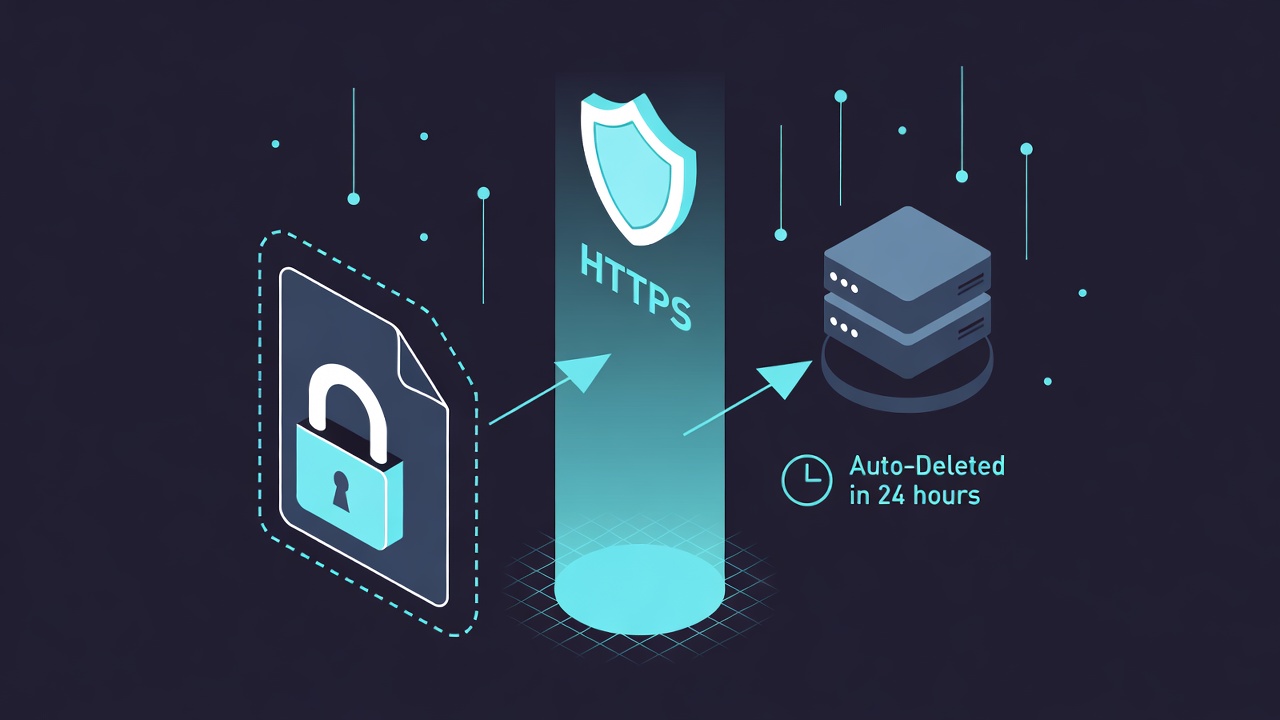
This is one of the most common concerns — and a valid one.
What Happens to Your File After Conversion?
Reputable online converters:
- Transmit files over SSL/TLS encryption (HTTPS)
- Store files temporarily on secure servers
- Auto-delete uploaded and converted files within 1–24 hours
- Have a published privacy policy
Less reputable tools may retain your files longer, use them for training AI models, or serve aggressive ads. Always read the privacy policy before uploading sensitive documents.
Tips for Safe File Conversion
- Never upload confidential files (legal documents, medical records, passwords) to a free online tool
- Use browser-based converters for sensitive content — your file stays on your device
- Check for HTTPS in the URL bar before uploading
- Read the privacy policy for data retention details
- Use reputable brands like Adobe, Smallpdf, or CloudConvert
- For business use, consider desktop software or enterprise-grade cloud solutions
Limitations of Online File Converters
While online converters are incredibly convenient, they come with certain limitations:
- File size limits – Most free tools cap at 50–200MB per file
- Quality loss – Lossy formats (like MP3, JPG) lose data during conversion
- Formatting issues – Complex Word documents may not convert perfectly to PDF
- Internet dependency – You need an active connection
- Rate limits – Free plans restrict the number of conversions per day
- Privacy risks – Uploading sensitive data to unknown servers carries risk
- No batch processing – Many free tools limit you to one file at a time
- Limited customization – Advanced encoding settings are often locked behind paid plans
Pro Tips for Better File Conversion Results
Follow these best practices to get the highest quality output from your conversions:
- Start with the highest quality source file – Conversion cannot add quality that wasn’t there
- Choose lossless formats for intermediate steps – If you’re converting A → B → C, use a lossless format for B
- Understand lossy vs. lossless – MP3 and JPG lose data permanently; PNG and WAV do not
- Check DPI for print documents – Use 300 DPI for print-quality images, 72–96 DPI for web
- Test output before mass conversion – Always verify one file before batch-converting hundreds
- Use the right tool for the job – A specialized PDF tool beats a generic all-in-one converter
- Preserve metadata when needed – Some converters strip EXIF data from images; check settings
- Keep the original file – Never overwrite your source file before verifying the converted result
Frequently Asked Questions About Online File Conversion
Q: Is converting files online free? Yes, most basic conversions are free. Premium features like batch conversion, larger file sizes, and advanced settings require a paid plan.
Q: Can I convert multiple files at once? Some tools like CloudConvert and Zamzar support batch conversion, though it’s often limited or paid on free plans.
Q: Will converting a file reduce its quality? It depends on the format. Converting to a lossy format (MP3, JPG) reduces quality. Converting to lossless formats (PNG, WAV, PDF) generally preserves quality.
Q: How long does online conversion take? Small files (under 10MB) typically convert in seconds. Larger video files may take several minutes, depending on server load and your internet speed.
Q: Is it safe to convert sensitive documents online? For confidential or sensitive documents, use a browser-based converter (where the file stays on your device) or a trusted desktop application. Avoid uploading financial records, passwords, or medical data to free online tools.
Q: What’s the difference between format conversion and file compression? Conversion changes the file format (e.g., DOCX to PDF). Compression reduces the file size within the same or a different format (e.g., ZIP compression). These processes can happen simultaneously or independently.
This guide is designed to help beginners confidently navigate the world of online file conversion — covering everything from format selection and tool choice to safety best practices and advanced tips.
