Summary: PDF files failing to open is one of the most frustrating digital roadblocks users encounter, whether on Windows, Mac, Android, or iOS. This comprehensive guide covers every proven fix — from updating your PDF reader and clearing corrupted cache to repairing damaged files, resolving browser plugin conflicts, and adjusting system permissions — so you can quickly diagnose the root cause and restore access to your documents without losing data or wasting time.
Outline
- Why PDF Files Fail to Open — Understanding the Root Causes
- Fix PDF Not Opening on Windows 10 and Windows 11
- Fix PDF Not Opening on Mac (macOS)
- Fix PDF Not Opening in Chrome, Firefox, and Edge Browsers
- Fix PDF Not Opening on Android and iPhone (iOS)
- Fix Corrupted or Damaged PDF Files
- Advanced Troubleshooting for PDF Errors
- How to Prevent PDF Opening Issues in the Future
- Frequently Asked Questions (FAQ)
Fix PDF File Not Opening: Simple Solutions for Every Device & Situation
Few things break a workflow faster than a PDF that simply refuses to open. Whether you’re trying to access an important contract, a downloaded eBook, a tax form, or a work report, a non-opening PDF is a genuine productivity killer. The good news is that the vast majority of PDF opening errors are fixable — often in under five minutes — once you understand the underlying cause.
This guide is your one-stop resource. It covers every known fix across Windows, Mac, browsers, and mobile devices, complete with step-by-step instructions, advanced solutions, and preventive measures.
Why PDF Files Fail to Open — Understanding the Root Causes
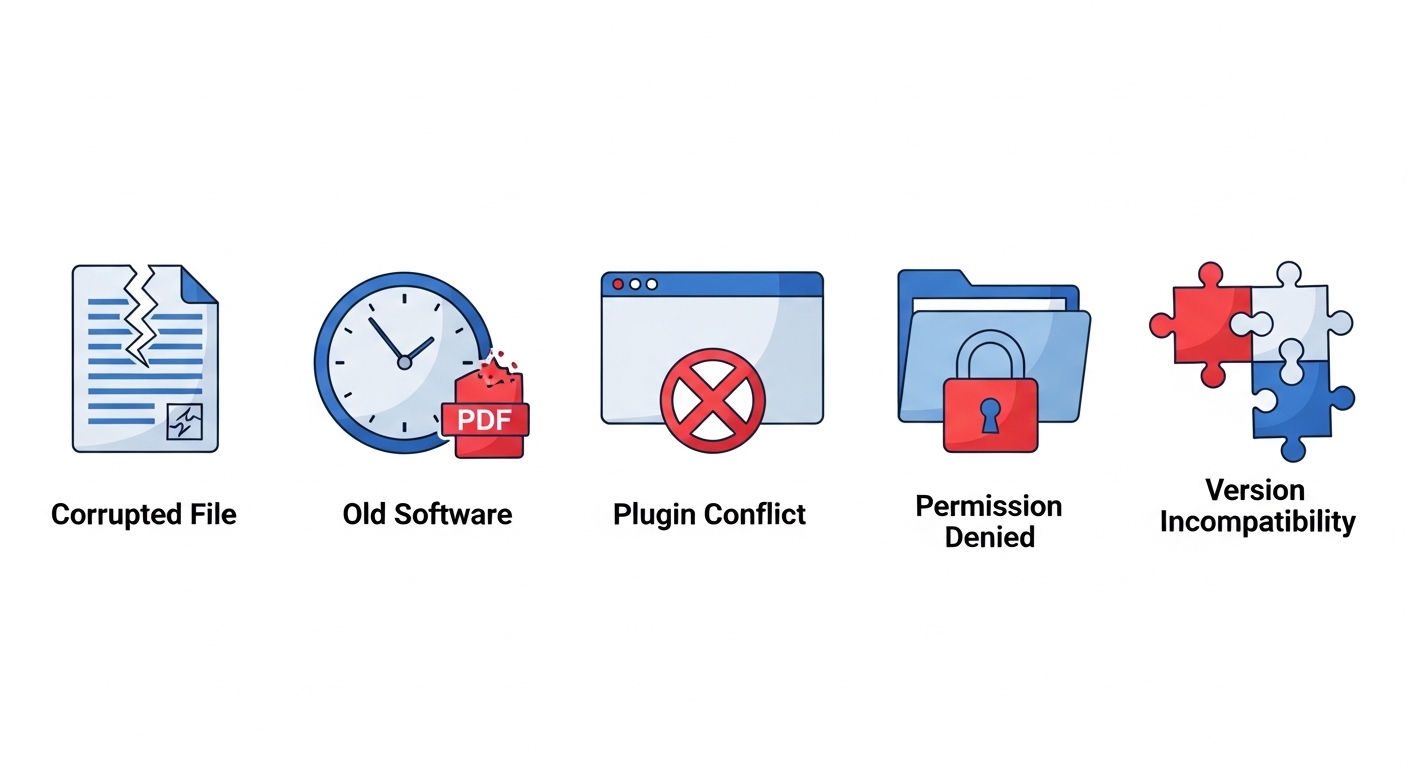
Before jumping into fixes, it helps to understand why this happens. PDF errors are rarely random — they almost always trace back to one of a handful of causes.
Corrupted or Damaged PDF Files
A PDF becomes corrupted when data within the file is lost or overwritten. This typically happens during a failed download (interrupted internet connection), improper file transfer (USB disconnection mid-copy), or storage media failure. A corrupted PDF may show error messages like “The file is damaged and cannot be repaired” or simply refuse to open at all. The file may even open but display garbled text, blank pages, or missing images.
Outdated or Missing PDF Reader Software
PDF format standards evolve. Adobe regularly updates the PDF specification, and files created with newer features (PDF 2.0, for example) may not render correctly — or at all — in older software like Adobe Reader 9 or Foxit Reader 3. If your PDF reader hasn’t been updated in over a year, compatibility gaps are a likely culprit.
Browser Plugin and Extension Conflicts
Modern browsers have built-in PDF viewers, but these are lightweight and limited. They can struggle with heavily formatted PDFs, PDFs with embedded JavaScript, or encrypted documents. Third-party browser extensions that intercept downloads can also block PDF files from loading properly.
Insufficient System Permissions
If a PDF was created by another user account, transferred from a corporate network share, or downloaded with restrictive metadata, your operating system may block access. Windows NTFS permissions and macOS Gatekeeper are common sources of this issue.
Incompatible PDF Version or Encoding
PDF/A (archival), PDF/X (print), and PDF/E (engineering) are specialized subtypes. If a generic reader tries to open a PDF/A-3 or PDF/X-4 file, it may fail or render incorrectly. Similarly, PDFs with unusual Unicode encoding or non-standard fonts can choke certain readers.
Fix PDF Not Opening on Windows 10 and Windows 11
Windows is where the majority of PDF problems are reported. Here’s a systematic approach.
Update or Reinstall Adobe Acrobat / Adobe Reader
Open Adobe Acrobat Reader and go to Help → Check for Updates. If updates are available, install them and restart. If the application is itself corrupted, go to Control Panel → Programs → Uninstall a Program, remove Adobe Reader, then download the latest version from Adobe’s official website. Always download from the official source to avoid bundled adware.
If you’re using Adobe Acrobat Pro DC, open it and navigate to Help → Check for Updates similarly. Enterprise users should check with their IT admin for deployment-managed updates.
Set the Default PDF Application Correctly
Sometimes Windows loses track of which application should handle PDFs, especially after software updates. To reset this:
- Right-click any PDF file
- Select Open with → Choose another app
- Select Adobe Acrobat Reader (or your preferred reader)
- Always use this app to open .pdf files
- Click OK
Alternatively, go to Settings → Apps → Default Apps, scroll down to Choose default apps by file type, find .pdf, and set your reader there.
Clear Adobe Acrobat Cache and Preferences
A bloated or corrupted cache can prevent PDFs from loading. To clear it:
- Close Adobe Reader completely
- Navigate to C:\Users\[YourName]\AppData\Roaming\Adobe\Acrobat\
- Find the folder matching your version (e.g., DC, 2023)
- Delete or rename the Cache folder
- Restart Adobe Reader
To reset preferences entirely, hold Ctrl + Shift while launching Adobe Reader and click Yes when prompted to delete preferences. This resets Reader to factory settings without uninstalling it.
Check File Permissions in Windows
Right-click the PDF → Properties → Security tab. Check that your user account has Read and Read & Execute permissions. If not, click Edit, select your username, and grant the necessary permissions. For PDFs on network drives, contact your network administrator.
Repair the PDF Using Windows Built-in Tools
If the PDF was downloaded from a website, try downloading it again using a different browser. If it came via email, ask the sender to resend it. You can also try opening the PDF directly from its source URL rather than from a saved local copy — this bypasses local file corruption issues.
Fix PDF Not Opening on Mac (macOS)
Mac users benefit from the built-in Preview app, which often solves problems that third-party readers struggle with.
Use Preview to Open the PDF
Right-click the PDF file → Open With → Preview. Apple’s Preview app is robust, standards-compliant, and handles most PDF types, including password-protected files. If Preview opens it successfully but Adobe does not, the issue is Adobe-specific, not the file itself.
Update macOS and PDF Software
Go to System Settings → General → Software Update and install all pending updates. Then open the App Store → Updates tab and update any PDF-related apps. Many PDF rendering bugs are patched in minor point releases.
Reset PDF Associations on Mac
If PDFs are opening in the wrong app:
- Right-click a PDF → Get Info (⌘ + I)
- Under Open With, select your preferred app
- Click Change All… to apply this to all PDFs
Check Gatekeeper and Security Settings
If macOS blocks a PDF app from opening, go to System Settings → Privacy & Security and look for a notification about the blocked application. Click Open Anyway. This is common with third-party PDF tools downloaded outside the App Store.
Fix PDF Not Opening in Chrome, Firefox, and Edge Browsers
Browser-based PDF problems are extremely common because every browser handles PDFs differently.
Disable the Built-in Browser PDF Viewer
In Chrome: Go to chrome://settings/content/pdfDocuments and toggle Download PDFs instead of opening them automatically. Then open the file in your desktop PDF reader.
In Firefox: Go to Settings → General → Applications, find Portable Document Format (PDF), and change the action to Use Adobe Acrobat Reader or Save File.
In Edge: Go to Settings → Cookies and site permissions → PDF documents and turn off Always open PDF files externally toggle based on your preference.
Clear Browser Cache and Cookies
Cached versions of PDFs or corrupted cache data can interfere with PDF loading. Press Ctrl + Shift + Delete (Windows) or Cmd + Shift + Delete (Mac) in your browser, select All time as the range, check Cached images and files and Cookies, then clear.
Update or Re-enable PDF Viewer Extension
If you use a browser extension like Adobe Acrobat for Chrome, go to your browser’s extensions settings, disable the extension, restart the browser, and re-enable it. If it’s outdated, remove it and reinstall from the Chrome Web Store or Firefox Add-ons.
Download Instead of Opening in Browser
When a PDF is stuck loading or shows a blank page in the browser, the simplest fix is to download it. Right-click the PDF link → Save link as…, then open the downloaded file in your desktop reader. This bypasses browser rendering entirely.
Fix PDF Not Opening on Android and iPhone (iOS)
Mobile PDF issues usually come down to missing apps or storage permission problems.
Install a Dedicated PDF Reader App
The default Files app on both Android and iOS can open basic PDFs, but complex or large files often require a dedicated app. Recommended options include Adobe Acrobat Reader (free, both platforms), Foxit PDF Reader Mobile, and PDF Expert (iOS). Install one from the official app store and set it as your default PDF handler.
Check Storage Permissions on Mobile
On Android, go to Settings → Apps → [PDF App] → Permissions and ensure Storage or Files and Media is allowed. On iOS, go to Settings → [PDF App] and ensure Files and Folders access is granted.
Re-download the PDF File
If a PDF was downloaded over a slow or interrupted connection, it may be incomplete. Delete the file and re-download it over a stable Wi-Fi connection.
Open PDFs from Cloud Storage Instead
If local storage is the problem, upload the PDF to Google Drive, iCloud, or Dropbox and open it from the cloud app directly. Cloud viewers stream the file fresh and bypass local storage issues entirely.
Fix Corrupted or Damaged PDF Files
When the file itself is the problem, you need repair tools.
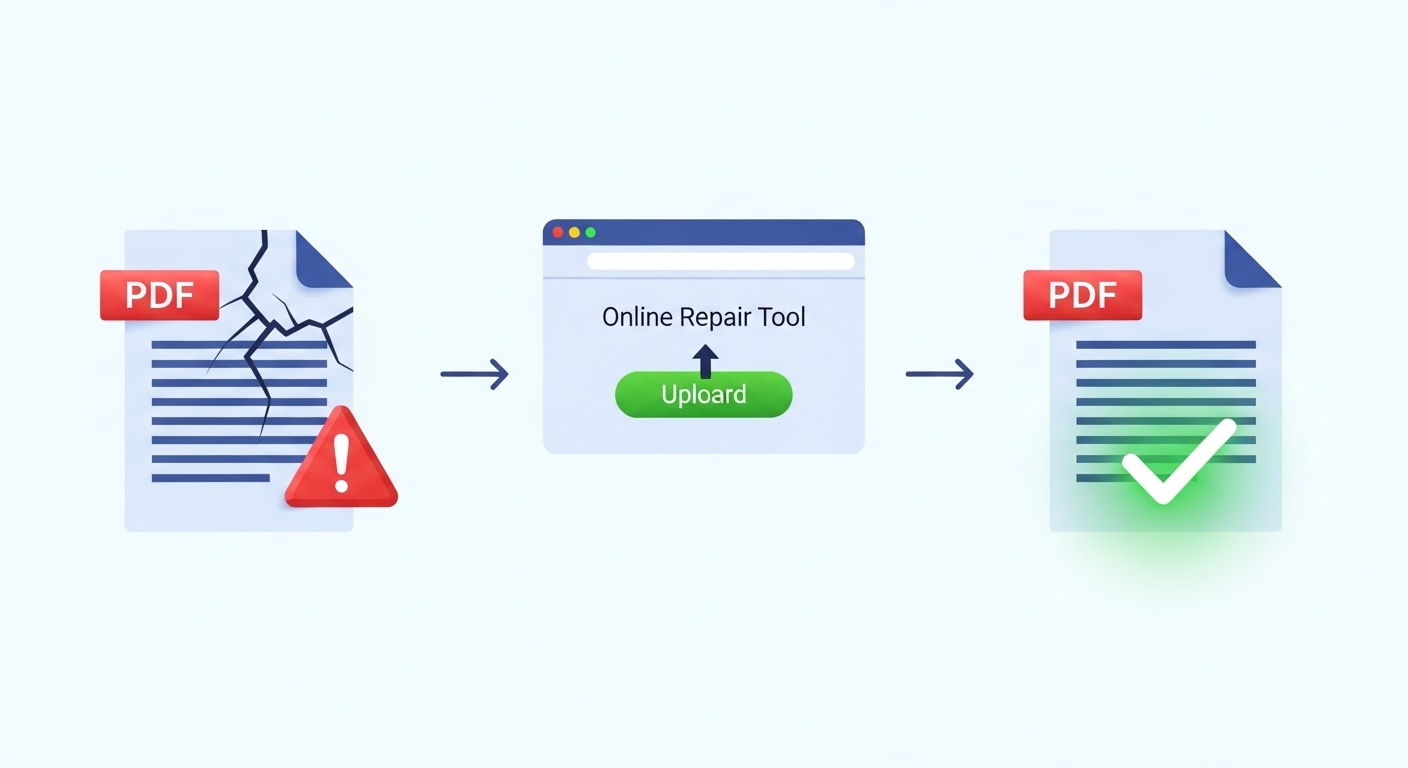
Use Online PDF Repair Tools
Several reputable online tools can repair damaged PDFs without software installation. Services like iLovePDF, PDF2Go, and Sejda offer free PDF repair. Upload your file, run the repair, and download the fixed version. These tools attempt to reconstruct the internal structure of the PDF, recovering readable content even from heavily damaged files.
Understanding How Online Tools Improve Productivity can help you identify which digital tools — including PDF repairers — are worth integrating into your regular workflow.
For a deeper technical understanding of the PDF format and why files become corrupted, the PDF Association’s official documentation provides authoritative reference material on PDF standards and structure.
Recover PDF with Adobe Acrobat’s Repair Feature
Adobe Acrobat Pro has a built-in repair feature. Go to File → Save As and save the file under a new name — this sometimes forces Acrobat to reconstruct the file’s internal structure. Alternatively, in some versions, File → Properties reveals encoding information that helps diagnose the issue.
Restore from Backup or Previous Version
On Windows, right-click the folder containing the PDF → Properties → Previous Versions tab. On Mac, if Time Machine is active, enter Time Machine and restore the PDF from before it became corrupted.
Convert PDF to Another Format and Back
As a last resort, use a tool like Smallpdf or Adobe Acrobat to convert the damaged PDF to Word (.docx) or Image format, then convert it back to PDF. This re-rendering process often strips out the corrupted elements while preserving the readable content.
Advanced Troubleshooting for PDF Errors
Fix “Adobe Acrobat Has Stopped Working”
This Windows error often signals a conflict with another installed program or a corrupted installation. Try: (1) running Adobe Reader as Administrator (right-click → Run as administrator), (2) disabling Protected Mode via Edit → Preferences → Security (Enhanced) and unchecking Enable Protected Mode at startup, or (3) performing a full uninstall and clean reinstall using the Adobe Acrobat Cleaner Tool available from Adobe’s support site.
Fix PDF Opening as Blank or Black Page
Blank or black PDF pages are almost always caused by a rendering engine conflict. The fastest fix is to disable GPU acceleration: In Adobe Reader, go to Edit → Preferences → Page Display, uncheck Use hardware acceleration, and restart. This forces software rendering, which is more reliable on older graphics cards and virtualized environments.
Fix Password-Protected PDF Not Opening
If you’ve forgotten the password for a PDF you own, tools like PDF Password Remover or Smallpdf’s Unlock PDF tool can help — provided you are the legitimate owner. If the PDF is encrypted by another party (like a bank or government agency), you must obtain the correct password from the sender. Attempting to bypass encryption on documents you don’t own is illegal in most jurisdictions.
Fix PDF Stuck Loading in Browser
If a PDF endlessly spins while loading in a browser tab, the file may be too large for the browser’s in-tab viewer. The threshold varies: Chrome can typically handle PDFs up to ~50MB in-tab, but struggles beyond that. The solution is simple — download the file and open it in a desktop application, which has far fewer memory and rendering constraints.
How to Prevent PDF Opening Issues in the Future
Prevention is always easier than troubleshooting. Follow these best practices to minimize future PDF errors:
Keep your PDF software current. Enable automatic updates in Adobe Reader or whichever reader you use. Version gaps between the PDF creator and reader are a leading cause of compatibility failures.
Download PDFs over stable connections. Avoid downloading large PDFs over mobile data or spotty Wi-Fi. A partial download produces a permanently broken file.
Maintain regular backups. Use Windows File History, macOS Time Machine, or cloud sync (Google Drive, Dropbox) to maintain versioned copies of important PDFs. This is your safety net when corruption strikes.
Use reputable PDF sources. PDFs from official, trusted sources are properly formatted. PDFs from dubious websites may contain malformed structure, embedded malware, or non-standard encoding.
Avoid renaming file extensions. Never rename a file to .pdf if it isn’t actually a PDF. Some users do this to bypass restrictions, but it results in a file that will never open correctly in any PDF reader.
Prefer dedicated desktop readers over browsers. For professional or important documents, always open PDFs in a desktop application rather than a browser tab. Desktop readers are more capable, more stable, and offer better security controls.
Frequently Asked Questions (FAQ)
Q: Why does my PDF open in the browser but not in Adobe Reader? A: This usually means Adobe Reader is outdated or its installation is corrupted. Update or reinstall Adobe Reader. The browser’s built-in viewer is more basic but also more tolerant of minor file issues.
Q: Why does my PDF show a blank page? A: Likely a GPU rendering issue. Disable hardware acceleration in your PDF reader’s preferences.
Q: Can I repair a corrupted PDF without paying? A: Yes. Free tools like iLovePDF and Sejda offer basic PDF repair online at no cost.
Q: Why does my PDF say “file not found” even though I can see it? A: The file path may contain special characters or non-ASCII letters. Move the file to a simple path like C:\Users\Name\Desktop\ and try again.
Q: Is it safe to use online PDF repair tools? A: For non-sensitive documents, yes. For confidential files (legal documents, financial records, medical files), use a desktop-based repair tool to avoid uploading sensitive data to external servers.
Q: Why can my colleague open the PDF, but I can’t? A: File permissions or software version differences. Check that your PDF reader version is at least as recent as your colleague’s, and verify your account has read access to the file.