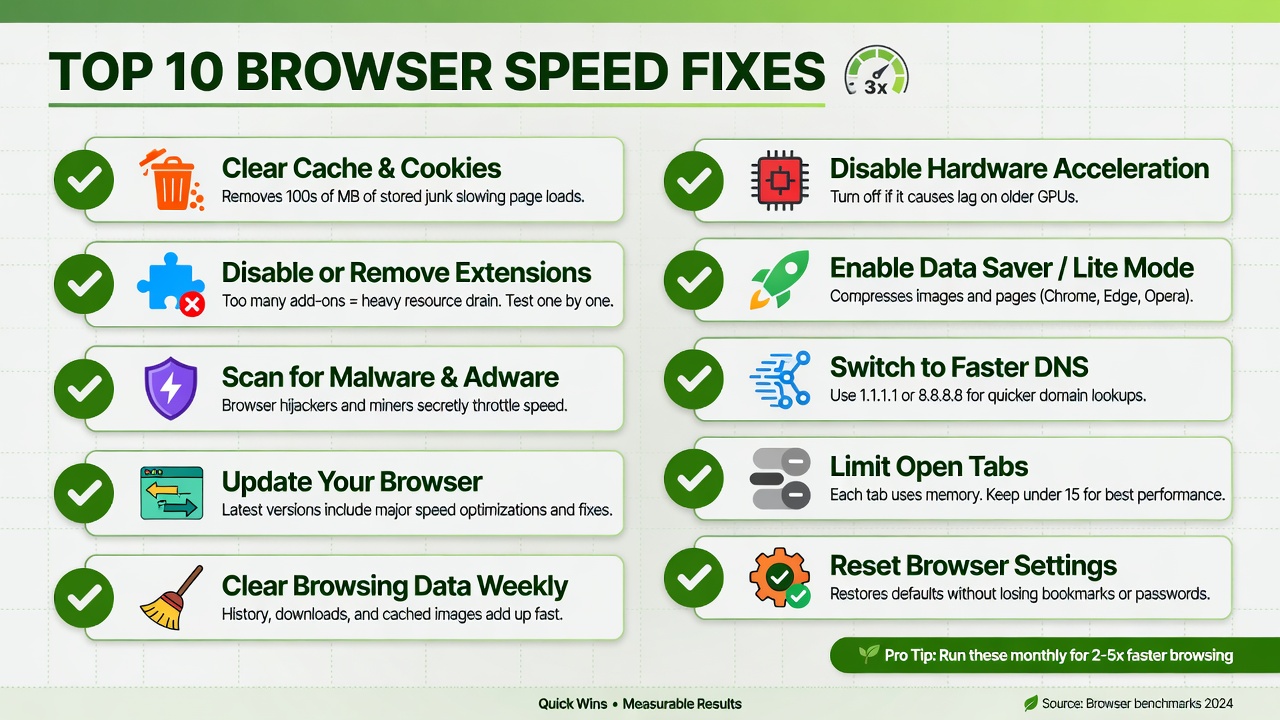
Summary: A slow browser can drain productivity, waste time, and turn simple online tasks into frustrating ordeals. This comprehensive guide covers every major cause and cure for browser sluggishness for How to Fix Browser Slow Performance Fast — from clearing cache and disabling rogue extensions to tweaking hardware acceleration, managing memory usage, and optimizing your system settings. Whether you’re dealing with a browser that freezes, lags, crashes, or takes forever to load pages, the fixes here apply across Chrome, Firefox, Edge, Safari, and Opera. By the end, you’ll have a faster, leaner, and more responsive browsing experience without needing to reinstall anything or buy new hardware.
Table of Content
- How to Fix Browser Slow Performance Quickly: The Complete Guide
- Why Is My Browser So Slow? Understanding the Root Causes
- How to Speed Up Google Chrome
- How to Speed Up Mozilla Firefox
- How to Speed Up Microsoft Edge
- How to Speed Up Safari on Mac and iPhone
- System-Level Fixes That Speed Up Any Browser
- Advanced Optimization Techniques
- Browser Performance Comparison: Which Browser Is Fastest in 2025?
- Preventing Browser Slowdowns in the Future
- Frequently Asked Questions (FAQ)
Why Is My Browser So Slow? Understanding the Root Causes
Before jumping into fixes, it’s important to understand why browsers slow down. Browser performance degradation is rarely caused by a single factor — it’s usually a combination of system-level, software-level, and network-level issues working together. Understanding the underlying causes helps you apply the right fix instead of guessing.
RAM Overload and Too Many Open Tabs
Modern browsers are RAM-hungry by design. Each tab in Chrome, Firefox, or Edge runs as a separate process in memory. This multi-process architecture improves stability (one crashed tab doesn’t kill everything), but it’s devastating to performance when you have 30+ tabs open. Each tab consumes anywhere from 50MB to 500MB of RAM, depending on the content it’s displaying.
When your system runs out of physical RAM, it begins using your hard drive or SSD as virtual memory (called a “page file” on Windows or “swap” on Linux/macOS). Disk-based memory is exponentially slower than RAM — the result is a browser that stutters, freezes, and takes seconds to switch between tabs.
Corrupt or Bloated Cache and Cookies
Browsers store temporary files — images, scripts, stylesheets — in a local cache to speed up repeat visits. Over time, this cache grows large and can become corrupt. A corrupted cache entry causes the browser to fail to load resources correctly, leading to repeated failed requests, slow page loads, and unexpected crashes.
Cookies, similarly, accumulate tracking data and session tokens. Hundreds of third-party cookies from ad networks can slow down page processing as the browser has to read and write cookie data on every request.
Rogue Extensions and Add-ons
Extensions are one of the biggest causes of browser slowdowns that users overlook. A single poorly coded extension can inject JavaScript into every page you visit, hijacking rendering threads and dramatically increasing page load times. Ad blockers, translation tools, PDF viewers, and coupon finders are notorious culprits.
Outdated Browser Version
Browser developers constantly release performance patches, security fixes, and rendering engine improvements. Running an outdated version means you’re missing out on those optimizations. Older versions of Chromium-based browsers, for example, lack improvements to the V8 JavaScript engine that can make modern web apps load twice as fast.
Network and DNS Issues
Sometimes a “slow browser” isn’t a browser problem at all — it’s a network problem. High latency, slow DNS resolution, ISP throttling, or a congested router can all make pages appear to load slowly even when your browser is performing perfectly. DNS lookup time, in particular, is often overlooked; a slow DNS server can add hundreds of milliseconds to every page load.
How to Speed Up Google Chrome
Chrome is the world’s most popular browser, but also one of the most resource-intensive. These targeted fixes will make an immediate difference.
Clear Chrome Cache and Browsing Data
- Open Chrome and press Ctrl + Shift + Delete (Windows/Linux) or Cmd + Shift + Delete (Mac).
- Set the time range to All time.
- Check Cached images and files, Cookies and other site data, and Browsing history.
- Click Clear data.
This process removes gigabytes of accumulated temporary files and is often the single fastest fix for a slow Chrome browser. After clearing, Chrome may feel slightly slower on first loads (as it rebuilds its cache), but subsequent visits will be significantly faster and more consistent.
Disable or Remove Chrome Extensions
- Navigate to chrome://extensions in the address bar.
- Toggle off extensions you don’t actively use.
- Click Remove on extensions you no longer need.
A useful diagnostic method: open Chrome in Incognito Mode (Ctrl + Shift + N). Incognito disables all extensions by default. If Chrome feels noticeably faster in Incognito, an extension is your culprit. Enable them one by one to identify the offender.
Enable or Disable Hardware Acceleration in Chrome
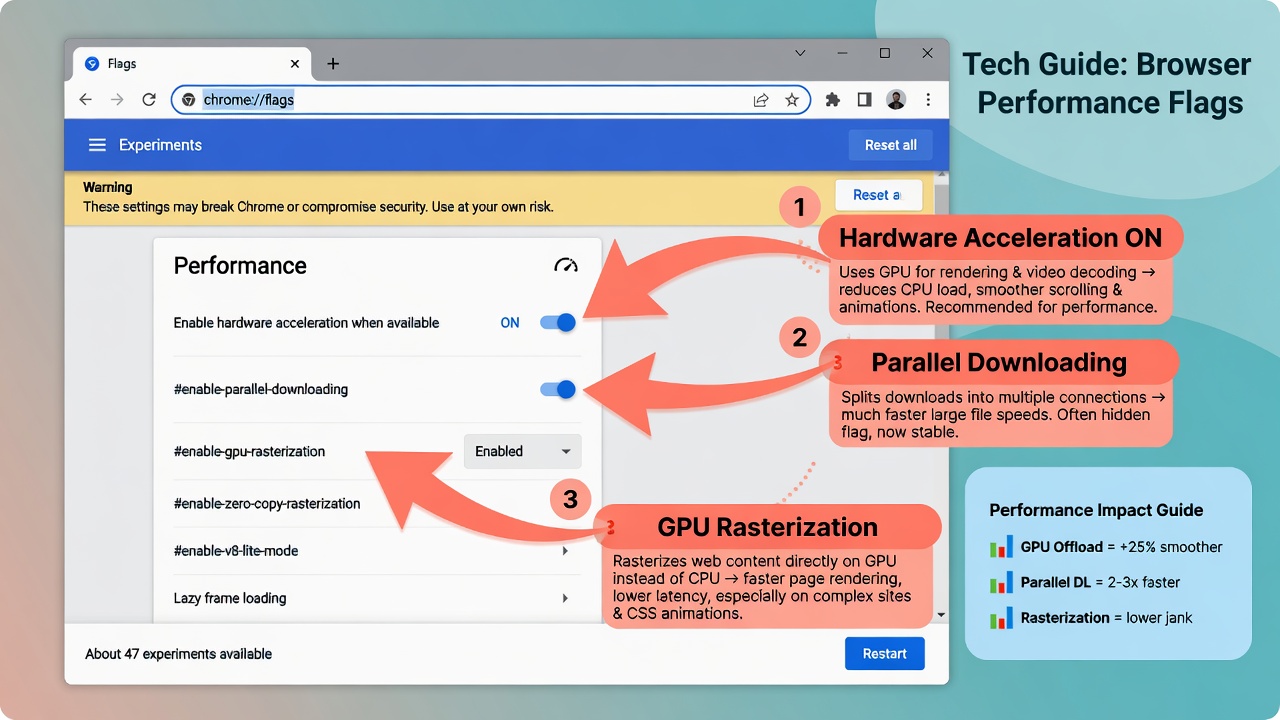
Hardware acceleration offloads graphics rendering from the CPU to the GPU. For most users, keeping it enabled speeds up video playback and complex animations. However, if you have outdated or incompatible graphics drivers, hardware acceleration can cause Chrome to stutter or crash.
To toggle it: go to chrome://settings/system and toggle Use graphics acceleration when available. Restart Chrome after changing this setting.
Use Chrome’s Built-in Task Manager
Chrome has its own Task Manager that shows you exactly which tab or extension is consuming the most memory and CPU.
- Press Shift + Esc (Windows) to open it, or go to the menu > More tools > Task Manager.
- Sort by Memory footprint or CPU to find resource hogs.
- Select a process and click End Process to kill it.
This is a real-time diagnostic tool that helps you make informed decisions about which tabs to close or which extensions to remove.
Reset Chrome Settings to Default
If Chrome has been heavily customized or has accumulated problematic configurations over time, a settings reset can restore factory-level performance without uninstalling the browser.
Go to chrome://settings/reset and click Restore settings to their original defaults. This resets your startup page, new tab page, search engine, and disables all extensions — without deleting bookmarks, history, or saved passwords.
How to Speed Up Mozilla Firefox
Firefox has made massive performance strides since its Quantum engine overhaul. Here’s how to extract maximum speed from it.
Refresh Firefox (Reset Without Losing Bookmarks)
Firefox’s “Refresh” feature is one of the most powerful browser reset tools available. It restores Firefox to a clean state — removing extensions, themes, and modified preferences — while keeping bookmarks, passwords, open tabs, and browsing history intact.
To use it: type about: support in the address bar, then click Refresh Firefox in the top-right corner. Confirm the action. Firefox restarts fresh in about 30 seconds, and most users report dramatic speed improvements.
Disable Firefox Extensions and Themes
Go to about: addons (or press Ctrl + Shift + A). Review each extension and theme. Disable anything you don’t actively use. Pay particular attention to:
- Password managers (some versions have known performance issues)
- Video downloaders
- Screenshot tools
- Legacy extensions not marked as compatible with current Firefox versions
Adjust Firefox Memory and Content Process Limits
Firefox allows you to control how many content processes run simultaneously. By default, it uses up to 8 content processes. On systems with limited RAM (4GB or less), reducing this to 2–4 can significantly improve responsiveness.
Go to about: preferences#general, scroll to Performance, uncheck Use recommended performance settings, and reduce the Content process limit slider.
Additionally, in about: config, you can set browser.cache.memory.capacity to a fixed value (e.g., 51200 for 50MB) to prevent Firefox’s memory cache from growing unbounded.
How to Speed Up Microsoft Edge
Edge is now built on the Chromium engine, making it competitive in performance benchmarks. But it has several unique features that can affect speed.
Enable Edge’s Efficiency Mode
Edge introduced Efficiency Mode, which throttles background tabs and reduces memory usage when your laptop is running on battery or when system resources are constrained.
Go to edge://settings/system and enable Efficiency mode. You can set it to activate automatically when on battery, or always. In testing, Efficiency Mode can reduce Edge’s memory consumption by 15–40%, depending on how many tabs are open.
Clear Edge Cache and Cookies
Press Ctrl + Shift + Delete in Edge. Select All time as the range, check cached images, cookies, and browsing history, then click Clear now.
Manage Startup Boost and Background Tabs
Edge’s Startup Boost feature keeps Edge partially running in the background so it opens faster. While this speeds up launch time, it consumes memory even when Edge is “closed.” If you have limited RAM, disable it at edge://settings/system by toggling off Startup boost.
Similarly, turn on Sleeping Tabs, which automatically freezes inactive tabs after a set period (e.g., 5 minutes), dramatically reducing background memory usage.
How to Speed Up Safari on Mac and iPhone
Safari is Apple’s default browser, optimized for macOS and iOS. It’s generally the most power-efficient choice on Apple hardware, but it can still slow down over time.
Clear Safari Cache on macOS
In Safari, go to Safari > Settings > Advanced and enable Show Develop menu in menu bar. Then click Develop > Empty Caches. For a deeper clean, go to History > Clear History and select all history.
On iPhone, go to Settings > Safari > Clear History and Website Data.
Disable Safari Extensions
Go to Safari > Settings > Extensions. Disable or uninstall any extensions you don’t need. Safari extensions are sandboxed for security, but they still consume processing time and can slow down page rendering.
Reduce Motion and Visual Effects
On macOS, go to System Settings > Accessibility > Display and enable Reduce Motion. This removes parallax effects and animated transitions in Safari, resulting in a snappier feel, especially on older Macs.
System-Level Fixes That Speed Up Any Browser
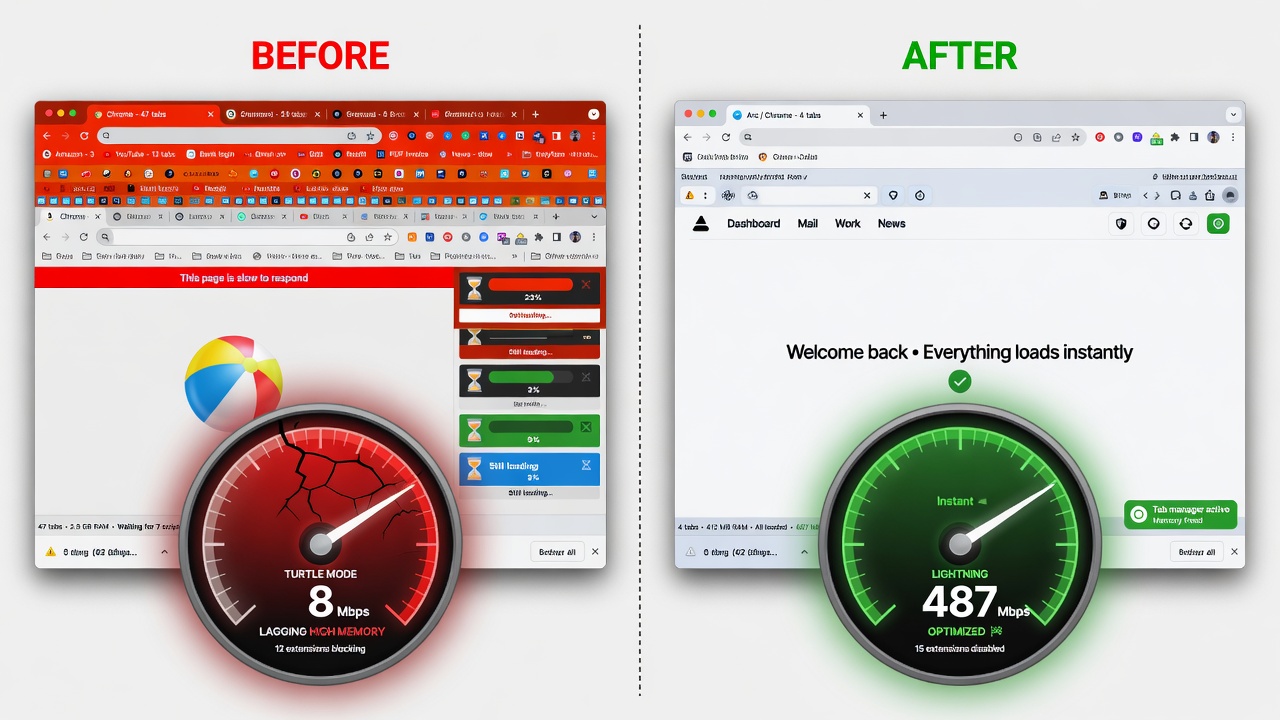
Sometimes the problem isn’t the browser at all — it’s the operating system environment the browser is running in.
Free Up RAM and Close Background Apps
Open Task Manager (Windows: Ctrl + Shift + Esc) or Activity Monitor (macOS: Cmd + Space, then type “Activity Monitor”). Sort processes by memory usage and close applications consuming significant RAM while not in active use — especially Spotify, Steam, video editors, and virtual machines.
On Windows, you can also disable startup programs that silently consume RAM in the background. Go to Task Manager > Startup tab and disable anything unnecessary.
Update Graphics Drivers for Better Rendering
Outdated GPU drivers are a hidden cause of browser slowness, particularly for GPU-accelerated rendering (WebGL, video decoding, CSS animations). On Windows, use Device Manager or download the latest driver directly from NVIDIA, AMD, or Intel’s websites. On macOS, graphics driver updates are bundled with system updates via Software Update.
Clean Up Junk Files From Your System
Accumulated temporary files, log files, leftover installer packages, and registry entries (on Windows) can slow down disk I/O operations that browsers depend on. Cleaning these up frees storage space and can improve how quickly the browser reads from and writes to disk.
For a thorough approach to this, check out this guide on how to clean junk files without software — it covers manual methods for Windows and macOS that don’t require installing third-party cleaning tools.
Check for Malware and Adware
Malware and adware are often the invisible culprits behind mysteriously slow browsers. They inject ads into pages, redirect searches, hijack your homepage, and run background processes that consume CPU cycles. Symptoms include: unexpected toolbars, pop-up ads, changed default search engines, and redirected URLs.
Run a scan with Malwarebytes (free version is sufficient for most users) alongside your existing antivirus. Remove any detected threats, then restart your browser. This alone can transform a browser that felt completely broken into one that runs normally.
Upgrade Your Internet Connection or Use a Faster DNS
If pages are slow to load despite a fast browser, your DNS server may be the bottleneck. Your ISP’s default DNS servers are often slower and less reliable than alternatives. Switching to a faster public DNS can reduce page load times noticeably.
Recommended DNS servers:
- Cloudflare: 1.1.1.1 and 1.0.0.1 (fastest globally in most benchmarks)
- Google: 8.8.8.8 and 8.8.4.4
- OpenDNS: 208.67.222.222 and 208.67.220.220
On Windows, go to Network Settings > Change adapter options > Properties > Internet Protocol Version 4 (TCP/IPv4) > Use the following DNS server addresses and enter your preferred DNS.
For more on this, DNSPerf.com provides real-time global benchmarks of public DNS providers, helping you choose the fastest server for your geographic region.
Advanced Optimization Techniques
For power users who want to squeeze every last millisecond of performance from their browser.
Use a Lightweight Browser Profile
Over time, browser profiles accumulate thousands of preference entries, stored form data, site permissions, and cached credentials. Creating a new, clean profile and migrating only your essential bookmarks and passwords can restore near-factory performance.
In Chrome: go to the profile icon in the top-right corner > Add > create a new profile. In Firefox: type about: profiles and create a new profile.
Enable DNS-over-HTTPS for Faster Lookups
DNS-over-HTTPS (DoH) encrypts DNS queries and routes them through faster HTTPS-based DNS resolvers. In Chrome, go to chrome://settings/security and under Advanced, enable Use secure DNS and select a provider. In Firefox, go to about: preferences#privacy and enable DNS over HTTPS.
Preload and Prefetch Settings
Browsers have built-in features to preload resources they predict you’ll need next. In Chrome, go to chrome://settings/cookies and enable Preload pages for faster browsing and searching. This instructs Chrome to fetch linked pages in the background while you’re still reading the current one.
Use Browser Flags for Experimental Performance Features
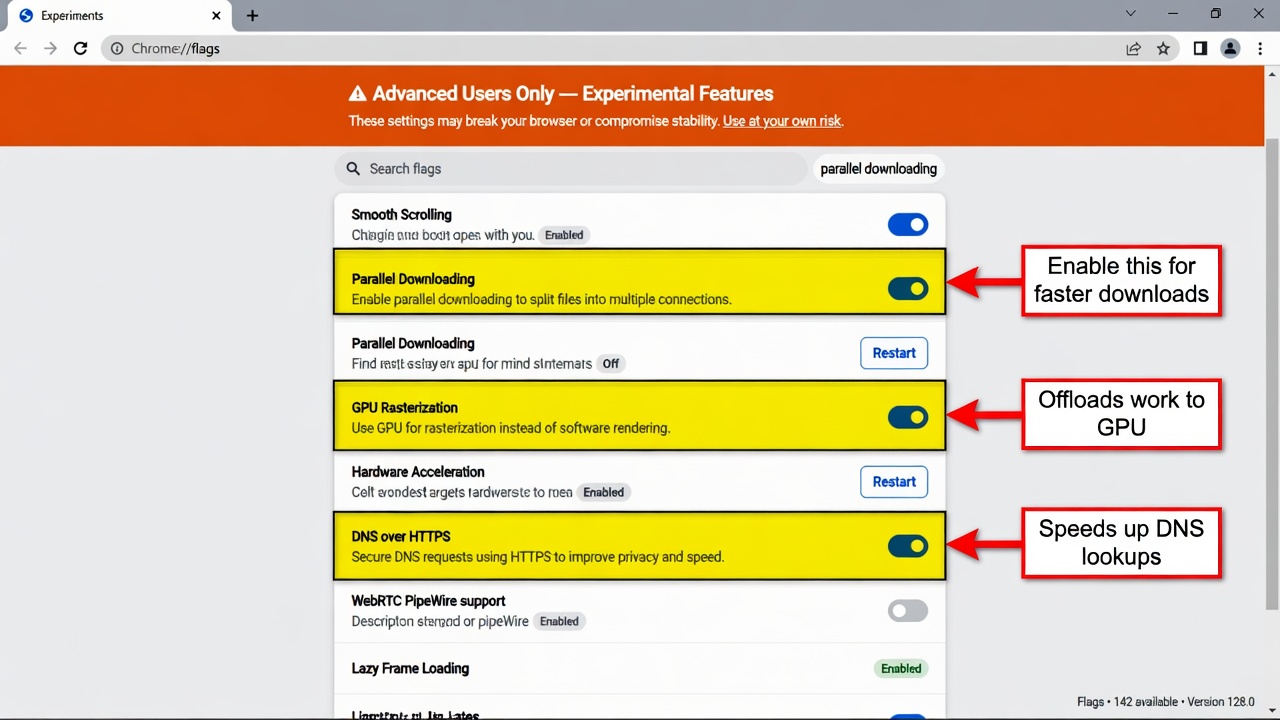
All Chromium-based browsers expose experimental flags at chrome://flags (or edge://flags). Some flags that can improve performance:
- #enable-parallel-downloading — Download files using multiple connections simultaneously for faster speeds.
- #smooth-scrolling — Enables smoother scroll behavior.
- #enable-gpu-rasterization — Moves more rendering work to the GPU.
⚠️ Use flags carefully. They are experimental by definition and may cause instability. Always revert a flag if you notice new problems.
Browser Performance Comparison: Which Browser Is Fastest in 2025-2026?
When optimizing for speed, choosing the right browser matters. Based on 2025-2026 benchmark data across Speedometer 3.0, JetStream 2, and MotionMark:
Chrome remains the most compatible and feature-rich, but is the heaviest RAM consumer. It excels at JavaScript execution speed (V8 engine) and has the broadest extension ecosystem.
Firefox has improved dramatically and now competes closely with Chrome in JavaScript benchmarks. Its memory management is generally better than Chrome’s, and it offers superior privacy controls out of the box.
Edge combines Chrome’s rendering engine with additional performance features like Sleeping Tabs and Efficiency Mode, often making it the fastest Chromium-based option on Windows, especially on battery.
Safari consistently tops benchmarks on Apple Silicon (M1/M2/M3/M4) due to deep hardware integration. For Mac users, it’s the fastest and most battery-efficient choice.
Brave is a privacy-focused Chromium fork that blocks ads and trackers by default, often resulting in faster page loads than Chrome on the same hardware.
For everyday use, Edge or Firefox is currently the best balance of speed, privacy, and compatibility. Chrome is ideal when you need maximum web app compatibility. Safari is unbeatable on Apple hardware.
Preventing Browser Slowdowns in the Future
The best fix is prevention. Here are habits and settings that keep your browser running fast long-term:
Manage tabs actively. Use tab management extensions like OneTab or Tab Suspender to automatically hibernate inactive tabs. Aim to keep fewer than 15 active tabs at a time for most systems with 8GB RAM.
Audit extensions monthly. Uninstall any extension you haven’t used in 30 days. Every active extension has a performance cost, even idle ones.
Clear the cache on a schedule. Set a monthly reminder to clear your browser cache. Most browsers let you automate this with settings or extensions.
Keep your browser updated. Enable automatic updates. Never skip a browser update — updates frequently include security patches and performance improvements.
Use bookmarks instead of open tabs. If you want to “save something for later,” bookmark it and close the tab. Your RAM will thank you. If you regularly work with files and need to convert between formats, tools like this online file format converter can save you from opening multiple tabs with different online converters.
Restart your browser regularly. A browser that’s been running for days accumulates memory leaks and stale processes. Restarting it clears all of that. Make it a habit to fully quit and restart your browser every day or two.
Avoid using a browser as a file manager. Opening PDFs, images, and videos directly in the browser is convenient but memory-intensive. Use dedicated apps for these file types.
Frequently Asked Questions (FAQ)
Why is my browser slow after an update? Post-update slowness is usually temporary as the browser re-indexes its database and rebuilds its cache. If it persists for more than 24 hours, check if a new extension policy was applied or whether hardware acceleration settings were reset by the update.
Does more RAM always fix a slow browser? More RAM eliminates one of the most common bottlenecks, but it doesn’t fix all issues. If your browser is slow due to malware, a corrupt profile, or a bad extension, more RAM won’t help. Fix the underlying cause first.
Should I disable JavaScript to speed up browsing? Disabling JavaScript speeds up pages dramatically, but it also breaks most modern websites. A better approach is to use an extension like uBlock Origin in advanced mode to selectively block JavaScript from known ad-tracking domains while allowing it on legitimate sites.
Is Chrome really slower than other browsers? Chrome is slower at managing memory when many tabs are open, but its JavaScript execution speed (V8 engine) is competitive with or faster than alternatives for complex web applications. “Slower” depends on your specific use case.
How often should I clear my browser cache? For most users, once a month is sufficient. If you regularly work with web applications that update frequently (like dashboards or web-based IDEs), clearing cache more often — or using a keyboard shortcut to hard reload (Ctrl + Shift + R) — prevents stale data issues.
Can antivirus software slow down my browser? Yes. Some antivirus products install browser extensions that scan every webpage in real time. These extensions can significantly increase page load times. Evaluate whether the protection offered justifies the performance cost, and consider disabling the browser component while keeping the system-level protection active.