Summary: Converting PNG to JPG is one of the most common image processing tasks — whether you’re optimizing website assets, reducing email attachment sizes, or preparing visuals for social media. This guide, How to Convert PNG to JPG, covers every method available, from built-in OS tools and browser-based converters to professional software and command-line utilities, while explaining the core differences between these two formats, when to use each, and how to preserve image quality during conversion.
Table of Contents:
- Understanding PNG vs JPG — Key Differences
- Why Convert PNG to JPG?
- How to Convert PNG to JPG on Windows
- How to Convert PNG to JPG on Mac
- How to Convert PNG to JPG Online (Free Tools)
- How to Convert PNG to JPG on iPhone and Android
- How to Convert PNG to JPG in Photoshop
- How to Convert PNG to JPG Using GIMP (Free Alternative)
- How to Batch Convert PNG to JPG
- How to Convert PNG to JPG Without Losing Quality
- Common Issues and How to Fix Them
- When NOT to Convert PNG to JPG
- FAQ — PNG to JPG Conversion
How to Convert PNG to JPG: Complete Guide for Every Device and Use Case
Image format conversion is a foundational skill in digital content creation, web design, and everyday computing. Whether you’re a blogger compressing assets, a developer optimizing page speed, or just someone trying to share a photo without a massive file attachment, knowing how to convert PNG to JPG efficiently — and without quality loss — is genuinely useful knowledge.
Understanding PNG vs JPG — Key Differences
Before diving into the conversion methods, understanding what separates these two formats helps you make smarter decisions.
What Is a PNG File?
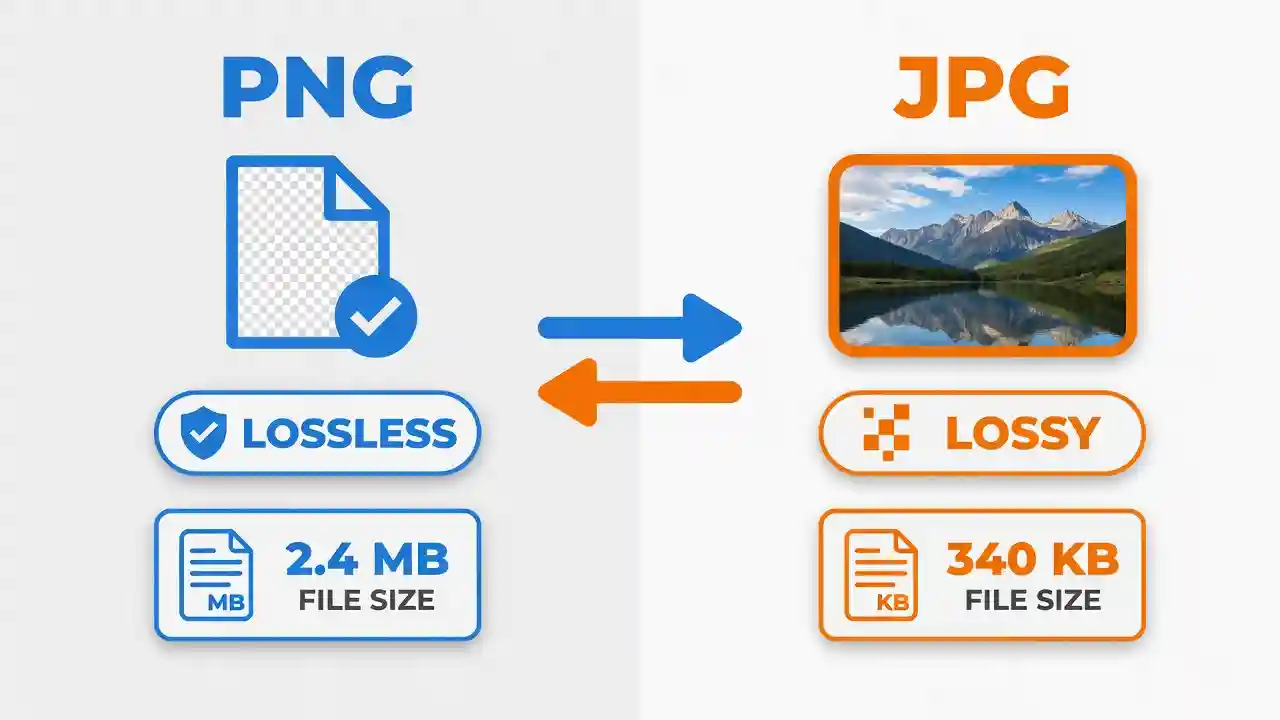
PNG (Portable Network Graphics) is a lossless raster image format developed as an open-standard replacement for GIF. It supports full transparency (alpha channel), which makes it ideal for logos, icons, screenshots, and graphics that need to sit cleanly on varied backgrounds. Because PNG uses lossless compression, no image data is discarded when the file is saved, which is why PNGs tend to produce larger file sizes.
Key characteristics of PNG:
- Supports transparent backgrounds
- Lossless compression (no quality degradation on save)
- Excellent for text-heavy images, diagrams, and graphics
- Larger file size compared to JPG for photographic content
What Is a JPG/JPEG File?
JPG (or JPEG — Joint Photographic Experts Group) is a lossy compressed image format designed primarily for photographs. It achieves much smaller file sizes by selectively discarding visual data that the human eye is least likely to notice. The compression algorithm is particularly effective on images with gradients, natural colors, and smooth tonal transitions — exactly the kind of content found in real-world photography.
Key characteristics of JPG:
- Does not support transparency
- Lossy compression (some quality loss on save)
- Excellent for photographs and complex real-world images
- Much smaller file size compared to PNG for photographic content
PNG vs JPG: Side-by-Side Comparison
| Feature | PNG | JPG |
| Compression | Lossless | Lossy |
| Transparency | Yes | No |
| Best for | Graphics, logos, screenshots | Photos, social media images |
| File size | Larger | Smaller |
| Browser support | Universal | Universal |
| Re-saving quality | Unchanged | Degrades each save |
Why Convert PNG to JPG?
File Size Reduction
The most practical reason to convert PNG to JPG is the dramatically smaller file sizes. A PNG screenshot of a webpage might be 2–4MB, while the equivalent JPG at 85% quality could be 300–600KB — a reduction of 70–80%. This matters enormously when uploading hundreds of product images to an e-commerce store or managing a media library.
Web and SEO Performance
Page load speed is a confirmed Google ranking factor. Large PNG files slow down page rendering, which increases bounce rates and hurts Core Web Vitals scores. Converting photographic content from PNG to JPG is one of the simplest technical SEO improvements available to site owners. If you manage social media visuals, knowing the Best Image Size for Facebook Posts also plays into how efficiently your compressed JPGs display across platforms.
Compatibility and Sharing
Some older systems, email clients, and CMS platforms have better native support for JPG than PNG. JPG is universally accepted by social media platforms, messaging apps, and print services. Converting PNG to JPG also allows images to be sent more quickly via email or messaging apps that compress large attachments automatically.
How to Convert PNG to JPG on Windows
Windows users have multiple native options, no third-party software required.
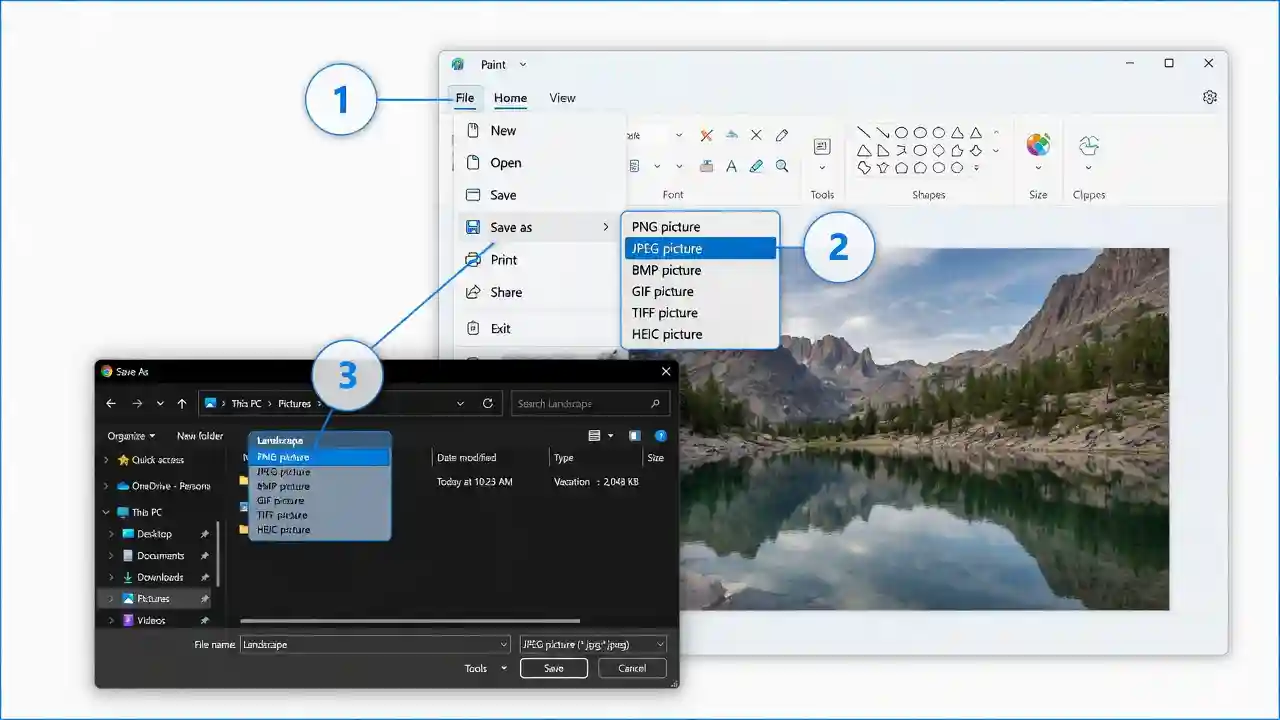
Using Microsoft Paint
- Right-click the PNG file → Open with → Paint
- Click File → Save as
- Select a JPEG picture from the dropdown
- Name your file and click Save
This is the fastest method for single files. Paint automatically handles the conversion and defaults to a quality level suitable for most everyday uses.
Using Photos App
- Open the PNG in the Windows Photos app
- Click the three-dot menu (…) → Save as
- In the Save dialog, change Save as type to JPEG
- Choose your destination folder and save
Using File Explorer Preview
For power users, right-clicking an image in File Explorer and selecting Edit opens it directly in Paint, where the Save as JPEG workflow above applies.
How to Convert PNG to JPG on Mac
macOS ships with powerful built-in tools that make format conversion straightforward.
Using the Preview App
Preview is macOS’s default image viewer, and it handles conversion elegantly:
- Open the PNG file in Preview
- Go to File → Export
- In the Format dropdown, choose JPEG
- Adjust the Quality slider (85–90% recommended for most uses)
- Click Save
Preview also lets you resize the image during export, making it a two-in-one tool for compression and dimension optimization.
Using Automator for Batch Conversion
Mac’s Automator app enables no-code batch conversion workflows:
- Open Automator → New Document → Quick Action
- Set “Workflow receives” to image files
- Add the action: Change Type of Images → set to JPEG
- Save the workflow with a name like “Convert to JPG.”
- Right-click any PNG (or group of PNGs) → Quick Actions → your workflow name
This is particularly useful for photographers and designers who routinely process large image batches.
Using ColorSync Utility
ColorSync Utility, tucked in /Applications/Utilities/, allows format conversion with color profile management — useful when color accuracy across devices is a concern.
How to Convert PNG to JPG Online (Free Tools)
Online converters require no software installation and work on any device with a browser.
Browser-Based Converters
Most online PNG to JPG converters operate similarly:
- Visit the converter website
- Upload your PNG file (drag-and-drop or browse)
- Adjust quality settings if available
- Click Convert or Download
- Save the output JPG to your device
Popular options include Squoosh (by Google), ILoveIMG, and Convertio.
Using a Free PNG to JPG Converter Tool
For a fast, no-signup conversion experience, the Convert PNG to JPG Free Tool provides quick results directly in your browser without requiring account creation or software downloads.
Privacy and Security Considerations
Before uploading sensitive images to any online converter, check the site’s privacy policy. Reputable tools delete uploaded files within minutes of conversion. Avoid uploading confidential documents, personal identification, or business-sensitive visuals to unknown tools. For sensitive material, always use a local desktop application.
How to Convert PNG to JPG on iPhone and Android
iOS Methods
On iPhone (iOS 16+):
- Open the PNG in the Photos app
- Tap Share → Save to Files
- Alternatively, use the Shortcuts app to build a quick action: “Convert Image” → “JPEG” → Save
The native iOS Files app also allows format conversion when images are shared to certain apps. For a more direct approach, third-party apps like Image Converter or Toolbox for Pages handle batch mobile conversions.
Android Methods
- Open Google Photos → select PNG image
- Tap Edit → Save copy (some Android versions allow format selection here)
- For more control, use the Files by Google app or a third-party converter
Using Mobile Apps
Apps like Image Converter (Android) and Image Converter — PNG/JPG/WEBP (iOS) offer dedicated PNG to JPG pipelines with quality control sliders, batch processing, and direct sharing to social media.
How to Convert PNG to JPG in Photoshop
Adobe Photoshop offers the most precise control over the conversion process.
Save As Method
- Open the PNG file in Photoshop
- Go to File → Save As (Shift+Ctrl+S / Shift+Cmd+S)
- Change format to JPEG
- A quality dialog appears — set between 8–10 (out of 12) for best results
- Click OK and save
Export As Method
- Go to File → Export → Export As
- Choose JPG in the Format dropdown
- Adjust quality, dimensions, and metadata options
- Click Export All
Quality Settings Explained
Photoshop’s JPG quality scale runs from 0–12 (in Save As dialog) or 0–100% (in Export As). For web use, quality 8/12 or 75–80% delivers excellent visual results with significant file size savings. For print, use 10–12/12 or 90–100%.
How to Convert PNG to JPG Using GIMP (Free Alternative)
GIMP (GNU Image Manipulation Program) is a professional-grade free image editor available on Windows, Mac, and Linux.
Step-by-Step Process
- Open GIMP and load the PNG via File → Open
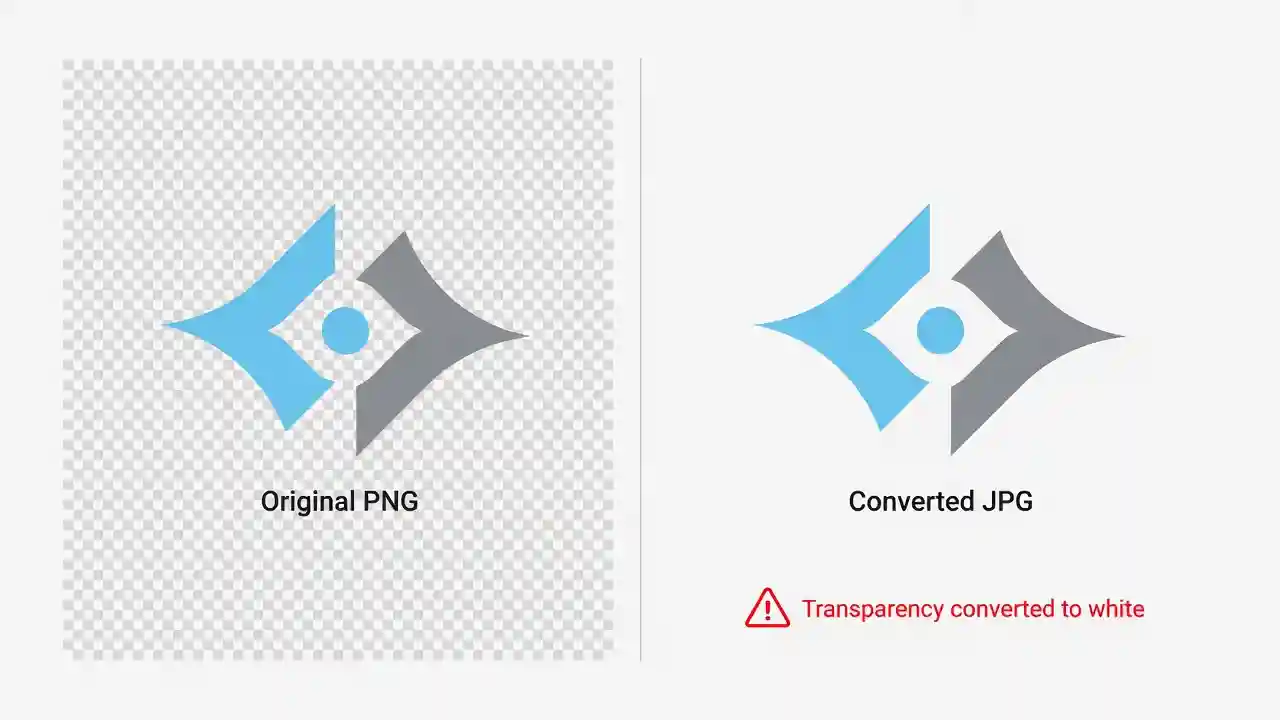
- If the image has transparency, go to Image → Flatten Image (this replaces transparency with a white background)
- Go to File → Export As
- Type your filename with a .jpg extension
- Click Export
- Adjust quality in the dialog (80–90 recommended) and click Export
Flatten Image and Export
The “Flatten Image” step is critical for PNGs with transparent backgrounds. Skipping it will either cause an error or produce a JPG with an incorrect background color. GIMP defaults to white when flattening, which is correct for most use cases.
How to Batch Convert PNG to JPG
Windows Batch Method
Using IrfanView (free software):
- Open IrfanView → File → Batch Conversion/Rename
- Add all PNG files from the left file browser
- Set Output format to JPG
- Choose the output directory and click Start Batch
Mac Automator Workflow
As described in the Mac section, Automator’s Quick Action workflow handles dozens or hundreds of files simultaneously with a right-click.
Command-Line Method (ImageMagick)
For developers and power users, ImageMagick is the gold standard for batch image conversion. According to the ImageMagick official documentation, you can convert an entire folder of PNGs with a single command:
magick mogrify -format jpg -quality 85 *.png
This command converts every PNG in the current directory to JPG at 85% quality, preserving original filenames.
How to Convert PNG to JPG Without Losing Quality
Understanding Lossy vs Lossless Compression
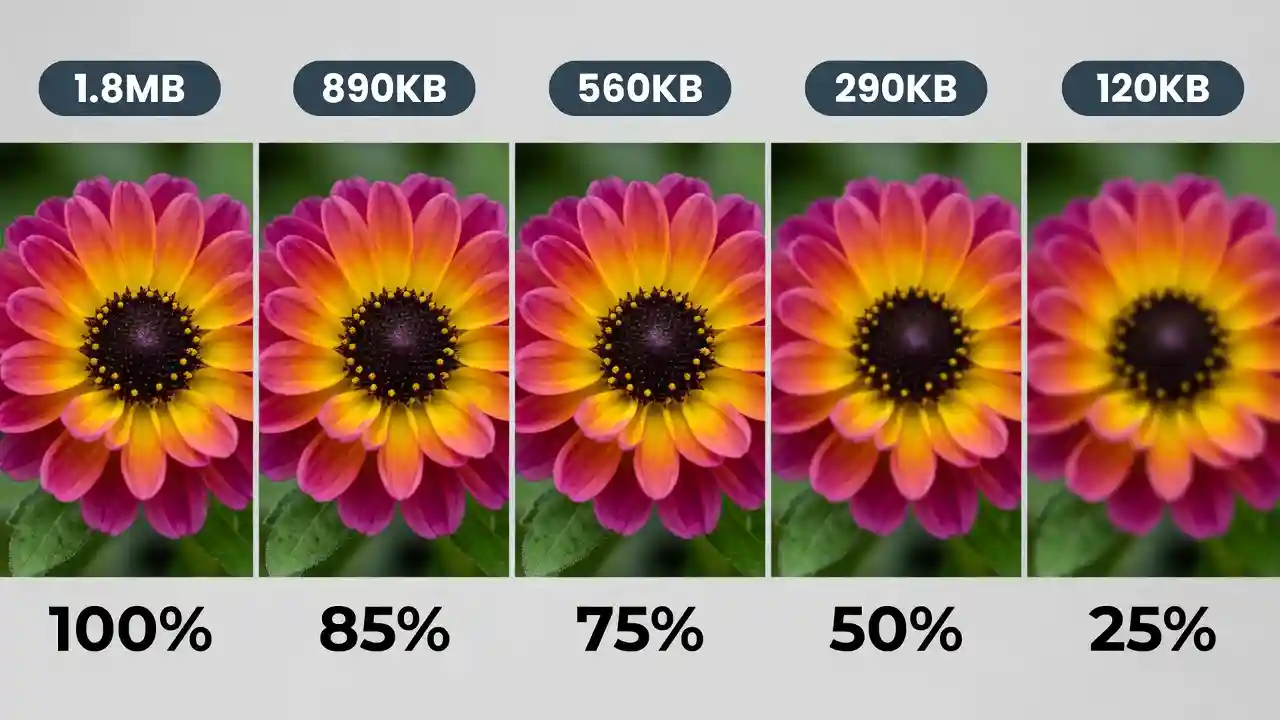
This is the most important concept in format conversion. PNG is lossless — every pixel is preserved exactly. JPG is lossy — compression artifacts appear when quality settings are too low. The phrase “convert PNG to JPG without losing quality” is technically a simplification: some quality reduction is inherent in JPG compression. The goal is to minimize perceptible loss.
Best Quality Settings for JPG Export
| Use Case | Recommended Quality |
| Web/social media | 75–85% |
| Blog/content images | 80–90% |
| Print preparation | 90–95% |
| Archival/professional | 95–100% |
When Quality Loss Is Acceptable
For photographic content intended for web display — product photos, blog hero images, social media posts — quality levels of 75–85% produce results that are visually indistinguishable from the original at normal viewing sizes. Quality loss becomes noticeable only at 50% and below.
Common Issues and How to Fix Them
White Background on Transparent PNG
When you convert a transparent PNG to JPG (which doesn’t support transparency), the transparent areas are filled with a solid color — typically white by default in most tools. To control this:
- In Photoshop: Layer → New Fill Layer → Solid Color → choose your background color before converting
- In GIMP: Image → Flatten Image → change canvas color to your preferred background first
- In Preview (Mac): transparent areas will appear white in the exported JPG
Color Shift After Conversion
Color shifts can occur when the PNG uses an embedded color profile (like Adobe RGB or ProPhoto RGB) that the conversion tool doesn’t preserve or translate correctly. The fix is to convert the color profile to sRGB before exporting to JPG. In Photoshop: Edit → Convert to Profile → sRGB IEC61966-2.1.
File Size Not Reducing
If your JPG is nearly the same size as the original PNG, it likely means the source image is a complex photograph where PNG compression was already working hard. Try lowering quality to 75–80%, or consider using WebP format as an alternative if your target platform supports it.
When NOT to Convert PNG to JPG
Despite the advantages of JPG for photos, there are situations where keeping PNG is the correct decision:
- Logo and brand assets — Transparent backgrounds are essential; JPG will ruin them
- Screenshots with text — JPG compression blurs sharp text edges, making them harder to read
- Images that will be re-edited — Each save to JPG degrades quality further; keep working files as PNG or PSD
- Medical or legal imaging — Lossless formats are required for clinical accuracy
- Images with flat color blocks — PNG compresses these more efficiently than JPG
FAQ — PNG to JPG Conversion
Q: Does converting PNG to JPG reduce quality?
Yes, to some extent. JPG uses lossy compression. At high quality settings (80–90%), the difference is minimal and often imperceptible.
Q: Can I convert JPG back to PNG after converting from PNG?
Yes, but the quality loss from the JPG compression cannot be recovered. The resulting PNG will be larger in file size but will not regain lost detail.
Q: Is PNG or JPG better for websites?
JPG is generally better for photographic content on websites due to smaller file sizes. PNG is better for logos, icons, and graphics requiring transparency.
Q: Can I batch convert PNG to JPG for free?
Yes. Tools like IrfanView (Windows), Automator (Mac), GIMP, and ImageMagick all support free batch conversion.
Q: What is the best quality setting for JPG?
For most web uses, 80–85% quality is the sweet spot between visual fidelity and file size efficiency.