Summary: Choosing between JPG, PNG, and WebP can dramatically affect your website’s speed, visual quality, and SEO performance. This comprehensive guide JPG vs PNG vs WebP: Which Format Is Best breaks down every aspect of these three dominant image formats — from how they compress data and handle transparency to which format wins in real-world web performance, social media, photography, and graphic design use cases. Whether you’re a developer, designer, content creator, or SEO professional, understanding these formats empowers you to make smarter decisions that improve user experience and search rankings.
Table of Contents
- What Are Image File Formats and Why Do They Matter?
- Understanding JPG (JPEG) — The Web’s Most Popular Format
- Understanding PNG — The Lossless Precision Format
- Understanding WebP — The Modern Web-Optimized Format
- JPG vs PNG vs WebP: Head-to-Head Comparison
- How Image Formats Affect SEO and Web Performance
- When to Convert Between Formats
- Common Mistakes When Choosing Image Formats
- Frequently Asked Questions (FAQs)
- Final Verdict: Which Format Should You Use?
What Are Image File Formats and Why Do They Matter?
Every digital image you see — whether on a website, a social media post, or a product listing — is stored in a specific file format. An image file format is a standardized way of encoding visual data so computers can store, transmit, and render it accurately. The format you choose determines three critical things: file size, visual fidelity, and compatibility.
For web designers, developers, and content creators, picking the wrong format is a silent killer of performance. Large, unoptimized images are one of the leading causes of slow page load times. As explored in depth in Why Large Images Slow Down Websites, bloated image files increase server requests, strain bandwidth, and hurt Core Web Vitals scores — all of which directly impact your Google rankings and user retention.
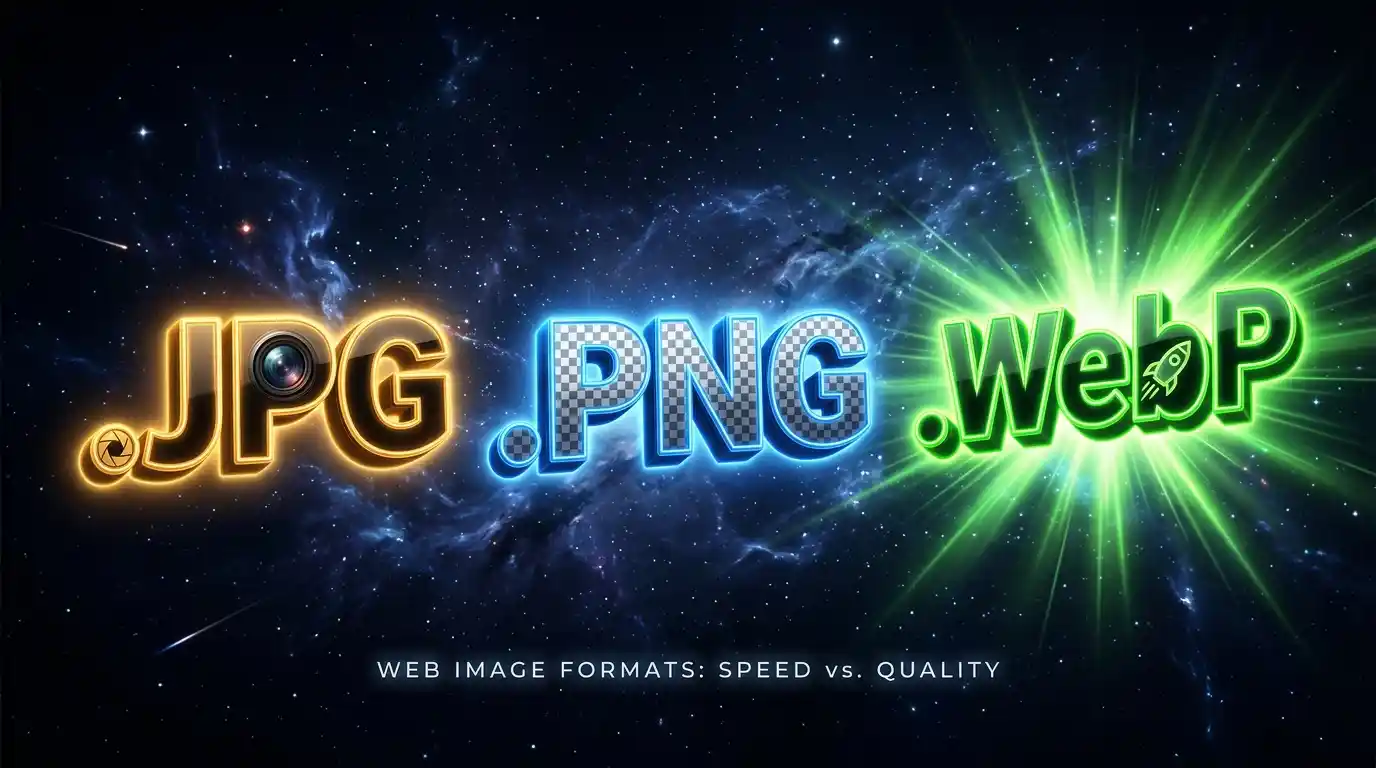
The three formats that dominate the modern web are JPG (JPEG), PNG, and WebP. Each has a distinct technical architecture, compression method, and ideal application. Understanding their differences is not a minor technical detail — it is foundational knowledge for anyone building or managing digital content.
Understanding JPG (JPEG) — The Web’s Most Popular Format
JPG stands for Joint Photographic Experts Group, the committee that created the format in 1992. Its full name is JPEG, though the file extension is commonly .jpg or .jpeg. For over three decades, JPG has been the default format for photographs and complex imagery across the internet.
How JPG Compression Works
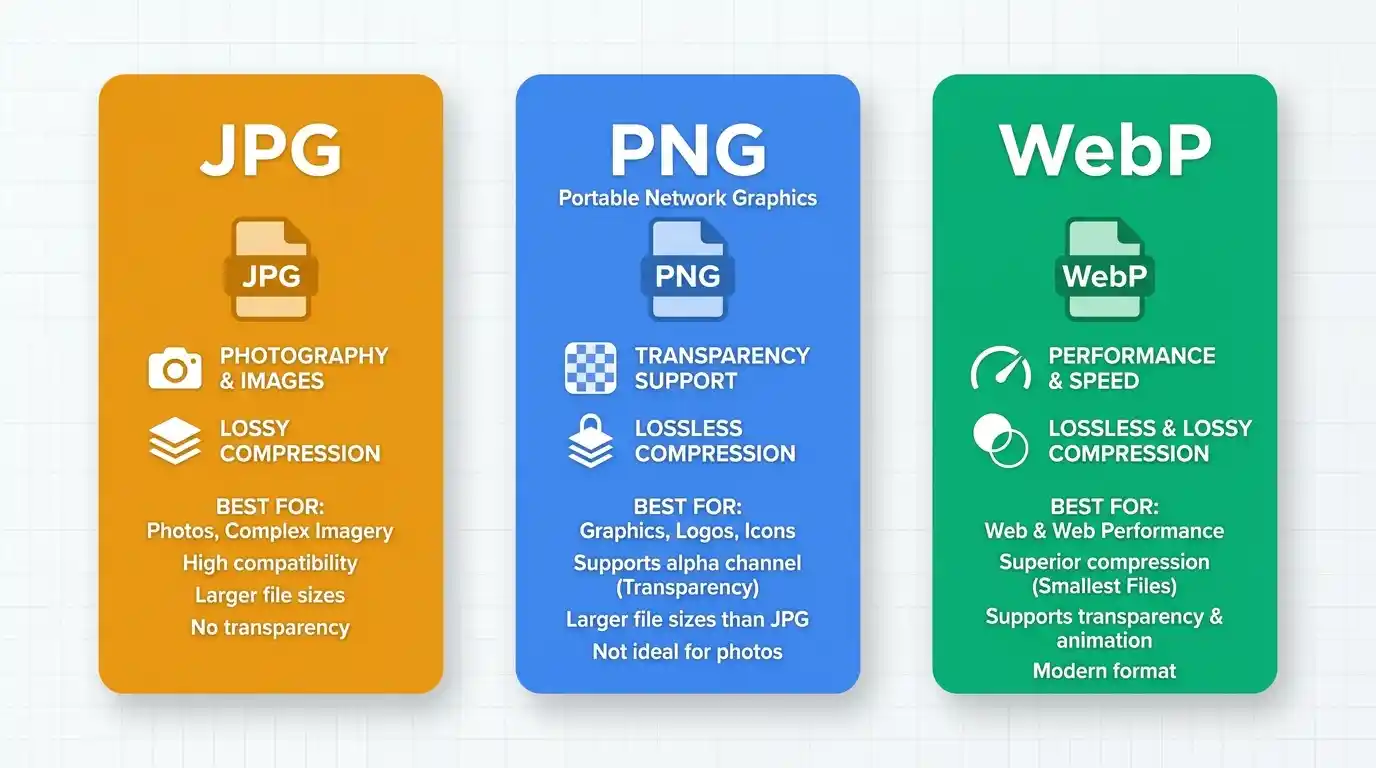
JPG uses lossy compression, meaning it permanently discards some image data to reduce file size. Specifically, JPG exploits a property of human vision: our eyes are far more sensitive to changes in brightness (luminance) than to changes in color (chrominance). The algorithm divides an image into 8×8 pixel blocks and applies the Discrete Cosine Transform (DCT), converting pixel data into frequency components. High-frequency details (fine textures, sharp edges) are compressed aggressively, while low-frequency tonal gradients are preserved more faithfully.
The compression level is adjustable using a quality slider (typically 0–100). At quality 80–85, most JPGs are visually indistinguishable from the original but are significantly smaller. At lower quality settings, characteristic compression artifacts appear — blocky distortions, color banding, and blurry edges around high-contrast areas.
Once saved as a JPG at a lower quality, the discarded data is permanently gone. Re-saving a JPG causes generational loss — each re-compression cycle degrades the image further.
Strengths and Weaknesses of JPG
Strengths:
- Excellent compression for photographs and complex color gradients
- Universal compatibility — supported by every browser, device, OS, and application since the mid-1990s
- Small file sizes for rich visual content
- Adjustable compression ratio to balance quality vs. size
- Ideal for printing and photography workflows
Weaknesses:
- Lossy compression degrades quality, especially with repeated saves
- Does not support transparency (alpha channel)
- Poor performance with flat colors, text, logos, and illustrations — artifacts are more visible
- Not ideal for images that need repeated editing
Best Use Cases for JPG
JPG shines in scenarios where images have thousands of color variations, such as:
- Photography — portraits, landscapes, wildlife, travel photos
- E-commerce product images — photographed items on white or colored backgrounds
- Blog and editorial imagery — header photos, in-article visuals
- Social media images — Facebook, Instagram, Twitter posts
- Email marketing banners
Understanding PNG — The Lossless Precision Format
PNG stands for Portable Network Graphics, developed in 1996 as a royalty-free replacement for the GIF format. It quickly became the gold standard for graphics requiring precision and transparency.
How PNG Compression Works
PNG uses lossless compression, meaning no data is discarded during encoding. It applies the DEFLATE algorithm (a combination of LZ77 and Huffman coding), which finds and encodes repeating patterns within the image data. The full original pixel data is preserved and can be perfectly reconstructed every time the file is opened.
Because of this lossless approach, PNG files are generally larger than JPGs for complex photographic content. However, for images with large areas of flat color, simple patterns, or limited color palettes, PNG compresses very efficiently — sometimes producing smaller files than JPG.
PNG supports multiple color depths: 1-bit (black and white), 8-bit (256 colors or grayscale), and 24-bit (true color with 16.7 million colors). Critically, PNG also supports an 8-bit alpha channel, enabling full transparency — including smooth semi-transparency, gradients, and partial opacity at the pixel level.
Strengths and Weaknesses of PNG
Strengths:
- Perfect pixel-accurate lossless quality — no generation loss with re-saves
- Full transparency support (alpha channel)
- Superior quality for logos, icons, illustrations, text, and UI elements
- Great for images with large flat-color regions
- Excellent for screenshots and diagrams
Weaknesses:
- Significantly larger file sizes for photographs compared to JPG
- Not suitable for high-resolution photography in web contexts without optimization
- No native animation support (unlike GIF or WebP)
- Larger file sizes can contribute to slower page loads if unmanaged
Best Use Cases for PNG
- Logos and brand marks — especially those needing transparent backgrounds
- UI elements and icons — buttons, overlays, badges
- Infographics and diagrams — text clarity and sharp edges are preserved
- Screenshots — text in screenshots is crisp with no JPEG artifacts
- Digital art and illustrations — flat-color designs and pixel art
- Overlays and watermarks — transparency makes compositing easy
Understanding WebP — The Modern Web-Optimized Format
WebP was developed by Google and introduced in 2010. It was built from the ground up to address the limitations of both JPG and PNG — delivering smaller file sizes with comparable or superior visual quality, while also supporting transparency and animation.
How WebP Compression Works
WebP supports both lossy and lossless compression in a single format. Its lossy mode is based on the same predictive coding used in the VP8 video codec — the encoder predicts pixel values based on surrounding pixels, then encodes only the difference (residual) using a transform similar to JPG’s DCT but more advanced. This typically achieves 25–35% smaller files than JPG at equivalent quality.
WebP’s lossless mode uses a different algorithm involving palette transformation, color space transformation, and backward reference coding — achieving files roughly 26% smaller than equivalent PNGs while maintaining perfect quality.
WebP also supports the alpha channel for transparency in both lossy and lossless modes, and can encode animated sequences (a replacement for both GIF and APNG).
Strengths and Weaknesses of WebP
Strengths:
- Smaller file sizes than JPG and PNG — best-in-class compression efficiency
- Supports transparency like PNG
- Supports animation like GIF
- Both lossy and lossless modes in one format
- Native support in all modern browsers (Chrome, Firefox, Safari, Edge)
- Ideal for Core Web Vitals optimization and page speed
Weaknesses:
- Not universally supported by older software (some image editors, older OS viewers)
- Limited support in older browsers (IE 11 and early Safari versions)
- Less widely accepted for email clients
- Some professionals find the lossy WebP quality slightly inferior to JPG at very high quality settings
- Not universally accepted for print workflows
Best Use Cases for WebP
- Web images of all types — the single best format for general web publishing
- Hero images and banners — high visual impact, low file weight
- Animated graphics — replacing GIFs with far smaller, higher-quality files
- Transparent images on web pages — replace PNG with a smaller size
- Progressive web apps and mobile experiences — optimizing bandwidth and loading speed
JPG vs PNG vs WebP: Head-to-Head Comparison
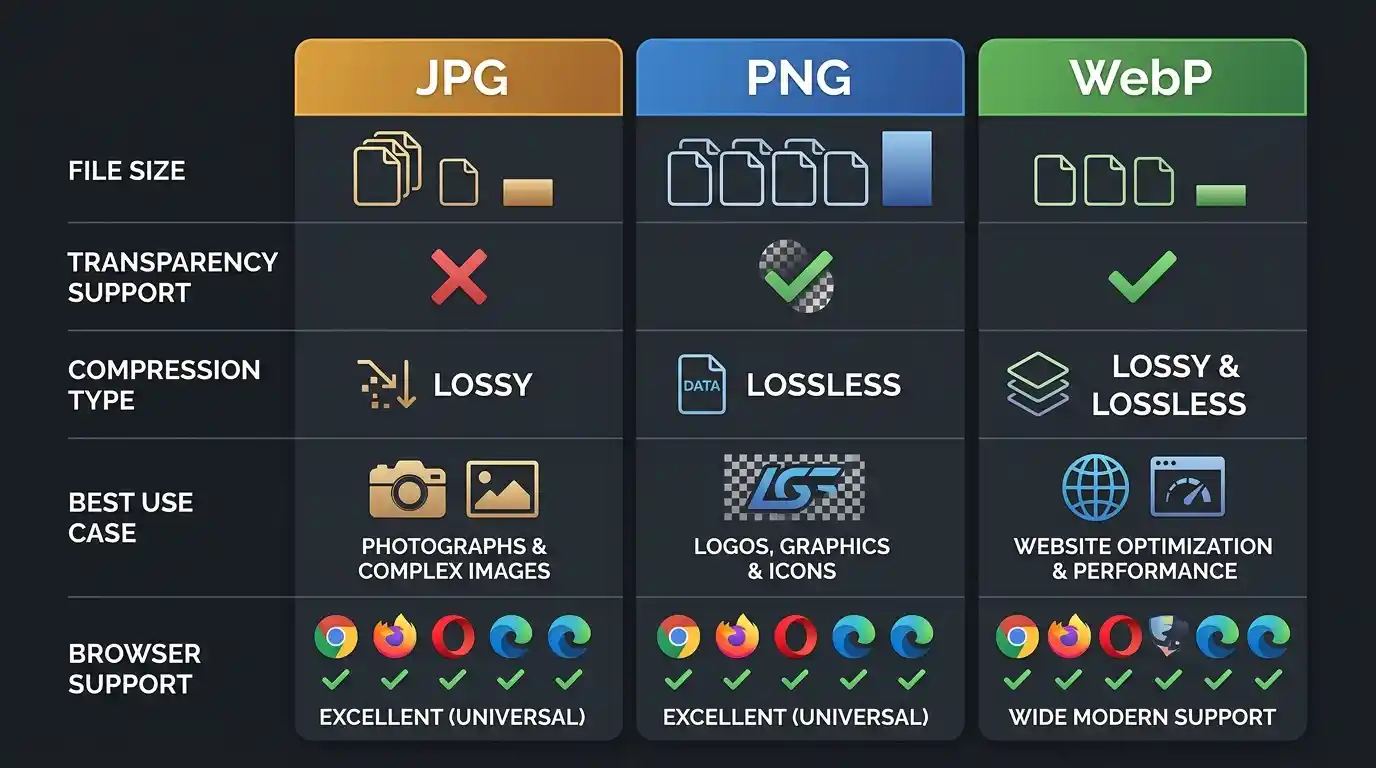
File Size Comparison
For a typical high-quality photograph (3000×2000px):
- JPG at quality 85: ~900 KB
- PNG (lossless): ~6–9 MB
- WebP (lossy, equivalent quality): ~600–700 KB
For a logo or flat-color graphic (500×500px, transparent background):
- PNG: ~40 KB
- WebP (lossless): ~28 KB
- JPG: Not applicable (no transparency support)
WebP consistently delivers the smallest files in both photographic and graphic contexts.
Image Quality Comparison
- JPG introduces subtle artifacts at medium/low quality settings; excellent at high settings for photos.
- PNG is pixel-perfect with zero quality loss — best for text, UI, and graphics.
- WebP matches or exceeds JPG quality at smaller file sizes; lossless WebP matches PNG quality.
Transparency Support
| Format | Transparency |
| JPG | ❌ None |
| PNG | ✅ Full alpha channel |
| WebP | ✅ Full alpha (lossy & lossless) |
Browser and Platform Compatibility
| Format | Chrome | Firefox | Safari | Edge | IE11 |
| JPG | ✅ | ✅ | ✅ | ✅ | ✅ |
| PNG | ✅ | ✅ | ✅ | ✅ | ✅ |
| WebP | ✅ | ✅ | ✅ (v14+) | ✅ | ❌ |
For modern web projects, WebP compatibility is essentially universal. Legacy support for IE11 is negligible in 2024+.
How Image Formats Affect SEO and Web Performance
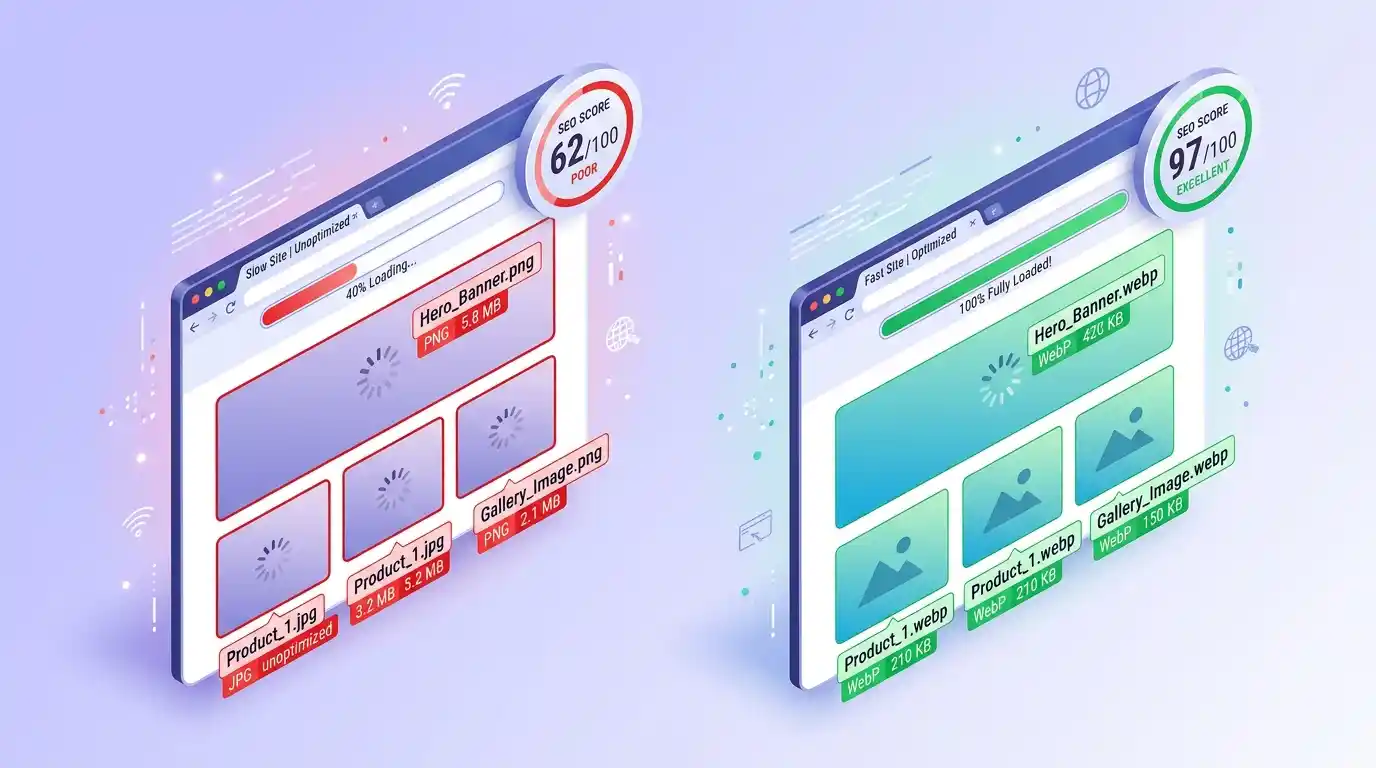
Search engines like Google have made page speed a confirmed ranking factor. Image formats directly impact three key metrics in Google’s Core Web Vitals:
- Largest Contentful Paint (LCP): The load time of the largest visible element — often a hero image. Smaller WebP files load faster, improving LCP scores.
- Total Blocking Time (TBT) and FID: Large image files delay browser rendering pipelines.
- Cumulative Layout Shift (CLS): Defining proper image dimensions (regardless of format) prevents layout shifts.
Google’s own PageSpeed Insights and Lighthouse tools explicitly recommend “Serve images in next-gen formats” — referring directly to WebP and AVIF. Using JPG or PNG where WebP would serve equally well is flagged as a performance opportunity.
According to Google’s Web.dev documentation on image formats, WebP images are on average 25–35% smaller than comparable JPEGs, which can mean the difference between a 2-second and 3-second load time — a gap that significantly affects bounce rates and conversion.
From an SEO standpoint, optimized image formats also support:
- Image SEO — faster-loading pages get better crawl budgets
- Mobile SEO — smaller files are critical on limited mobile bandwidth
- User experience signals — lower bounce rates from fast pages are indirect ranking factors
When to Convert Between Formats
Knowing when and how to convert images between formats is a practical skill for anyone managing digital assets.
JPG to PNG
Convert JPG to PNG when you need to:
- Add a transparent background to a photograph or graphic
- Edit an image multiple times without generational quality loss
- Use an image as an overlay or watermark element
Use the free tool Convert JPG to PNG Free for fast, browser-based conversion with no quality loss in the lossless output.
PNG to JPG
Convert PNG to JPG when:
- You have a photographic PNG that is unnecessarily large
- You don’t need transparency and want a smaller file for web use
- You’re preparing images for email or social platforms that prefer JPG
The Convert PNG to JPG Free tool makes this conversion instant and adjustable, letting you set the compression quality before downloading.
JPG and PNG to WebP
Converting your existing JPG and PNG assets to WebP is one of the highest-ROI optimizations for any website:
- WebP replaces JPG with ~30% smaller file sizes at equivalent quality
- WebP replaces PNG with ~26% smaller files while retaining transparency
Use the JPG → WebP Converter to quickly convert your photographic assets into web-optimized WebP files, ready to serve via <picture> elements or modern CMS platforms that auto-convert uploads.
Common Mistakes When Choosing Image Formats
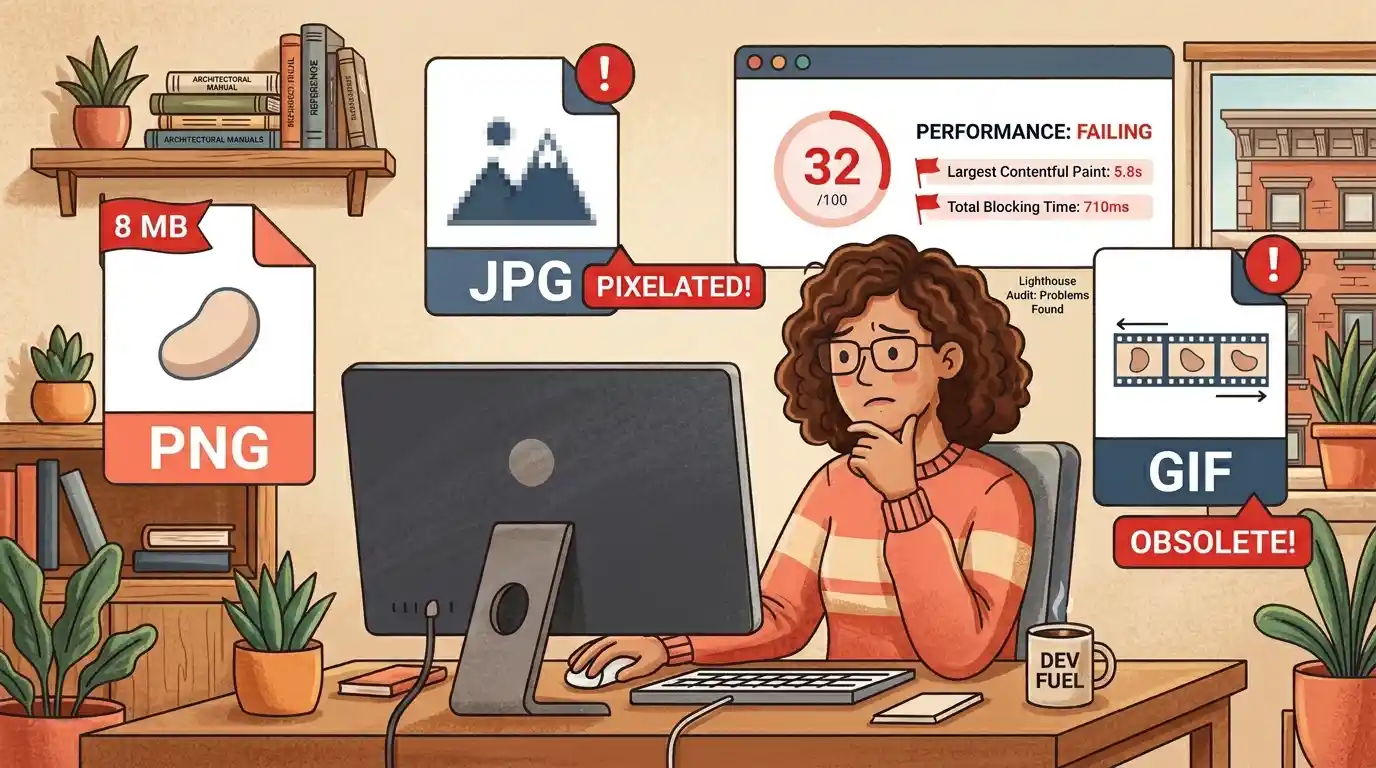
Even experienced developers make these format-related errors:
- Using PNG for photographs — PNG’s lossless compression makes photographic PNG files 5–10x larger than equivalent JPGs or WebPs, with no visible quality benefit.
- Using JPG for logos — Logos and icons with flat colors and sharp edges suffer from visible compression artifacts in JPG, especially around text or thin lines.
- Ignoring WebP entirely — Many older workflows default to JPG/PNG out of habit, missing significant performance gains from WebP.
- Over-compressing JPGs — Quality settings below 70–75 introduce visible artifacts. The sweet spot for web JPGs is quality 80–85.
- Not specifying image dimensions in HTML — Regardless of format, omitting width and height attributes causes layout shifts (CLS) that hurt Core Web Vitals.
- Converting JPG to PNG to “improve quality” — Saving a lossy JPG as a lossless PNG does not restore lost data. It simply makes the file larger without improving visual quality.
- Using GIFs when WebP animation is available — Animated GIFs are dramatically larger than equivalent animated WebP files and have inferior color rendering.
Frequently Asked Questions (FAQs)
Q: Is WebP better than JPG and PNG? For web use, yes — WebP offers smaller file sizes than both JPG and PNG while supporting transparency and animation. The only meaningful reason to choose JPG or PNG over WebP for web delivery is legacy software compatibility.
Q: Does converting PNG to JPG reduce quality? Yes, because JPG uses lossy compression. Fine details, text, and sharp edges may show artifacts after conversion. For photographs, the quality loss is often imperceptible at high quality settings.
Q: Can all browsers open WebP files? All major modern browsers — Chrome, Firefox, Safari (v14+), Edge, and Opera — support WebP. Internet Explorer does not, but IE usage is negligible for most audiences today.
Q: Which format is best for logo design? PNG is the traditional choice for logos requiring transparency. SVG (Scalable Vector Graphics) is even better for logos because it scales without any quality loss. WebP is a strong alternative to PNG for web-displayed logos.
Q: Does image format affect Google image search rankings? Indirectly, yes. Faster-loading images improve page speed metrics, which correlates with better overall rankings. WebP images load faster, contributing positively to SEO.
Q: What is the best image format for social media? JPG is the most universally accepted format across platforms. Most social media platforms (Instagram, Facebook, Twitter/X, LinkedIn) automatically compress uploaded images anyway, so starting with a high-quality JPG is standard practice.
Final Verdict: Which Format Should You Use?
There is no single “best” image format — the right choice depends on context:
| Use Case | Recommended Format |
| Photography on the web | WebP (fallback: JPG) |
| Logos and icons | PNG or SVG |
| UI overlays with transparency | WebP or PNG |
| Screenshots and diagrams | PNG |
| Animated graphics | WebP (fallback: GIF) |
| Print photography | JPG (TIFF for professional) |
| General web images (all types) | WebP |
| Email campaigns | JPG |
| High-fidelity editing workflow | PNG or TIFF |
For the modern web in 2026 and beyond, WebP is the default-best choice for most scenarios. It combines the photographic compression efficiency of JPG with the transparency capabilities of PNG, all in a smaller package. Where legacy compatibility matters, JPG remains the universal fallback for photographs, and PNG remains the precision choice for graphics.
The key takeaway: format choice is not aesthetic — it is a technical and strategic decision with direct consequences for your website speed, user experience, storage costs, and search visibility.