What This Guide Covers
People usually search for this topic with one clear intent: they want to know whether a PNG to JPG converter online is trustworthy before uploading or converting personal, work, or client images. Related searches often include:
- Is the PNG to JPG converter safe
- safe online image converter
- private png to jpg converter
- browser-based image converter
- Convert PNG to JPG without upload
- secure photo converter online
- Is it safe to upload images to converter tools
- Convert image locally in browser
- online jpeg converter privacy
- best PNG to JPG converter without signup
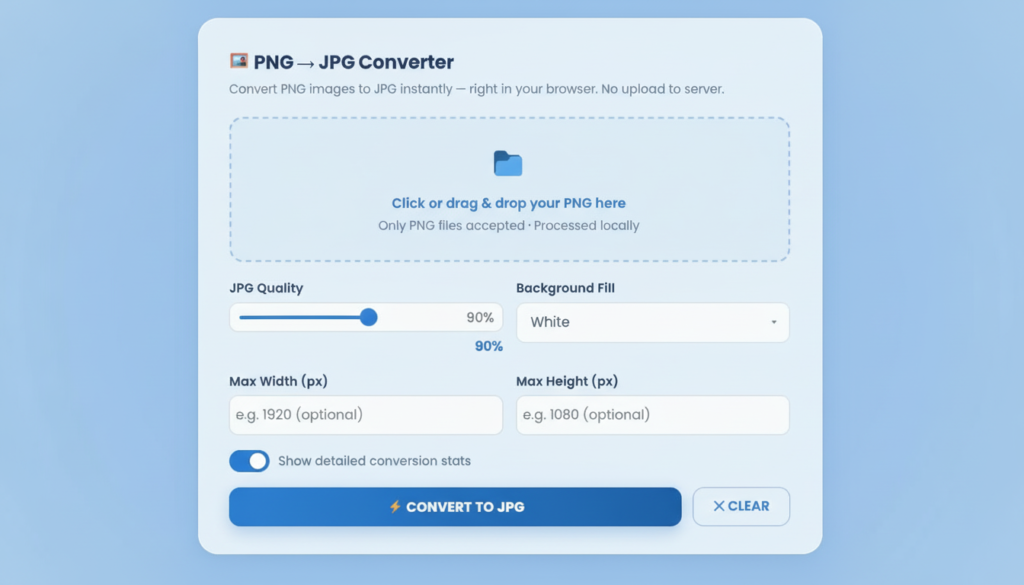
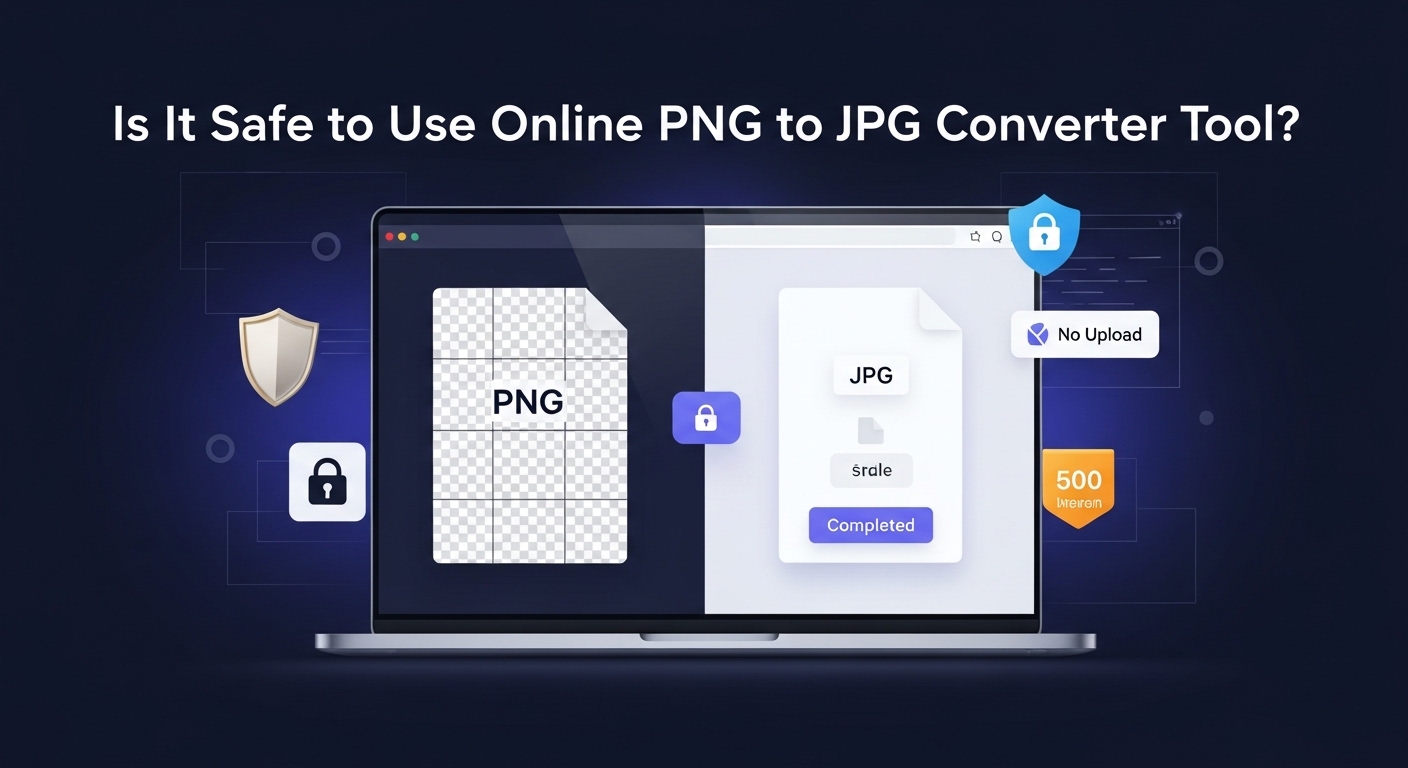
The short answer is this: yes, an online PNG to JPG converter can be safe, but only if it handles files locally or has a very clear and trustworthy privacy model. The biggest difference is whether your file is processed in the browser on your device or uploaded to a third-party server. The Fast Task Tools converter explicitly says it processes PNG files locally in your browser, with no server upload, no signup, and instant conversion.
That matters because image files are not always harmless. A screenshot can contain email addresses, customer data, payment details, internal dashboards, health records, or private conversations. A family photo may reveal location clues, identities, or personal context. For those use cases, privacy-first conversion is not just a convenience feature. It is the main safety factor.
What a PNG to JPG Converter Actually Does
Before talking about safety, it helps to understand what conversion means.
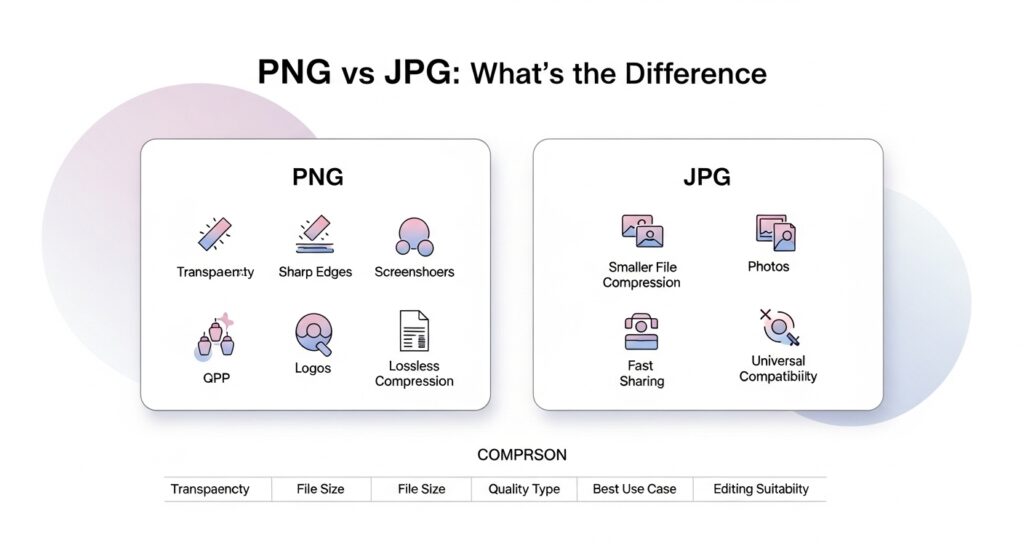
A PNG file uses lossless compression, which means it preserves image data more accurately. PNG is excellent for screenshots, logos, UI elements, illustrations, and transparent images. A JPG or JPEG file uses lossy compression, which means some image information is discarded to create a smaller file size. JPG is typically better for photographs, gradients, and everyday web images. The format tradeoff is simple: PNG favors precision, while JPG favors efficiency.
This is why people convert PNG to JPG in the first place. They usually want:
- smaller image file size
- faster uploads
- easier email sharing
- reduced storage use
- better website performance
- broad compatibility across devices and apps
There is one important limitation: JPG does not support transparency. If a PNG has a transparent background, that transparency must be replaced with a solid color during conversion. On the Fast Task Tools page, the converter explicitly notes this and offers background fill choices such as white, black, light grey, bisque, and custom color.
Is It Safe to Use an Online PNG to JPG Converter?
The answer depends on the conversion model.
When online converters are safe
An online converter is generally safer when:
- It processes images locally in the browser
- It clearly says no upload to server
- It uses HTTPS
- It does not force account creation
- It explains what happens to transparency and metadata
- It does not request unnecessary permissions
- It has a clean, low-risk interface without suspicious redirects
When online converters are risky
A converter becomes riskier when:
- Files must be uploaded to a remote server
- The website does not explain retention or deletion policies
- The tool is overloaded with pop-ups, deceptive buttons, or redirects
- It asks for unnecessary downloads or browser extensions
- It does not explain how images are processed
- It stores files in the cloud without clear disclosure
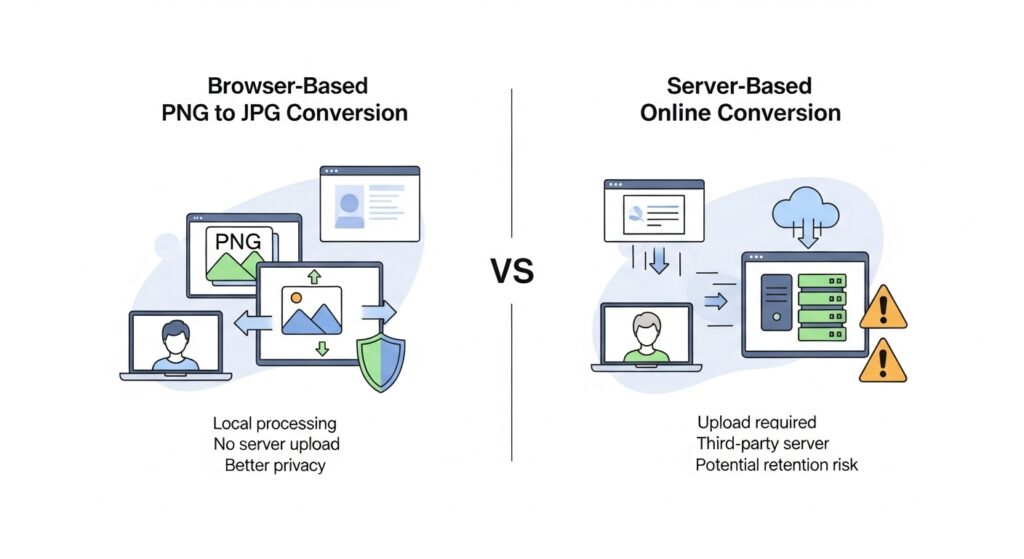
The most important distinction is browser-based conversion vs server-side conversion.
With server-side conversion, your file leaves your device, gets transmitted over the internet, is processed on someone else’s infrastructure, and may be cached, logged, retained, backed up, or exposed if the service is poorly managed.
With browser-based conversion, the tool uses your browser’s capabilities to decode, process, and export the image locally. According to Fast Task Tools, its PNG to JPG converter works in-browser using local processing, which significantly reduces privacy risk because the image data is not transmitted to a server.
That does not mean “zero risk” in an absolute sense. Any website still loads code into your browser, so you should still use reputable sites, secure connections, and basic caution. But from a privacy standpoint, local conversion is clearly the safer architecture.
How the Fast Task Tools PNG to JPG Converter Works
The Fast Task Tools page describes several safety and usability details that are directly relevant to this topic.
Local browser-based processing
The tool states that it converts PNG to JPG right in your browser and that no file is ever sent to a server. It also says image processing happens locally and instantly. That is the strongest positive safety signal on the page.
No upload, no signup, instant results
The page emphasizes three practical trust markers:
- No upload to the server
- no signup required
- instant results in the browser
These reduce friction and lower risk because you do not need to create an account, hand over an email address, or wait for cloud processing.
JPG quality settings
The converter includes a quality slider. This matters because JPG compression is not all-or-nothing. You can choose whether to prioritize visual fidelity or file size. The page positions 70 to 89 percent as the practical sweet spot for many website, blog, social, and email use cases.
Background fill options
Since JPG cannot preserve alpha transparency, the tool lets users choose how transparent areas should be filled. This is especially useful for product images, exported graphics, mockups, and screenshots placed on a predictable background.
Resize controls
The page also includes optional max width and max height fields, meaning users can resize and convert in one step. That is useful for image optimization, content publishing, and lightweight web delivery.
Metadata and EXIF considerations
A notable point on the page is that EXIF metadata is not preserved in this browser-based conversion. This is good for privacy in many cases because metadata can contain camera info and other embedded details, but it may matter to professional workflows that depend on preserved metadata.
Key Risks of Using Any Online Image Converter
Even when a tool looks convenient, users should understand the core risks.
1. Privacy risks
The biggest concern is the exposure of sensitive images. If your file contains personal documents, invoices, ID photos, legal screenshots, customer dashboards, or private messages, a server-upload tool may create unnecessary risk.
2. Data retention concerns
Some online tools do not clearly say whether uploaded images are stored temporarily, cached, reused for analytics, or deleted immediately. If the privacy policy is vague, assume caution is needed.
3. Malware and suspicious ads
Low-quality converter sites often surround the real button with fake “download” ads. That creates a security and usability problem. A safe tool should be simple and transparent.
4. Quality loss and compression artifacts
PNG to JPG conversion is not neutral. It introduces lossy compression. This can cause blurring, ringing, banding, or artifacts, especially around text, icons, or sharp edges.
5. Transparency loss
If the original PNG depends on transparent pixels, converting to JPG can create white boxes, dark edges, or visual mismatches unless you choose the right fill color.
6. Metadata changes
Some workflows require metadata continuity. Others benefit from metadata removal. A safe user experience means the tool clearly tells you what happens. Fast Task Tools does that by stating EXIF is not preserved.
Signs a PNG to JPG Converter Is Safe to Use
Here is a practical checklist.
Clear privacy messaging
A trustworthy converter should explicitly say whether files are uploaded or processed locally.
HTTPS and secure delivery
The site should load over HTTPS so the page itself is delivered securely.
No forced registration
If a quick image conversion tool asks for account creation, pause and question why.
Honest technical explanation
A good tool explains limitations like transparency handling, compression, and metadata changes.
Minimal permissions and clean design
The safest tools usually do not ask for anything beyond your file selection.
By this checklist, Fast Task Tools shows several positive indicators because it clearly states local conversion, no upload, no signup, and explains transparency and EXIF behavior.
When You Should Convert PNG to JPG
PNG to JPG is usually a smart move when you are working with:
- photographs
- blog post images
- social media visuals
- email attachments
- product photos without transparency needs
- image-heavy landing pages
- portfolio photos
- storage optimization tasks
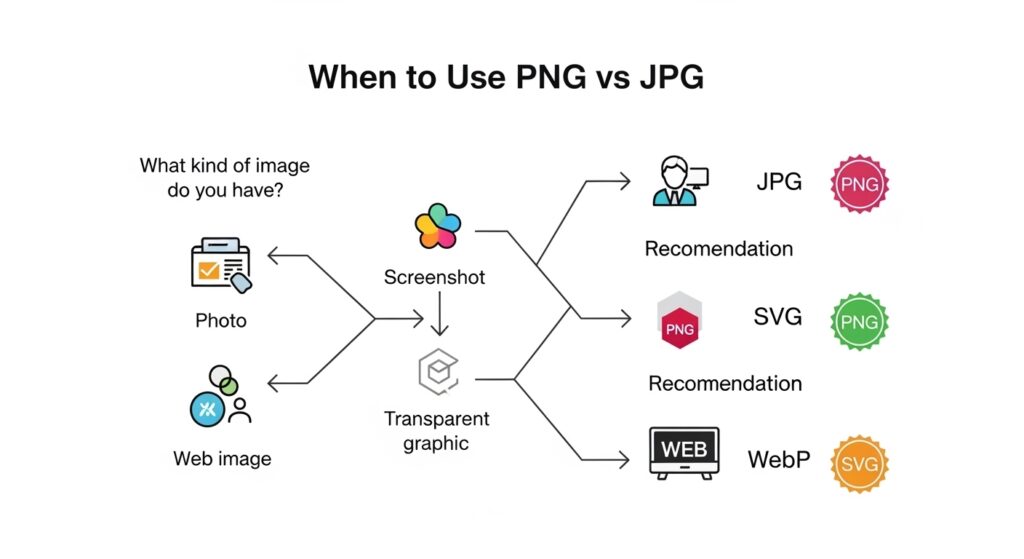
For web publishing, format choice matters because images are a major part of page weight and performance. Google’s web.dev guidance on choosing image formats recommends matching format choice to image type, with JPEG being appropriate for photographs and images with rich color gradations, while PNG is better when lossless detail or transparency is important.
For authenticity and further reading, you can reference Google’s guide to choosing the right image format as an external source.
When You Should Not Convert PNG to JPG
Do not convert PNG to JPG when the original image relies on qualities that JPG cannot preserve well.
Avoid conversion for:
- transparent logos
- icons and UI assets
- screenshots with lots of small text
- diagrams, charts, and infographics
- layered editing workflows
- design assets that need repeated re-exporting
- files requiring pixel-perfect sharpness
In those cases, PNG, SVG, WebP, or another format may be a better fit. JPG is optimized for photographic efficiency, not crisp edge fidelity.
Best Quality Settings for PNG to JPG Conversion
The best JPG quality setting depends on the use case.
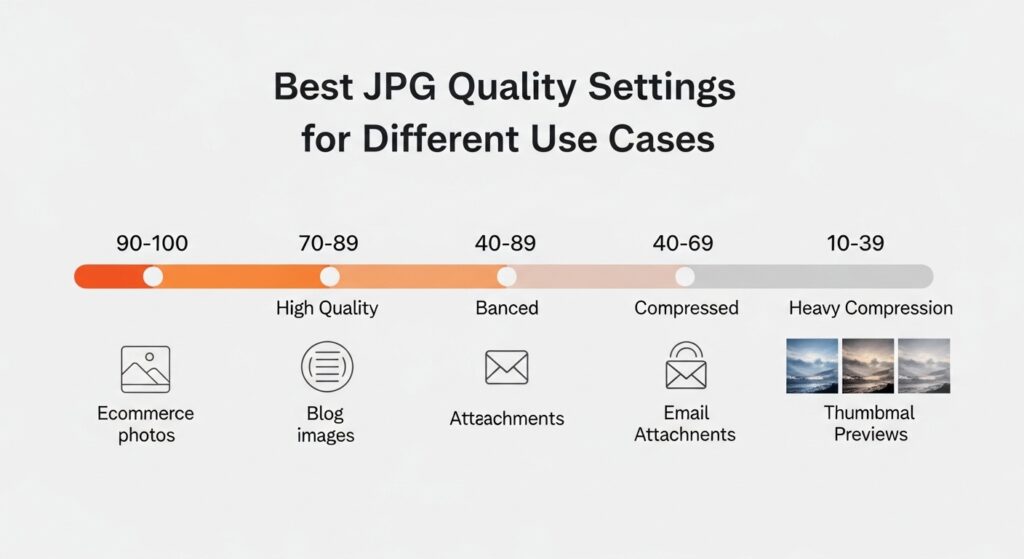
90 to 100 percent
Use this for:
- ecommerce product photography
- client previews
- presentations
- high-quality portfolio images
70 to 89 percent
Use this for:
- blog images
- website content
- email sharing
- social media uploads
This is often the best balance of quality and compression.
40 to 69 percent
Use this for:
- thumbnails
- previews
- lightweight web assets where detail is less important
Below 40 percent
Use sparingly. This can create obvious artifacting and visible degradation.
If your goal is image compression without visible quality loss, start around 80 to 85 percent and test the result visually.
SEO, Performance, and Web Use Cases
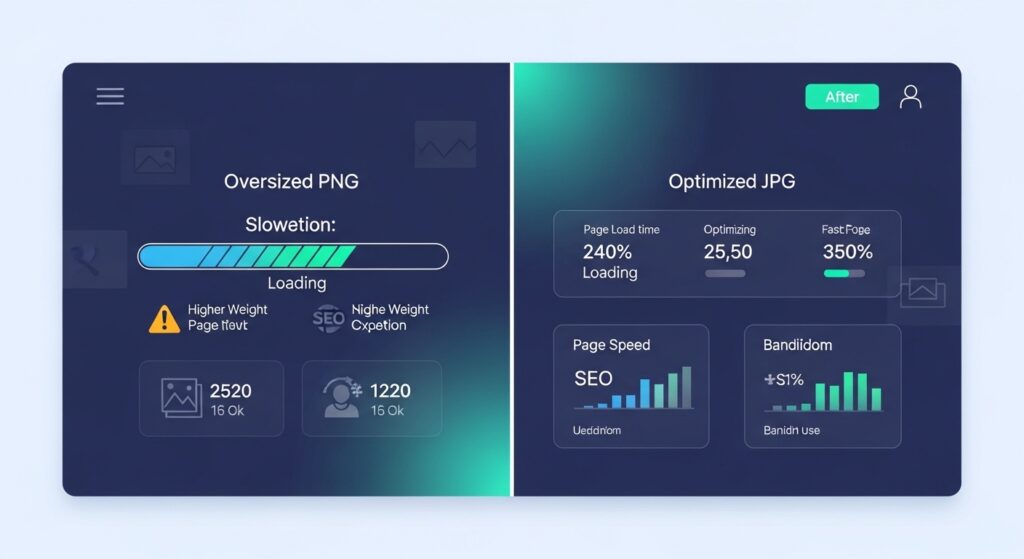
From an SEO and UX perspective, image format directly affects speed, page weight, and usability. HTTP Archive’s 2025 Web Almanac notes that page weight matters because larger payloads hurt performance, especially on constrained devices and networks. That makes image optimization one of the easiest wins for many websites.
For bloggers, ecommerce stores, affiliate pages, and business websites, converting large PNG photos into reasonably compressed JPG files can help with:
- faster page loading
- lower bandwidth consumption
- better user experience
- Improved Core Web Vitals support
- Reduced bounce from slow-loading pages
That said, SEO is not about blindly converting everything to JPG. It is about using the right format for the right asset.
Common Questions About PNG to JPG Safety
Does converting PNG to JPG reduce quality?
Yes. JPG is lossy. But if you use sensible quality settings, the loss may be minimal for normal viewing, especially on photos.
Will JPG always make the image smaller?
Often yes, especially for photos. But not always. For flat graphics, logos, and interface screenshots, PNG may still be better.
Can an online converter steal your image?
A server-based converter could potentially retain or process your upload. A local browser-based converter reduces that concern because the file is not transmitted to the server.
Does converting remove metadata?
It can. Fast Task Tools explicitly states that EXIF metadata is not preserved in its browser-based conversion.
Is mobile conversion safe?
It can be, as long as the site is reputable and uses the same browser-based local processing model. The Fast Task Tools page says the converter works on modern mobile browsers as well.
Final Verdict
So, is it safe to use an online PNG to JPG converter tool?
Yes, if the tool processes files locally in your browser and is transparent about how conversion works. That is the safest model for privacy-conscious users.
Based on the page content, Fast Task Tools appears to be a privacy-friendly option because it says:
- Conversion happens locally in the browser
- Files are not uploaded to a server
- No signup is required
- Users can control JPG quality
- transparent PNG areas are filled using the chosen background color
- EXIF metadata is not preserved
Those are all useful and credible safety indicators for this type of tool.
The smartest best practice is simple:
- Use browser-based tools for sensitive or personal images
- Avoid uploading private files to unknown converter sites
- Convert photos to JPG when you want a smaller size
- keep PNG for transparency, text-heavy screenshots, and crisp graphics
- always review quality before publishing or sharing
In other words, the real question is not just “Is PNG to JPG conversion safe?” It is “Is this specific converter private, transparent, and suitable for my image type?” For that, local processing is the biggest trust signal.
Check out our free PNG to JPG converter.