Summary: The “File Format Not Supported” error is one of the most frustrating digital obstacles users encounter across devices, operating systems, and software applications. This comprehensive guide about How to Fix “File Format Not Supported” Error Easily, walks you through every possible cause — from codec mismatches and outdated software to corrupted files and unsupported containers — and provides actionable, step-by-step solutions for video, audio, image, and document file formats. Whether you’re dealing with an unplayable MP4 on your TV, a rejected HEIC photo on Windows, or a broken Excel file that won’t open, this guide covers the full spectrum of fixes using both built-in tools and trusted third-party software.
Table of Contents
- What Does “File Format Not Supported” Mean?
- Most Common Causes of File Format Errors
- How to Fix the ” File Format Not Supported Error on Windows
- How to Fix the ” File Format Not Supported Error on Mac
- How to Fix the ” File Format Not Supported Error on Android and iPhone
- Fixing Unsupported Video File Formats
- Fixing Unsupported Audio File Formats
- Fixing Unsupported Image File Formats
- Fixing Unsupported Document File Formats
- How to Fix Corrupted Files That Trigger Format Errors
- Preventing “File Format Not Supported” Errors in the Future
- FAQs About File Format Not Supported Errors
What Does “File Format Not Supported” Mean?
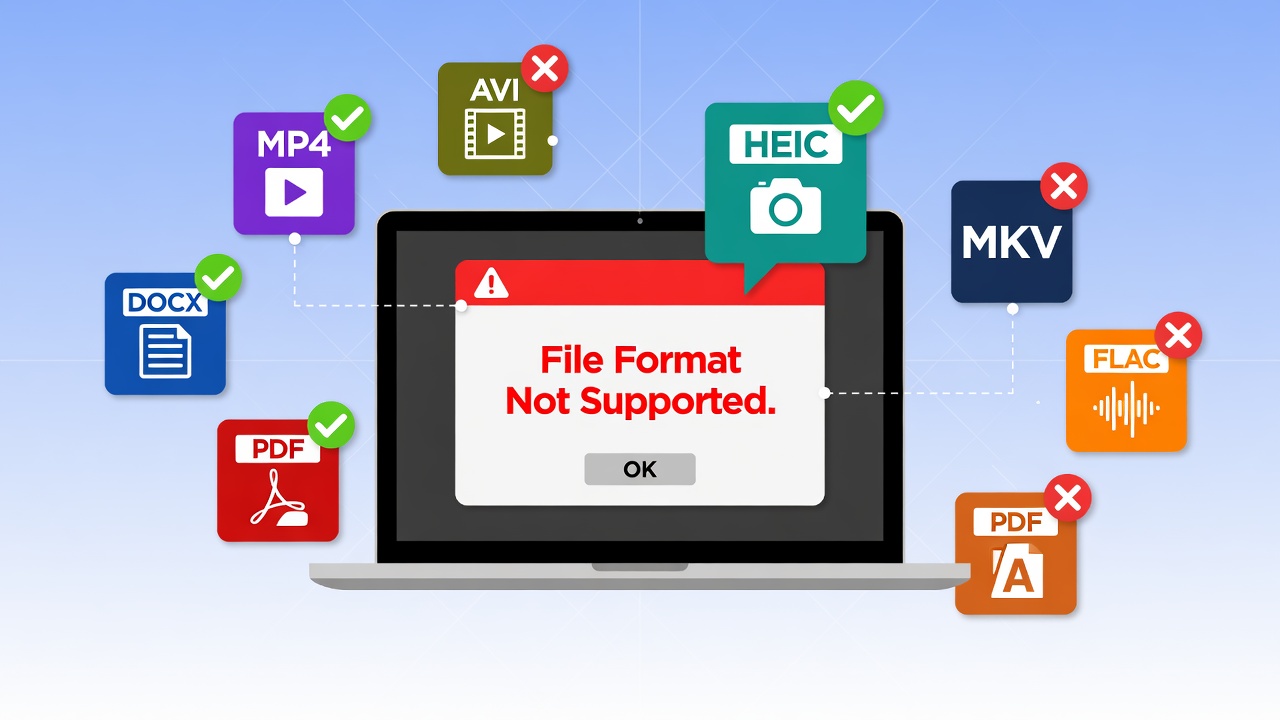
When a device, application, or operating system displays the message “File Format Not Supported,” it is communicating that it cannot interpret, decode, or render the data structure of the file you are trying to open. In natural language processing (NLP) terms, this is a compatibility failure — a mismatch between the encoding schema of the file and the decoding capability of the host environment.
This error is not necessarily an indication that the file is broken. In many cases, the file is perfectly healthy; it simply speaks a language the current application does not understand. The error is essentially the software’s way of saying: “I recognize something is here, but I don’t know how to read it.”
Common Scenarios Where This Error Appears
This error surfaces in countless contexts across everyday digital life. You might encounter it when:
- Playing a video file (.MKV, .AVI, .HEVC) on a smart TV or media player
- Opening an iPhone photo (.HEIC) on a Windows 10 or Windows 11 PC
- Trying to play a lossless audio file (.FLAC, .APE) on an older car stereo or Bluetooth speaker
- Importing a RAW camera image (.CR2, .NEF, .ARW) into basic photo editing software
- Attempting to open a newer .DOCX or .XLSX file in a legacy version of Microsoft Office
- Uploading a file to an online platform that only accepts specific extensions
- Transferring files between Apple and Android ecosystems
- Opening a video downloaded from the internet that uses an uncommon codec
Why Devices and Apps Reject Certain File Formats
Every application is built with a defined set of supported formats — essentially a whitelist of file types it knows how to read. When a file falls outside this whitelist, rejection occurs. The underlying reasons vary widely and include licensing restrictions (some codecs require paid licenses and not every developer pays for them), hardware limitations (older chips lack the silicon-level decoding capability required for modern formats like HEVC or AV1), and developer prioritization (not every developer implements support for every available format, especially niche or region-specific ones).
Understanding this distinction — that the error is usually about the reader, not the file — is the mindset shift that makes troubleshooting much more intuitive.
Most Common Causes of File Format Errors
Before jumping into fixes, understanding the root cause is critical. The “file format not supported” error has several distinct origins, and the correct solution depends entirely on which one applies to your situation.
Codec Incompatibility
A codec (short for coder-decoder) is the algorithm used to encode and decode digital media. Video files in particular are containers — think of them as boxes — that hold video streams, audio streams, and subtitles, each encoded with potentially different codecs. An MP4 file might contain H.264 video and AAC audio, or it might contain H.265 (HEVC) video — and if your player lacks the H.265 codec, it will refuse to play the file even though the container format (.mp4) is widely supported.
This distinction between the container and the codec is one of the most commonly misunderstood aspects of digital media. You can have a fully supported container with an unsupported codec inside, and the result is always the same error.
Common codec-related error triggers include HEVC (H.265), AV1, VP9, FLAC inside MKV containers, and newer audio codecs like Dolby Atmos or DTS:X on older hardware and software.
Outdated Software or Firmware
Software that hasn’t been updated in years will lack support for formats introduced after its release date. A Windows Media Player from 2015 will not support AV1 video. A smart TV with firmware from 2018 may not support HEVC 10-bit or HDR formats. Even popular applications like Adobe Premiere Pro occasionally lag behind in supporting the very latest camera RAW formats.
Keeping software, drivers, and device firmware updated is one of the simplest and most impactful preventive measures a user can take.
File Corruption
Sometimes the error isn’t about format compatibility at all — it’s about a damaged file. A corrupted file may have a valid extension but broken internal data, causing the application to misidentify or fail to parse the format entirely. This is especially common with files downloaded over unstable internet connections, transferred via faulty USB drives, recovered from damaged storage media, or interrupted mid-download.
If you suspect corruption is the culprit, you should explore how to fix corrupted files online using dedicated repair tools designed to reconstruct damaged file structures without data loss.
Unsupported Container Formats
Even if the codec inside a file is supported, the container format itself may not be. Formats like.MXF (used extensively in professional broadcast and cinema video production), OGG.WebM, or.FLAC may not be natively supported on many consumer devices — even when the codecs inside those containers are widely compatible. The device simply doesn’t know how to open the box.
DRM-Protected Files
Digital Rights Management (DRM) protection adds an encryption layer to files — typically purchased movies, music, and eBooks — that can cause format errors when played outside their licensed ecosystem. An iTunes movie downloaded years ago might trigger a format error on a new device if Apple’s FairPlay DRM validation fails. Similarly, Amazon or Google Play purchased content may behave unexpectedly outside those platforms.
How to Fix the ” File Format Not Supported Error on Windows
Windows is a highly versatile operating system, but it still has notable gaps in its native format support, particularly around newer video codecs and Apple-originated image formats.
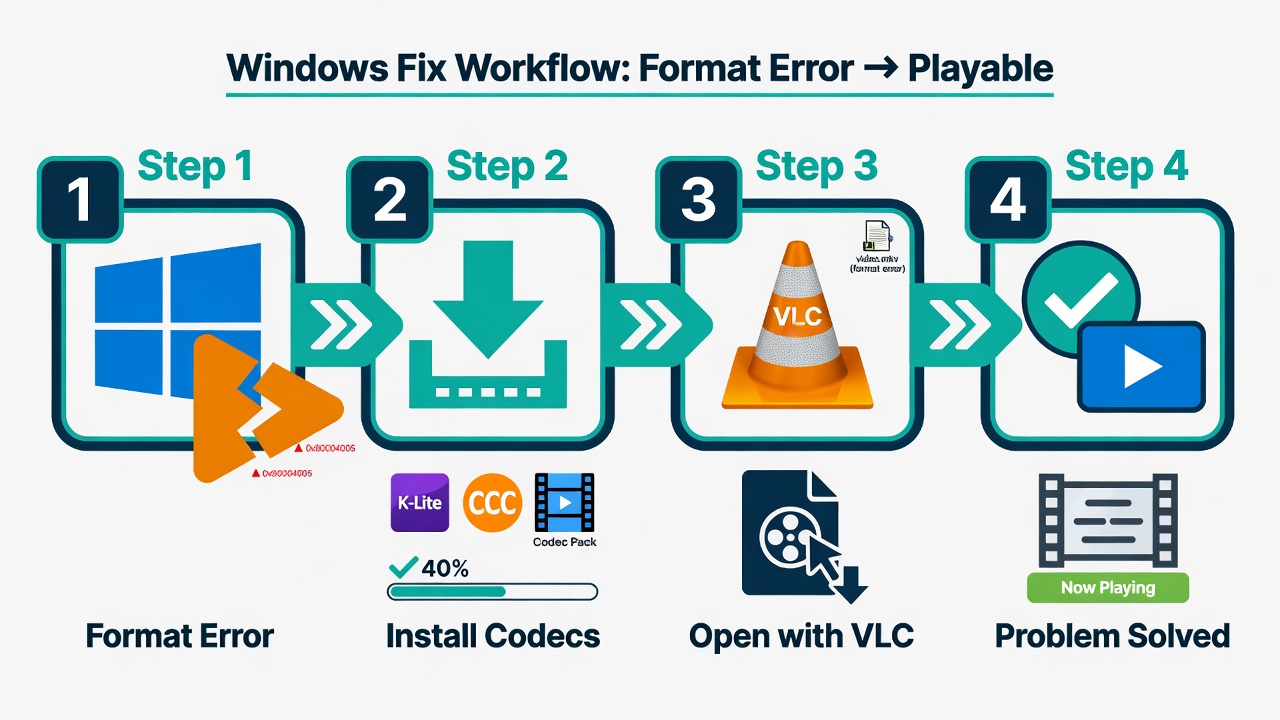
Install Missing Codecs and Codec Packs
The fastest fix for video playback issues on Windows is installing a codec pack. The K-Lite Codec Pack is the industry standard — a free, comprehensive bundle that adds support for virtually every audio and video codec in active use. After installation, Windows Media Player and other media applications gain the ability to decode formats they previously couldn’t handle, without any additional configuration.
Steps to install K-Lite Codec Pack:
- Download the pack from the official K-Lite Codec Pack website (choose “Basic” for a minimal footprint or “Mega” for maximum compatibility)
- Run the installer using default settings
- Restart your media player or reboot the system
- Retry opening the problematic file
For HEVC specifically, Windows 10 and 11 users can install the HEVC Video Extensions from the Microsoft Store. This adds hardware-accelerated HEVC decoding directly into the Windows media pipeline, benefiting all applications that use it.
Use VLC Media Player as a Universal Player
VLC Media Player by VideoLAN is arguably the most powerful free media player in existence. It ships with its own internal codec library and can play virtually any video or audio format without needing external codec packs. If Windows Media Player or any other application says “file format not supported,” try opening the same file in VLC before attempting anything more complex. In the vast majority of cases, VLC resolves the issue immediately and without any additional configuration — making it the single most effective quick fix available to Windows users.
Update or Reinstall Media Players
If you’re using Windows Media Player, Groove Music, or the Films & TV app and encountering persistent format errors, check for updates through Windows Update. Microsoft periodically adds codec support through cumulative system updates. If updates don’t resolve the issue, try uninstalling and reinstalling the media application through the Windows Settings > Apps panel.
Convert the File to a Compatible Format
When no player on your system can open the file, and you need it on that specific device, conversion is the reliable fallback. HandBrake (free, open-source) converts virtually any video format to MP4 or MKV with excellent quality control. Audacity or fre:ac handles audio conversion across all major formats. XnConvert is excellent for batch image format conversion, including RAW, TIFF, WebP, and HEIC.
How to Fix the ” File Format Not Supported Error on Mac
macOS is known for its tight hardware-software integration, but it too has native format limitations — particularly around Windows-originated formats and some professional media formats.
Use QuickTime Alternatives
QuickTime Player natively supports MOV, MP4, M4V, M4A, and a handful of other formats closely tied to Apple’s ecosystem. For anything outside that list — AVI, WMV, MKV, FLV, OGG — QuickTime will display a format error. The simplest and most effective fix is installing IINA, a modern, free, and open-source media player for macOS that handles virtually all formats natively while integrating beautifully with macOS design conventions. Alternatively, VLC for Mac performs exactly as it does on Windows.
Install Flip4Mac or Other Codec Extensions
For Windows Media formats (.WMV, .WMA) specifically, Flip4Mac has historically been the go-to codec extension for QuickTime. While modern macOS users are generally better served by switching to IINA or VLC, Flip4Mac remains a viable option for users who prefer to stay within the QuickTime ecosystem for workflow reasons.
Convert Files Using HandBrake or FFmpeg
HandBrake offers a clean graphical interface for Mac and handles most video conversion needs without requiring any command-line knowledge. For power users and developers, FFmpeg via Terminal is the most flexible solution available on any platform — a single command-line tool capable of converting between virtually any audio, video, or image format.
A basic FFmpeg conversion from MKV to universally compatible MP4 looks like this:
ffmpeg -i input.mkv -c:v libx264 -c:a aac output.mp4
This remuxes and re-encodes the file to H.264 video and AAC audio — compatible with virtually every device on the planet.
How to Fix the ” File Format Not Supported Error on Android and iPhone
Mobile devices operate under strict format limitations imposed by both hardware constraints and operating system architecture decisions.
Use a Third-Party Media Player App
On Android, apps like MX Player and VLC for Android extend codec support far beyond what the stock gallery and music apps provide. MX Player supports hardware-accelerated decoding for HEVC, H.264, and even newer codecs, making it excellent for playing downloaded video files in any format. Its software decoding fallback mode can handle even the most obscure formats when hardware decoding fails.
On iPhone and iPad, Infuse by Firecore is the leading third-party media player. It supports MKV, AVI, WMV, FLAC, OGG, and many other formats that the native Videos and Music apps reject outright. Infuse also streams directly from network drives, Plex servers, and cloud storage — making it a comprehensive media solution for iOS users.
Convert Files Before Transferring
If you already know a file format is incompatible with your mobile device, converting it before the transfer saves significant time and frustration. Online converters like CloudConvert and Convertio handle this efficiently in the browser without requiring any app installation. For batch conversions, HandBrake on your desktop remains the most powerful and efficient option before pushing files to your phone.
Check App-Specific Format Requirements
Different apps have their own supported format lists that are entirely independent of what the operating system supports. Instagram requires MP4 with H.264 encoding for video uploads and rejects H.265 content. TikTok rejects files over certain resolutions, aspect ratios, or bitrates. WhatsApp has strict file size limits that may require compression even for supported formats. Always check the target app’s official documentation for its specific format requirements before assuming the error is a device-level problem.
Fixing Unsupported Video File Formats
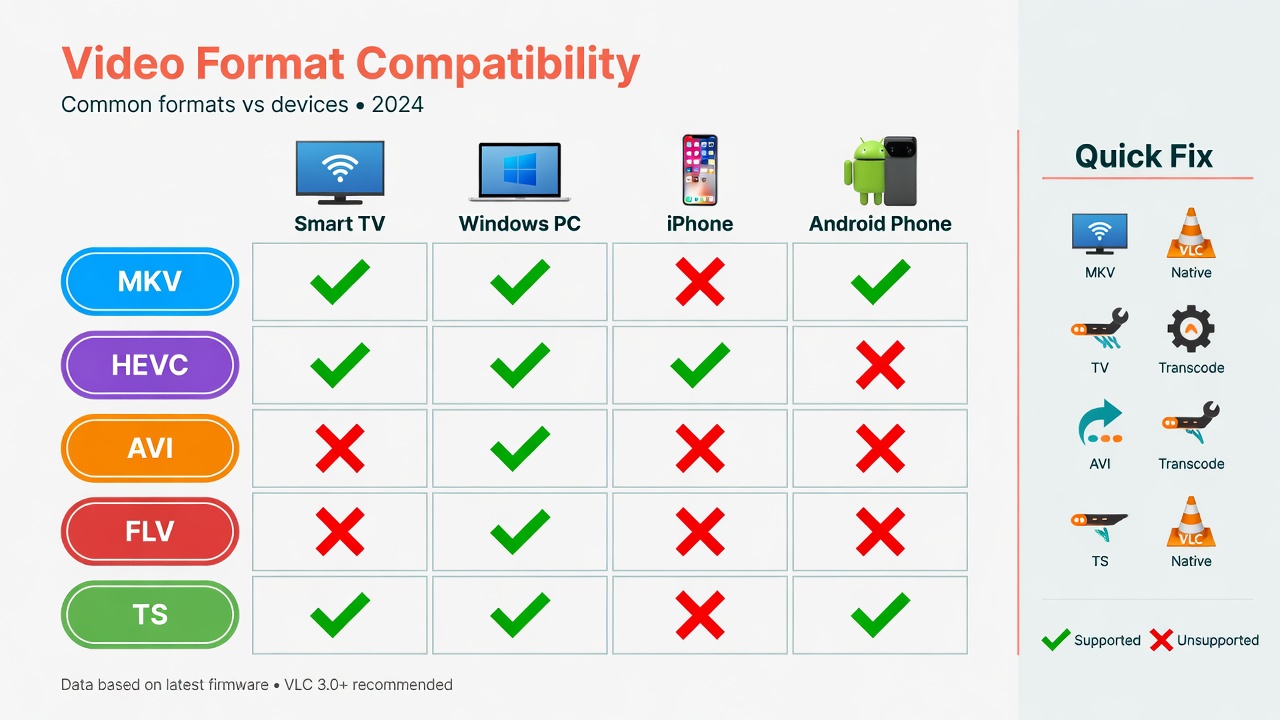
Video files are the most common source of “file format not supported” errors due to the sheer number of container formats, codecs, color profiles, and bitrate combinations involved.
Common Unsupported Video Formats and Their Fixes
MKV (Matroska): One of the most popular high-quality video containers — widely used for movies and TV shows with multiple audio tracks and subtitles — but not natively supported by many smart TVs and media players. Fix: Use VLC for immediate playback, or remux (not re-encode) to MP4 using MKVToolNix or HandBrake for zero quality loss and universal compatibility.
HEVC / H.265: The successor to H.264, delivering equal quality at roughly half the file size but requiring significantly more processing power to decode. Older TVs, computers, and mobile devices frequently fail with this codec. Fix: Install HEVC codec extensions on Windows, use a hardware-accelerated player like VLC, or convert to H.264 using HandBrake.
AVI: Paradoxically, this older format causes issues on newer devices that have dropped legacy codec support entirely. Fix: Convert to MP4 using HandBrake with the H.264 preset.
FLV and SWF: Flash-based formats were largely abandoned after Adobe ended Flash support in December 2020. Fix: Convert to MP4; note that interactive SWF content may be permanently inaccessible.
TS / M2TS: Transport stream files are common in Blu-ray disc content and broadcast television recordings. Fix: VLC handles these natively; alternatively, convert to MP4 using HandBrake.
WMV / ASF: Windows Media Video files that struggle on non-Windows platforms. Fix: Install appropriate codec packages on Linux or Mac, or convert to MP4.
Best Video Converter Tools
HandBrake remains the top free option with a user-friendly interface, hardware encoding support (using Nvidia NVENC, AMD VCE, or Intel QSV), and a library of well-optimized presets. FFmpeg is the most powerful command-line tool, capable of virtually any conversion operation imaginable. Freemake Video Converter offers a Windows-based GUI for users who prefer a simpler interface. For cloud-based conversion without any local installation, CloudConvert supports over 200 video formats and processes everything in the cloud.
Fixing Unsupported Audio File Formats
Audio format errors are particularly common in car stereos, vintage hi-fi equipment, older Bluetooth speakers, gaming consoles, and professional audio workstations.
Common Unsupported Audio Formats and Their Fixes
FLAC (Free Lossless Audio Codec): Widely supported on PC and Android devices but not natively on older iOS versions or many car stereos — particularly those manufactured before 2018. Fix: Convert to ALAC (Apple Lossless Audio Codec) for Apple devices, or to MP3 or AAC for maximum cross-platform compatibility.
OGG Vorbis: An open-source audio format used extensively in video game audio and open-source software. Fix: Convert to MP3 or AAC using fre:ac or Audacity — both are free and support batch processing.
APE (Monkey’s Audio): A lossless audio format with notoriously poor universal support despite excellent compression. Fix: Convert to FLAC, which offers comparable quality and compression but is far more universally supported.
WAV at high sample rates: WAV files recorded at 32-bit/384kHz — common in professional audio production — may trigger errors on devices that only support up to 24-bit/96kHz. Fix: Downsample to 24-bit/96kHz using Audacity, Adobe Audition, or any professional DAW.
AIFF: Apple’s uncompressed lossless format, the Mac equivalent of WAV. Fix on Windows: Convert to WAV or FLAC using fre:ac.
Best Audio Converter Tools
Fre:ac (Free Audio Converter) is the leading free, open-source audio converter, supporting all major formats and batch processing with an intuitive interface. Audacity serves double duty as both a professional audio editor and a capable format converter. dBpoweramp is the premium choice for audiophiles who need maximum quality preservation and extensive metadata handling. For quick online conversion, Zamzar and CloudConvert handle most audio formats in the browser.
Fixing Unsupported Image File Formats
HEIC to JPG Conversion
HEIC (High Efficiency Image Container) is Apple’s default camera format since iOS 11, offering approximately 50% better compression than JPG at equal visual quality. However, Windows 10 (without the Microsoft HEIF extension installed) and the vast majority of online platforms, web browsers, and image editors do not support HEIC natively — making it one of the most commonly encountered “file format not supported” errors for users who move images between Apple and non-Apple environments.
Fix options for HEIC compatibility:
- On iPhone (prevent the issue): Go to Settings > Camera > Formats > Most Compatible — this switches the camera to capture JPG instead of HEIC for all new photos
- On Windows: Install the HEIF Image Extensions from the Microsoft Store (free for most users), which enables native HEIC support across Windows 10 and 11
- Online batch conversion: iLoveIMG, CloudConvert, and dedicated HEIC-to-JPG tools handle batch conversion of entire photo libraries
- On Mac: Open any HEIC image in Preview, then go to File > Export and select JPG — a simple built-in workflow
WebP, RAW, and TIFF Compatibility Fixes
WebP: Google’s modern image format offers superior compression compared to JPG and PNG but isn’t universally supported by older image editors, design tools, or some content management systems. Fix: Use XnConvert for batch conversion to JPG or PNG, or simply right-click the image in Chrome and use “Save Image As” to sometimes get a JPG copy.
RAW files (.CR2, .NEF, .ARW, .ORF, .RAF): Camera RAW formats contain unprocessed sensor data and require dedicated software to open. Basic Windows Photos or Mac Preview may reject many RAW variants — particularly from newer camera models. Fix: Use Adobe Lightroom (paid) or Darktable (free, open-source) for full RAW processing capability. For Windows users who just want basic viewing, install the Windows Raw Image Extension from the Microsoft Store.
TIFF with unusual compression: TIFF files using JPEG-in-TIFF, LZW, or CCITT compression variants may fail to open in basic image viewers while working fine in professional tools. Fix: Open in GIMP or Photoshop and re-export with standard LZW or uncompressed settings for maximum compatibility.
Fixing Unsupported Document File Formats
Opening Old or Rare Document Formats
Legacy document formats present unique challenges because the software that created them is often discontinued, or the format specification has never been fully published. Common problematic formats include:
- .WPD (WordPerfect) — widely used through the 1990s, now largely obsolete
- .PUB (Microsoft Publisher) — requires Publisher to open; not supported by Word or LibreOffice natively
- .KEY (Keynote) on Windows — Apple’s presentation format, fully inaccessible on Windows without conversion
- .PAGES (Apple Pages) on Windows — similar ecosystem lock-in problem
- .ODT,.ODS,.ODP (OpenDocument) on Microsoft Office — occasionally causes formatting issues in older Office versions
LibreOffice is the single best free solution for opening an extraordinary range of document formats. According to the LibreOffice documentation, LibreOffice supports over 60 document formats out of the box, including many formats that modern Microsoft Office refuses to open. For truly obscure formats, Apache OpenOffice and Google Docs (via upload and auto-conversion) offer additional fallback options.
What to Do When a PDF or Word File Won’t Open
PDF errors often stem from one of three causes: file corruption, password protection, or creation by software using non-standard PDF features. Fix options: Try opening in a different PDF reader (Foxit Reader, Adobe Acrobat Reader, or simply drag the file into a Chrome or Edge browser tab — which uses built-in PDF rendering). For password-protected PDFs, the original password is required; no workaround exists for legitimately encrypted PDFs.
Word file (.DOCX) errors occur most often when using an older version of Microsoft Office that predates a particular DOCX specification, or when the file itself is corrupted. Fix: Install the Microsoft Office Compatibility Pack (for Office 2003 and 2007 users), update to a current Office version, or open the file in LibreOffice Writer as a fully compatible alternative.
How to Fix Corrupted Files That Trigger Format Errors
Sometimes what appears to be a format incompatibility error is actually file corruption presenting itself deceptively. Signs that corruption — rather than true format incompatibility — is the issue include: partial playback that stops mid-stream, scrambled or distorted images, garbled text in documents, files that crash the application immediately on opening, and files that play correctly at the beginning but fail toward the end.
Corruption occurs from a range of causes: interrupted downloads over unreliable connections, bad sectors on aging storage drives, failed USB or network transfers, sudden power loss during a write operation, or malware-induced file damage. The file extension and container appear valid, but the internal data is broken.
Dedicated repair tools exist for each file category:
- Video repair: Stellar Repair for Video, Remo Repair Video, and DivFix++ (for AVI specifically) can reconstruct damaged video streams and recover playable content
- Photo repair: JPEG Repair Shop and PixRecovery target damaged image files, rebuilding corrupt JPEG headers and data blocks
- Document repair: Kernel for Word, Stellar Repair for Excel, and Recovery Toolbox for PDF handle damaged Office and PDF files
For a comprehensive approach to recovering damaged files across all formats using both manual methods and automated online repair tools, the detailed guide on how to fix corrupted files online covers the full recovery workflow from diagnosis to successful repair.
If you work with digital tools across multiple domains and want to streamline precision calculations alongside your file management workflows, the Forex Lot Size Calculator is a precise, fast utility that pairs well with a well-organized digital toolkit.
Preventing “File Format Not Supported” Errors in the Future
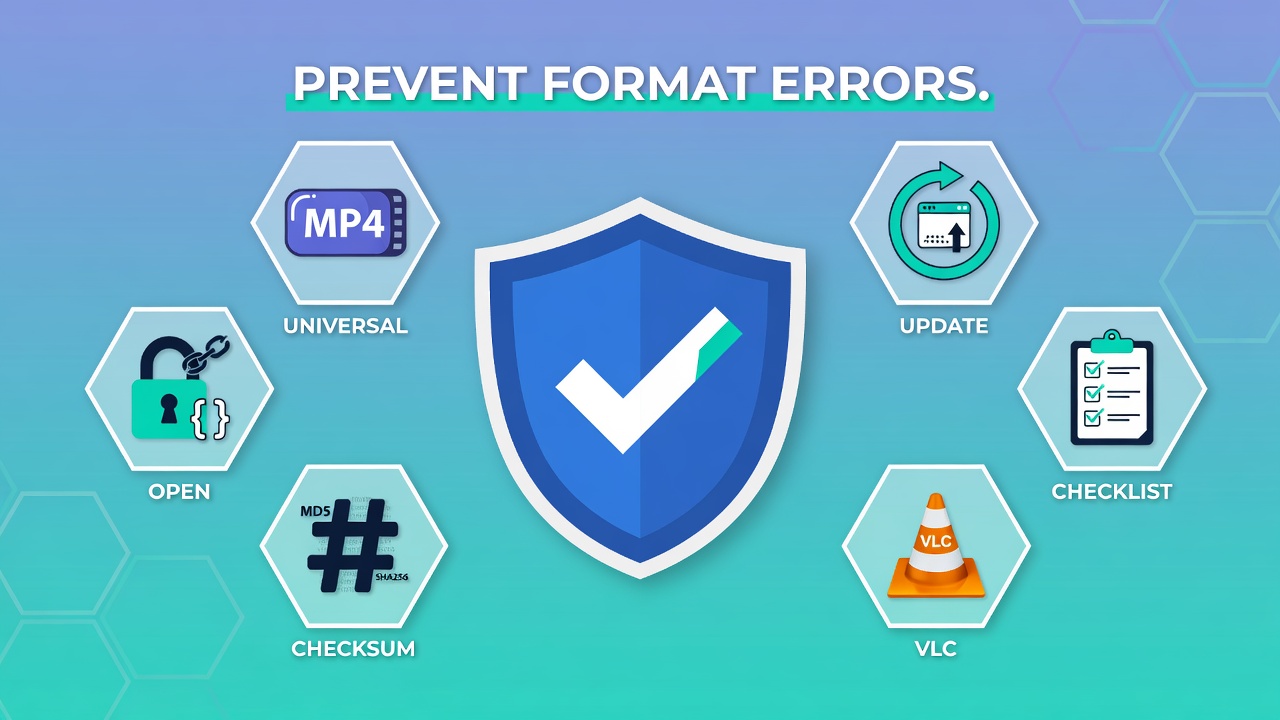
Prevention is always more efficient than troubleshooting. A few disciplined habits dramatically reduce the frequency of format compatibility issues.
Standardize on Universal Formats
For personal use and cross-platform sharing, adopting universally supported formats eliminates most compatibility issues before they arise. The universally safe defaults are: MP4 with H.264 for video, MP3 or AAC for audio, JPG or PNG for images, and PDF for documents. These formats are supported across virtually every device, platform, and operating system in active use today.
Keep Software and Firmware Updated
Operating systems, media players, document editors, and device firmware all receive regular updates that add codec support for newer formats. Enable automatic updates on your computer, phone, and smart TV where possible. When a new camera format or video codec gains mainstream adoption, updated software usually follows within months.
Check Platform Requirements Before Creating
If you’re producing content for a specific platform — a streaming service, a social media network, a client’s internal system, or a professional broadcast workflow — always verify their accepted format specifications before creating. Producing a 4K HEVC video for a platform that only accepts 1080p H.264 wastes production time and requires re-encoding.
Use Format-Agnostic Tools
Applications built for maximum compatibility should be part of every user’s digital toolkit, regardless of what their primary software is. VLC, LibreOffice, and HandBrake are the three essential format-agnostic tools that collectively handle virtually any media or document file a user is likely to encounter.
Maintain File Integrity During Transfer
Use checksums (MD5, SHA-256) to verify file integrity after large transfers, particularly for files moving over network connections or between different storage media. Many download managers support checksum verification automatically. Avoid abrupt disconnections during file transfers, and always safely eject USB drives rather than pulling them out mid-write.
Store in Open Formats for Long-Term Access
Proprietary formats (.PAGES, .NUMBERS, .HEIC, .PRPROJ) are convenient within their ecosystems but create accessibility problems when the ecosystem changes or you switch platforms. For files that need to remain accessible over years or decades, open standards (PDF/A for documents, FLAC for audio, TIFF for images) are the significantly safer choice.
FAQs About File Format Not Supported Errors
Why does my smart TV say “file format not supported” for an MP4 file?
The MP4 container itself is almost certainly supported, but the codec inside the file may not be. Many smart TVs — especially models from before 2020 — don’t support HEVC (H.265) video or Dolby Atmos audio tracks, even inside an MP4 container. Open the file in HandBrake and convert it to H.264 video with AAC audio in an MP4 container. That combination is supported by essentially every smart TV on the market.
Can I fix a “file format not supported” error without installing any new software?
Yes, often. Online converters like CloudConvert, Convertio, and Zamzar can transform files entirely within the browser without any local installation. They support hundreds of format combinations for video, audio, image, and document files. However, for large files (over 1–2 GB), frequent conversions, or batch processing needs, desktop tools are far more practical and generally faster.
Is “file format not supported” the same as a corrupted file?
Not necessarily. A format error typically indicates incompatibility — the file is fine, but the reader can’t handle its format. Corruption means the file’s internal data is physically damaged. However, a corrupted file can absolutely trigger a false format error if the header data — which identifies the file type and structure to the application — is the part that’s damaged.
Why does the same file play on my phone but not my TV?
Different devices have fundamentally different codec support profiles. Your phone’s media player app may include software-based decoding for a wide range of codecs through an internal codec library (like VLC’s), while your TV is limited to the formats its hardware decoder chip physically supports — typically H.264, MPEG-2, and sometimes H.265 depending on the model and firmware version.
What is the most universally compatible video format?
MP4 with H.264 video encoding and AAC audio encoding is the most universally compatible combination across smart TVs, smartphones, computers, tablets, online platforms, and streaming services. While H.265 offers better compression, H.264 in an MP4 container remains the undisputed standard for maximum device compatibility as of 2026.
Why do some files work on one app but not another on the same device?
Individual apps implement their own codec libraries independently of the operating system. An app built with a comprehensive media library like FFmpeg will support far more formats than one that only uses the OS’s native media APIs. This is why VLC can play files that Windows Media Player rejects, even though both run on the same Windows installation.
This guide is regularly updated to reflect the latest software versions, codec developments, and format compatibility changes across all major platforms.