
Summary: File corruption is one of the most frustrating digital problems users face — it can strike Word documents, PDFs, images, videos, ZIP archives, and Excel spreadsheets without warning. This comprehensive guide covers every aspect of how to fix corrupted files online, including the root causes of file corruption, the best free and paid online repair tools for each file type, step-by-step recovery methods, preventive strategies, and when to escalate to professional data recovery services. Whether your file was damaged by a sudden power outage, a failed download, a virus attack, or a storage media error, this guide gives you a clear, actionable recovery path.
Table of Contents:
- What Is a Corrupted File?
- Why Do Files Get Corrupted?
- Can Corrupted Files Always Be Recovered?
- How to Fix Corrupted Files Online — By File Type
- Best Free Online File Repair Tools in 2026
- How to Fix Corrupted Files Using Built-In Windows Tools
- How to Fix Corrupted Files on Mac
- How to Repair Corrupted Files Using Desktop Software
- Preventing File Corruption in the Future
- When to Use Professional Data Recovery Services
- Frequently Asked Questions (FAQs)
What Is a Corrupted File?

A corrupted file is a digital file whose data has been damaged, altered, or made incomplete in a way that prevents it from opening correctly or functioning as intended. When data corruption occurs, the file’s internal structure — its header, metadata, or actual payload — is compromised so that the software trying to read it either throws an error, crashes, or displays garbage output.
Unlike a deleted file (which still exists in recoverable form on the storage medium until overwritten), a corrupted file is physically present but logically broken. The degree of corruption can range from minor — a few bad bytes causing a document to lose some formatting — to catastrophic, where the entire file is unreadable.
Common Signs of File Corruption
Recognizing corruption early can improve your chances of successful recovery. Watch for these indicators:
- “File cannot be opened” or “File format not recognized” error messages when trying to launch a document, spreadsheet, or media file.
- Application crashes immediately upon attempting to load a file.
- Garbled, scrambled, or missing content — text replaced with symbols, images showing only half the picture, or videos that stop playing mid-way.
- Missing file extension or a file that suddenly shows 0 KB in size.
- Checksum mismatch warnings when downloading software or archives.
- Files that open but behave erratically — for example, a Word document that displays placeholder boxes instead of embedded images.
- Sudden renaming of a file to a string of random characters, which often indicates ransomware-related corruption.
Types of File Corruption
Understanding the variety of corruption types helps you pick the right repair strategy:
Logical corruption affects the file’s structure and metadata without physically damaging the storage medium. This is the most common form and the most recoverable. Examples include a corrupted file header (the first few bytes that tell software what kind of file it is) or a broken index inside a ZIP archive.
Physical corruption stems from damage to the actual storage hardware — bad sectors on a hard drive, degraded NAND cells in an SSD, or scratched optical media. Files stored on damaged sectors may be partially or completely unreadable.
Partial corruption means only a section of the file is damaged. You may still be able to open the file but find missing pages, blank sections, or broken media at a specific timestamp.
Complete corruption renders the file entirely unreadable. Recovery from total corruption is much harder and sometimes impossible without professional tools.
Why Do Files Get Corrupted?
Before fixing a corrupted file, it helps to understand the root cause — both to choose the right repair method and to prevent it from happening again.
Hardware-Related Causes
Bad sectors on HDDs are one of the leading causes of file corruption. A hard drive develops bad sectors as it ages. When your operating system attempts to read data stored on a bad sector, it either returns errors or retrieves incomplete data.
Failing SSDs exhibit corruption differently — NAND flash cells degrade after a finite number of write cycles, and worn-out cells may fail to hold data reliably.
Faulty USB drives and memory cards are notorious for silent data corruption. Cheap, counterfeit, or aging flash storage frequently loses data integrity without warning.
Power surges and sudden shutdowns are extremely damaging. When power is cut while a file is being written, the write operation is left incomplete, leaving the file in a half-written, broken state. A UPS (Uninterruptible Power Supply) is one of the best defenses against this.
RAID array failures — if one or more drives in a RAID configuration fail simultaneously, files spread across those drives may be irrecoverably corrupted.
Software and System Causes
Operating system crashes and blue screens (BSOD) can corrupt files that were open or being written at the time of the crash. The file system itself may become corrupted, causing widespread data issues.
Malware and ransomware deliberately corrupt or encrypt files. Ransomware in particular overwrites the original file data, making standard repair tools largely ineffective without decryption keys.
Software bugs in applications can corrupt a file during save operations. Autosave routines that fail mid-cycle are a common culprit.
Incomplete downloads and transfers leave files with missing byte sequences. Interrupted FTP transfers, failed cloud sync operations, or a broken internet connection mid-download can all produce corrupted files.
File system errors (e.g., FAT32 or NTFS corruption) can cause entire directories of files to become inaccessible.
Human and Environmental Causes
Forcibly ejecting a USB drive without safely removing it is a classic way to corrupt files that were being read or written at the time.
Editing a file in the wrong application — for instance, opening a PDF in a plain text editor and accidentally saving it — can destroy the file’s internal structure.
Physical damage to hardware (dropping an external drive, exposing a memory card to water or heat) indirectly causes file corruption by damaging the medium.
Can Corrupted Files Always Be Recovered?
Honestly, no — not always. The recoverability of a corrupted file depends on several factors:
- Degree of corruption: Files with minor header damage are far more recoverable than files where large data blocks are missing.
- File type: Some formats (like JPEG images and MP4 videos) have built-in redundancy that allows partial reconstruction. Others (like plain text files) have no such redundancy.
- Availability of a backup: If a previous version or backup copy exists, recovery is straightforward.
- How much time has passed? On a storage device, the corrupted file’s space may be overwritten by new data over time, reducing recoverability.
- Cause of corruption: Logical corruption is more reversible than physical media damage.
In many cases, online repair tools can recover 70–95% of a file’s content even when the file appears completely broken. The best approach is always to try multiple methods before concluding that a file is unrecoverable.
How to Fix Corrupted Files Online — By File Type
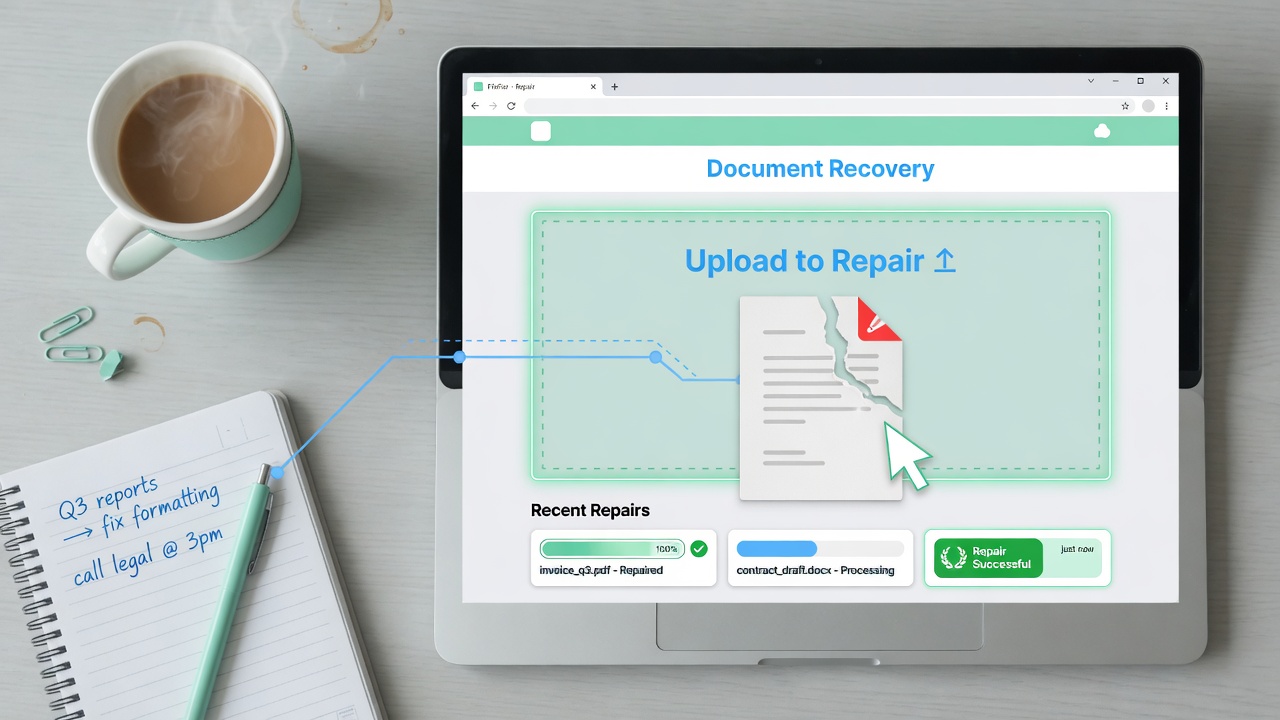
Different file formats have different internal architectures, so recovery methods vary significantly by file type.
How to Fix Corrupted Word Documents (.docx/.doc) Online
Microsoft Word documents are among the most commonly corrupted files because of their complex internal XML structure. A .docx file is actually a ZIP archive containing multiple XML files — damage to any one of them can prevent the document from opening.
Method 1: Use Microsoft Word’s Built-In Repair
- Open Microsoft Word (do not double-click the corrupted file).
- Go to File → Open.
- Navigate to the file, click the dropdown arrow next to Open, and select Open and Repair.
- Word will attempt to rebuild the document structure automatically.
Method 2: Change the File Extension. If your document was saved as .docx, try renaming it to .zip. You can then extract its contents and copy individual XML files (especially document.xml) to a new .docx template. This technique is especially useful when only the outer container is damaged, but the content XML is intact.
Method 3: Use Online Document Repair Tools, Tools like OfficeRecovery Online (officerecovery.com) and Repair.do allow you to upload your corrupted .docx file and receive a repaired version by email or direct download. These services analyze the XML structure, rebuild the document header, and restore as much content as possible.
Method 4: Google Docs Import. Upload the corrupted .docx to Google Drive. Google Docs often renders corrupted Word files successfully because it uses its own parsing engine rather than relying on Word’s strict format validation.
If you’re also dealing with slow browser performance that’s making uploads sluggish, consider reading our guide on how to Fix Browser Slow Performance Quickly before proceeding with online repair methods.
How to Fix Corrupted PDF Files Online
PDFs are structured binary files with a cross-reference table (xref) that indexes every object inside the document. Corruption often targets this xref table, making the PDF unreadable.
Method 1: Adobe Acrobat’s Repair. Adobe Acrobat Reader and Acrobat Pro both attempt automatic XRef reconstruction when they detect a corrupted PDF. Simply open the file in Acrobat; if it detects corruption, it will prompt you to repair.
Method 2: Online PDF Repair Tools
- PDF2Go (pdf2go.com) — Offers a free online PDF repair tool with drag-and-drop simplicity.
- iLovePDF Repair — Handles corrupted PDFs up to 100 MB for free.
- Sejda PDF Repair — Good for PDFs with broken cross-reference tables.
Method 3: Reprint to PDF. If the PDF partially opens (even showing just a few pages), use your OS’s “Print to PDF” feature to create a new, clean PDF from the readable pages. This saves at least partial content.
Method 4: Convert and Recover. Convert the partially readable PDF to a Word document using an online converter (such as Text to HTML Converter Free for text-based content reuse), then reconstruct the PDF from the converted output.
How to Fix Corrupted Excel Files (.xlsx/.xls) Online
Excel files can suffer corruption in their workbook structure, sheet data, or VBA macros. Here are proven recovery methods:
Method 1: Excel’s Built-In Open and Repair
- Open Excel → File → Open.
- Browse to your file, click the dropdown on Open, and choose Open and Repair.
- Choose Repair for maximum data recovery or Extract Data to pull raw values.
Method 2: Change Calculation to Manual. Before opening, set Excel’s calculation mode to Manual (via Options → Formulas). Sometimes complex formulas cause Excel to crash on open; manual calculation bypasses this.
Method 3: Online Excel Repair Tools
- OfficeRecovery for Excel Online — Free recovery with preview before download.
- Aspose Cells Repair — Handles both .xls and .xlsx formats.
Method 4: Copy Sheets to a New Workbook. If the file opens but shows errors, right-click each sheet tab, select Move or Copy, and move sheets to a new blank workbook. This isolates good data from corrupted structural elements.
How to Fix Corrupted Image Files (JPG, PNG, RAW) Online
Image corruption typically manifests as partial rendering, color distortion, or a completely black image. JPEGs are particularly susceptible because of their progressive compression structure.
Method 1: Online Image Repair Tools
- JPEG Repair Shed — Specialized for JPEG structural repair, including truncated scans.
- Restore. Media — Supports RAW camera formats alongside JPEG and PNG.
- PixRecovery — Reconstructs damaged image files by analyzing their binary data.
Method 2: Open in an Alternative Viewer. Different software uses different parsers. A JPEG that won’t open in Windows Photos may open fine in GIMP, IrfanView, or a browser. Try multiple viewers before concluding the image is lost.
Method 3: Use GIMP’s Script-Fu. GIMP can sometimes recover partially corrupted images by ignoring the broken end-of-file marker. Open GIMP → Script-Fu Console → use the load function with an error-ignore flag.
Method 4: Hex Editor Repair. Advanced users can open a corrupted JPEG in a hex editor (like HxD) and manually restore the SOI marker (FF D8) and EOI marker (FF D9). This is a last resort, but it can revive images that all other tools fail to open.
How to Fix Corrupted Video Files (MP4, MOV, AVI) Online
Video corruption is common after interrupted recordings, failed transfers, or storage media errors. MP4 files are especially vulnerable because their index (the moov atom) is often stored at the end of the file — a failed recording can leave this index missing.
Method 1: Restore.Media Online Video Repair and Restore. Media is one of the most capable online video repair services. Upload your corrupted video alongside a working “reference video” shot with the same device, and the service uses the reference to reconstruct your broken file’s container structure.
Method 2: VLC Media Player. VLC is remarkably tolerant of broken video files. Open VLC → Media → Convert/Save → add your corrupted file → choose an output format and destination. VLC will re-encode what it can read, producing a partial but playable output.
Method 3: FFmpeg Command Line FFmpeg is a free, open-source tool that can repair many video containers:
ffmpeg -i corrupted_video.mp4 -c copy repaired_video.mp4
The -c copy flag copies streams without re-encoding, preserving quality. Add -ignore_unknown and -err_detect ignore_err flags for more aggressive error bypass.
Method 4: Kernel Video Repair / Stellar Repair for Video Desktop tools like Stellar Repair for Video handle severely corrupted MP4, MOV, MKV, and AVI files that online tools cannot process due to file size limits or complexity.
How to Fix Corrupted ZIP and RAR Archive Files Online
Archive corruption is common when files are downloaded over unstable connections or transferred between media.
Method 1: WinRAR’s Built-In Repair For .rar files: Open WinRAR → select the archive → Tools → Repair Archive. WinRAR rebuilds the archive structure and creates a “fixed” version.
For .zip files: WinRAR can also repair ZIP archives using the same process.
Method 2: 7-Zip Extraction with Error Skip Open 7-Zip → right-click the archive → Extract Files → when prompted about errors, choose to continue anyway. 7-Zip will extract as many files as possible, skipping damaged ones.
Method 3: Online Archive Repair
- ezyZip Online Extractor — Can extract partial ZIP contents from corrupted archives.
- B1 Online Archiver — Supports multiple archive formats with corruption tolerance.
Method 4: Use Recovery Record (Prevention) When creating .rar archives in WinRAR, always enable the “Recovery Record” option (3–10%). This embeds parity data that allows future repair even if up to 10% of the archive is damaged.
According to Stellar Data Recovery’s research on archive corruption, over 60% of ZIP and RAR corruption cases are recoverable using a combination of built-in repair tools and third-party software when addressed promptly.
Best Free Online File Repair Tools in 2026
Online2PDF
A versatile tool that handles not just PDF conversion but also the repair of corrupted PDF documents. Accepts files up to 100 MB per file and supports batch processing of up to 20 files at once.
Repair.do
A specialized online repair service covering Office documents, PDFs, and media files. Free tier includes a preview of recovered content before download, which helps you assess whether the repair was successful before committing.
OfficeRecovery Online
One of the longest-standing online repair services, covering Excel, Word, PowerPoint, Access, and more. Offers both free (limited output) and paid (full recovery) tiers.
Aspose File Repair Tools
Aspose offers a suite of browser-based repair utilities for Word, Excel, PowerPoint, and other formats. No signup required, and files are automatically deleted from their servers after processing.
How to Fix Corrupted Files Using Built-In Windows Tools
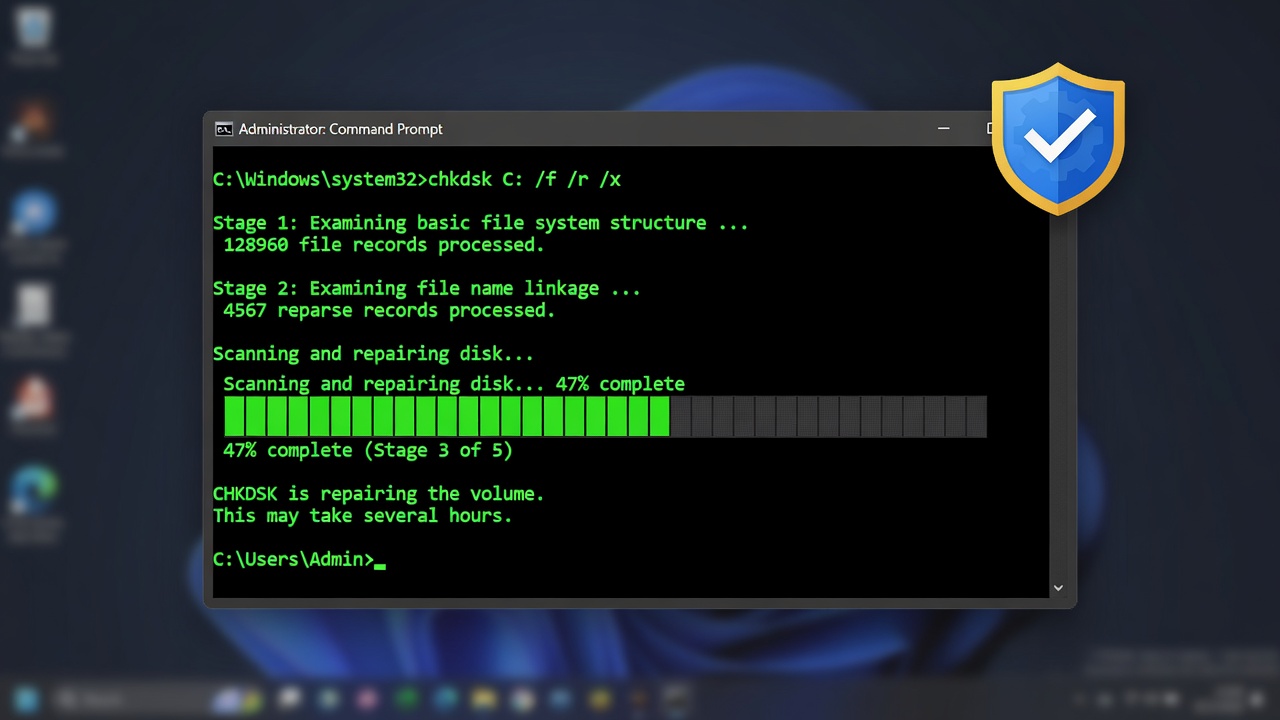
Windows includes several native utilities that can address file corruption caused by storage errors or system file damage.
Using CHKDSK
CHKDSK (Check Disk) scans your drive for file system errors and bad sectors. To run it:
- Press Windows + X → select Command Prompt (Admin) or Windows Terminal (Admin).
- Type: chkdsk C: /f /r /x (replace C: with your drive letter).
- Press Enter. If prompted to schedule at next restart (for the system drive), type Y.
- Restart your PC. CHKDSK will run before Windows loads, scanning and repairing file system errors.
The /f flag fixes errors, /r locates bad sectors and recovers readable data, and /x forces the volume to dismount before the scan.
Using SFC (System File Checker)
SFC scans and repairs corrupted Windows system files. It’s specifically useful when your OS-related files (DLLs, drivers) are corrupted:
- Open Command Prompt as Administrator.
- Type: sfc /scannow
- Wait for the scan to complete (may take 10–20 minutes).
- Review the log at C:\Windows\Logs\CBS\CBS.log for details of repaired files.
Using Windows File Recovery
Microsoft’s Windows File Recovery (available from the Microsoft Store) is a command-line tool that can recover deleted and corrupted files from NTFS, FAT, exFAT, and ReFS volumes. It’s particularly useful for recovering documents from drives with widespread file system corruption.
How to Fix Corrupted Files on Mac
Mac users have access to several native and third-party recovery methods:
Disk Utility First Aid: Open Applications → Utilities → Disk Utility, select your drive, and click First Aid. This repairs disk permissions and file system errors similar to CHKDSK on Windows.
Terminal fsck Command: Boot into Recovery Mode (hold Cmd+R on startup) → open Terminal → type fsck -fy /dev/disk0s1 (adjust the disk identifier as appropriate). This performs a deeper file system check.
Time Machine Restore: If Time Machine backups are enabled, you can restore previous, uncorrupted versions of files directly from the backup drive or Time Capsule. Right-click the file location in Finder → Restore from Time Machine Backup.
Preview App Recovery: Mac’s Preview application is more resilient than many PDF readers. A PDF or image that won’t open elsewhere may render correctly in Preview.
How to Repair Corrupted Files Using Desktop Software
When online tools reach their limits (typically due to file size restrictions or format complexity), desktop software offers more powerful recovery capabilities:
Stellar Repair for Office — Covers Word, Excel, PowerPoint, and PDF with deep binary-level repair algorithms. Available for both Windows and Mac.
Recuva by Piriform — Primarily a file recovery tool, but also handles repair of partially overwritten files. The free version is highly capable.
Disk Drill — Combines file recovery with partition repair and drive health monitoring. Particularly effective for recovering data from failing drives before they die completely.
PhotoRec — Despite the name, PhotoRec recovers over 480 file formats from damaged drives. It’s open-source, cross-platform, and works at the raw disk level.
EaseUS Data Recovery Wizard — A beginner-friendly GUI tool that handles both deletion recovery and corruption repair across Windows and Mac.
Preventing File Corruption in the Future

The best fix for corrupted files is ensuring they don’t get corrupted in the first place.
Backup Best Practices
Follow the 3-2-1 backup rule: keep 3 copies of your data, on 2 different types of media, with 1 copy stored off-site (or in the cloud). Use automated backup software (Windows Backup, Time Machine, Backblaze, or Acronis) so backups happen without relying on memory.
Enable versioning in your cloud storage (Google Drive, Dropbox, OneDrive) so you can roll back to earlier, uncorrupted versions of any file.
Safe File Transfer Habits
Always safely eject USB drives and external storage devices before unplugging them. Use MD5 or SHA checksums to verify file integrity after large downloads or transfers — many download managers and FTP clients offer this automatically.
Prefer wired connections over Wi-Fi for large file transfers, as wireless interference is a common cause of interrupted transfers and partial file corruption.
Storage Media Maintenance
Monitor drive health using CrystalDiskInfo (Windows) or DriveDx (Mac). These tools read S.M.A.R.T. data from your drive and alert you to early signs of failure before you lose data.
Replace aging drives proactively. HDDs typically have a lifespan of 3–5 years; SSDs last longer but should be replaced after several years of heavy use.
Use a UPS (Uninterruptible Power Supply) for desktop computers to protect against sudden power loss during file writes.
When to Use Professional Data Recovery Services
Some situations are beyond the reach of online tools or DIY software:
- Physically damaged drives (clicking, grinding sounds, fire, or water damage) require cleanroom recovery by specialists.
- RAID array failures involving multiple drive failures need specialized reconstruction.
- Encrypted or ransomware-corrupted files require either the decryption key or a very specific recovery approach.
- Severely overwritten data may only be partially recoverable through professional magnetic forensics.
Reputable professional data recovery services include Ontrack, DriveSavers, and Secure Data Recovery. These services are expensive (often $300–$1,500+) but offer the highest recovery rates for physically damaged media.
Frequently Asked Questions (FAQs)
Q: Can I fix a corrupted file without software? A: Sometimes. Renaming the file extension, copying it to a new location, or opening it in an alternative application costs nothing and occasionally resolves minor corruption. For significant damage, a tool is required.
Q: Are online file repair tools safe? A: Reputable services like OfficeRecovery, Aspose, and Repair.do use encrypted uploads and auto-delete your files after processing. Always check the privacy policy before uploading sensitive documents. For confidential files, prefer offline desktop software.
Q: Can a corrupted file infect my PC? A: A genuinely corrupted file cannot execute code — corruption typically disables execution. However, malware sometimes masquerades as a corrupted file to trick you into running a “repair” executable that is itself malicious. Always use trusted tools from official sources.
Q: What if only part of my file is corrupted? A: Partial corruption is the most favorable scenario. Most repair tools can extract the intact portion. For Word documents, try Google Docs import. For Excel, use “Extract Data” mode. For videos, FFmpeg can output the recoverable portion.
Q: How long does online file repair take? A: Most online tools repair files within 30 seconds to a few minutes, depending on file size and server load. Services like Restore. Media for video may take 10–30 minutes for large files.
Q: Is there a free way to fix corrupted files online? A: Yes — OfficeRecovery Online, Aspose repair tools, and many others offer free tiers. Free services often provide partial recovery or watermarked output; paid tiers unlock full content recovery.