Summary: Cleaning junk files without third-party software is entirely possible using built-in system tools and manual methods available in Windows, macOS, and even Android or iOS. By leveraging native utilities like Disk Cleanup, Storage Sense, Terminal commands, and manual folder purging, users can free up significant disk space, boost system performance, and reduce clutter — all without downloading a single external application. This guide walks you through every proven technique, covering temporary files, cache clearance, browser data, log files, and more, so your device stays lean, fast, and healthy.
Table of Content
- How to Clean Junk Files Without Software: The Complete Manual Guide
- What Are Junk Files? (And Why They Slow You Down)
- How to Clean Junk Files on Windows Without Software
- How to Delete Junk Files on a PC Without Software Using File Explorer
- How to Clean Junk Files on Mac Without Any App
- How to Clear Junk Files on Android Without a Cleaner App
- How to Remove Junk Files from iPhone Without Software
- Advanced Manual Techniques for Power Users
- NLP-Related Terms and LSI Keywords You Should Know
- Best Practices to Prevent Junk File Buildup
- Frequently Asked Questions
What Are Junk Files? (And Why They Slow You Down)
Junk files are unnecessary, redundant, or obsolete digital files that accumulate on your device over time without providing any ongoing functional value. They take up valuable storage space, fragment your drive, and can significantly degrade system performance if left unchecked.
Understanding the nature of these files is the first step toward effective disk space cleanup without software.
Common Types of Junk Files
- Temporary files (TMP files): Created by operating systems and applications during processes, these are meant to be auto-deleted but often aren’t.
- Cache files: Stored by browsers, apps, and the OS to speed up future loading, but they pile up over months.
- Log files: System and application logs that track operations — useful for debugging, but rarely needed by everyday users.
- Prefetch files: Windows uses these to speed up app loading, but they grow large over time.
- Duplicate files: Copies of photos, documents, or downloads stored in multiple locations.
- Residual installation files: Leftover files from software installations or uninstallations.
- Recycle Bin contents: Files users think they’ve deleted but are still consuming space.
- Windows Update remnants: Old update packages that remain after successful updates.
- Thumbnail cache: Windows and macOS generate image previews that accumulate invisibly.
- Browser cookies and session data: Stored locally but rarely reviewed or purged.
How Junk Files Accumulate Over Time
Every time you install software, browse the web, stream video, run system updates, or simply use your computer, the operating system generates auxiliary files. Over weeks and months, these pile up. A fresh Windows installation that starts at around 20GB can balloon to 60GB or more with no new user software installed — purely from update caches, logs, and temporary data.
The impact includes slower boot times, reduced application responsiveness, lower available RAM due to paging file conflicts, and increased risk of system errors.
How to Clean Junk Files on Windows Without Software
Windows is the most common platform for junk file accumulation, but it also has the most built-in tools to deal with it.
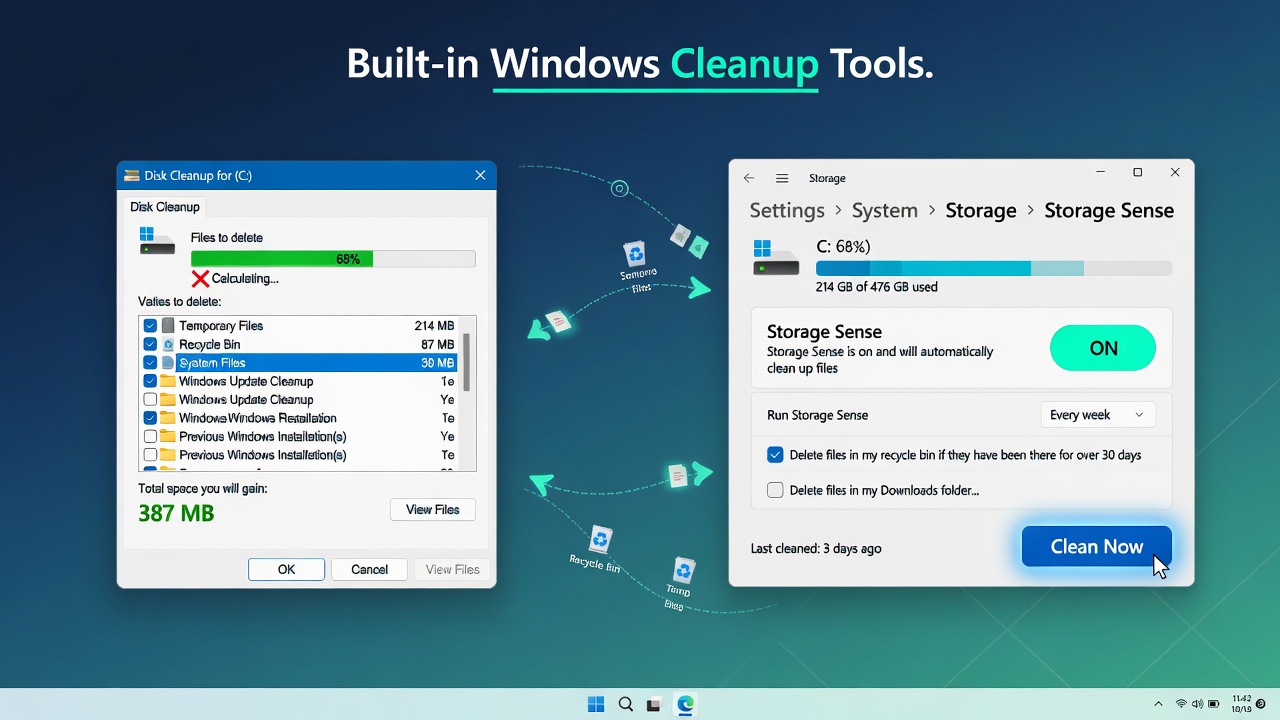
Using Disk Cleanup (Built-in Windows Tool)
Disk Cleanup is Microsoft’s native solution for removing temporary files on Windows without any third-party utility.
Steps:
- Press Windows + S and type Disk Cleanup.
- Select the drive you want to clean (usually C:).
- Wait for the tool to calculate available space.
- Check the boxes for: Temporary Internet Files, Recycle Bin, System Error Memory Dump Files, Temporary Files, and Thumbnails.
- Click OK, then Delete Files.
For a deeper clean, click Clean up system files (requires admin rights). This also removes Windows Update cleanup files, which can recover several gigabytes.
Using Storage Sense in Windows 10 and 11
Storage Sense is a more modern, automated approach introduced in Windows 10.
Steps:
- Go to Settings > System > Storage.
- Toggle Storage Sense to ON.
- Click Configure Storage Sense or run it now.
- Set it to delete temporary files, empty the Recycle Bin after 30 days, and remove files in the Downloads folder that haven’t been opened in 60 days.
- Scroll down and click Clean Now for an immediate manual run.
This is one of the most efficient ways to free up disk space without software, as it can be configured to work automatically.
Manually Deleting Temp Files via Run Command
This is a fast, manual technique favored by IT professionals for junk file removal without tools.
Steps:
- Press Windows + R to open the Run dialog.
- Type %temp% and press Enter. This opens the user-level temp folder.
- Select all files (Ctrl + A) and delete them (Delete key). Skip files that are in use.
- Press Windows + R again, type temp, and repeat.
- Finally, type prefetch in Run and delete those files too (admin required).
You can safely delete everything in these folders. Windows and apps will regenerate what they need.
Clearing the Windows Prefetch Folder
The Prefetch folder helps Windows load apps faster, but it grows bloated over time.
Steps:
- Press Windows + R, type prefetch, and press Enter.
- Accept the admin prompt.
- Select all and delete.
This folder typically holds 128 files maximum before Windows auto-purges the oldest, but manually clearing it when switching to new apps is good practice.
Emptying the Recycle Bin Properly
Many users forget that deleted files still occupy space in the Recycle Bin.
Steps:
- Right-click the Recycle Bin icon on the desktop.
- Click Empty Recycle Bin.
Alternatively, go to Recycle Bin Properties and set it to not move files there at all — though this means no recovery option.
Cleaning Up Windows Update Cache
Windows Update stores old installation packages that can consume 5–20GB of space.
Steps:
- Stop the Windows Update service: Press Windows + R, type services.MSc, find Windows Update, right-click, and select Stop.
- Navigate to C:\Windows\SoftwareDistribution\Download.
- Select all contents and delete.
- Restart the Windows Update service.
This is one of the most impactful manual disk cleanup steps for Windows users.
How to Delete Junk Files on a PC Without Software Using File Explorer
Beyond dedicated tools, File Explorer itself is a powerful instrument for manual cleanup.
Locating Hidden AppData Folders
Many junk files hide in AppData, a folder that’s invisible by default.
Steps:
- Open File Explorer.
- Click View > Show > Hidden Items.
- Navigate to C:\Users\[YourName]\AppData\Local\Temp.
- Delete the contents.
Also, check AppData\Local for folders from uninstalled software — these are orphaned residual files that take up space with no purpose.
Deleting Browser Cache Manually
Instead of using browser settings, you can delete cache files directly:
- Chrome cache location: C:\Users\[Name]\AppData\Local\Google\Chrome\User Data\Default\Cache
- Firefox cache: C:\Users\[Name]\AppData\Local\Mozilla\Firefox\Profiles\[profile]\cache2
- Edge cache: C:\Users\[Name]\AppData\Local\Microsoft\Edge\User Data\Default\Cache
Navigate to each path and delete all files inside the Cache folder. This is a highly effective technique for clearing browser cache without software.
Just as you can manage files manually on your PC, you can also convert file formats online without installing any desktop software — keeping your system lean while still accomplishing common file tasks.
Removing Old Download Files
The Downloads folder is one of the most neglected sources of storage bloat.
Steps:
- Open C:\Users\[YourName]\Downloads.
- Sort by Date Modified.
- Delete anything older than 30–60 days that you no longer need — setup files, ZIP archives, old PDFs.
Many users find gigabytes of forgotten installer files here.
How to Clean Junk Files on Mac Without Any App
macOS provides its own set of native tools for junk file deletion on Mac without apps.
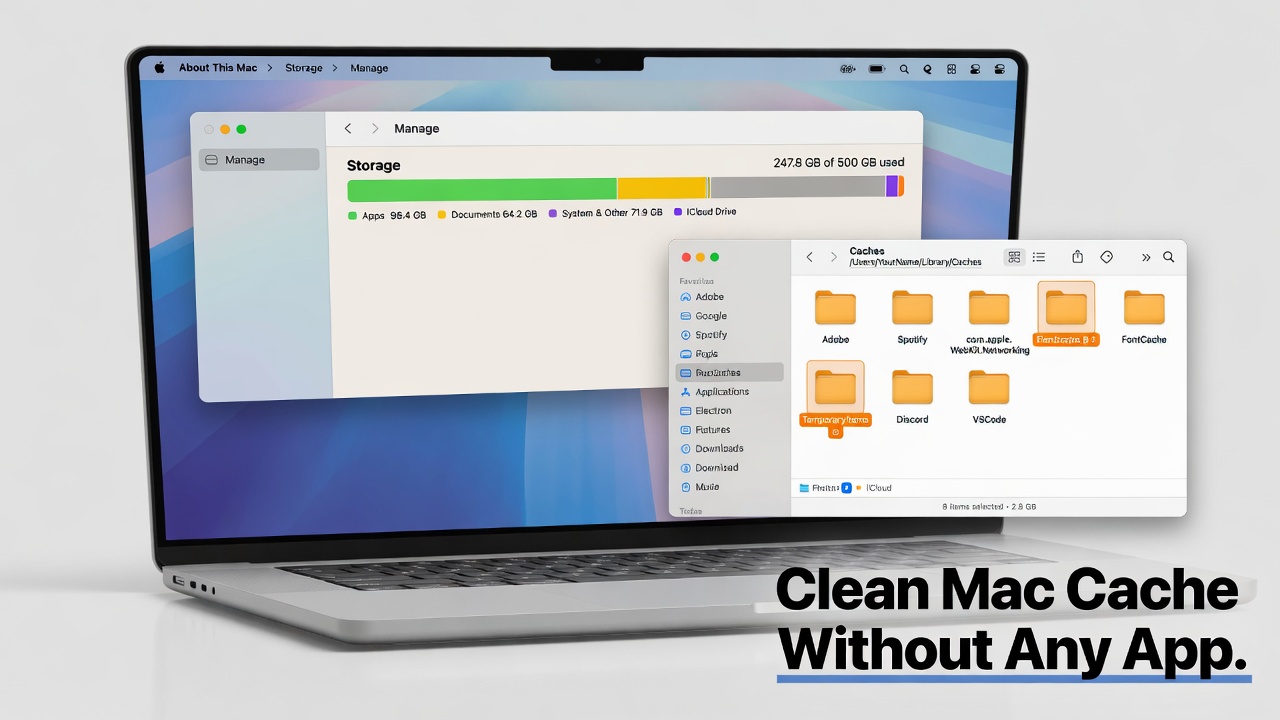
Using macOS Storage Management
- Click the Apple menu > About This Mac > Storage > Manage.
- Review the categories: Applications, Documents, iOS Files, and Trash.
- Use Recommendations to enable Optimize Storage and Reduce Clutter.
- Click Review Files under Large Files and delete what you don’t need.
Clearing Cache Files via Finder
- Open Finder and press Cmd + Shift + G.
- Type ~/Library/Caches and press Enter.
- Select folders inside and move them to Trash.
- Empty the Trash.
Do the same for /Library/Caches (system-level caches, requires admin password).
Removing Log Files on Mac
- In Finder, press Cmd + Shift + G.
- Type ~/Library/Logs.
- Delete the contents.
- Repeat for /Library/Logs.
Log files can accumulate to hundreds of megabytes over time.
Emptying Trash and Mail Downloads
- Right-click Trash in the Dock and select Empty Trash.
- Open Mail > Preferences > Accounts and check Mail’s download folder.
- Navigate to ~/Library/Containers/com.apple.mail/Data/Library/Mail Downloads and delete its contents.
How to Clear Junk Files on Android Without a Cleaner App
Android devices accumulate cache and residual data that slows performance over time.
Using Built-in Storage Settings
- Go to Settings > Storage.
- Tap Cached Data (on older Android versions) or review Other Apps.
- Confirm clearing cached data for all apps.
On Android 8+, go to Settings > Storage > Free Up Space for a guided cleanup experience.
Clearing App Cache Individually
- Go to Settings > Apps > [App Name] > Storage.
- Tap Clear Cache (not Clear Data, which deletes user data).
- Repeat for heavy apps like YouTube, Instagram, Maps, and Chrome.
This is the most reliable way to remove junk files from Android without a cleaner.
Deleting Downloaded Files on Android
- Open the Files app (built into most Android devices).
- Navigate to Downloads.
- Sort by size and delete large, unneeded files.
- Also, check Memes, WhatsApp, and Screenshots folders under internal storage.
How to Remove Junk Files from iPhone Without Software
iOS manages storage more aggressively than Android, but junk still builds up.
Offloading Unused Apps
- Go to Settings > General > iPhone Storage.
- Tap an app you rarely use and select Offload App.
- This removes the app but keeps its data, saving space without data loss.
Enable Offload Unused Apps automatically in the same menu.
Clearing Safari Cache and History
- Go to Settings > Safari.
- Tap Clear History and Website Data.
- Confirm. This removes browsing history, cookies, and cache.
For individual website data, go to Settings > Safari > Advanced > Website Data and remove entries manually.
Reviewing and Deleting Large Files
- Go to Settings > General > iPhone Storage.
- Scroll through the app list sorted by size.
- Tap each large app to see its document and data size.
- Delete unused apps or their stored data.
You can also use this screen to delete large videos, downloaded podcasts, and offline music.
Advanced Manual Techniques for Power Users
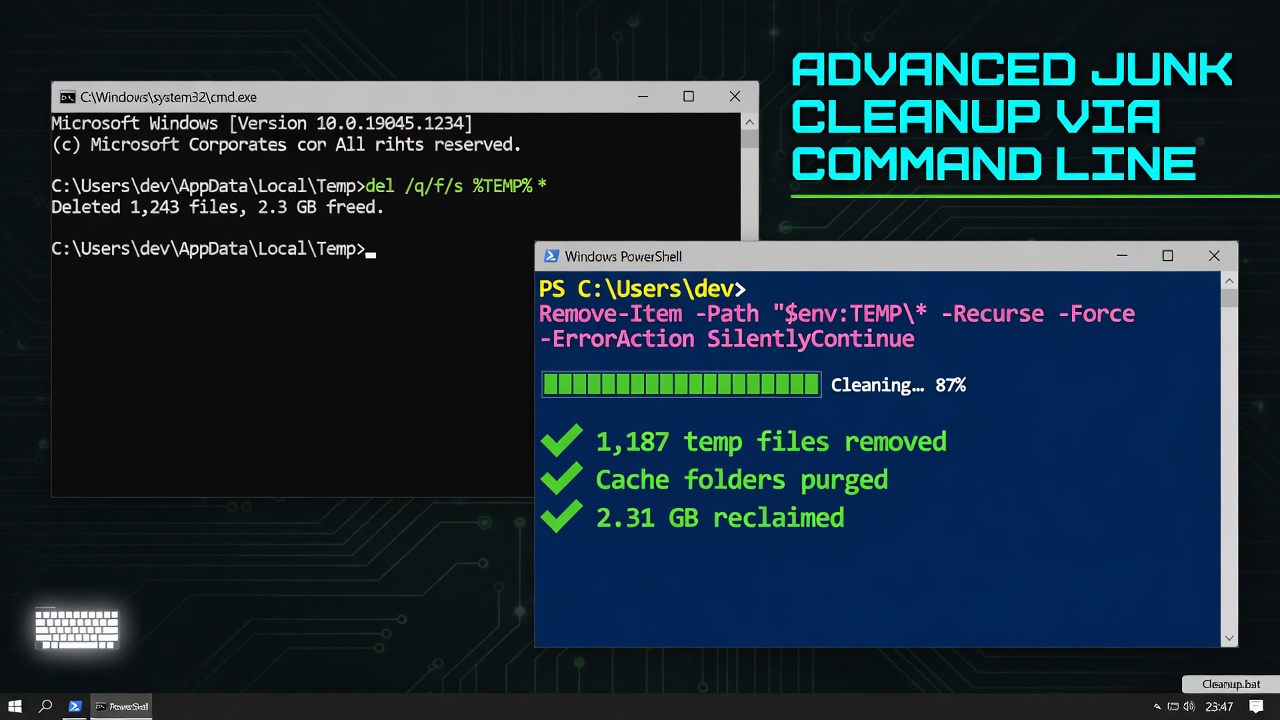
Using Command Prompt or PowerShell to Delete Junk
Open Command Prompt as Administrator and run:
del /q/f/s %TEMP%\*
This forcefully deletes all temp files. For PowerShell:
powershell
Remove-Item -Path “$env:TEMP\*” -Recurse -Force -ErrorAction SilentlyContinue
You can also combine multiple cleanup commands in a .bat script and run it with a double-click for an instant system cleanup without third-party tools.
Running Disk Cleanup with Extended Options
Run this command in an elevated Command Prompt to pre-select all cleanup categories and run silently:
cleanmgr /sageset:1
cleanmgr /sagerun:1
The first command opens a configuration screen. The second runs the cleanup automatically using those settings — perfect for scheduling.
Scheduling Automatic Cleanup Without Third-Party Tools
Use Task Scheduler to automate junk file deletion:
- Open Task Scheduler (taskschd.msc).
- Click Create Basic Task.
- Name it “Weekly Junk Cleanup”.
- Set the trigger to Weekly.
- Set action to Start a Program: cleanmgr /sagerun:1.
- Finish and save.
This gives you automated disk maintenance without software on a schedule you control.
Best Practices to Prevent Junk File Buildup
Prevention is more efficient than a cure. These habits keep your device clean without needing frequent deep cleanups:
- Enable Storage Sense or Auto-Cleanup on Windows/macOS to handle temp files automatically.
- Clear your browser cache monthly — or set browsers to clear on exit.
- Review your Downloads folder weekly and delete what’s no longer needed.
- Uninstall apps completely, making sure residual files in AppData or Library are also removed.
- Use online tools instead of desktop software for occasional tasks. For example, instead of installing a converter, you can convert JPG to WebP online for free without adding bloat to your system.
- Empty the Recycle Bin regularly — set a recurring calendar reminder if needed.
- Audit installed apps quarterly — remove anything unused.
- Move large media files to external storage or cloud, keeping your primary drive lean.
- Restart your device regularly — some temp files are only cleared on reboot.
- Monitor storage usage monthly using the OS’s native storage panel.
For a broader understanding of how file management and digital cleanup practices relate to productivity, Microsoft’s official guide on Storage Sense offers authoritative documentation directly from the platform developer.
Frequently Asked Questions
Q: Is it safe to delete all files in the Temp folder? Yes. Files in the %TEMP% folder are safe to delete. Windows and applications recreate what they need. Skip any files that give an “in use” error — they’re being actively accessed.
Q: How often should I clean junk files? For most users, once a month is sufficient. Power users or developers who install/uninstall software frequently should consider bi-weekly cleanups.
Q: Can I lose important data by deleting junk files? Genuine junk files — temp files, logs, caches, update remnants — contain no personal data. Always verify the folder location before bulk-deleting, especially in AppData.
Q: Does cleaning junk files speed up a PC? Yes, especially on older HDDs where fragmented temp files affect read speeds. On SSDs, the impact is more about recovering storage space than raw speed, though a fuller SSD does slow NAND performance.
Q: What’s the difference between clearing cache and clearing data? Cache holds temporary copies of content for faster loading. Data includes your settings, logins, and saved information. Clearing cache is safe; clearing data resets the app to factory state.