Summary
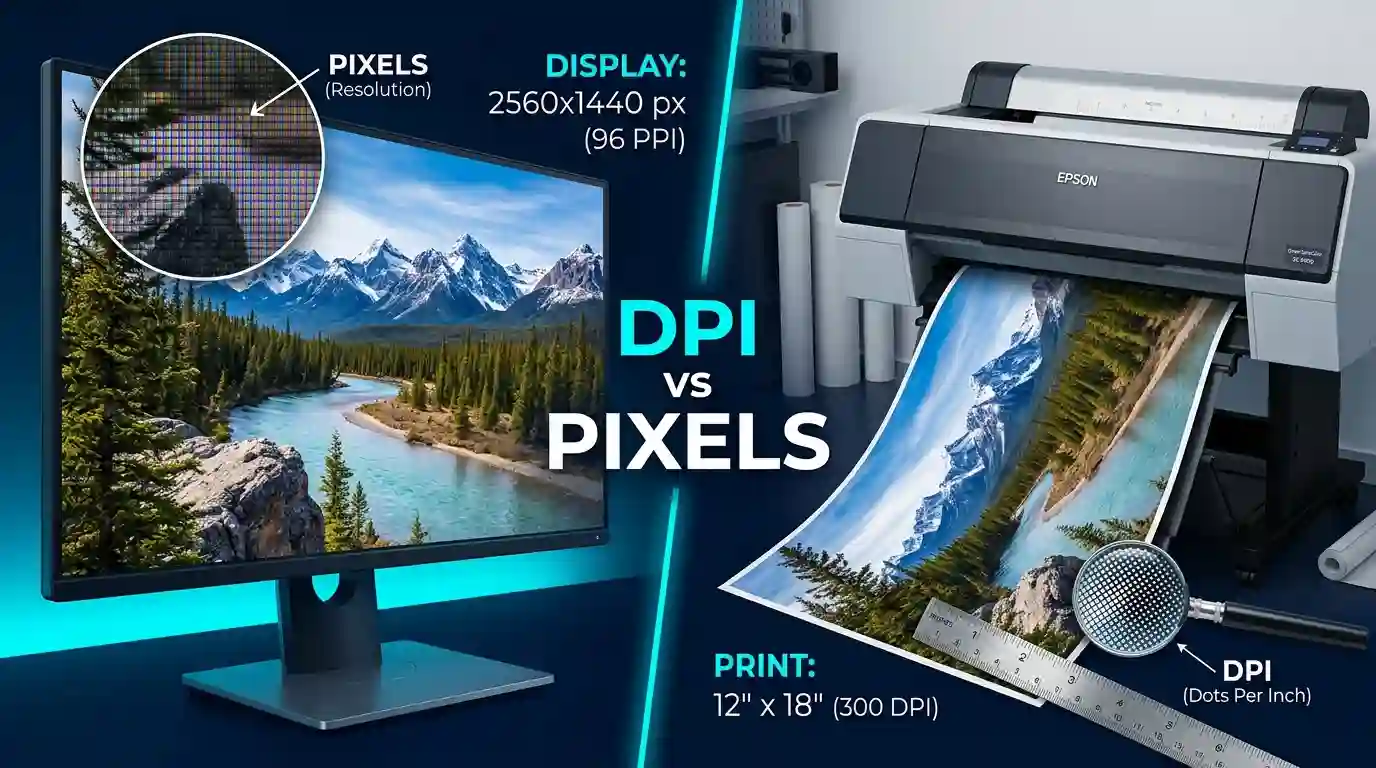
Understanding the difference between DPI and pixels is essential for anyone working with digital images, graphic design, printing, or photography. These two terms are frequently confused — even by professionals — yet they describe fundamentally different concepts. DPI (dots per inch) is a measure of print resolution, while pixels are the building blocks of digital images. Knowing when to use each, how they interact, and why they matter can save you from blurry prints, oversized files, and design errors. This article breaks it all down with clarity, examples, and expert insight.
Table of Contents
- What Are Pixels? The Foundation of Digital Images
- What Is DPI? Understanding Dots Per Inch in Print
- Difference Between DPI and Pixels — Core Distinctions Explained
- PPI vs DPI: Are They the Same Thing?
- How DPI Affects Print Quality
- How Pixel Count Affects Image Quality
- Difference Between DPI and Pixels in Real-World Use Cases
- What DPI Should You Use for Different Outputs?
- Common Mistakes People Make With DPI and Pixels
- How to Check and Change DPI in Your Images
- Conclusion
- FAQs
1. What Are Pixels? The Foundation of Digital Images
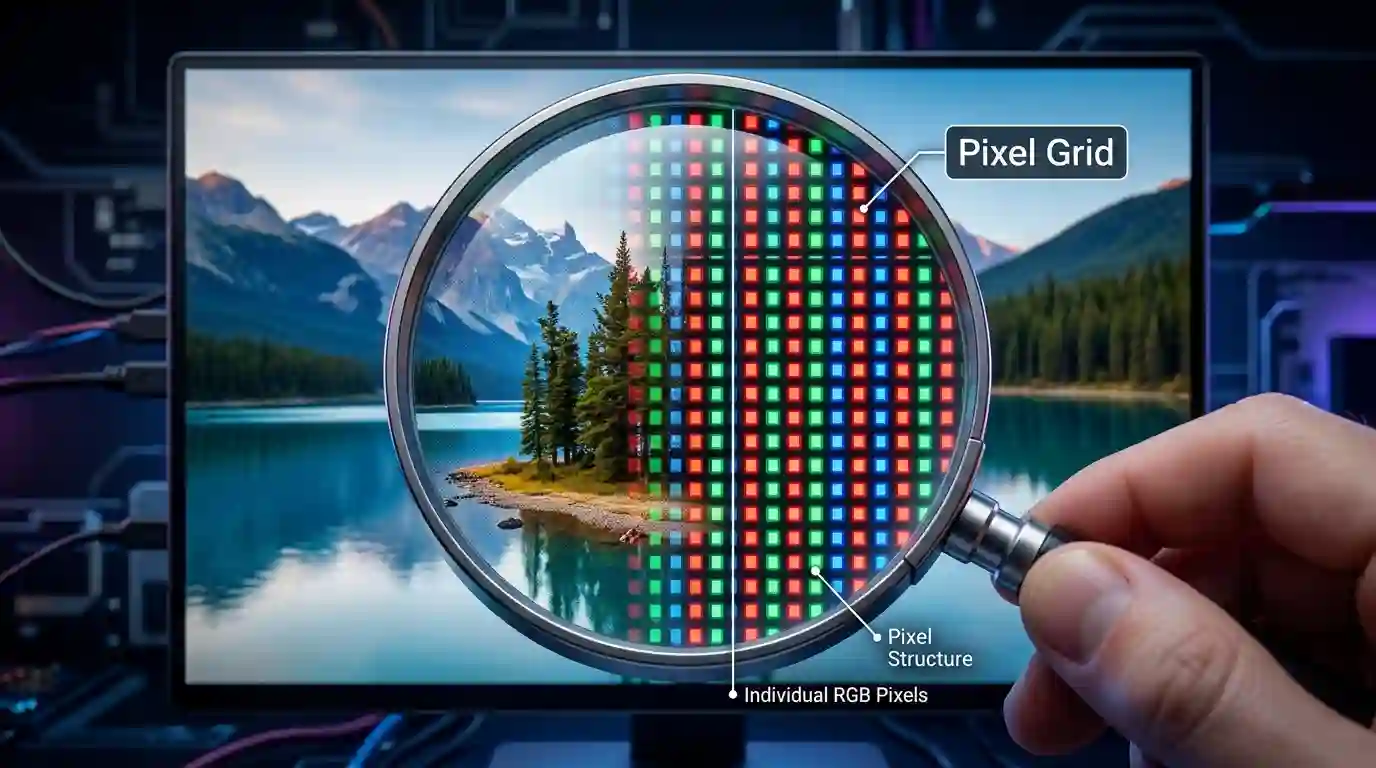
A pixel (short for “picture element”) is the smallest unit of a digital image. Every photo, illustration, or graphic you see on a screen is composed of millions of these tiny colored squares arranged in a grid. The total count of these squares defines the image resolution — commonly expressed as width × height (e.g., 1920 × 1080).
Pixels are screen-native. They describe how much visual data exists within an image file. A 4000 × 3000 pixel image contains 12 million pixels — also described as 12 megapixels. More pixels generally mean more detail, finer edges, and better clarity when an image is enlarged.
Key Pixel Concepts to Understand
- Pixel dimensions: The width and height of an image in pixels (e.g., 800 × 600)
- Megapixels: Total pixels expressed in millions (MP); used heavily in camera specs
- Pixel density: How tightly pixels are packed on a display (measured in PPI — pixels per inch)
- Raster images: Images made of pixels — JPEGs, PNGs, TIFFs, and BMPs are all raster formats
Pixels are entirely resolution-independent until you assign a physical size to the image. A 3000 × 2000 pixel image has no “real-world” size until you specify how many pixels will occupy each inch of physical space — and that’s where DPI enters the picture.
2. What Is DPI? Understanding Dots Per Inch in Print
DPI stands for Dots Per Inch and refers specifically to the number of ink dots a printer places within a single inch of printed material. It is a hardware-based measurement tied to physical output — not digital displays.
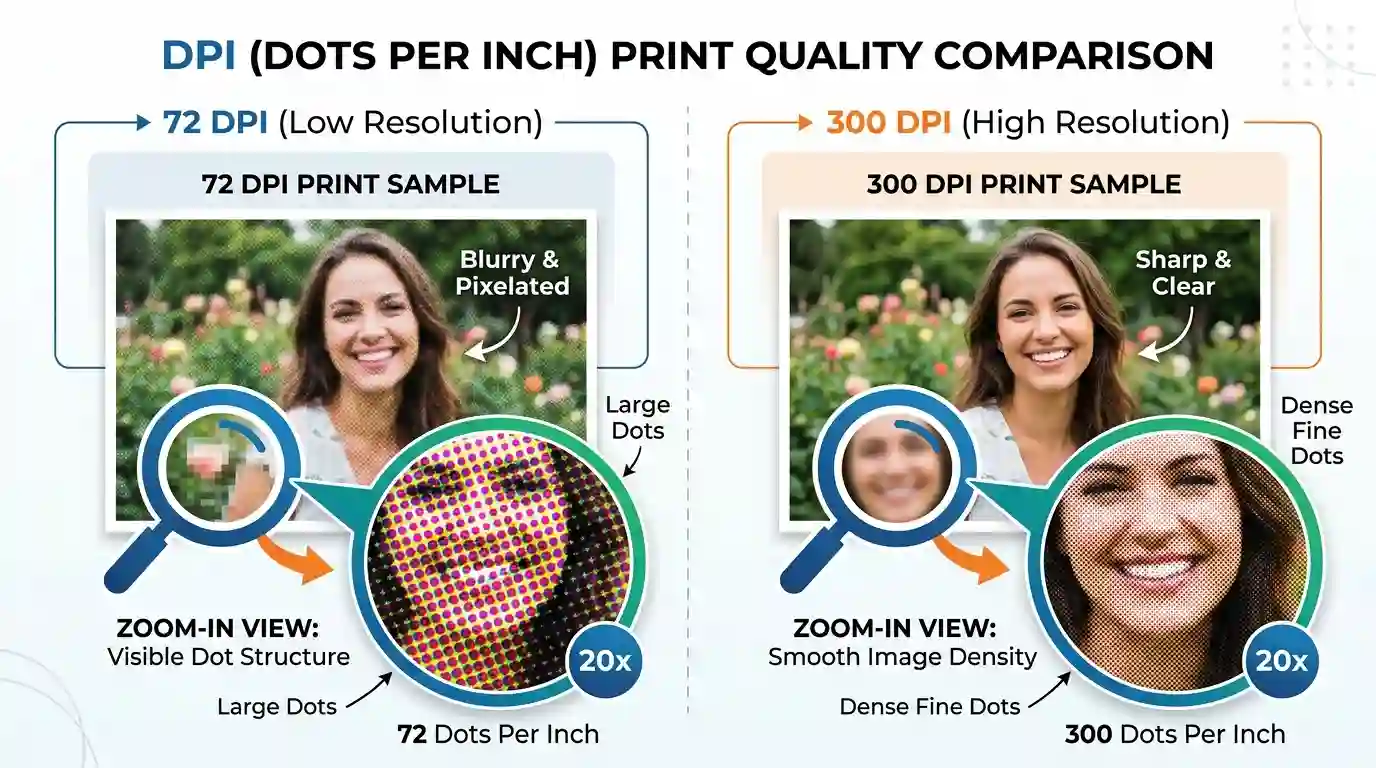
When a printer reproduces a digital image, it doesn’t spray ink continuously. Instead, it places microscopic dots of ink (cyan, magenta, yellow, and black in CMYK printing) in patterns to simulate colors and gradients. The more dots per inch, the smoother and sharper the printed result.
A typical inkjet printer operates between 300 and 2400 DPI, while commercial offset printers often go higher. However, higher DPI doesn’t always mean better results — the print medium, ink type, and viewing distance all play important roles.
DPI in Context
- 72 DPI: Standard for web/screen display (historical default from early Apple monitors)
- 150 DPI: Acceptable for large-format prints viewed from a distance (banners, posters)
- 300 DPI: The professional standard for high-quality print (magazines, brochures, photos)
- 600–1200 DPI: Used for technical illustrations, fine art reproduction, and medical imaging
3. Difference Between DPI and Pixels — Core Distinctions Explained
This is the heart of the article, and arguably the most important section. Here is a direct, structured breakdown of the difference between DPI and pixels:
| Feature | Pixels | DPI |
| Domain | Digital / Screen | Print / Physical |
| Unit | Picture elements (px) | Ink dots per inch |
| Purpose | Defines image data | Defines print output density |
| Affects File Size | Yes | No (metadata only) |
| Affects Screen Quality | Yes | No |
| Affects Print Quality | Indirectly | Yes, directly |
The most critical insight: changing the DPI of an image in software like Photoshop does NOT change the actual pixel data. It only changes metadata — instructions for how large the image should be when printed. Resampling, on the other hand, actually adds or removes pixels.
For example, a 3000 × 2000 pixel image set to 300 DPI will print at 10 × 6.67 inches. The same image set to 72 DPI will print at 41.67 × 27.78 inches — but printed at 72 DPI, it will appear very low quality at that size.
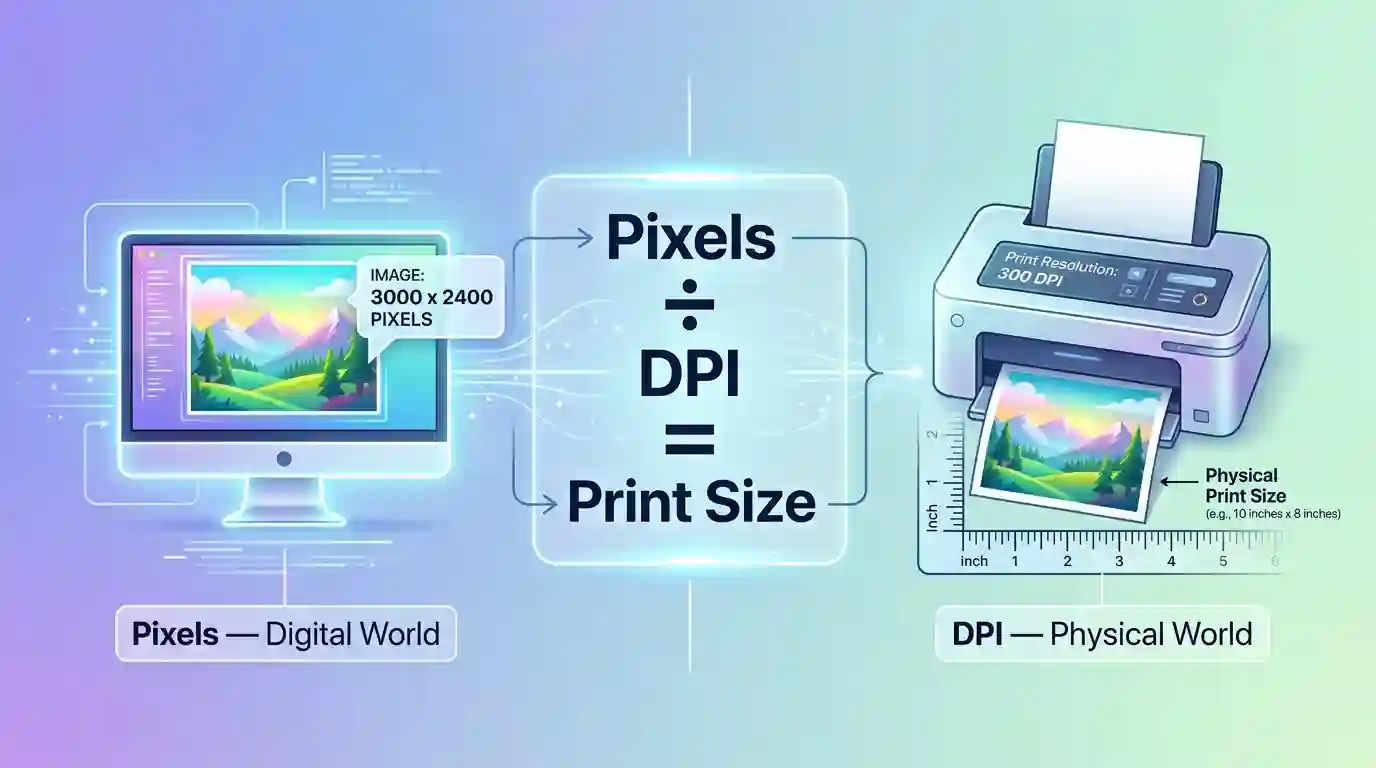
The Formula That Connects Them
Print Size (inches) = Pixel Dimension ÷ DPI
So: 3000 pixels ÷ 300 DPI = 10-inch print width
This formula is the bridge between the digital (pixel) and physical (DPI) worlds.
4. PPI vs DPI: Are They the Same Thing?
Many designers use DPI and PPI interchangeably, but they are technically different:
- PPI (Pixels Per Inch): Describes pixel density on a digital display or within an image file
- DPI (Dots Per Inch): Describes ink dot density in physical print output
When you export an image from Photoshop and set the “resolution” to 300, you’re technically setting PPI. When the printer interprets that file, it converts PPI data into its own DPI output depending on its hardware capability.
In common usage, especially in design and photography communities, “DPI” is used loosely to refer to both. However, when precision matters — particularly in prepress, publishing, and commercial printing — it’s important to distinguish between the two.
5. How DPI Affects Print Quality
DPI is the gatekeeper of print sharpness. At low DPI values, the human eye can detect individual ink dots or pixel edges — a phenomenon known as pixelation or jaggies. At higher DPI values, the dots are too small to distinguish individually, creating the illusion of smooth gradients and fine text.
Optimal DPI by Print Use Case
- Office documents: 150–200 DPI is acceptable
- Photo prints (4×6, 5×7): 300 DPI minimum
- Magazine and brochure printing: 300 DPI standard
- Billboard and large-format printing: 72–150 DPI (viewed from a distance)
- Fine art giclée prints: 360–720 DPI
For professional printing advice and standards, Adobe’s print documentation offers industry-validated guidelines on output resolution settings.
Also, if you’re preparing images for print, make sure to explore Best Image Resolution for Printing — a comprehensive guide to help you choose the right resolution settings for every print format.
6. How Pixel Count Affects Image Quality
More pixels = more raw data. And more data gives you more flexibility — both for on-screen display and print output.
A high-megapixel image can be:
- Cropped significantly without losing quality
- Enlarged for larger print formats
- Downscaled for web while retaining crispness
However, pixel count alone doesn’t guarantee quality. An image captured at 20 megapixels with poor lighting, motion blur, or lens distortion will still look inferior to a well-shot 12-megapixel image.
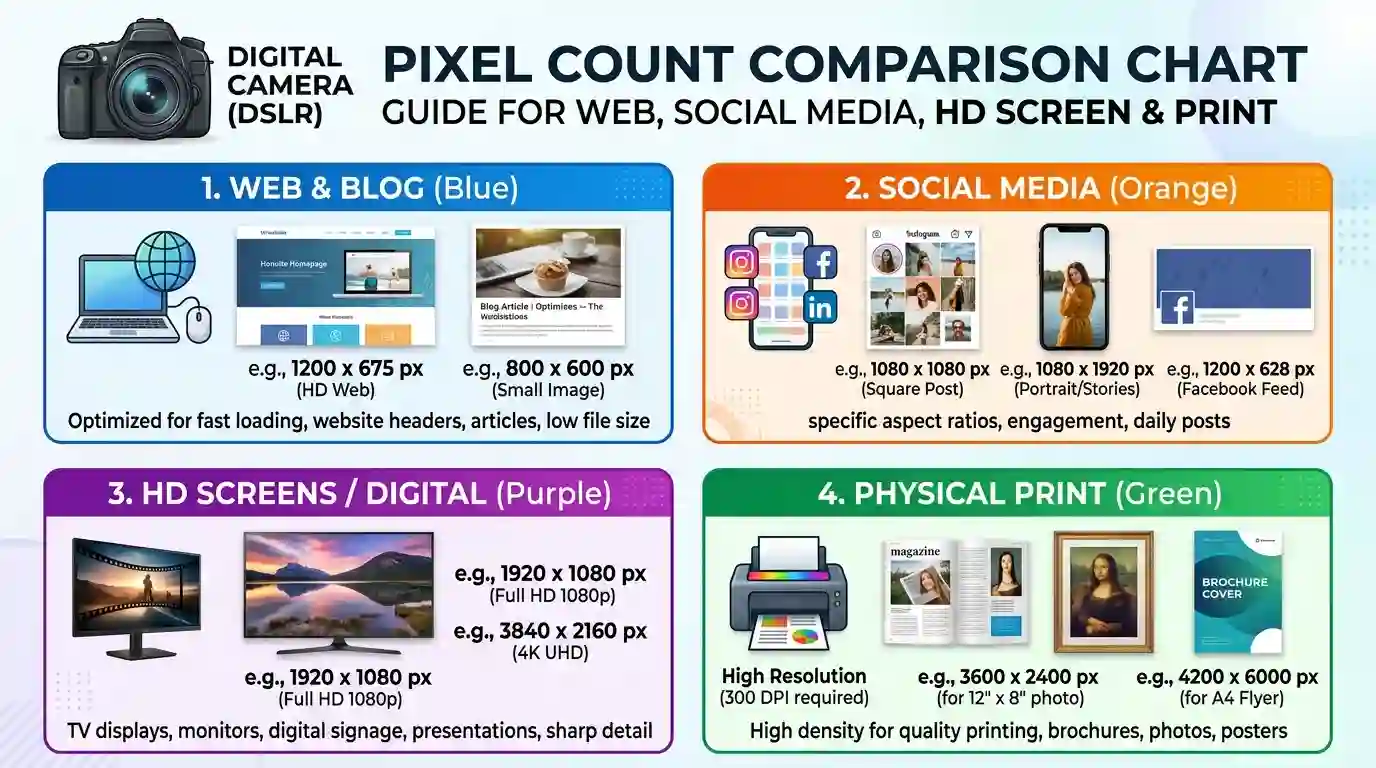
Pixel Count for Common Digital Uses
- Web thumbnail: 150 × 150 px
- Blog featured image: 1200 × 628 px
- Full HD display: 1920 × 1080 px
- 4K display: 3840 × 2160 px
- Print-ready (5×7 at 300 DPI): 1500 × 2100 px
7. Difference Between DPI and Pixels in Real-World Use Cases
Let’s walk through practical scenarios that illustrate the real-world difference between DPI and pixels:
Scenario 1: Social Media vs. Print Campaign
A marketing designer creates a 1200 × 630 pixel graphic for Facebook. It looks perfect on screen at 72 PPI. But when the client asks for the same design to be printed as a flyer (5 × 2.5 inches), the designer needs 1500 × 750 pixels at 300 DPI. The original file doesn’t have enough pixel data — it must be recreated at a higher resolution.
Scenario 2: Photography and Printing
A photographer shoots in RAW at 6000 × 4000 pixels (24 MP). At 300 DPI, this can print at 20 × 13.3 inches beautifully. The same photo could also be printed as a large-format 40 × 26-inch poster at 150 DPI without visible quality loss from a normal viewing distance.
Scenario 3: Email Signature Logo
A logo saved at 300 DPI for print looks fine in email when small, but may appear oversized when opened in a browser that interprets every pixel literally. For digital-only use, 72–96 PPI is ideal.
8. What DPI Should You Use for Different Outputs?
Here is a practical DPI cheat sheet:
| Output Type | Recommended DPI |
| Website/Screen | 72–96 PPI |
| Email newsletter | 72–150 PPI |
| Laser printer document | 300 DPI |
| Photo print (small) | 300 DPI |
| Photo print (large) | 200–300 DPI |
| Commercial offset print | 300–400 DPI |
| Newspaper print | 150–200 DPI |
| Billboard (viewed 10ft+) | 25–72 DPI |
| Fine art giclée | 360–720 DPI |
To optimize your images before uploading or printing, use Free Image Optimization Tools Online — a collection of powerful, browser-based tools to resize, compress, and adjust your images instantly.
9. Common Mistakes People Make With DPI and Pixels
Mistake 1: Thinking Higher DPI Always Means Better Images
A 72 DPI image with 6000 × 4000 pixels will print sharper than a 300 DPI image with only 600 × 400 pixels. What matters is the total pixel data, not the DPI metadata alone.
Mistake 2: Upscaling Low-Res Images
Artificially increasing pixel dimensions (upscaling) through software adds interpolated pixels, often resulting in soft, blurry output. AI-powered upscalers like Topaz Gigapixel or Adobe’s Super Resolution do a better job, but there’s still a ceiling.
Mistake 3: Sending Screen-Resolution Files to Print
Sending a 72 PPI web image to a commercial printer without resizing it to the correct DPI and pixel dimensions will result in blurry, unprofessional output. Always prepare separate files for print and web.
Mistake 4: Changing DPI Without Resampling
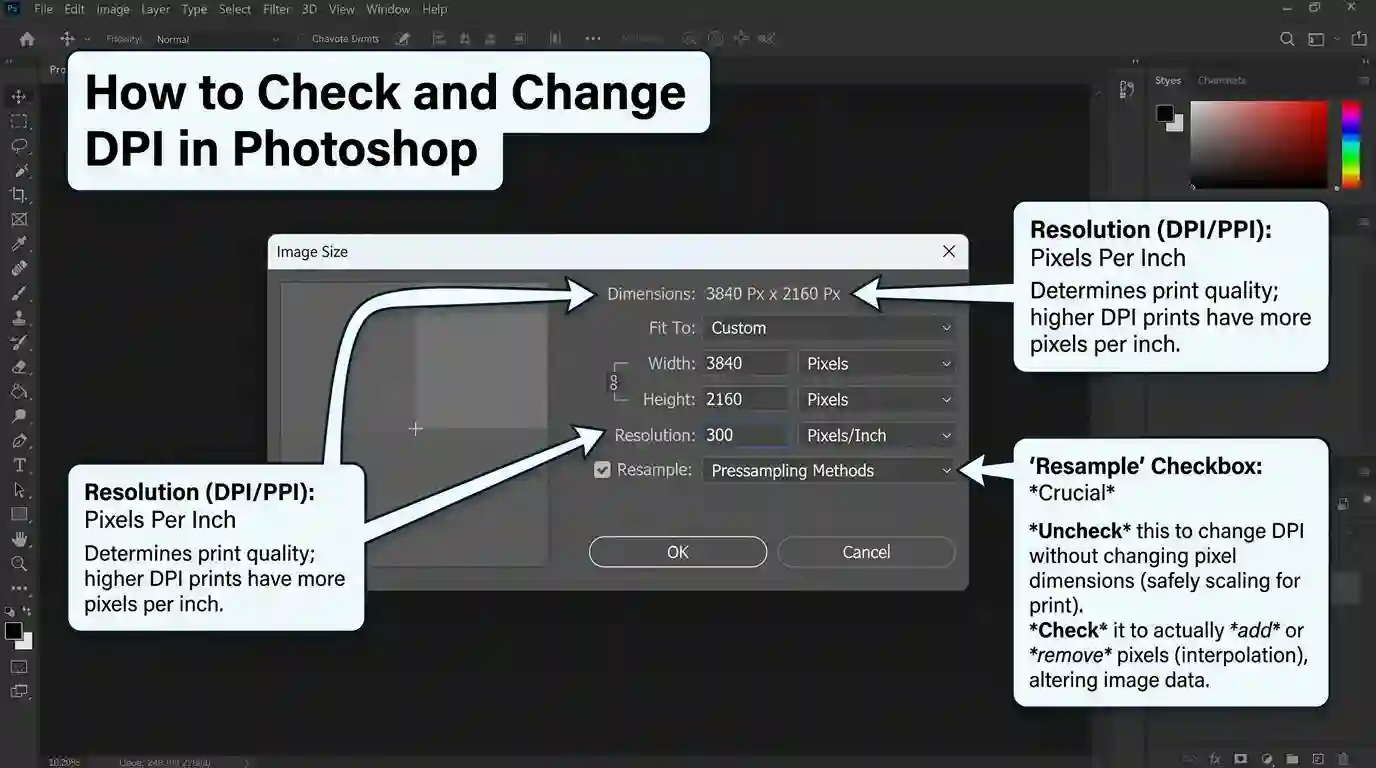
In Photoshop, if you go to Image > Image Size and change DPI without checking “Resample,” you change the print size metadata — not the actual pixel count. This confuses many users who expect their image to look sharper after “increasing DPI.”
10. How to Check and Change DPI in Your Images
In Adobe Photoshop
- Go to Image > Image Size
- Under “Resolution,” the current DPI/PPI is shown
- Uncheck “Resample” to change DPI without altering pixel count
- Check “Resample” to add/remove pixels when resizing
In GIMP (Free Alternative)
- Go to Image > Scale Image
- Change the X/Y Resolution fields (DPI)
- Use “Interpolation” settings to control quality during resampling
On Windows (No Software)
- Right-click the image file → Properties
- Go to the Details tab
- Look for “Horizontal resolution” and “Vertical resolution” — these show DPI
Online Tools
Browser-based tools can read EXIF metadata and display DPI settings without requiring any software installation. These are especially useful for quick checks before submitting files for print.
Conclusion
The difference between DPI and pixels is fundamental to producing high-quality digital and print work. To recap:
- Pixels define the digital data inside an image — the raw information that makes up every photo, graphic, and illustration.
- DPI defines how densely that data is reproduced in physical print — determining sharpness, detail, and output quality on paper.
They work together: pixel count determines how large you can print, while DPI determines how sharp that print will look. Misunderstanding either one leads to blurry prints, oversized files, or designs that don’t translate from screen to paper.
Whether you’re a photographer preparing files for a print lab, a designer exporting assets for a client, or a content creator uploading images to a website, understanding both concepts will sharpen your workflow and your output.
FAQs
Q1: Does changing DPI affect image quality on screen?
No. Screen quality is determined by pixel dimensions and the display’s own PPI (pixel density). DPI is purely a print instruction and has no effect on how an image looks on a monitor.
Q2: What is the best DPI for printing photos?
300 DPI is the industry standard for high-quality photo printing. For large-format prints viewed from a distance (like banners), 150 DPI is often sufficient.
Q3: Can I increase DPI without losing quality?
You can change DPI metadata without affecting pixels (no quality loss), but to physically add more data for sharper prints, you need to resample, which adds interpolated pixels and may reduce sharpness slightly.
Q4: Is 72 DPI good for print?
No. 72 DPI is a screen resolution standard. Printed at 72 DPI, images will appear pixelated and blurry. Always use at least 150–300 DPI for print.
Q5: What is the difference between DPI and resolution?
Resolution is a broader term that can mean pixel dimensions (e.g., 1920 × 1080) or print density (DPI). DPI is one specific way to express print resolution, while pixel resolution refers to the total pixel count in a digital file.
Q6: Why do designers save files at 300 DPI?
300 DPI is widely accepted as the threshold at which ink dots become indistinguishable to the naked eye at standard viewing distances, producing sharp, professional print output.
Q7: Does more DPI mean a larger file size?
Not directly. Changing DPI metadata in an image doesn’t change file size. However, resampling an image to have more pixels (to support higher DPI at larger print sizes) does increase file size.