Summary
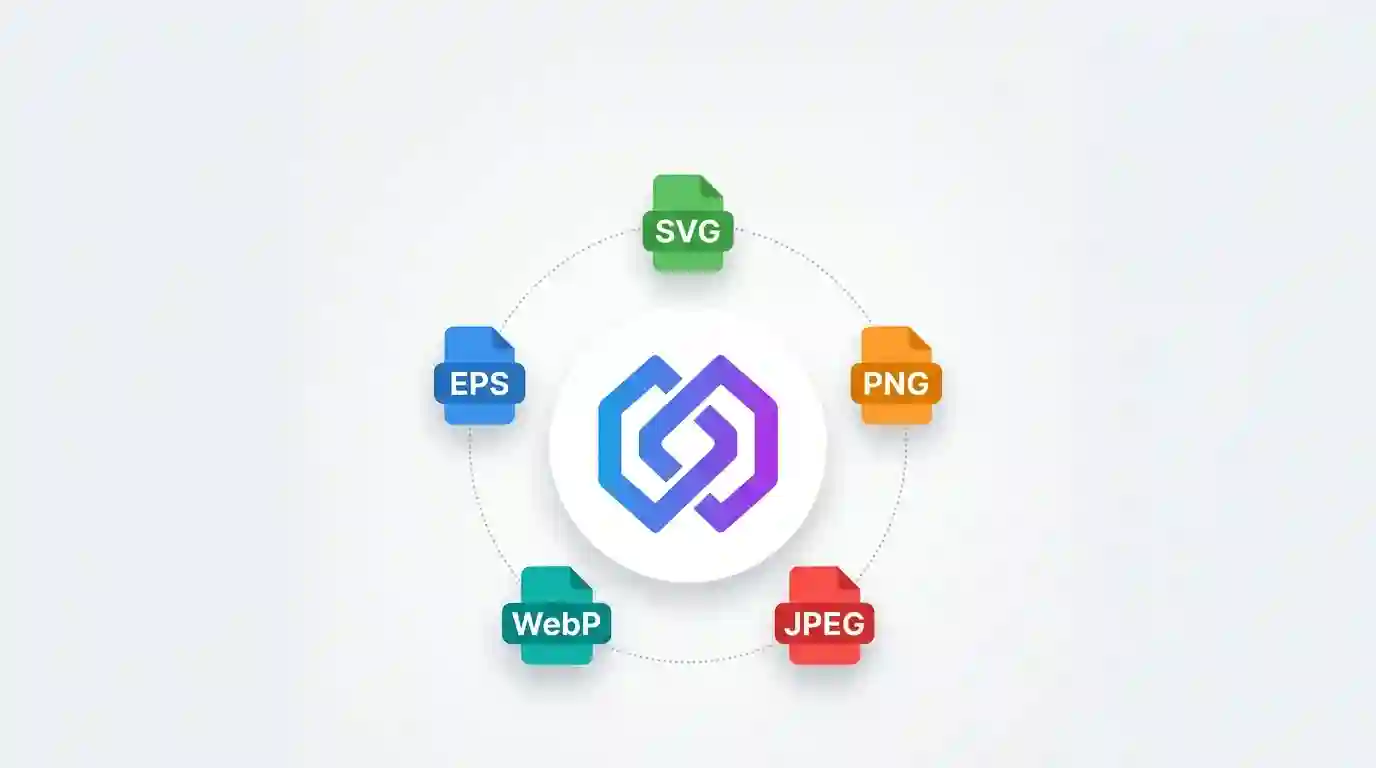
Choosing the best image format for logos is one of the most overlooked yet critical decisions in brand design. The right format affects how sharp your logo looks on a website, how fast your pages load, how well it prints on business cards, and how easily it adapts across digital and print platforms. From vector formats like SVG and EPS to raster formats like PNG, JPEG, and WebP, each file type has strengths and weaknesses depending on where and how the logo will be used. This guide breaks down every major image format, explains the differences between vector and raster graphics, and helps you decide which format suits your brand’s needs — whether you’re a startup founder, a graphic designer, or a marketing professional building brand assets from scratch.
Table of Contents
- Why Choosing the Best Image Format for Logos Matters
- Understanding Raster vs Vector Image Formats
- PNG: A Popular Choice for Logo Files
- JPEG: When (and When Not) to Use It for Logos
- SVG: The Best Image Format for Logos in Web Design
- GIF and Its Limited Role in Logo Design
- WebP: The Modern Format for Web Logos
- EPS and AI: Formats for Print and Professional Design
- How to Choose the Right Logo Format for Your Needs
- Tips for Optimizing Logo Files for Performance
- Conclusion
- FAQs
Why Choosing the Best Image Format for Logos Matters
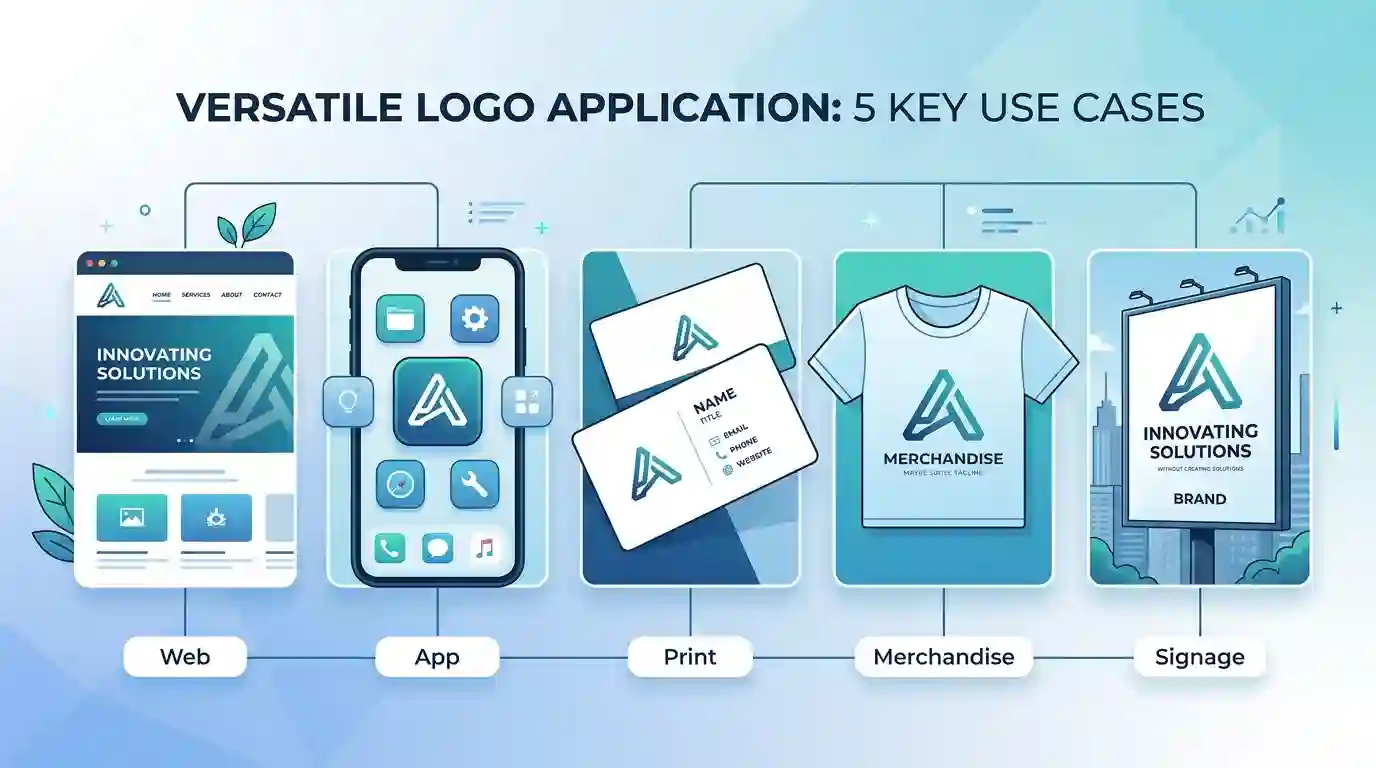
A logo is the visual cornerstone of a brand identity. It appears on websites, mobile apps, business cards, packaging, social media profiles, email signatures, merchandise, and signage. Each of these media has different technical requirements — screen resolution, print DPI, color profiles (RGB vs CMYK), and file size constraints.
If you save your logo in the wrong format, you might end up with a blurry, pixelated image on a billboard, a logo with an unwanted white background on a colored webpage, or a file so large it slows down your entire website. Understanding the best image format for logos ensures your brand looks crisp and professional everywhere it appears, while also keeping your digital assets lightweight and search-engine friendly.
Search engines like Google also factor page speed into rankings, and large, unoptimized logo files are a common culprit behind slow-loading websites. That’s why format selection isn’t just a design choice — it’s an SEO and performance decision too.
Understanding Raster vs Vector Image Formats
Before comparing individual file types, it’s essential to understand the two fundamental categories of digital images: raster graphics and vector graphics.
Raster Images (Bitmap Graphics)
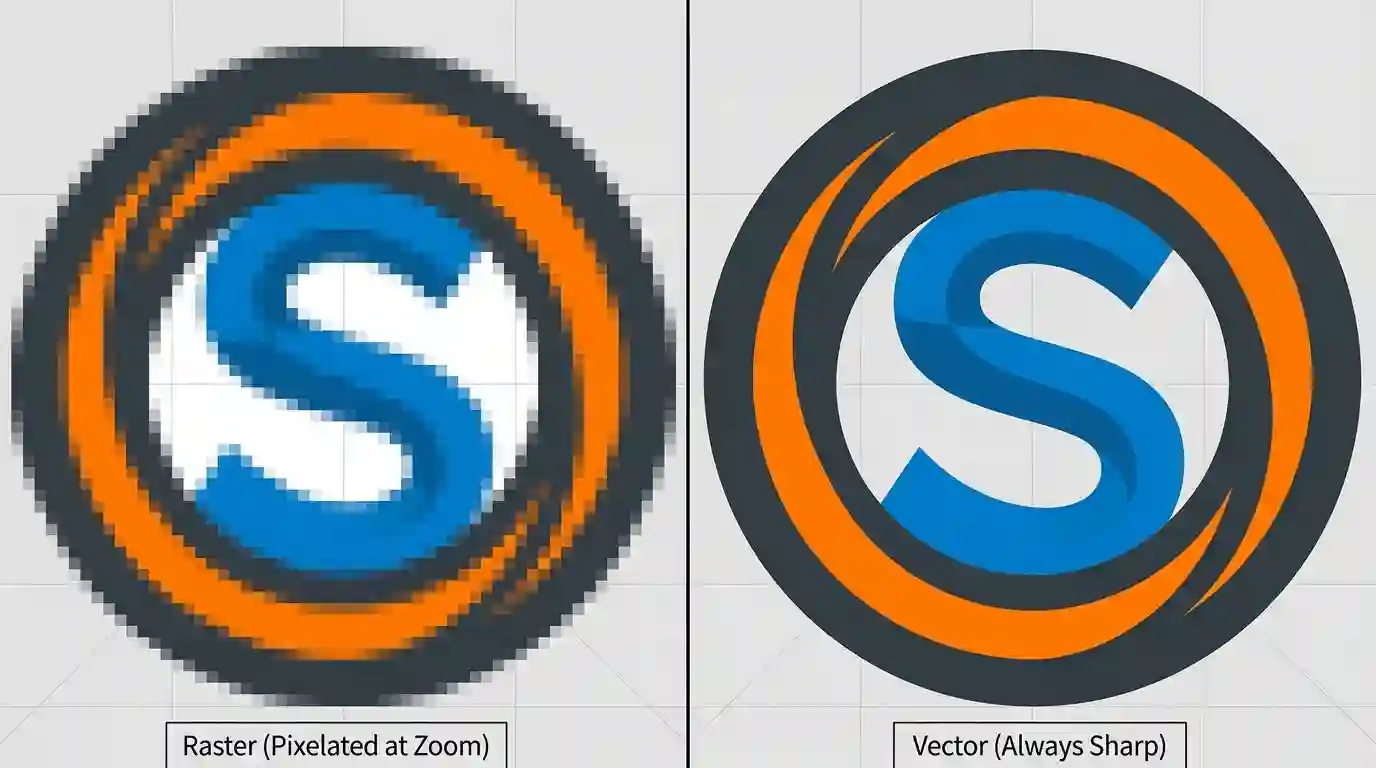
Raster images, also called bitmap images, are made up of a fixed grid of pixels. Common raster formats include PNG, JPEG, GIF, and WebP. Because raster images have a fixed resolution, enlarging them beyond their original size causes pixelation — that blurry, blocky look you’ve probably seen when a small logo is stretched too large.
Raster formats are ideal for photographs, complex images with gradients, and screenshots, but they have inherent scalability limitations when used for logos that need to appear at multiple sizes.
Vector Images (Scalable Graphics)
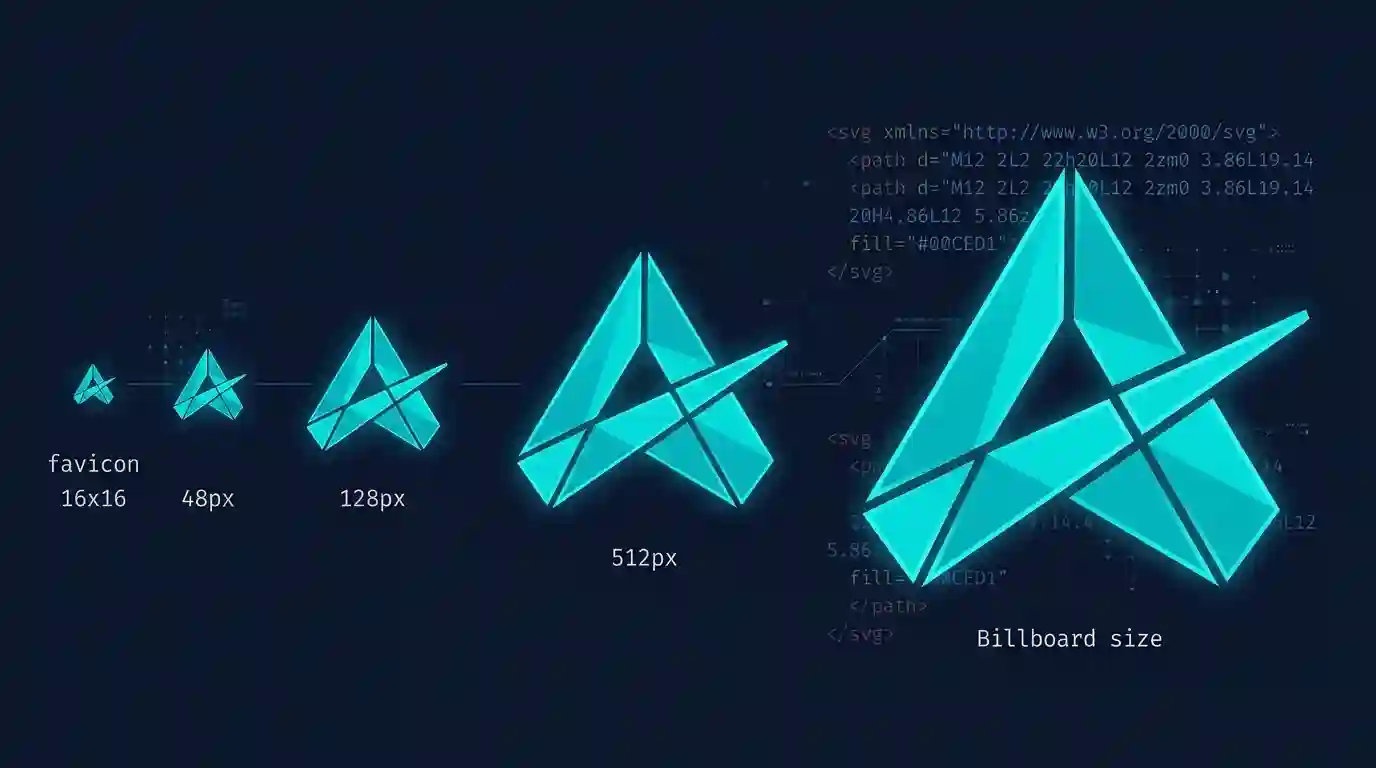
Vector images, such as SVG, EPS, and AI files, are built using mathematical paths, curves, and shapes rather than pixels. This means they can be scaled to any size — from a tiny favicon to a massive billboard — without any loss of quality or sharpness.
For logos specifically, vector formats are generally considered the gold standard because brand marks need to remain crisp at every size, from a 16×16 pixel browser tab icon to a 20-foot storefront sign.
PNG: A Popular Choice for Logo Files
PNG (Portable Network Graphics) is one of the most widely used formats for logo files, especially for web use. It’s a raster format, but it offers several advantages that make it popular among designers and businesses.
Key Benefits of PNG for Logos
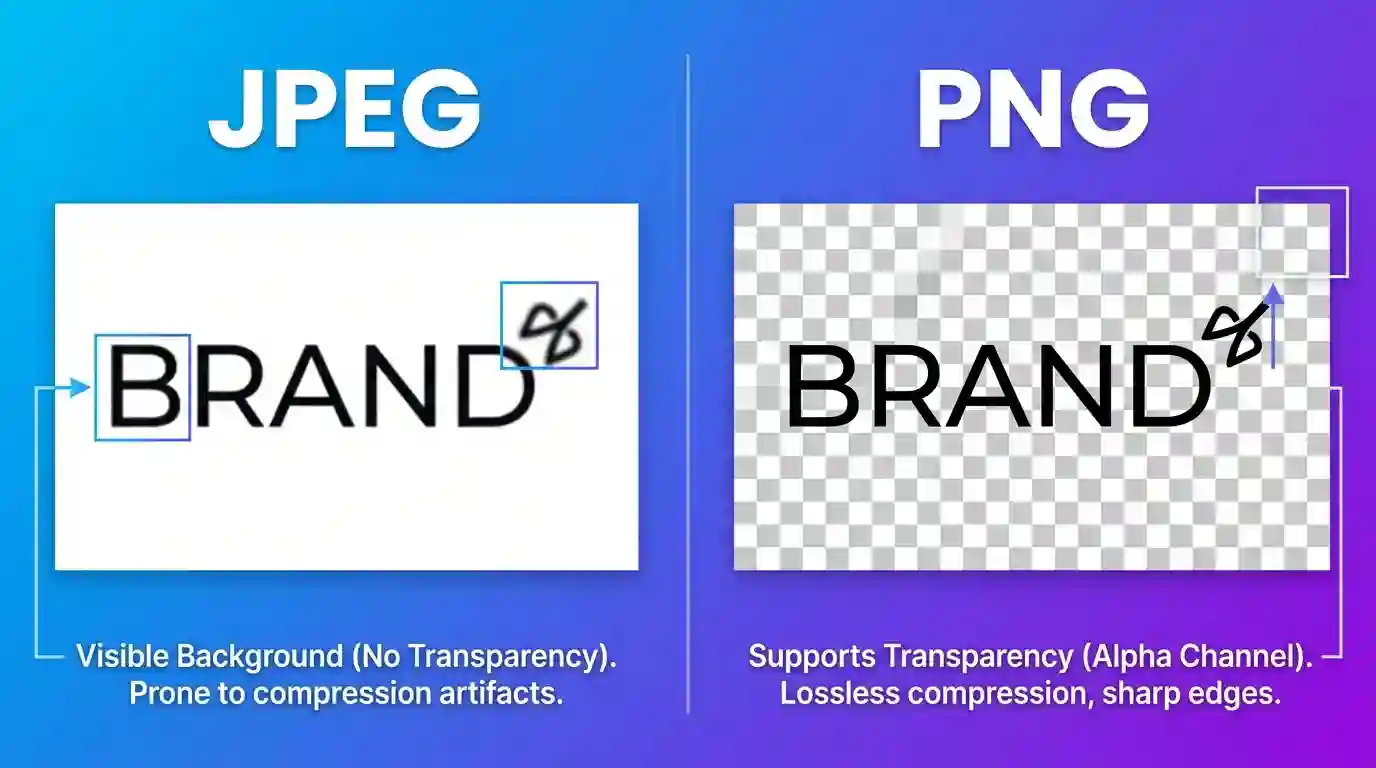
- Transparent backgrounds: PNG supports an alpha channel, allowing logos to have transparent backgrounds. This means your logo can sit cleanly on any colored background without an awkward white box around it.
- Lossless compression: PNG files don’t lose image quality through compression, preserving sharp edges and clean color separation — important for text-heavy logos and fine details.
- Wide compatibility: PNG is supported by virtually every browser, operating system, design tool, and content management system.
Limitations of PNG
The main downside of PNG is that, being a raster format, it’s not infinitely scalable. A PNG logo saved at 500×500 pixels will look great at that size or smaller, but stretching it to 2000×2000 pixels will introduce blurriness. Additionally, PNG files — especially high-resolution ones with transparency — can have larger file sizes compared to vector formats, which can affect page load times if not optimized properly.
For most websites, PNG remains an excellent choice for navigation bar logos, footer logos, and social media profile images, as long as the source file is exported at an appropriately high resolution for retina displays.
JPEG: When (and When Not) to Use It for Logos
JPEG (or JPG) is one of the most common image formats on the internet, primarily used for photographs. However, it’s generally not recommended for logo files, and understanding why is important.
Why JPEG Falls Short for Logos
JPEG uses lossy compression, which means it discards some image data to reduce file size. This compression works well for photographic images with millions of color variations, but it creates visible artifacts — blurry edges, color banding, and “noise” — around sharp lines, text, and solid color blocks, which are characteristic of most logos.
Additionally, JPEG does not support transparency. Any logo saved as a JPEG will have a solid background color (usually white), which looks unprofessional when placed on a colored webpage, a dark-mode interface, or branded merchandise.
When JPEG Might Be Acceptable
There are rare cases where JPEG could be used — for instance, if a logo is part of a larger photographic composition (like a logo printed on a product in a photo), or for internal documentation where file size matters more than visual fidelity and transparency isn’t needed. But as a standalone logo file format, JPEG should generally be avoided.
SVG: The Best Image Format for Logos in Web Design
When it comes to the best image format for logos used on websites, SVG (Scalable Vector Graphics) is widely regarded as the top choice by web designers and developers alike.
What Makes SVG Special
SVG is an XML-based vector format, meaning the image is described using code rather than pixels. This gives SVG several unique advantages:
- Infinite scalability: SVG logos look perfectly sharp on any screen size, from small mobile devices to large 4K monitors, without any quality loss.
- Tiny file sizes: For simple logos with limited colors and shapes, SVG files are often significantly smaller than equivalent PNG files, improving page load speed.
- Editable and animatable: Because SVG is code-based, developers can manipulate colors, add hover effects, or animate logo elements directly using CSS and JavaScript.
- Retina and high-DPI ready: SVG automatically renders at the correct resolution for any screen density, eliminating the need for multiple image sizes.
SVG Considerations
The main limitation of SVG is that it’s best suited for simple, flat designs with solid colors and clean shapes. Highly detailed logos with photographic elements, complex gradients, or textures may not translate as efficiently into vector format and could result in larger, more complex SVG code.
According to the MDN Web Docs guide on image file types, SVG is specifically recommended for “simple images and shapes, such as icons, diagrams, and graphs” due to its resolution independence and small footprint — making it a natural fit for logos.
GIF and Its Limited Role in Logo Design
GIF (Graphics Interchange Format) is an older raster format primarily known for supporting simple animations and limited color palettes (256 colors maximum).
Why GIF Isn’t Ideal for Most Logos
The 256-color limitation makes GIF unsuitable for logos with gradients, shadows, or subtle color variations, as these elements will appear banded or distorted. GIF does support transparency, but unlike PNG, it doesn’t support partial transparency (anti-aliasing), which can leave jagged edges around curved logo elements.
When GIFs Might Be Used
The only scenario where GIF could be relevant for logos is if a brand wants a simple animated version of their logo for social media or email signatures — for example, a logo that subtly pulses or rotates. Even then, modern alternatives like animated SVG or APNG (Animated PNG) typically offer better quality.
WebP: The Modern Format for Web Logos
WebP is a newer image format developed by Google, designed specifically to improve web performance. It supports both lossy and lossless compression, transparency, and even animation — combining the best features of JPEG, PNG, and GIF into one format.
Advantages of WebP for Logos
- Smaller file sizes: WebP files are typically 25-35% smaller than equivalent PNG or JPEG files at similar quality levels.
- Transparency support: Like PNG, WebP supports alpha transparency, making it suitable for logos on varied backgrounds.
- Broad browser support: WebP is now supported by all major modern browsers, including Chrome, Firefox, Safari, and Edge.
A Note on Compatibility
While WebP offers excellent performance benefits, some older software, email clients, and design tools may not fully support it. For this reason, many businesses use WebP for website logos while keeping a PNG or SVG version as a fallback for other applications like documents, presentations, or email signatures.
EPS and AI: Formats for Print and Professional Design
For professional print materials — business cards, brochures, banners, vehicle wraps, and merchandise — EPS (Encapsulated PostScript) and AI (Adobe Illustrator) files are the industry standard.
Why Print Designers Prefer EPS and AI
Both formats are vector-based, meaning they can be resized to any dimension without quality loss — essential for printing a logo on something as small as a pen or as large as a building sign. They also support CMYK color profiles, which are the color model used in professional printing (as opposed to RGB, used for screens).
Working with EPS and AI Files
These formats are typically created and edited in design software like Adobe Illustrator or CorelDRAW. If you’re a business owner without design software, it’s worth requesting both a vector source file (EPS or AI) and web-ready formats (SVG, PNG) when commissioning a logo design, so you’re prepared for both digital and print needs.
How to Choose the Right Logo Format for Your Needs
Selecting the best image format for logos ultimately depends on where and how the logo will be used. Here’s a practical breakdown:
For Websites and Apps
SVG is the preferred choice for navigation logos, icons, and favicons due to its scalability and small file size. PNG or WebP works well as alternatives, especially for complex logos with gradients or effects.
For Social Media Profiles
PNG with a transparent background is ideal, as most platforms display profile pictures on colored or branded backgrounds.
For Email Signatures and Documents
PNG remains the safest choice due to universal compatibility across email clients, word processors, and presentation software.
For Print Materials
EPS or AI vector files should be used, ensuring your printer has a high-resolution, scalable source file for any print size.
For Merchandise and Large-Format Printing
Vector formats (EPS, AI, or high-resolution SVG converted to PDF) are essential to avoid pixelation on large surfaces.
Tips for Optimizing Logo Files for Performance
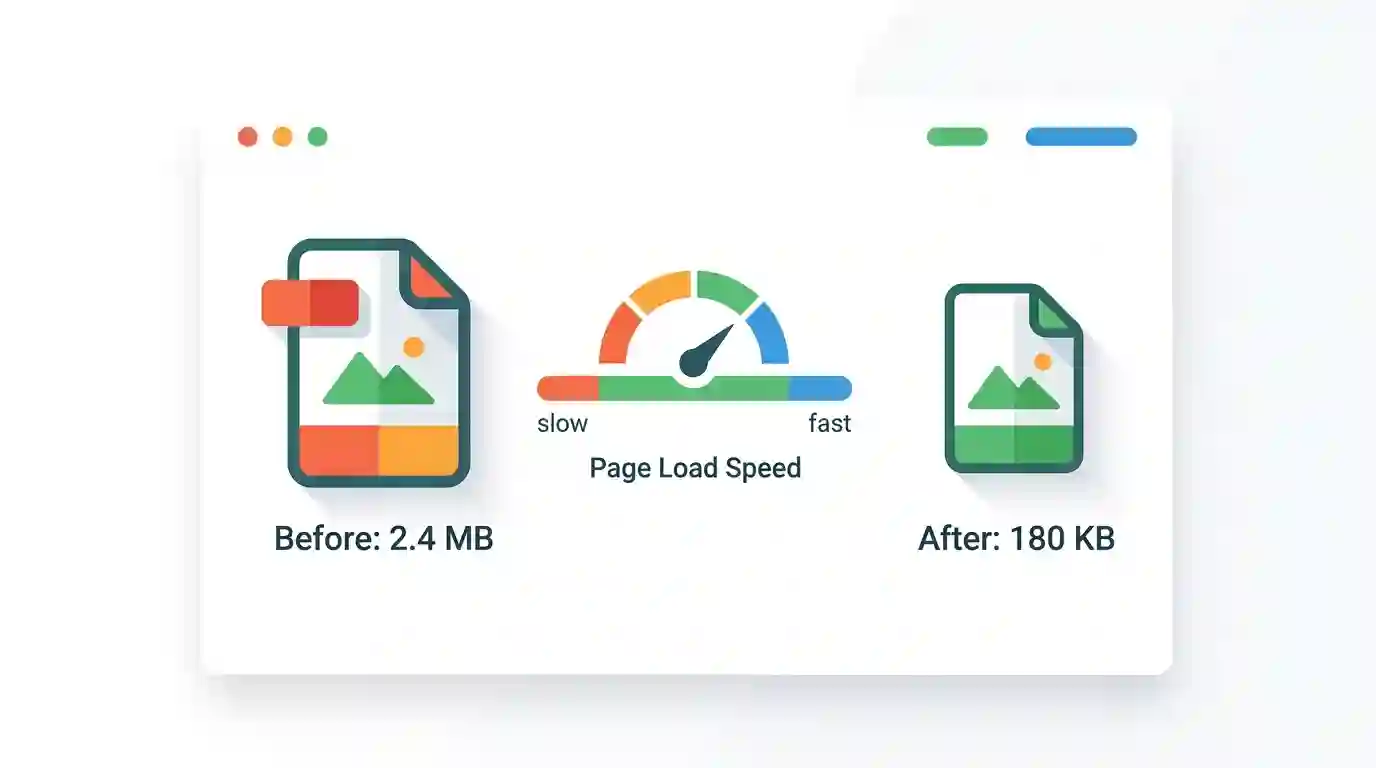
Regardless of which format you choose, optimizing your logo files is crucial for website performance and user experience. Large, unoptimized images slow down page load times, which can negatively impact both user experience and SEO rankings.
Here are some practical tips:
- Compress your images: Use compression tools to reduce file size without significantly affecting visual quality. For raster formats like PNG and JPEG, lossless or near-lossless compression can shrink files by 50% or more.
- Use the correct dimensions: Export your logo at the actual size it will be displayed, with a small buffer for retina displays (typically 2x the display size).
- Choose the right format for the context: As discussed throughout this guide, match the format to its use case rather than using one file everywhere.
- Minify SVG code: SVG files often contain unnecessary metadata from design software exports. Tools can strip this excess code to reduce the file size further.
If you’re working with logo files or other brand images and need a quick, reliable way to resize, compress, or convert between formats, you can use Image Tools Free Online to handle these tasks without installing any software.
Similarly, if you’re preparing logo files to be sent via email — for instance, sending high-resolution brand assets to a printer or partner — file size limits can be a common obstacle. Our guide on How to Reduce Photo Size for Email walks through practical methods to compress images while maintaining acceptable quality for email attachments.
Conclusion
There’s no single “best” image format for logos that works in every situation — instead, the right choice depends on context. SVG stands out as the top format for web-based logos due to its scalability, small file size, and crisp rendering at any resolution, making it a strong overall answer to the question of the best image format for logos for digital use. PNG remains a reliable, widely compatible option for transparent backgrounds across web and email. JPEG should generally be avoided for logos due to its lack of transparency and compression artifacts. For print and large-format applications, vector formats like EPS and AI remain essential.
By understanding the strengths and limitations of each format — and keeping a library of your logo in multiple formats (SVG, PNG, EPS, and a high-resolution master file) — you ensure your brand always looks sharp, professional, and consistent across every platform and medium.
FAQs
- What is the best image format for logos on a website?
SVG is generally considered the best format for website logos because it’s infinitely scalable, lightweight, and renders sharply on all screen resolutions, including retina displays. - Can I use JPEG for my logo?
It’s not recommended. JPEG doesn’t support transparent backgrounds and uses lossy compression, which can create blurry edges and artifacts around sharp logo details. - Why does my logo look blurry when I make it bigger?
This typically happens with raster formats (PNG, JPEG) because enlarging them stretches a fixed pixel grid. Vector formats like SVG, EPS, or AI avoid this issue entirely. - What format should I send my logo to a printer?
Printers generally prefer vector formats like EPS or AI files, as these can be scaled to any print size without losing quality and support CMYK color profiles needed for accurate printing. - Is PNG better than SVG for logos?
Not necessarily better, but different. PNG is great for compatibility and complex designs with gradients, while SVG is better for simple logos that need to scale across many sizes with minimal file size. - How can I convert my logo to different formats?
Design software like Adobe Illustrator can export logos to multiple formats. For quick online conversions and resizing, web-based tools designed for image editing can also handle most common format conversions.