
Summary: This in-depth guide on how to reduce file size to upload anywhere covers every major file type — images, PDFs, videos, audio, and documents — along with the best free and paid tools, compression techniques, and platform-specific tips. Whether you’re trying to send a large file via email, upload media to a social platform, or optimize assets for a website, this guide walks you through lossy vs. lossless compression, format conversion, archiving methods, and automation strategies to shrink file sizes without sacrificing quality.
OUTLINE
- Why File Size Matters for Uploading
- Understanding File Types and Compression Basics
- How to Reduce Image File Size
- How to Reduce PDF File Size
- How to Reduce Video File Size
- How to Reduce Audio File Size
- How to Compress Documents (Word, Excel, PowerPoint)
- How to Zip and Archive Files for Uploading
- Platform-Specific File Size Reduction Tips
- Advanced Tips — Batch Compression and Automation
- Frequently Asked Questions (FAQs)
How to Reduce File Size to Upload Anywhere: The Complete Guide
Every day, millions of people hit the same frustrating wall — a file that’s just too large to upload. Whether it’s an email attachment that exceeds the 25MB Gmail limit, a video too big for WhatsApp, or images slowing down your WordPress website, oversized files are a universal productivity blocker. The good news is that reducing file size is a skill anyone can learn, and with the right knowledge and tools, you can compress almost any file type without meaningfully compromising quality.
This guide is your complete, practical reference for how to reduce file size to upload anywhere — covering image compression, PDF optimization, video encoding, audio reduction, document shrinking, archive tools, and platform-specific strategies.
Why File Size Matters for Uploading
Before diving into techniques, it’s important to understand why file size reduction matters beyond just bypassing upload limits.
Upload Limits on Popular Platforms
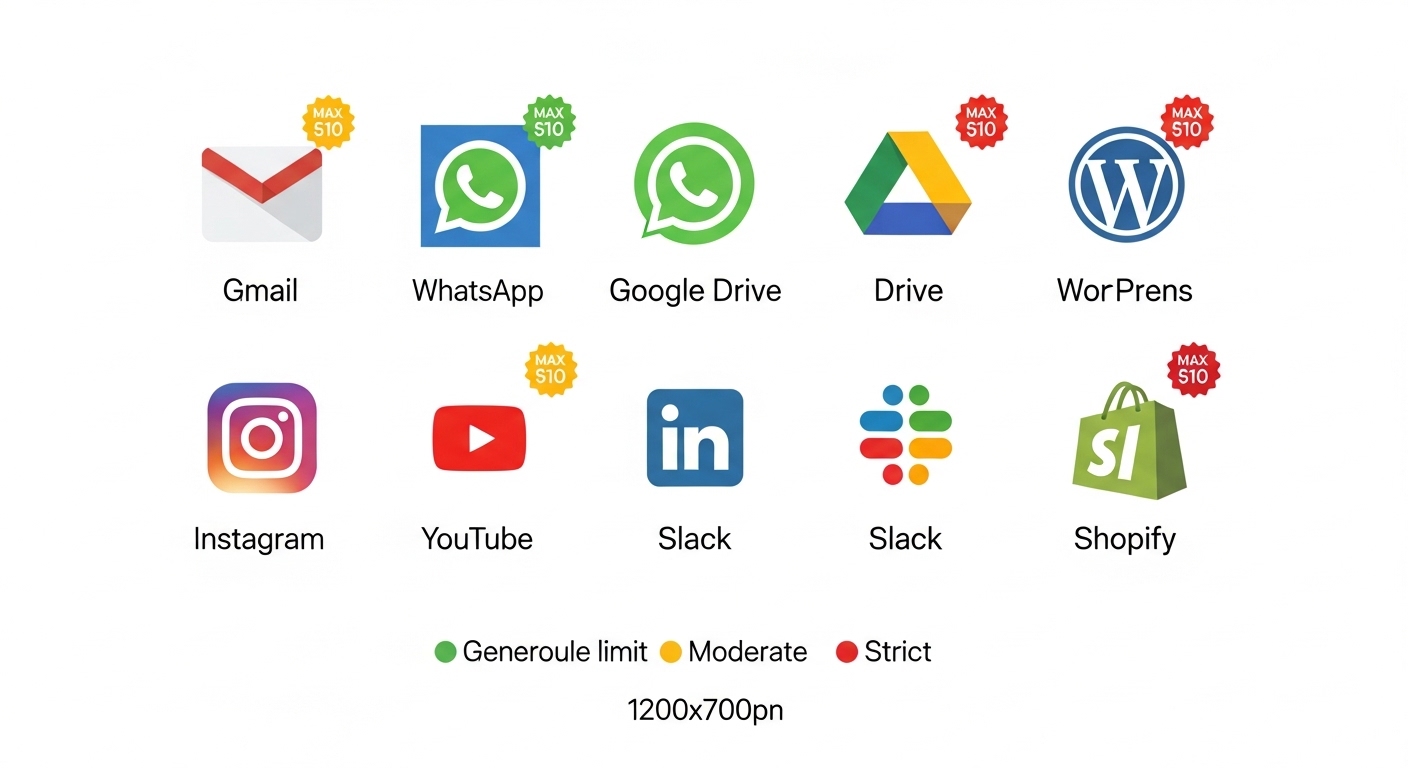
Every major platform imposes file size restrictions, and they vary significantly:
- Gmail allows a maximum attachment size of 25MB per email
- WhatsApp caps video files at 16MB on mobile and 64MB on desktop
- Google Drive allows individual file uploads up to 5TB, but shared links and preview functionality degrade with very large files
- WordPress has a default upload limit typically between 2MB and 64MB, depending on server configuration
- LinkedIn limits document uploads to 100MB and video to 5GB, but recommends much smaller sizes for performance
- Instagram restricts video uploads to 650MB and suggests under 50MB for Reels
- Slack caps file uploads at 1GB for paid plans and 5MB on the free tier
Understanding the platform’s ceiling before you start is the first step to intelligent file compression.
How Large Files Affect Speed and Storage
Beyond upload limits, file size affects:
- Page load speed: Unoptimized images are the number-one cause of slow websites. A 4MB hero image can add 3–5 seconds to load time on mobile
- Cloud storage costs: Businesses storing large uncompressed files pay significantly more for storage over time
- Email deliverability: Oversized emails may be bounced, delayed, or flagged as spam
- User experience: Large downloads frustrate end-users and increase abandonment rates
File optimization is not just a technical chore — it’s a UX and business decision.
Understanding File Types and Compression Basics
To compress files intelligently, you need to understand what compression actually does at a fundamental level.
Lossy vs. Lossless Compression
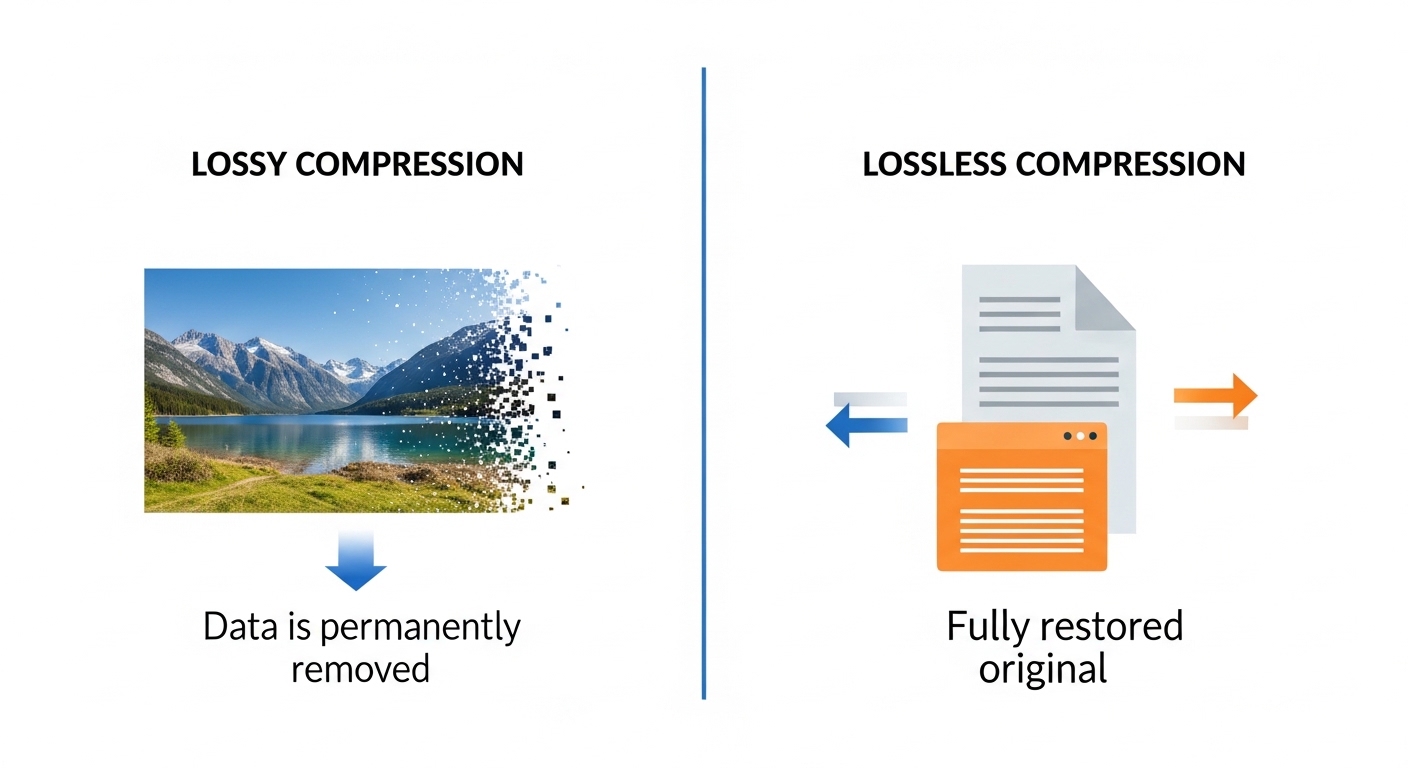
These are the two core paradigms of digital compression:
Lossy compression permanently removes data from a file to reduce its size. The removed data is generally imperceptible to the human eye or ear, but the file cannot be perfectly restored to its original state. JPEG images and MP3 audio are classic examples of lossy formats.
Lossless compression reduces file size by encoding data more efficiently without discarding any information. The original file can be perfectly reconstructed. PNG images and FLAC audio use lossless compression. ZIP archives also use lossless algorithms.
The choice between lossy and lossless depends on your use case: lossy for media shared online, where minor quality loss is acceptable; lossless for archiving, design assets, or anything where fidelity must be preserved.
Common File Formats and Their Native Size Behaviors
- JPEG/JPG: Lossy, ideal for photographs, poor for text/graphics
- PNG: Lossless, larger files, ideal for logos and transparency
- WebP: Modern format, supports both lossy and lossless, typically 25–35% smaller than JPEG at equivalent quality
- GIF: Lossless but limited to 256 colors; often replaced by WebP or short MP4s
- PDF: Can contain vector data, images, fonts, and metadata — all of which inflate size
- MP4 (H.264/H.265): The most widely supported video containers; H.265 (HEVC) offers ~50% better compression than H.264
- DOCX/XLSX/PPTX: Office Open XML formats are essentially ZIP archives containing XML and embedded media
How to Reduce Image File Size
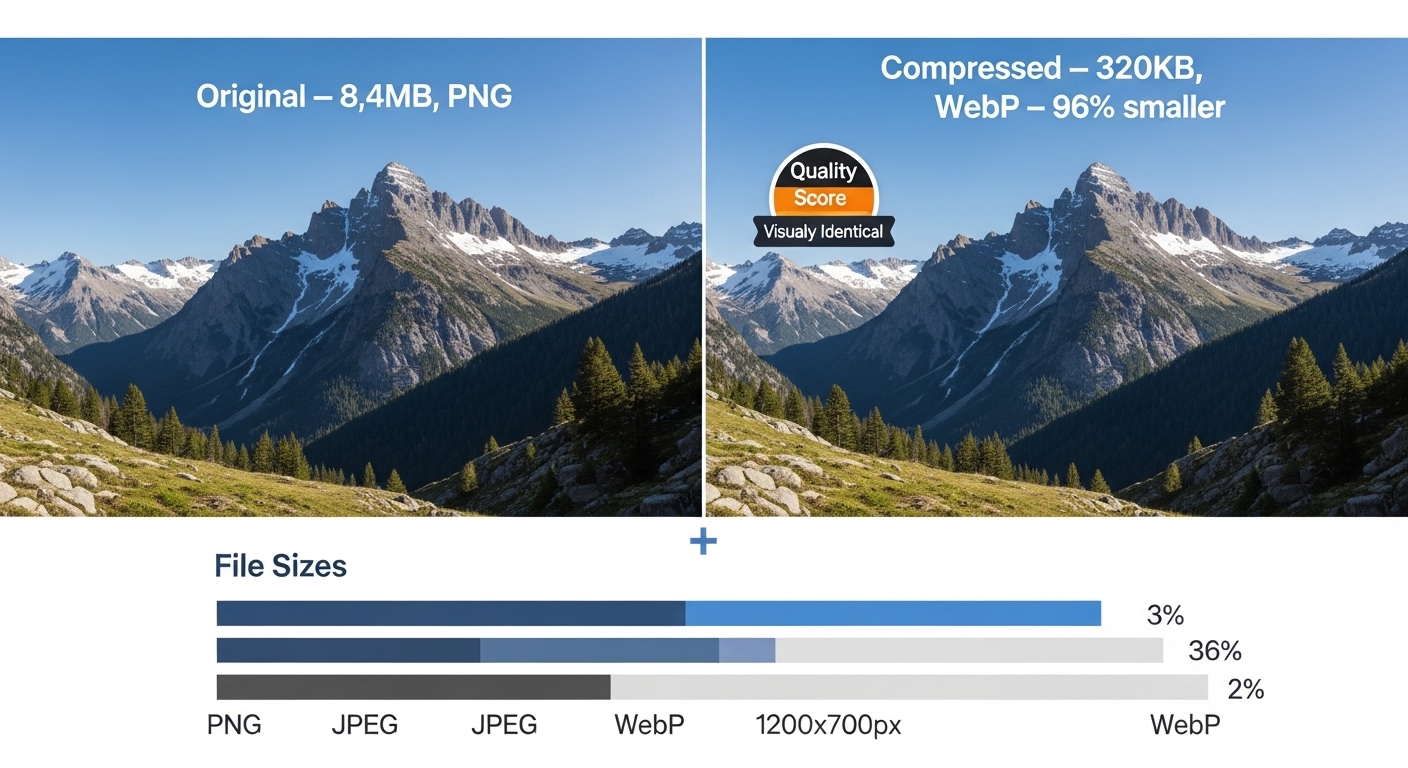
Images are the most commonly uploaded file type and also the most frequently oversized. Reducing image file size is therefore the highest-impact compression skill.
Compress Images Without Losing Quality
The goal is to find the minimum file size that still looks visually identical to the original. Key techniques include:
- Reduce image dimensions: If an image is 4000×3000px but will be displayed at 800×600px, you’re serving 5× the necessary pixels. Resize before compressing.
- Adjust quality/compression sliders: Most export tools allow you to set a quality percentage. For web use, JPEG at 70–80% quality is typically indistinguishable from 100% but 50–70% smaller.
- Strip metadata: Camera images contain EXIF metadata (GPS coordinates, camera model, timestamps). Removing this can save 10–50KB per image.
- Use progressive JPEG encoding: Progressive JPEGs load gradually (blurry to sharp), improving perceived performance without reducing quality.
Best Tools to Reduce Image Size Online and Offline
Online tools:
- TinyPNG / TinyJPEG — Excellent lossless PNG compression and lossy JPEG compression; supports batch uploads
- Squoosh (by Google) — Browser-based, highly visual tool with side-by-side quality comparison; supports WebP, AVIF, and more
- Compressor.io — Supports JPEG, PNG, SVG, GIF with automatic optimization
- ImageOptim (Mac) — Drag-and-drop desktop tool that strips metadata and applies lossless compression
Desktop/offline tools:
- Adobe Photoshop — “Save for Web” feature gives fine-grained control over quality and format
- GIMP (free) — Export options similar to Photoshop
- XnConvert — Batch image converter and compressor
Change Image Format to Reduce Size (PNG to JPG, WebP)
Format conversion is often the single biggest size reduction you can make:
- PNG → JPEG: If your PNG has no transparency, converting to JPEG can reduce size by 60–80%
- PNG/JPEG → WebP: WebP files are on average 25–34% smaller than comparable JPEG files and 26% smaller than PNGs, according to Google’s own benchmarks
- GIF → MP4 or WebP: Animated GIFs are notoriously large. A 5MB animated GIF can often be converted to a 200KB MP4 with identical visual output
For a deeper look at how efficient digital tools can save time across different tasks — much like how a Lot Size Calculator Tool in Forex Trading eliminates manual calculation errors — the right compression tool eliminates guesswork and gets the job done faster.
How to Reduce PDF File Size
PDFs are complex containers. A single PDF can embed high-resolution images, multiple fonts, form fields, annotations, thumbnails, and hidden metadata — all of which inflate the file size.
Compress PDF Files Online
- Smallpdf.com — Simple drag-and-drop PDF compression; offers strong, basic, and no-compression modes
- ILovePDF — Supports batch compression, split/merge, and conversion; free tier available
- PDF2Go — Good balance of compression quality and ease of use
- Adobe Acrobat Online — Trustworthy output, 2 free compressions per day for non-subscribers
Reduce PDF Size Using Adobe Acrobat and Free Alternatives
In Adobe Acrobat Pro:
- Open the PDF → File → Save As → Reduced Size PDF
- Or use Tools → Optimize PDF for more granular control over image downsampling, font subsetting, and object removal
Free alternatives:
- Preview (Mac): Export as PDF with Quartz Filter → “Reduce File Size” (though this can be aggressive)
- LibreOffice Draw: Open PDF, re-export with compression settings
- Ghostscript (command line):
gs -sDEVICE=pdfwrite -dCompatibilityLevel=1.4 -dPDFSETTINGS=/ebook -dNOPAUSE -dQUIET -dBATCH -sOutputFile=output.pdf input.pdf
Remove Embedded Fonts, Images, and Hidden Data from PDFs
- Font subsetting: Instead of embedding the entire font file, embed only the characters used in the document. Acrobat does this automatically in Optimize PDF.
- Downsample images within PDFs: High-res images embedded in PDFs are often the #1 culprit. Set image resolution to 150 DPI for screen PDFs, 300 DPI for print.
- Remove hidden layers, comments, form fields, and JavaScript: These are often invisible to readers but add to file weight. Use Acrobat’s “Sanitize Document” function.
How to Reduce Video File Size
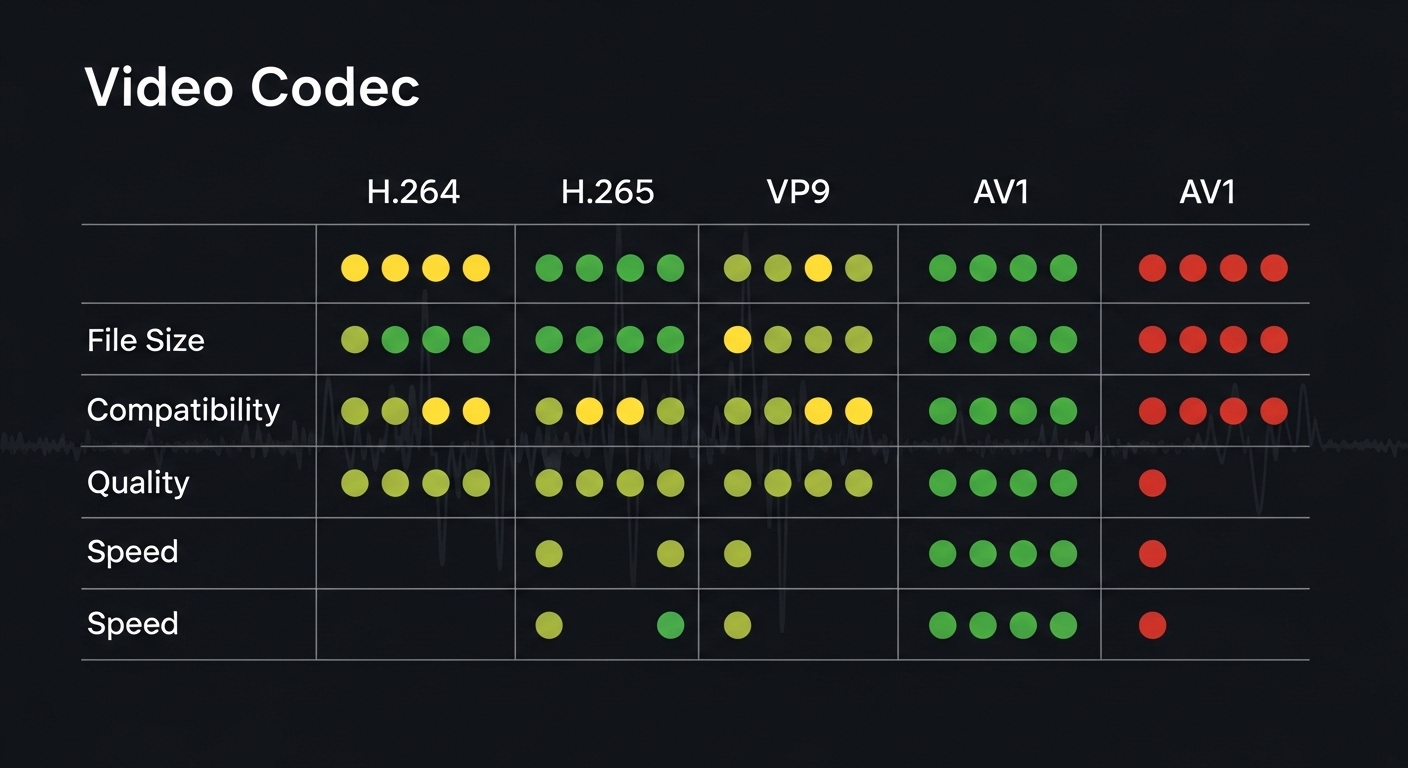
Video files are by far the largest file type most people deal with. A 10-minute 4K video can easily be 4–8GB uncompressed.
Change Video Resolution and Bitrate
Resolution is the number of pixels. Reducing from 4K (3840×2160) to 1080p (1920×1080) cuts the pixel count by 75%, dramatically reducing file size.
Bitrate is the amount of data processed per second. Lower bitrate = smaller file but potentially lower quality. For web video:
- 1080p: 4–8 Mbps (H.264), 2–4 Mbps (H.265)
- 720p: 2–4 Mbps (H.264)
- 480p: 1–2 Mbps
Best Video Compression Tools
- HandBrake (free, cross-platform): The gold standard for video compression. Supports H.264, H.265, VP9. Use the “Web Optimized” preset for uploads.
- VLC Media Player: Can transcode video under Media → Convert/Save
- FFmpeg (command line):
ffmpeg -i input.mp4 -vcodec libx265 -crf 28 output.mp4— The CRF value (18–28) controls the quality/size tradeoff - Clideo / Kapwing: Browser-based video compressors for quick jobs without software installation
- DaVinci Resolve: Professional tool with excellent export compression presets
Convert Video to a Smaller Format (MP4, H.265)
H.265 (HEVC) achieves the same visual quality as H.264 at roughly half the bitrate. If your platform supports it, always use H.265. For maximum compatibility (e.g., older Android devices, Windows 10 without codec packs), stick with H.264 in an MP4 container.
For social media: Most platforms re-encode your video anyway. Upload at 1080p H.264 MP4, which gives a good quality-to-file-size ratio with universal compatibility.
How to Reduce Audio File Size
Convert Audio to MP3 or AAC
WAV and AIFF are uncompressed formats — a 3-minute song can be 30–50MB. Converting to MP3 at 128–192 kbps brings it to 3–5MB with minimal perceived quality difference for most listeners.
AAC (Advanced Audio Coding) is technically superior to MP3 at equivalent bitrates and is the standard for Apple devices and YouTube audio.
Tools: Audacity (free), VLC, FFmpeg, online-audio-converter.com
Reduce Audio Bitrate Without Killing Quality
- For podcasts and voice content: 64–96 kbps MP3 is perfectly adequate
- For music listening: 128–192 kbps MP3 or 128 kbps AAC is the sweet spot
- For professional archiving: Use FLAC (lossless) or keep WAV/AIFF originals, compress only distribution copies
How to Compress Documents (Word, Excel, PowerPoint)
Built-in Compression in Microsoft Office
Microsoft Word:
- File → Save As → Tools → Compress Pictures (when images are embedded)
- Use “Compress Pictures” in the Picture Format tab — choose “Email (96 ppi)” for maximum compression
PowerPoint:
- File → Compress Media → reduces embedded video/audio
- Picture Format → Compress Pictures → applies to all slide images at once
Excel:
- Remove unused worksheets, clear empty cells with formatting, and delete named ranges
- Save as
.xlsx(not.xlsbor older.xls) for optimal compression
Reduce File Size in Google Docs and Sheets
- Google Docs doesn’t offer native compression, but downloading as PDF (rather than DOCX) often produces smaller files
- In Google Slides, compress images by right-clicking → “Replace image” → re-upload a pre-compressed version
- Remove embedded fonts or unused slides/sheets before exporting
Using ZIP, RAR, and 7-Zip to Reduce Multiple Files
When you need to upload multiple files or compress a folder, archiving tools are the answer:
- ZIP: Universal, built into Windows/Mac/Linux. Moderate compression ratio.
- 7-Zip (7z format): Free, open-source, offers significantly better compression than ZIP — often 30–70% better on text-heavy files
- RAR: Proprietary but widely supported; good compression and strong error-recovery features
- TAR.GZ / TAR.BZ2: Common on Linux/Unix systems;
.bz2compresses slightly better than.gzbut is slower
For most users uploading to cloud platforms or email, ZIP is universally compatible. For maximum compression of large archives: use 7-Zip with LZMA2 compression.
When to Use Compression Archives vs. Native File Compression
Use native compression (JPEG, MP4, WebP) when the recipient needs to directly open and use the file. Use archive compression (ZIP, 7z) when:
- You’re bundling multiple files
- The file type doesn’t compress well on its own (e.g., already-compressed MP4s don’t benefit much from ZIP)
- You want to protect with a password
Platform-Specific File Size Reduction Tips
Reduce File Size for WhatsApp, Gmail, Google Drive
- WhatsApp: WhatsApp re-compresses images automatically, which often degrades quality. Send as a “Document” instead of a photo to bypass recompression. For videos, use HandBrake to get under 16MB.
- Gmail: Use Google Drive links for files over 25MB; Gmail integrates Drive natively. Attach Drive links in the email body instead.
- Google Drive: Drive itself has no meaningful upload compression. Optimize files before uploading.
Compress Files for WordPress, Shopify, and Web Uploads
For WordPress:
- Install plugins like Smush, ShortPixel, or Imagify for automatic image compression on upload
- Set the WordPress max upload size via
php.iniorwp-config.phpif needed - Always upload images in WebP format when your theme supports it
For Shopify:
- Shopify serves images through its CDN but does not compress them. Upload product images at 2048×2048px JPG at 80% quality for the best balance.
For general web development: Follow the Web Vitals guidelines on image optimization published by Google, which are the industry benchmark for frontend performance.
Reduce Size for LinkedIn, Instagram, and Social Media
- LinkedIn posts: Images should be under 5MB. JPEG at 1200×627px is ideal for link preview images.
- Instagram: Export images as JPEG at 1080×1080px (square) or 1080×1350px (portrait) at 85% quality
- Twitter/X: Upload PNG for graphics/text images; JPEG for photos. GIFs should be under 15MB; use MP4 instead for anything longer than 3 seconds.
- Facebook: Recommended image size is 1200×630px. Always upload JPEGs to avoid Facebook’s aggressive recompression of PNGs.
Advanced Tips — Batch Compression and Automation
Batch Compress Files Using Scripts and Tools
When you regularly deal with large volumes of files, manual compression becomes impractical. Batch tools save significant time:
- ImageMagick (command line):
mogrify -quality 80 -format jpg *.png— converts all PNGs to JPEG at 80% quality in one command - FFmpeg batch scripts: Loop through a folder of videos and compress each one automatically
- XnConvert: GUI-based batch image converter with 500+ format support
- Automator (Mac): Built-in automation tool can create a drag-and-drop workflow to compress images
Automate File Optimization for Recurring Tasks
For web developers and content managers:
- CI/CD image pipelines: Tools like sharp (Node.js) or Pillow (Python) can auto-compress images as part of a deployment pipeline
- CMS plugins: WordPress, Shopify, and Webflow have native or plugin-based optimization that compresses on upload automatically
- Cloudinary / imgix: Cloud-based image management platforms that deliver automatically optimized images based on device, browser, and network conditions
Just as smart tools eliminate unnecessary complexity in financial decisions — like how task management strategies discussed in How to Manage Daily Tasks Without Apps show you don’t always need software to be productive — automation for file compression is about working smarter, not harder.
Frequently Asked Questions (FAQs)
Q: What is the best free tool to compress files online? A: For images, TinyPNG and Squoosh are excellent for PDFs, Smallpdf or ILovePDF. For video, HandBrake (desktop) is the most powerful free option.
Q: How do I reduce file size without losing quality? A: Use lossless compression techniques — strip metadata, resize dimensions to actual display size, and use efficient formats like WebP or HEVC. For most media, 70–80% quality settings are visually indistinguishable from 100%.
Q: Can I compress a ZIP file further? A: A ZIP file containing already-compressed files (JPEG, MP4, MP3) won’t compress significantly further. 7-Zip with Ultra compression settings offers the best ratios for compressible content like text files and documents.
Q: What’s the difference between file compression and file conversion? A: Compression reduces the size of an existing file. Conversion changes the file format, which may inherently reduce size (e.g., converting WAV to MP3). Often, the best approach uses both: convert to an efficient format, then compress.
Q: Why does my image look blurry after compression? A: You’ve likely set the quality too low (below 60% for JPEG) or reduced the dimensions too aggressively. Try quality settings of 75–85% and avoid scaling below the intended display resolution.
