
Summary
If you’re looking to replace Microsoft Office without spending money, there are powerful free alternatives like LibreOffice, Google Workspace, WPS Office, and OnlyOffice that offer robust features for word processing, spreadsheets, and presentations. These tools support common file formats (like DOCX, XLSX, PPTX), provide cloud collaboration, and integrate with modern workflows—making them ideal for students, professionals, and businesses alike.
Outline
- Why Look for Microsoft Office Alternatives?
- Key Features to Look for in Office Alternatives
- Top Free Microsoft Office Alternatives (Detailed Review)
- Comparison of Free Office Tools
- Best Office Alternatives for Specific Needs
- Pros and Cons of Free Office Software
- Tips for Transitioning from Microsoft Office
- Conclusion: Choosing the Right Tool for You
Why Look for Microsoft Office Alternatives?
Microsoft Office has long been the industry standard, but many users are shifting toward free office suites due to several compelling reasons.
Cost and Licensing Issues
Microsoft Office requires a subscription (Microsoft 365) or a one-time purchase, which can be expensive. Free alternatives eliminate this cost barrier while still offering essential productivity tools like word processors, spreadsheets, and presentation software.
Compatibility and Flexibility
Modern alternatives support multiple formats, including DOCX, XLSX, and PPTX. This ensures seamless file sharing across platforms.
Cloud-Based vs Desktop Needs
Some users prefer cloud-based tools like Google Docs for collaboration, while others need offline desktop applications like LibreOffice.
Open Source vs Proprietary Software
Open-source tools (e.g., LibreOffice) offer transparency, customization, and strong community support, making them appealing to developers and privacy-conscious users.
Key Features to Look for in Office Alternatives
Before choosing a Microsoft Office alternative, consider these essential features:
File Format Compatibility
Look for tools that support Microsoft formats to avoid formatting issues.
User Interface and Ease of Use
A familiar UI reduces the learning curve and improves productivity.
Cloud Storage and Collaboration Tools
Real-time collaboration is essential for teams and remote work environments.
Offline Accessibility
Some users require offline access without internet dependency.
Security and Privacy
Privacy-focused users should prefer open-source or encrypted cloud platforms.
Top Free Microsoft Office Alternatives (Detailed Review)
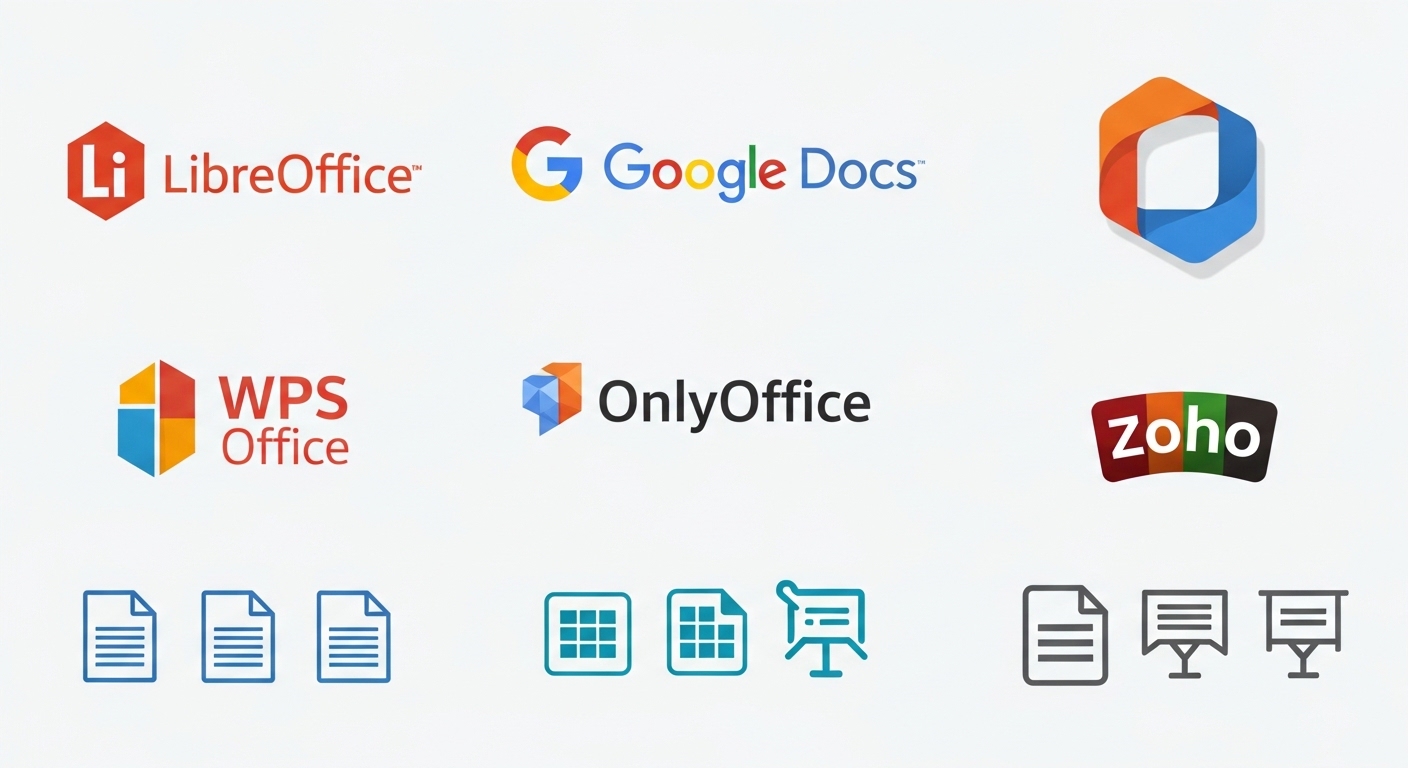
1. LibreOffice Suite
LibreOffice is one of the most powerful open-source office suites.
- Tools: Writer, Calc, Impress
- Supports all major formats
- Works offline
- Highly customizable
Best for: Advanced users and offline work
2. Google Workspace (Docs, Sheets, Slides)
Google’s suite is a cloud-based powerhouse.
- Real-time collaboration
- Auto-save and cloud sync
- Integration with Google Drive
Best for: Teams and collaboration
3. WPS Office
WPS Office is a lightweight yet feature-rich alternative.
- Familiar Microsoft-like interface
- Built-in PDF tools
- Free version includes ads
Best for: Users transitioning from MS Office
4. OnlyOffice
OnlyOffice focuses on collaboration and enterprise use.
- Strong document editing tools
- Integration with cloud platforms
- Excellent compatibility
Best for: Businesses and remote teams
5. Zoho Office Suite
Zoho offers a fully online productivity suite.
- Zoho Writer, Sheet, Show
- CRM and business integrations
- Clean interface
Best for: Startups and business users
6. Apache OpenOffice
A predecessor to LibreOffice is still widely used.
- Simple interface
- Basic features
- Less frequently updated
Best for: Basic users
Comparison of Free Office Tools
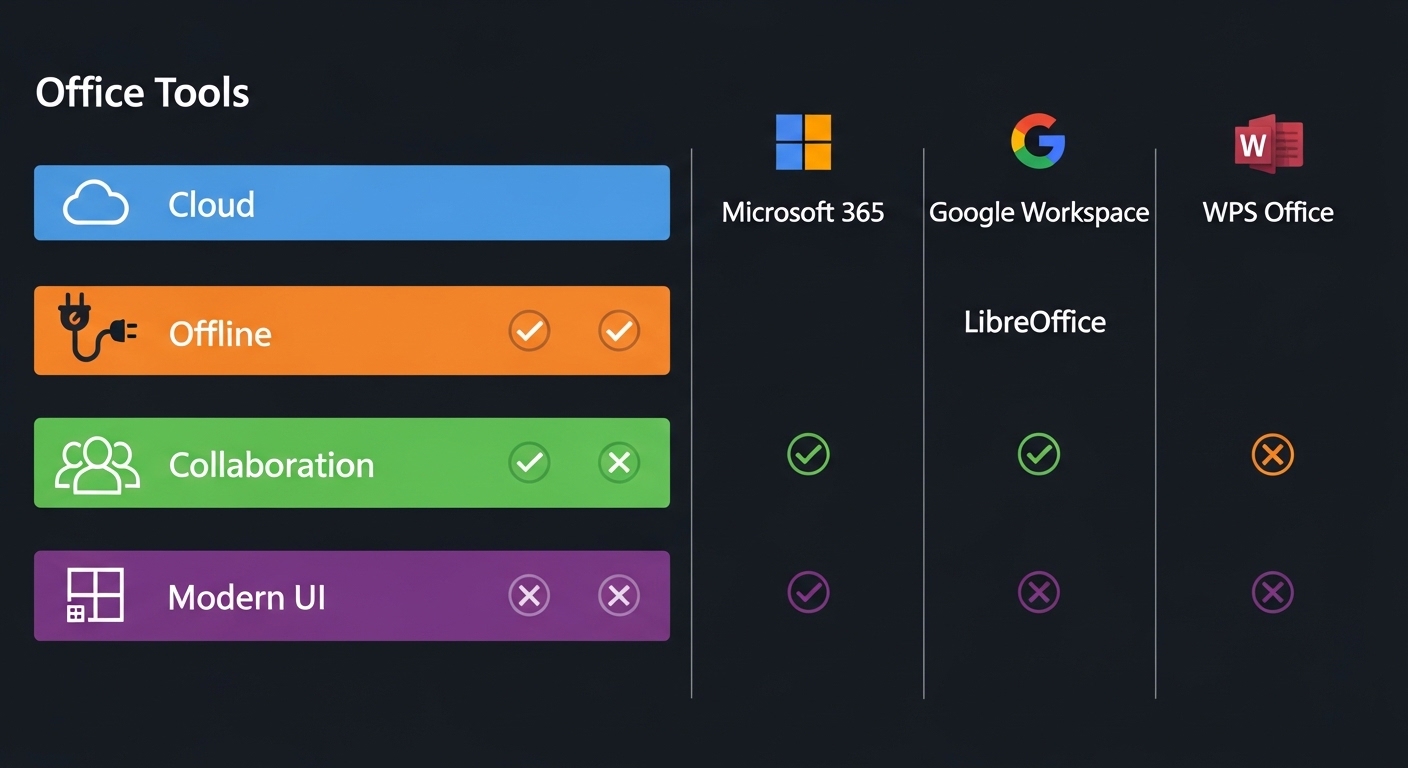
Feature Comparison
| Tool | Offline | Cloud | Collaboration | Best For |
|---|---|---|---|---|
| LibreOffice | ✅ | ❌ | ❌ | Offline users |
| Google Docs | ❌ | ✅ | ✅ | Teams |
| WPS Office | ✅ | ✅ | Limited | MS Office users |
| OnlyOffice | ✅ | ✅ | ✅ | Businesses |
| Zoho Office | ❌ | ✅ | ✅ | Startups |
Performance and Speed
- LibreOffice: Fast offline performance
- Google Docs: Depends on internet speed
- WPS Office: Lightweight and responsive
Best Use Cases
- Collaboration → Google Docs, OnlyOffice
- Offline Work → LibreOffice
- Lightweight Solution → WPS Office
Best Office Alternatives for Specific Needs

For Students
Google Docs and Zoho provide free collaboration and easy sharing.
For Business
OnlyOffice and Zoho integrate with CRM tools and workflow systems.
For Offline Use
LibreOffice is unmatched for offline productivity.
For Privacy-Focused Users
Open-source tools like LibreOffice ensure better data control.
Pros and Cons of Free Office Software
Advantages
- Free of cost
- Cross-platform compatibility
- Cloud integration
- Open-source flexibility
Limitations
- Occasional formatting issues
- Limited advanced features
- Ads in some tools (e.g., WPS)
Tips for Transitioning from Microsoft Office
File Conversion Tips
Always save files in DOCX or PDF to maintain compatibility.
You can also optimize file sizes before sharing using this helpful guide:
Reduce file size for uploading anywhere
Learning Curve
Choose tools with similar UI (like WPS Office) for easier transition.
Integration
Ensure compatibility with tools like Google Drive, Dropbox, or CRM systems.
Conclusion: Choosing the Right Tool for You
The best free Microsoft Office alternative depends on your needs. If you prioritize offline functionality, LibreOffice is ideal. For real-time collaboration, Google Docs is unbeatable. Businesses may prefer OnlyOffice or Zoho for their integrations.
Ultimately, modern free office suites have evolved significantly, offering powerful features that rival Microsoft Office—without the cost.
